In this article, we'll tell you how to add music to your Facebook profile . Facebook is a versatile social media app that lets you stay connected with loved ones, play instant games, watch short videos, and even bookmark your favorite products. Facebook really can do it all. With the vast array of features this social network offers, one recently launched feature is the ability to add your favorite songs to your profile.
Once you add the song, you can play it whenever you want and browse your profile to see the latest updates from your loved ones. You'll need to manually select the song to add to your profile. Sounds interesting, right? Let's find out how to easily add music to a Facebook profile.
You might also be interested in: How to permanently block someone on Facebook
Part 1: How to Add Music to Your Facebook Profile on iPhone and Android?
Here's something to keep in mind before learning how to add a song to your Facebook profile . This feature is only available for the Facebook apps on Android , iPad , and iPhone . This means you can't add music to your Facebook profile on the Facebook website. Instead, there are just a few simple steps you need to follow to get started:
- Step 1: Sign in to your Facebook account using the Facebook app for iPhone, iPad, or Android.
- Step 2: You will be taken to the news page directly upon logging in. You need to click on the profile picture that you can see at the top right.
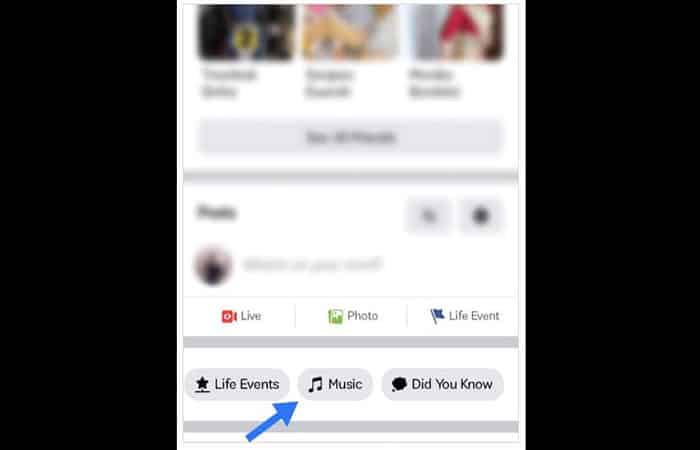
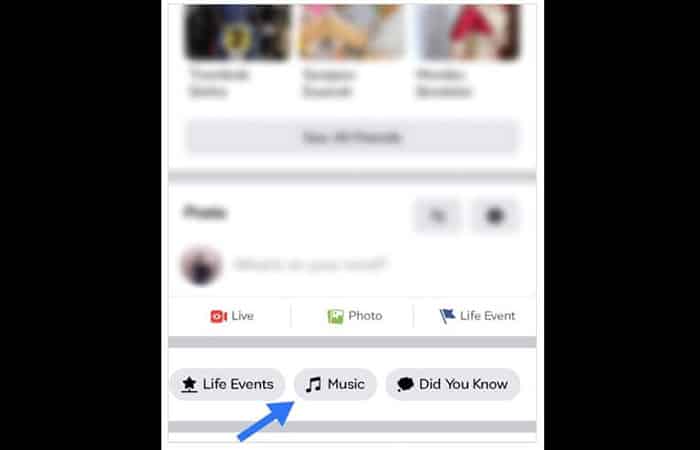
- Step 3: Once you are there on your profile page, scroll down a bit and you will see the tab Music. You need to touch her.
- Step 4: After doing that, you will be taken to the page of the Song. Click on the icon + and search for the song you would like to add to your profile. Once you find the specific song, click on the option Add and the song will be added.

Part 2: How to pin music and songs to Facebook profile?
There is another feature that Facebook allows you to use, and that is pinning songs. When you pin a song, it will be added to your profile. However, you can pin one song at a time. To do that, follow the steps below:
- Step 1: Go to your Facebook page and log in with your Facebook credentials. Please note that this feature is only available for smartphones and iPads.
- Step 2: Go to your profile page and look for the tab Music.
- Step 3: Now, click on the option Music. Each song will have three dots, click on them, and then you will see the option Pin to profile. Click there and the song will be pinned to your Facebook profile.
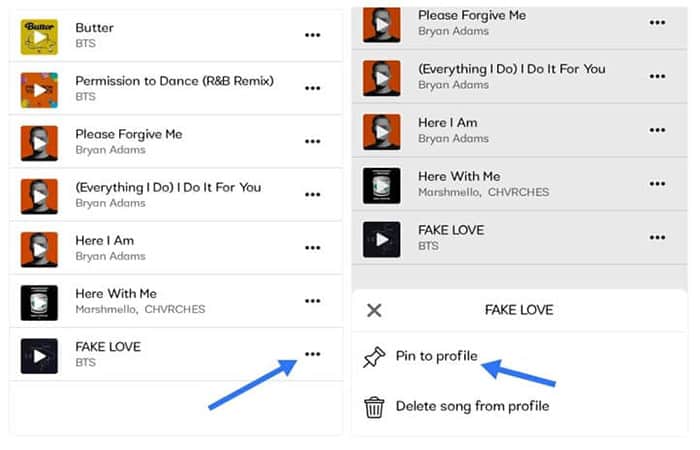
To check if the song is pinned to your profile or not, visit your Facebook profile and you will see it right below your profile picture.
You might also want to know: How to Add Two Call-to-Action Buttons to a Facebook Page
Part 3: How to play and listen to songs you have added to Facebook profile?
Adding music to your Facebook profile will make it look and sound better. And it's pretty obvious that after adding a song to your profile picture , you'll also want to hear it. So, here's how you can listen to the added song:
- Step 1: Launch your Facebook profile on your smartphone or tab and go to your profile page.
- Step 2: Once again, go to the option Music and click on it.
- Step 3: You will see all the songs you have added to your profile. Click on any of the songs to listen to it. You can also click on any piece to listen to it.
Part 4: How to remove unwanted music from Facebook profile?
Just like you can add music to your Facebook profile, you can also easily remove it. For example, you may be done with the song and want to replace it with a new one. Here is the step-by-step guide to do so:
- Step 1: Go to your Facebook profile page, not your news feed. On your profile, scroll down a bit and click on the Music icon.
- Step 2: Click on the three horizontal dots right next to the song and you will see some options.
- Step 3: you need to click on the deleted song from the profile option. By doing this, the song will be permanently removed from your profile.
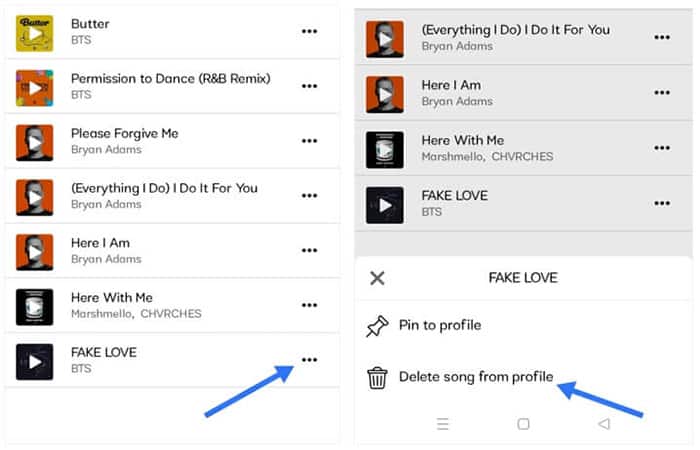
You can delete one or more songs.
Part 5: Where can I find the music feature on Facebook profile?
If you are someone who likes to express themselves through music, then Facebook can enable you to do so efficiently. This new feature was launched a few years ago. To find the Add Music feature on your Facebook profile, you need to follow the steps below:
- Step 1: First, launch your Facebook app and log in with your credentials. You will be redirected to the news feed page first. Once you are there, click on your profile to go to your profile page.
- Step 2: once you are there on your profile you need to scroll down a bit and you will see the tab Music.
- Step 3: Click on the Music tab. Since this is your first time using the feature, Music, the page Music will be blank.
- Step 4: click on the icon + you see on the top right and the music search window will appear. Here, you can search for the songs you want to add to your profile.
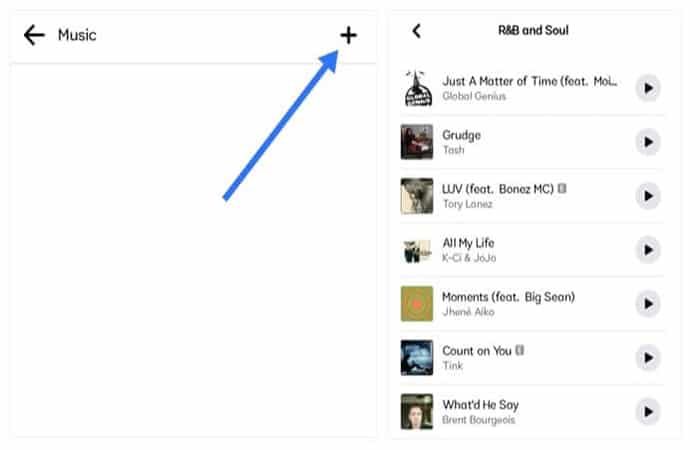
And that's how the Music feature works on Facebook.
Final thoughts
Music makes this world a better place, and we agree. Now that Facebook lets you add a song to your profile, feel free to express yourself better because you never know who you might inspire simply by adding a relatable song to your profile, right? Plus, you can choose a song to match your mood and add it to your profile to reflect how you're feeling.
The great thing about the Music feature is that it has billions of songs ready to be added to your profile. No matter what kind of music you like or what artist you listen to, Facebook has them all. Now that you've learned how to add music to your Facebook profile, try it out yourself and add your favorite songs to your profile to impress everyone.

My name is Javier Chirinos and I am passionate about technology. Ever since I can remember, I have been interested in computers and video games, and that passion has turned into a job.
I have been publishing about technology and gadgets on the Internet for over 15 years, especially in mundobytes.com
I am also an expert in online marketing and communication and have knowledge in WordPress development.