- God Mode brings together more than 200 advanced Windows settings in a single folder.
- It works on Windows 11 and also on earlier versions like Windows 10.
- It allows for extensive system configuration, but requires careful use.
- There are variants such as Extended GodMode and other special folders with GUIDs.
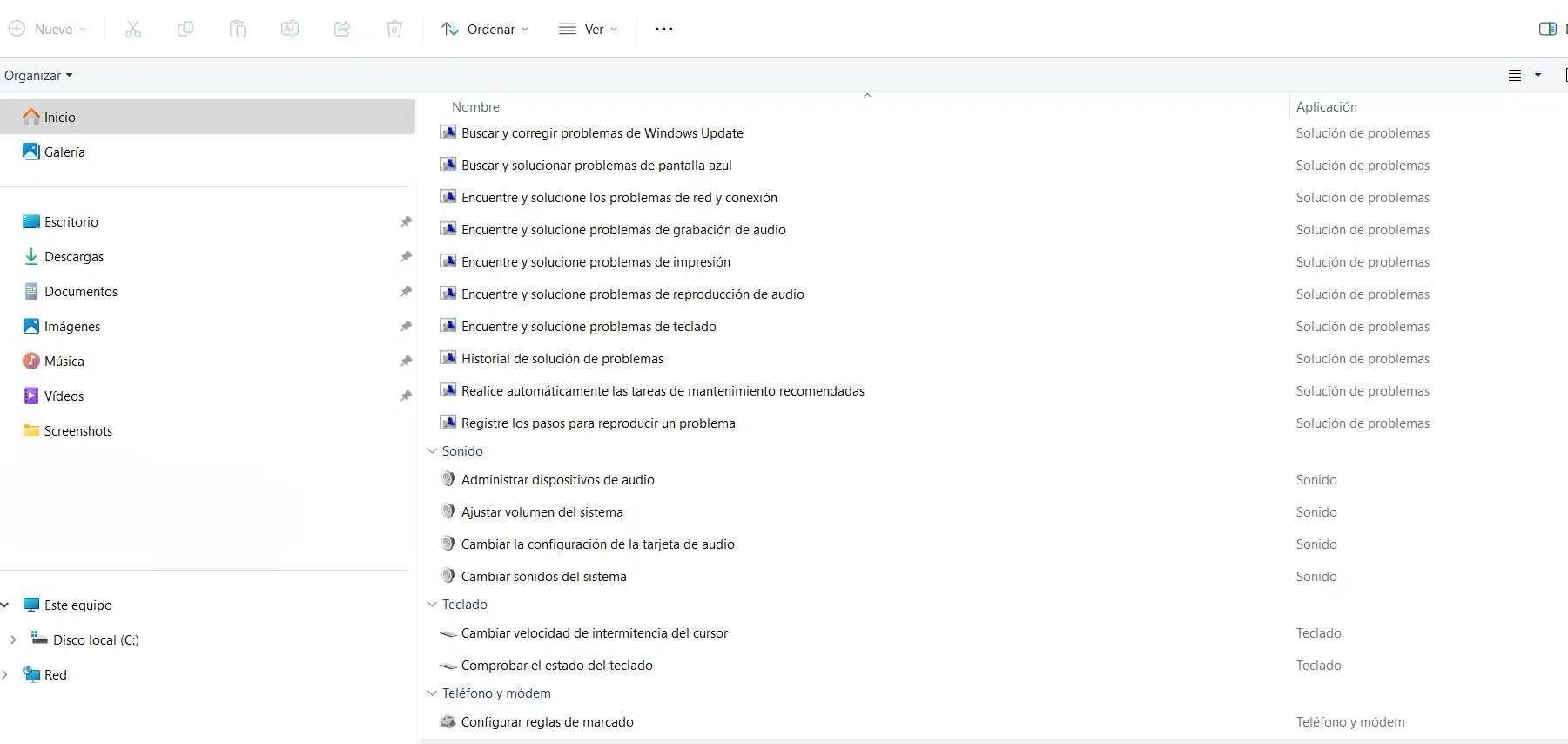
If you use Windows 11 and spend half the afternoon searching for every setting, you'll be very interested in what's coming. There's a hidden control panel with over 200 options all in one place, which Microsoft has never promoted much, but it still works today.
This panel is popularly known as God Mode or Windows God Mode . It won't make you invincible like in video games, but it does allow you to have control over virtually all system settings without having to jump between Settings, Control Panel, and menus scattered throughout the system.
What exactly is God Mode in Windows 11?

The so-called God Mode is actually a special access point to a vast array of advanced Windows tools and settings. Technically, it's not a magic "mode," but rather a special folder that, when named, transforms into a kind of master control panel.
This folder contains over 200 shortcuts to functions and settings that are normally spread across the classic Control Panel, the Settings app, and various submenus. Everything is organized by category in a single window, making it much easier to find what you need.
From there you can modify security, power, device, accessibility, network, region, and sound settings , as well as some fairly in-depth system options. Everything you could access from other menus, but concentrated in a single, much more comprehensive list than the traditional Control Panel.
It's important to understand that it doesn't give you powers that don't already exist in Windows . All the options that appear are the same ones you can find through other means. The advantage is that it centralizes them and presents them more directly, which saves time, especially for advanced users, administrators, and developers.
This "God mode" isn't new: it's been around since older versions like Windows Vista, Windows 7, Windows 8, 8.1, and even Windows 10. Microsoft has kept it because it's very useful as an advanced toolbox, also in Windows 11, even though the company's plan is to gradually replace the old Control Panel with the new Settings app.
What is God Mode used for in Windows 11?
The main goal of God Mode is to bring together almost all of the system settings that are normally scattered across different locations. Imagine having shortcuts to power management, user accounts, accessibility, devices, backups, and administrative tools all in one folder, without wasting time searching for them.
Furthermore, its greatest strength is its organization: the options are grouped into logical categories , allowing you to browse through sections until you find the function you need. For example, in the Accessibility Center section, you'll find everything related to visual, auditory, and interaction aids.
Within the accessibility category, you can, for example, activate or deactivate the on-screen keyboard with a single click, turn on Magnifier, change the Narrator's voice, or adjust how the physical keyboard behaves. Everything is conveniently located in one place, without having to remember which menu each setting is in.
Another key advantage is that the God Mode window includes a search box at the top . If you're unsure which category a setting falls under, you can type a keyword (for example, "power" or "keyboard") and the related options will be filtered, further speeding up the setup process.
It's important to emphasize that God Mode grants access to deep operating system settings . It doesn't break Windows security or bypass protections, but it does allow you to modify sensitive settings that, if misused, can cause strange behavior, loss of connectivity, or unwanted changes.
Compatibility and relationship with the classic Control Panel
Although Microsoft has been warning for some time that the classic Control Panel will gradually disappear in favor of the Settings app, the truth is that it's still very much alive in the background of Windows 11. God Mode relies precisely on many of these legacy components.
For now, God Mode works perfectly on all editions of Windows 11 and also remains operational on Windows 10. There are no guarantees that it will stay that way forever: Microsoft could change how to access it or even disable it at any time, but as of today, it remains fully functional.
In Windows 10 and Windows 11, the mechanism is the same: create a folder and rename it with a special string based on a GUID (a globally unique identifier). This string is what allows the system to recognize the folder as a special shortcut to the internal tools panel.
The advantage, especially in Windows 11, is that the company has greatly simplified the Settings app, sacrificing some advanced shortcuts that were previously more prominent. For expert users, God Mode is practically essential for maintaining a deep level of control over the system.
Thanks to this hidden panel, you can access things like troubleshooters, advanced power settings, device customization, or security and maintenance parameters in seconds , avoiding intermediate menus and obscure paths.
How to enable God Mode in Windows 11 step by step
The procedure for activating God Mode in Windows 11 is very simple and virtually identical to that of Windows 10. It doesn't require installing anything or modifying system files. You only need an account with administrator privileges to use all the available options.
First, it's recommended to check that your user account has administrator privileges . In Windows 11, you can do this from "Settings," then "Accounts," and checking the account type. In the "Family" or "Other users" section, you'll see if the account is Standard or Administrator, and you can change it if necessary.
Once you're sure you're using an administrator account, it's time to "invoke" God Mode. The trick is to create a folder on your desktop and give it a very specific name that includes the famous GUID associated with this hidden control panel.
The basic steps are these, applicable to both Windows 11 and Windows 10:
- Right-click on any empty area of the desktop and choose the "New" option, then "Folder".
- Rename the newly created folder and type this exact string: GodMode.{ED7BA470-8E54-465E-825C-99712043E01C} (copy and paste to avoid errors).
- Press the Enter key to apply the new name.
- You'll see that the icon stops being that of a normal folder and starts showing the classic Control Panel icon.
- Double-click on that icon and a window will open with a long list of categories and settings.
You are not required to use the word "GodMode" before the GUID. You can put any text before the period , for example "GodMode", "MasterPanel", or any name you like, as long as you keep the part in curly braces intact: {ED7BA470-8E54-465E-825C-99712043E01C}.
If you prefer to create it in a different location instead of on the desktop, that's perfectly possible. The trick works in any folder on any drive . Simply create the folder wherever you want and rename it using the same pattern, respecting the GUID.
Enable God Mode in Windows 10
Although the focus is on Windows 11, the same method works perfectly for Windows 10. The special folder functions identically and offers the same list of system tools and options, with slight variations depending on the version and the features you have enabled.
In Windows 10, it's also recommended that your account be an Administrator account to access all sections without restrictions. You can check this by going to "Settings" and then "Accounts." Under "Your info," you'll clearly see whether your user account is listed as Administrator or Standard.
If you're not an administrator, you'll need to change the account type from another account that is. To do this, go to "Accounts," then "Family & other users," select the desired account, and click "Change account type." Choose the Administrator option and accept the changes.
Once you have the appropriate permissions, simply follow the same steps as on the desktop: create a new folder and rename it with the GUID GodMode.{ED7BA470-8E54-465E-825C-99712043E01C}. Pressing Enter will automatically change the icon, granting you access to the extended panel.
Just like in Windows 11, the word before the period doesn't really matter . You can use "GodMode," "SuperGod," or whatever you want, as long as you keep the part in curly braces intact. The previous name is just the visible label of the folder; it doesn't affect how the special shortcut works.
Extended GodMode: an enhanced version of God Mode
If the standard panel isn't enough for you, or you want even more convenience, there's a free tool called Extended GodMode , developed by WinTools.Info, that expands on the concept and makes it more user-friendly. It doesn't replace the native God Mode, but it leverages it and adds features.
Extended GodMode offers over 200 centralized functions and settings , building upon existing configurations in standard GodMode and adding additional elements from the Control Panel and system administration tools.
Among its advantages are the ability to search and filter settings in an advanced way , create favorites lists with your most used options, and better organize a panel that, in its native form, can be overwhelming due to the huge number of available entries.
This utility has been in development for years: it originated in the Windows 7 era and has received updates to remain compatible with Windows 10 and Windows 11. It is distributed free of charge and can be downloaded from its creators' website without requiring any complicated configuration.
Although the manual method of creating the God Mode folder is very easy, Extended GodMode simplifies it even further and adds extra organization , which is appreciated if you frequently touch advanced settings or if you work managing multiple Windows computers.
Main categories and options available in God Mode
Once you activate God Mode and open the folder, you'll see a very long list of categories. Each one groups shortcuts to different functions. It's impossible to list all 200-plus items one by one, but we can highlight the most representative sections and some of what you'll find in them.
A key category is Accessibility Center . From here you can review your current accessibility settings, enable the Narrator screen reader, use audio descriptions for videos, adjust the system for people with visual or learning difficulties, and replace sound cues with visual prompts.
That same accessibility section also includes options to press key combinations one at a time , use FilterKeys to ignore repeated keystrokes, hear tones when certain keys are pressed, move the mouse pointer with the numeric keypad using MouseKeys, and disable automatic window arrangement.
In addition, from there you can disable unnecessary background images or animations to improve performance or readability, allow Windows to suggest accessibility settings, turn the on-screen keyboard, Magnifier, or high contrast on or off, and adjust how you control your computer without a mouse or keyboard.
Another important area is Power Options , from which you can choose or customize power plans, change what the power and sleep buttons do, adjust power saving settings, and define the computer's behavior when closing the lid on laptops.
In the Firewall and Security section, you'll find shortcuts to Windows Defender Firewall settings, the security and maintenance page, various system protection sections, and tools like system restore and file history management.
Other categories present in God Mode include:
- Color management: manage advanced color profiles for monitors, printers and scanners.
- Credential Management: manage saved Windows credentials and web credentials.
- Taskbar and navigation: customize the taskbar, lock or unlock it, group similar windows, and adjust button behavior.
- Work folders: manage corporate or shared work folders.
- Windows Mobility Center: access to typical laptop settings such as brightness, sound, synchronization, projection, etc.
- Center network and sharing: network settings, adapter changes, sharing options.
- Sync center: manage synchronization associations with other devices or folders.
- RemoteApp and Desktop connection: configure access to remote applications and virtual desktops.
- Tablet PC Setup: settings for devices with a touch screen or stylus.
- Backup and restoreTools for creating backups or restoring data.
- User accountCreate, delete, or modify accounts and their types, manage passwords, and other related options.
- Devices and printers: direct access to the classic view of connected devices.
- Storage spaces: management of grouped storage spaces and disks.
- Date and Time: time zone adjustment, additional clocks and time synchronization.
- Fonts: management of installed fonts.
- Management tools: access to utilities such as Event Viewer, Equipment Management, Services, etc.
- Pen and touch input: stylus parameters and touch controls.
- Mouse: advanced mouse settings.
- Indexing options: adjust what is indexed for searches.
- Internet Options: the classic Internet Explorer/Network Components settings window.
- File Explorer OptionsExplorer behavior, view, and caches.
- Programs and Features: uninstall programs, activate or deactivate Windows features.
- Speech recognition: voice input and dictation settings.
- Region: regional format, language, location.
- Automatic playbackWhat to do when connecting devices or inserting media.
- System: system information, advanced options, system protection.
- Problem solving: automatic assistants for diagnosing faults.
- Sound: playback and recording devices, levels, formats.
- Keyboard: repetition rate, distribution, etc.
- Phone and modem: telephone connection configuration.
In addition to all this, you can create individual desktop shortcuts for the settings you use most often: simply drag the specific option out of the God Mode window to have it always at hand without having to open the entire panel each time.
How to disable or remove God Mode
God Mode is not permanent and leaves no trace on the system beyond the folder you created. If at any point you feel it's unsafe to leave it visible, you can delete that folder and thereby "disable" access to this master panel without further consequences.
To remove it, locate the folder you used for God Mode, right-click on it, and select Delete . This will move it to the Recycle Bin. If you want it to disappear completely, go to the Recycle Bin and delete it permanently.
Another option is to use the keyboard shortcut Shift + Delete on the folder. This will delete it directly without going to the Recycle Bin. Windows will ask if you want to permanently delete it; accept, and access to it will disappear from the system.
In both cases, simply create a new folder and rename it with the appropriate GUID if you later decide to reactivate God Mode . Deleting this folder has no side effects and won't affect any previous changes you've made.
Other useful special folders and GUIDs besides God Mode
The God Mode trick is based on a simple idea: Windows has special identifiers (GUIDs) associated with specific control panels , and if you rename a folder with one of those GUIDs, it becomes an advanced shortcut.
This means you can create other folders specifically for particular functions without having to carry the entire God Mode list. Simply repeat the process of creating a new folder and renaming it with the desired text followed by a period and the corresponding GUID.
Some examples of names you can use as a basis for these special folders are the following (remember to copy the exact line and apply it as the folder name, without any extra spaces):
- Red.{F02C1A0D-BE21-4350-88B0-7367FC96EF3C}
- Programas.{17cd9488-1228-4b2f-88ce-4298e93e0966}
- Planesdeenergia.{025A5937-A6BE-4686-A844-36FE4BEC8B6D}
- Bluetooth.{28803F59-3A75-4058-995F-4EE5503B023C}
- Ratón.{6C8EEC18-8D75-41B2-A177-8831D59D2D50}
- Impresoras.{2227A280-3AEA-1069-A2DE-08002B30309D}
- Personalización.{ED834ED6-4B5A-4bfe-8F11-A626DCB6A921}
- Problemas.{C58C4893-3BE0-4B45-ABB5-A63E4B8C8651}
- Administrador.{D20EA4E1-3957-11d2-A40B-0C5020524153}
- Firewallyseguridad.{4026492F-2F69-46B8-B9BF-5654FC07E423}
- Administrarcredenciales.{1206F5F1-0569-412C-8FEC-3204630DFB70}
It's very important that you create a separate folder for each GUID . Don't try to rename the same folder multiple times by only changing the identifier, because Windows might not update the association correctly or might stop recognizing the access. If you no longer need one of these folders, delete it just like you would delete God Mode.
To delete these special shortcuts, the procedure is identical: right-click and select "Delete," or use the Shift + Delete key combination to remove them without going to the Recycle Bin. They do not affect the system beyond providing a quick access route to those specific panels.
Risks, precautions, and best practices when using God Mode
Although God Mode doesn't break Windows security or bypass restrictions, it's still a direct gateway to a lot of sensitive settings . Most options are harmless, but others can significantly alter system behavior if changed unknowingly.
Functions related to networking, security, user accounts, or advanced system settings are especially sensitive. An incorrect change to the firewall, network rules, or user permissions can lead to connectivity issues, vulnerabilities, or login problems.
Therefore, it's recommended that before delving into these menus, you create a backup of your important data and a system restore point . This way, you can revert to previous settings if something doesn't go as planned or if, after adjusting a particular parameter, the computer behaves erratically.
Another good practice is managing access: try to ensure that only trusted users have accounts with administrator privileges on the computer, and avoid leaving the God Mode folder visible if you share the computer with people who might mess around without knowing what they are doing.
When you're about to make a change, take a moment to carefully read the description of each option . In many cases, the panel text itself clearly explains what will happen when you change a value or check a box. If you have any doubts, it's best to research it first or leave that section untouched.
In short, Windows 11's God Mode is a kind of Swiss Army knife for the system: powerful, very practical for saving time, and perfect for advanced users , but it should be handled with some respect so that, instead of helping you, it doesn't become the source of a whole host of headaches.

Passionate writer about the world of bytes and technology in general. I love sharing my knowledge through writing, and that's what I'll do on this blog, show you all the most interesting things about gadgets, software, hardware, tech trends, and more. My goal is to help you navigate the digital world in a simple and entertaining way.