- Gemini: replaces Assistant in Google TV Streamer with natural voice and contextual responses.
- It offers comprehensive recommendations, series summaries, and educational lists with YouTube.
- Progressive deployment, IA Available for ages 18+ and TV settings and Google Home.
- Privacy under control: optional activity, Voice Match and feedback from the TV itself.
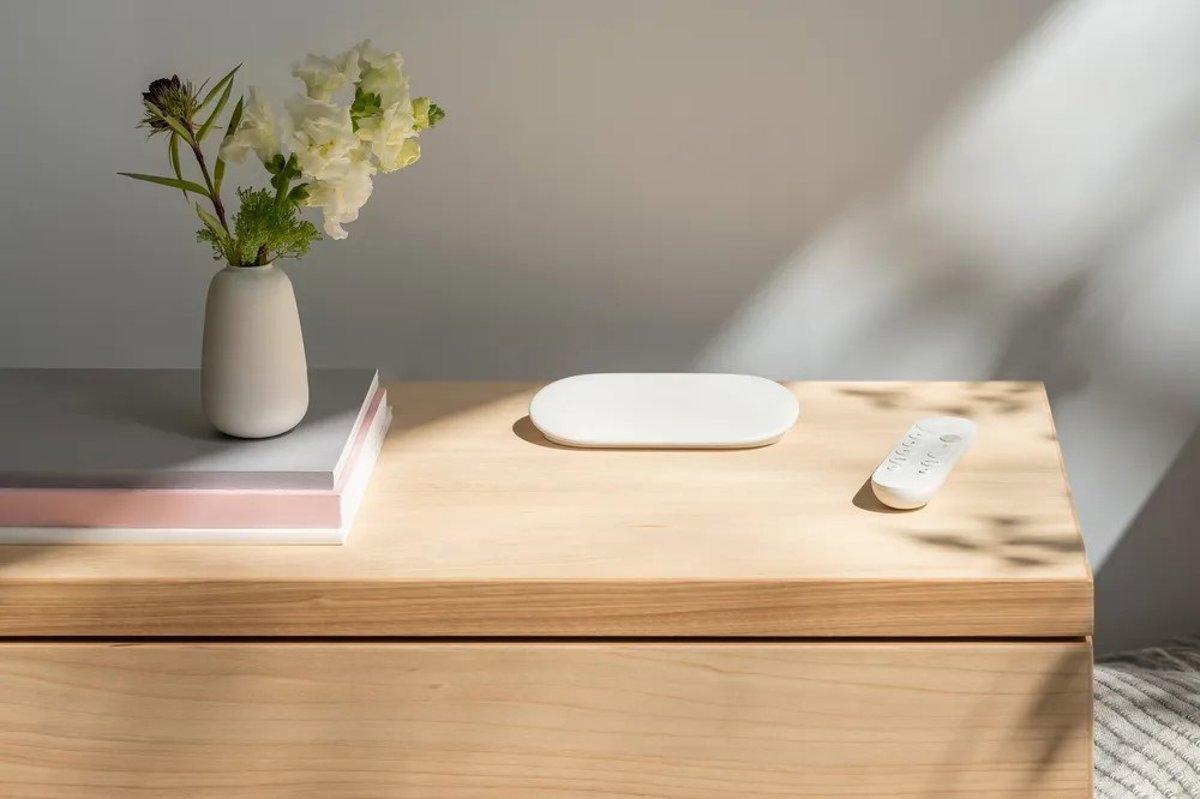
Those who own a Google TV Streamer are in luck: an update is coming that, without exaggeration, seems to be the biggest in its lifespan. Gemini for TV is now available, Google's conversational AI that takes over from Assistant and opens the door to natural queries, contextualized responses, and a much more flexible viewing experience.
The best part is that this device connects to almost any TV, so the new feature isn't limited to models with built-in Google TV. In other words, with the Streamer, Gemini expands to TVs of a wide variety of brands and systems , and it's doing so with a gradual rollout that may take a few weeks to reach everyone . Activation is as simple as pressing the microphone button on the remote or saying "Hey Google," and you'll see a clearer, full-screen interface for interacting with the AI.
What is Gemini for TV and why does it matter on the Google TV Streamer?
Gemini for TV is Google's offering for a freer and more powerful conversation with the big screen . Everything you could do with Assistant is still there, but now you can have smoother exchanges, ask for complex recommendations, get answers to all kinds of questions, and even make plans with the family from the couch.
The arrival of Google TV Streamer isn't just a simple addition: it represents a leap forward from the previous assistant. Instead of being limited to rigid commands, you can speak as you would to another person and get responses tailored to your tastes, your context, and what you're watching. Google explains that the goal is to make TV a more useful entertainment and learning hub , without having to rely on your phone for every query.
Furthermore, there's a key difference: by connecting to any TV, the Streamer allows Gemini to reach more screens than ever before , even TVs that don't run Google TV. This transforms a "normal" TV into an experience that understands what you want to watch, suggests more refined options, and provides information and context when you need it.
This rollout isn't happening overnight. Google's deployment is being done in phases, so it's normal for some accounts to receive it before others . In the preceding months, some TVs with Google TV—such as models from TCL and Sony —have already started seeing Gemini; now it's the Streamer's turn, which adds the most complete and robust version of the assistant based on its latest AI.
What you can ask for: frictionless entertainment
Gemini's strength for TV lies in its conversational search. If you want to watch something everyone will enjoy one night, you can say something like, "I love dramas, but my partner prefers comedies; what should we watch together?" The AI can cross-reference preferences and return suggestions that suit both of you . No more endless arguments over choosing a movie.
Is your favorite show coming back and you can't quite remember where you left off? Ask Gemini to fill you in: "What happened at the end of the last season?" Gemini summarizes the essentials so you can pick up the plot fresh and without unnecessary spoilers , and it does so in natural language, as if a friend were telling you.
- Recommendations by mood or mix of genresTell her what you feel like watching and who you're going to watch it with.
- Instant updateAsk about the season finale of that series you left on pause.
- "Void" searchesIf you can't remember the title, describe the series. If you say "that new hospital drama everyone's talking about," Gemini can suggest options and even mention specific titles, like "The Pitt," for you to choose from.
- Follow-up questionsOnce you have a few suggestions, ask for more information, for example "what reviews does The Pitt have?" to refine your choice.
Another very interesting new feature is the creation of YouTube playlists with a specific objective. If you enter "Explain to a 12-year-old how the International Space Station works," Gemini will group videos with an educational approach appropriate for that age. It's an ideal resource both for learning at home and for reinforcing what's covered in class.
This conversational approach also simplifies everyday tasks. From the remote (or with your voice), you can ask it to open apps , search for content, display additional information about actors or directors , and navigate through options without losing track of the conversation. Everything is integrated into a full-screen interface designed for reading responses and continuing the conversation without feeling overwhelmed.
Beyond the sofa: learning and connected home
In the realm of home automation, integration with Google Home enables practical features like "Show me the back garden camera." Your TV becomes the control panel for your smart home , providing access to cameras, lights, and other compatible devices. It's convenient when your hands are full or you don't want to use your phone.
All of this is activated by pressing the microphone button on the controller or using a hands-free device that supports it. The idea is that you don't need to be typing or navigating through endless menus: you speak, see the answer, and decide. And if it doesn't get it right the first time, you can clarify with a follow-up question.
The AI's response adapts to your query and the screen. Unlike previous solutions, here you'll find conversations that flow smoothly , where you can change the subject, return to a recommendation, ask for clarification, and add conditions ("please make it 90 minutes") without breaking the context.
Availability, profiles and requirements
The rollout of Gemini for TV on the Google TV Streamer is gradual and regional . Google has already launched it on televisions with Google TV and is now bringing it to the Streamer, promising to expand its reach to more devices, regions, and languages as the rollout progresses . It's normal for it to take several weeks to complete.
Important: When you activate Gemini for TV on your account, all compatible TVs linked to that account will automatically have the feature enabled. This saves you from having to configure it one by one.
There are age limits: Gemini for TV's AI-generated responses are only available to user profiles of those 18 and older . It doesn't appear on child profiles, and if the profile isn't a child profile but the user is under 18, they will continue to receive responses from the classic Google Assistant instead of Gemini.
It's important to remember that Gemini for TV is optimized for Google TV devices and is not the same as the Gemini apps on mobile, tablet, or computer. It has its own set of settings on the TV and in the Google Home app.
How to activate Gemini on your Google TV Streamer
You can enable it directly from the TV itself very easily. The typical menu path is this, with names that may vary slightly depending on the version:
- Go to Settings.
- Sign in Accounts and profilesSelect your account and then Voice assistant.
- Choose Gemini for TV to activate it
If you prefer to set it up or check its status from your phone, the Google Home app can also help. Make sure your phone and TV are on the same Wi-Fi network and follow a process similar to this:
- Opens Google Home and log in with the same account you use on your TV.
- Create your "home" if you haven't already and press add device (symbol «+»).
- Link the Google TV or the Streamer when it appears in the list of detected devices.
- Once linked, the account is ready to receive payments. Gemini on TV as soon as the rollout reaches your region and profile.
You can also personalize the assistant's voice. In Settings, you'll find the section for Gemini's most expressive voices for TV; your selection can be applied to your Google TV, compatible speakers, and smart displays. Changing it helps you find the tone you prefer.
In terms of use, access is straightforward: simply press the microphone button on the remote and start speaking. If your TV or streamer supports hands-free calling, you can activate "Hey Google" to avoid using the remote, provided the microphone is physically turned on.
Hey Google and the microphone: hands-free without the hassle
To use hands-free, make sure the device's microphone is enabled. There might be a switch on the TV, the remote, or the streamer itself. If it's off, the streamer won't hear you even if the option is enabled in the software . Consult your model's manual if you can't find the setting.
The usual menu path for hands-free calling is: Settings > Accounts and profiles > Your account > Voice assistant > Hands-free microphone . Activate it and you'll be able to launch "Hey Google" with the TV on or in standby mode.
Keep a couple of things in mind. First, Gemini for TV can be triggered by sounds similar to "Hey Google" ; it's rare, but a false positive could occur in noisy environments. Second, if multiple devices respond to the keyword, usually only one will answer , depending on factors such as proximity, your voice volume, the type of request, and the capabilities of each device.
If at any point you don't want to be heard, you can mute the microphone with the physical switch or disable the hands-free function in the settings. This way, you can still speak using the remote's button when you need to.
Personal results, Voice Match and multi-user
Gemini for TV can display personal results from services like Google Photos or Google Calendar on the screen. Before activating it, keep in mind that anyone using that TV will be able to see the data from the profile currently logged into the device, unless you configure Voice Match.
With Voice Match, the system attempts to recognize your voice to display only your information when you speak. If you share the TV at home, it's a good idea to activate this feature and also add members to your smart home through the Google Home app so everyone can have their own personalized experience.
If you haven't added your TV to Google Home yet, do it as soon as possible. Once linked, you'll be able to manage profiles, rooms, access, and permissions more easily , and it will be simpler to control the rest of your home devices from the same app.
Privacy and data control
If you enable Web & App Activity in your Google account, your interactions with Gemini for TV will be saved in the "Google Assistant" section. From there, you can review and delete recorded activity at any time.
Google reminds users that Gemini is evolving and may occasionally provide inaccurate, offensive, or inappropriate information ; do not take its responses as medical, legal, financial, or professional advice. To help improve the service, you can provide feedback by tapping a thumbs up or thumbs down on responses and saying "Send feedback" if you'd like to provide more details using your voice.
For security, if you prefer not to save anything, you can disable activity tracking or clear your history periodically. You can also review personal results permissions and adjust Voice Match settings to reduce data exposure on shared TVs.
Finally, remember that Gemini for TV has its own settings on both your TV and Google Home. Reviewing these settings at the beginning will save you from surprises and allow you to fine-tune how, when, and where your information appears.
Compatibility and ecosystem
The integration of Gemini into the Google TV Streamer comes after its initial rollout to TVs with Google TV. In recent weeks, brands like TCL and Sony have begun receiving the update on some models. Now the Streamer picks up the mantle to bring the experience to any HDMI- compatible TV .
When the new Google TV Streamer launched, it already included AI features based on Gemini . The new version being rolled out now is more comprehensive: more natural interactions , better recommendations, and greater consistency between what you see and what you ask. Essentially, it's a more capable assistant than the previous Google Assistant.
Furthermore, the company anticipates that the rollout will continue to expand, reaching more devices with Google TV and, later, televisions with Android TV . New languages and countries will also be added, with a particular focus on markets where Google TV is widely used.
One detail worth noting: Gemini for TV is different from the Gemini apps on mobile, tablet, or computer . Although they share the same underlying technology, their settings and focus are designed for the living room: large screen, remote control, hands-free calling, and a full-screen interface that makes reading from the sofa easy.
How to know if you've received it yet
The rollout is happening in waves and depends on more than just the country: the account, device, and software version all play a role. If you want to check if you can already use Gemini for TV, there are two quick checks :
- From TVGo to Settings and look for the section on Accounts and profiles > Your account > Voice assistantIf "Gemini for TV" appears, you can activate it.
- From Google HomeMake sure your TV or streamer is linked. If not, add it using the "+" symbol, on the same Wi-Fi network and with the same Google account.
Another good practice is to check for pending system updates on your TV. Go to System or About device and run "System update." These firmware updates often include pre-installation support for new features like Gemini, so installing and restarting your TV can speed up the process.
If you don't see it yet, be patient. Google confirms that the rollout may take several weeks . In the meantime, get everything ready (linked account, TV added to Google Home, and software up to date) so that as soon as it arrives in your area and profile, it will activate without any problems.
With Gemini on the Google TV Streamer, television takes a leap forward that's noticeable from the very first minute: personalized recommendations, natural language searches, contextual summaries, and educational YouTube playlists , plus smart home control and hands-free calling. All of this is rolled out gradually, with clear privacy options and specific settings for the living room. If you already relied on Assistant for specific tasks, get ready, because the experience is now more conversational, helpful, and focused on what you want to watch.


Passionate writer about the world of bytes and technology in general. I love sharing my knowledge through writing, and that's what I'll do on this blog, show you all the most interesting things about gadgets, software, hardware, tech trends, and more. My goal is to help you navigate the digital world in a simple and entertaining way.