- Error 0x8007007f in Windows It usually appears due to problems with permissions, space, drivers or corrupt files when upgrading to Windows 11.
- Running the installation wizard as an administrator and keeping your operating system and drivers updated are key to avoiding this.
- Freeing up disk space and checking the integrity of system files are recommended steps before starting the upgrade.

Encountering an error message during a Windows update can be a frustrating experience, especially if the operating system promises significant improvements, as is the case with Windows 11. Among the most frequent errors in recent times is 0x8007007f , which has left many users scratching their heads and wondering what the real cause is and how they can fix it without having to resort to a technician.
In this article, we'll delve into the origin of this error , its main causes, why it almost always appears when using the Windows 11 Setup Assistant, and, most importantly, we'll review effective solutions that have worked for users worldwide. We'll do all this without unnecessary steps, focusing on practical and easy-to-follow tips so you can get back to enjoying your computer as soon as possible.
What is error 0x8007007f in Windows?
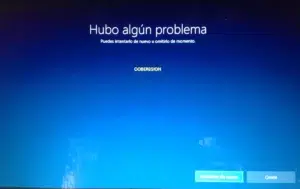
Error 0x8007007f is an installation failure that occurs primarily when attempting to update the operating system, especially during the upgrade from Windows 10 to Windows 11 using the Setup Assistant . The message displayed on the screen is usually quite brief, typically only stating that "something went wrong" and including the error code, but without providing specific details about the cause , which makes troubleshooting difficult at first glance. To better understand related issues, you can consult this article about ntoskrnl in Windows.
This issue has been reported on social media, in forums, and in specialized media since the release of Windows 11. Although it affects a minority of users, it has become relatively common on computers that apparently meet all the requirements for the update. The lack of clear information about what causes this error has generated some confusion and led to trial and error solutions, some more effective than others.

Main reasons for error 0x8007007f
Based on information gathered from forums, tech media, and user experience, this error is usually related to permission problems, insufficient disk space, driver incompatibilities, or corrupted system files . Let's break down each of these reasons to better understand why it occurs:
- Insufficient permissions (UAC): Many users do not run the Setup Wizard with administrator privileges. User Account Control (UAC) Limits certain actions when elevated permissions are not granted, preventing the update from having full access to the system.
- Outdated version of Windows 10: Trying to jump to Windows 11 from a old version of Windows 10 may cause incompatibilities that lead to errors.
- Space of storage insufficient: It's common for the system disk, usually the C drive, to run out of space. For a safe update, it's recommended to have at least 9 GB free, but the more the better.
- Outdated graphics card drivers: If the GPU drivers are not updated, they may block or hinder the update process.
- Corrupted system files: Any corruption in the critical operating system files may cause errors during installation.
In addition to these factors, cases have emerged where other installed drivers, problems with network software (such as those related to Intel Killer or SmartByte), or incompatibility with virtualization programs (such as Oracle VirtualBox) have caused this failure. Even secondary errors, such as the code "Ox8COF0830 – ox2W03" during the SAFE_OS phase, have been reported.
When and where does error 0x8007007f appear?
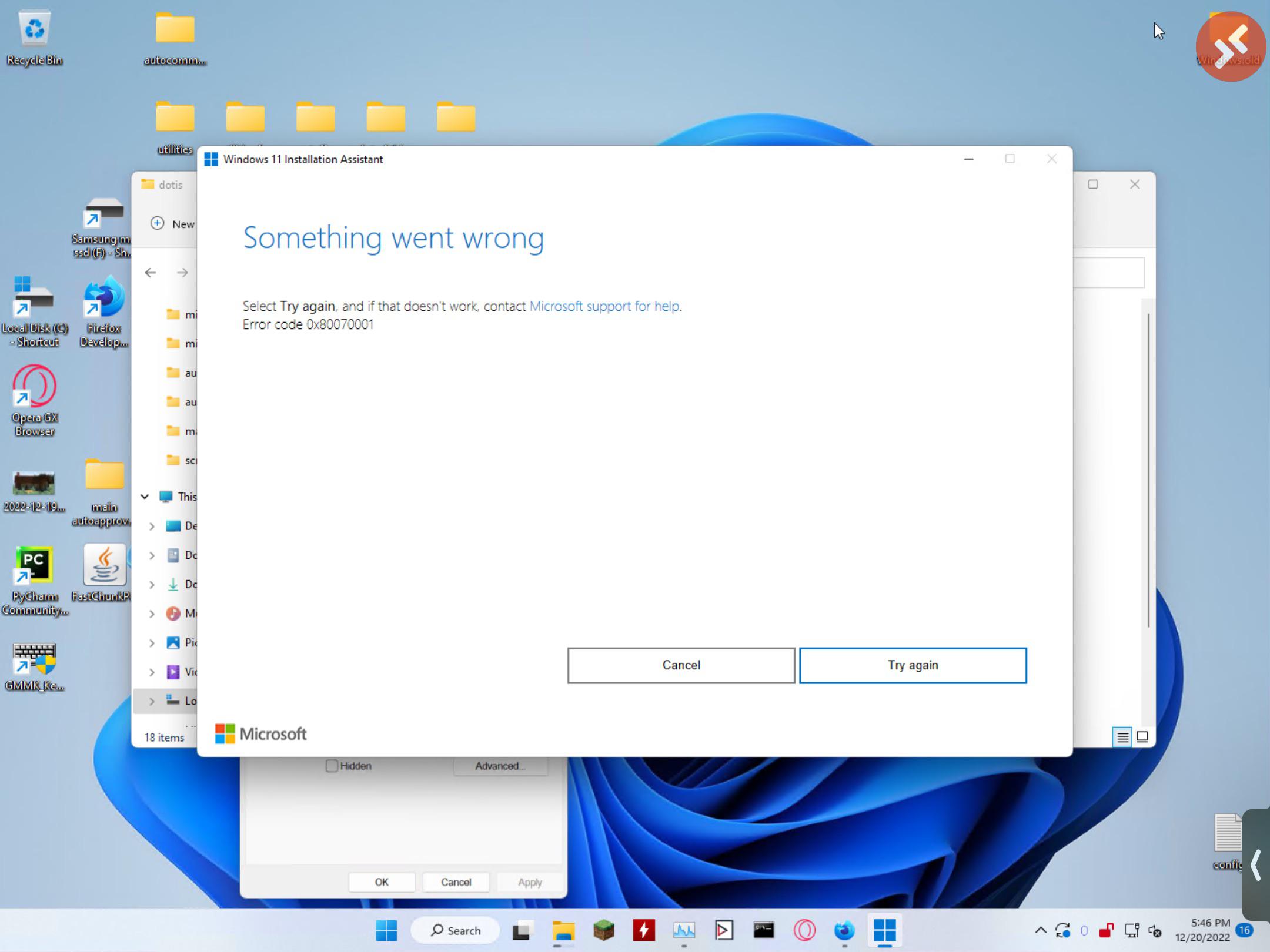
The vast majority of those affected by this error have attempted to upgrade to Windows 11 using the official Microsoft Setup Assistant . It's important to note that this error doesn't typically occur when using the direct upgrade through Windows Update , nor when using alternative installation methods such as creating a bootable USB drive . You can find instructions on how to avoid these problems in this guide on exiting S mode in Windows 10 and 11.
The error typically occurs just after starting the update process, when the wizard checks the system and begins preparing the environment. Often, the message is so generic that it's difficult to identify the source of the problem without resorting to more detailed solutions or searching through forums and technical communities.
To a lesser extent, the error may also appear on computers that have already successfully run the update, but subsequently experience instability or issues related to drivers or network software, as is the case with the aforementioned conflict between Intel and the Vietnamese browser Cốc Cốc.
Effective solutions for error 0x8007007f in Windows
After reviewing expert recommendations and real-world user experiences on forums and in the media, we can summarize five main solutions that have proven effective in most cases. Here's a detailed explanation of each one to help you resolve the problem without unnecessary complications.
1. Run the Setup Wizard as administrator
The simplest and quickest solution is to run the installer with administrator privileges . To do this, simply locate the file “Windows11InstallationAssistant.exe”, right-click it, and select “Run as administrator”. This grants elevated permissions, allowing the wizard to access all the system files, resources, and settings necessary for the update.
Don't forget to confirm the User Account Control (UAC) prompt when the pop-up window appears. Once you've granted permissions, follow the wizard's steps and check if the error persists. Many users have reported that this single step was enough to continue the update without further issues.

2. Update Windows 10 to the latest version
Sometimes, the error is related to trying to upgrade from an older version of Windows 10 that is no longer compatible with the new upgrade assistant. Therefore, it's recommended to ensure your computer is fully updated before upgrading to Windows 11. To do this, follow these steps:
- Open the menu Home and enters Configuration.
- Access the section Update and security and select Windows Update.
- Press on Search for updates and if there are any new features, install them all.
- After restarting, try the Windows 11 Setup Wizard again.
Microsoft advises that it's recommended to be at least on version 2004 of Windows 10 to ensure a smooth transition.
3. Check and free up disk space
A common cause of this and other update errors is insufficient space on your system drive . Before trying anything else, make sure you have at least 9 GB of free space on your C drive, though ideally you should have plenty to spare to avoid future problems. You can also check out this article on device and update errors for more tips.
- Open the File Browser, right click on C: and select Properties.
- Use the tool Free up space to remove Temporary files, caches, old installations or any unnecessary items.
- You can do additional cleaning in the section Clean system files, paying special attention to the option of Windows update cleanup.
- Empty the trash and delete programs you don't use if you need more space.
Once you have enough free space, try the update again.
4. Update the graphics card drivers
Outdated graphics card drivers are another source of errors during the update process. Windows 11 places particular emphasis on graphics compatibility, so it's advisable to update these drivers before using the wizard.
- Right click on the button Home and select Device administrator.
- In the section Display adapters, locate your graphics card, right click and choose Update Driver.
- Select option Search for drivers automatically and follow the steps to install the latest available version.
Updating this part usually fixes conflicts that, although they don't appear in older versions of Windows, block the process of upgrading to Windows 11.

5. Check the integrity of system files
A less frequent scenario, but one that is especially common on computers that haven't been formatted in a while , is system file corruption . To check for damaged files, use the System File Checker (SFC) tool:
- Click on Home and writes cmd in the search bar.
- Right click on Symbol of the system and choose Run as administrator.
- In the window of commands, enter sfc / scannow and press Enter.
- Wait for the scan to complete and follow the on-screen recommendations.
This check can find corrupt critical files and repair them to allow for a future error-free upgrade.

Other errors and associated problems during the update
Although error 0x8007007f is the most common when using the Installation Wizard, other related failures were reported during and after the Windows 11 update:
- The error “Ox8COF0830 – ox2W03” usually appears in the SAFE_OS phase and indicates problems with installed drivers.
- Network software compatibility issues such as Intel Killer and SmartByte, which may slow down your Internet connection after the update.
- Conflicts with virtualization applications, specifically Oracle Virtual Box.
- Minor bugs due to incompatibility with unusual browsers (e.g. Vietnamese Cốc Cốc).
- Abnormal RAM usage by File Explorer in Windows 11, reported by some users after updating.
Microsoft maintains an up-to-date list of known issues , although most of them affect a small group of users and are usually fixed in future updates.
Why does this bug only affect some devices?
Not all compatible computers experience the 0x8007007f error, and this is due to a combination of factors such as the age of the hardware , the installed drivers, available disk space, and the state of the operating system. A computer that has been recently formatted, updated, and has current drivers is much less likely to encounter this error than one that has gone years without basic maintenance.
Furthermore, since this error is directly linked to how the wizard is run or what version of Windows 10 is installed, the possible causes are very broad , and the effective solution may vary from case to case.


Passionate writer about the world of bytes and technology in general. I love sharing my knowledge through writing, and that's what I'll do on this blog, show you all the most interesting things about gadgets, software, hardware, tech trends, and more. My goal is to help you navigate the digital world in a simple and entertaining way.