The persistent notifications feature in iOS means you can keep notifications on your iPhone 's lock screen until you dismiss them. Here are the steps to enable persistent notifications on your iPhone or iPad.
Enable persistent notifications on iPhone
Normally, notification previews last only a few seconds on the iPhone lock screen and disappear fairly quickly.
As you might expect, this setting isn't suitable for busy days when you don't have the time or opportunity to check the notifications that appear on your iPhone's lock screen.
On those busy days, you can use iOS's persistent notifications feature to keep notifications on your iPhone's lock screen for an extended period of time.
Unlike regular notifications, persistent notifications remain completely on your iPhone's lock screen and don't go away until you delete them or you manually remove them.
This ensures that you don't miss any necessary notifications on your iPhone.
- Related: Learn how to disable the lock screen reply feature on iPhone and iPad
Allow persistent notifications on iPhone
Persistent notifications are usually not enabled by default on your iPhone or iPad and must be turned on through the Settings app on your iOS system. So follow the steps below to enable sticky or persistent notifications on your iPhone.
1. Open Settings on your iPhone or iPad
2. On the Settings screen, click the Notifications option button.
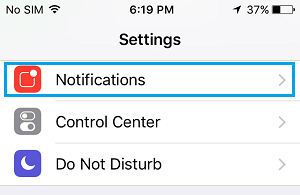
3. On the notifications screen, swipe down and tap the precise app icon for which you need to allow persistent notifications.
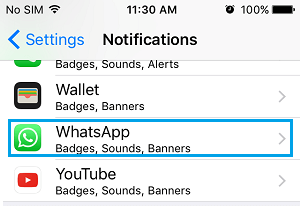
4. On the app's notification settings screen, scroll down until you see two phone icons labeled "Short Term" and "Persistent." Tap the Persistent icon and choose to allow persistent notifications on your iPhone for this specific app.
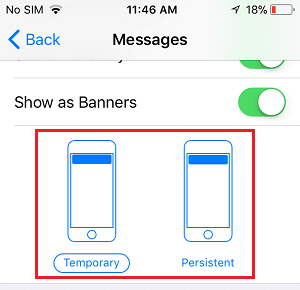
In case you're wondering, there's no option in iOS to use Persistent Notifications worldwide or for all apps without delay. Persistent notifications can only be enabled for personal apps or for one app at a time.
Also, there is no method to quickly enable persistent notifications on iPhone from the management center. You will have to do it through the Settings app, following the steps above.
- Find out how to block notifications from any app on the iPhone
- Find out how to disable push notifications on iPhone and iPad
- Learn how to fix duplicate message notifications on iPhone

My name is Javier Chirinos and I am passionate about technology. Ever since I can remember, I have been interested in computers and video games, and that passion has turned into a job.
I have been publishing about technology and gadgets on the Internet for over 15 years, especially in mundobytes.com
I am also an expert in online marketing and communication and have knowledge in WordPress development.