- VMware perpetual licenses continue to work after support expires, but without the right to updates or official support.
- When the vCenter license expires, the ESXi hosts are disconnected from the inventory, although the virtual machines continue to run.
- Upgrading from vSphere/vCenter 7 to 8 during support extends the platform's lifespan until the official end of life of the version.
- Renewing licenses or switching to subscription models reduces security, compatibility, and support risks in critical environments.
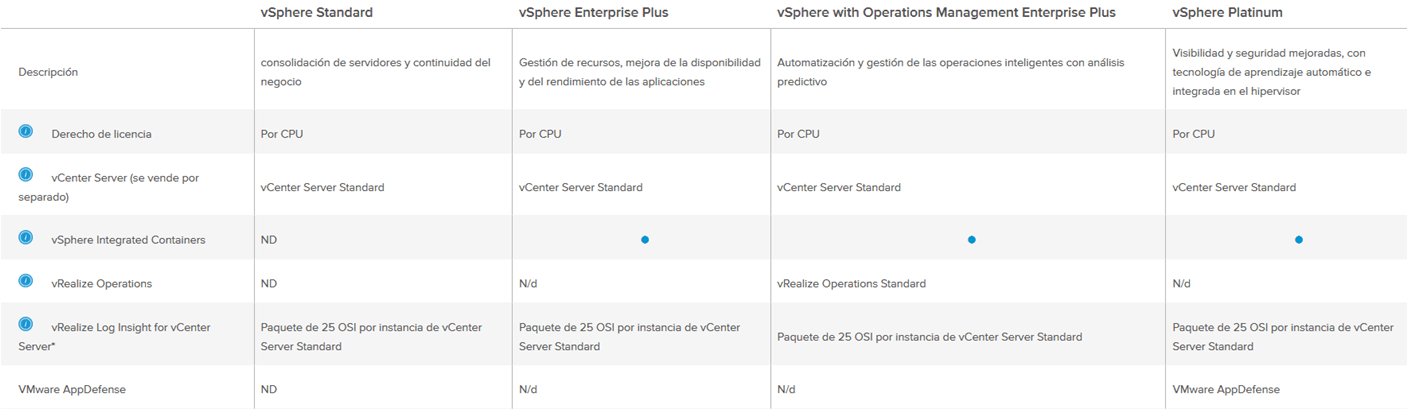
Understanding how VMware licenses work has become considerably more complex since the business model changes and the end of traditional perpetual licenses. If you manage environments with vSphere and vCenter, it's normal to have questions about what happens when your license expires, what happens if you don't renew support, or how version lifecycles like v7 or v8 affect you.
In many companies, older perpetual licenses still coexist with active or expired support contracts, while new installations are moving towards subscription-based models. This creates significant confusion: Do the hosts shut down? Do you lose access to vCenter? Do the virtual machines continue to function normally? Let's break it down calmly, using practical examples and clarifying all those nuances that aren't always clear in the official documentation.
VMware legacy licensing model: perpetual licenses and support
For many years, VMware operated on a very simple model: perpetual license + optional support . You paid once for a vSphere or vCenter license (per CPU, per instance, etc.) and that license was valid indefinitely for that major version, for example, vSphere 7. On top of that, you purchased a support and maintenance (SnS) plan for one, three, or more years.
With that combination, the behavior was clear: while support was active , you were entitled to minor updates and patches (for example, from 7.0 to 7.0 Update 3) and even, depending on the contract, to upgrade from one major version to another (from 7 to 8) if the maintenance contract allowed it. Furthermore, you could open support cases with VMware technical support and receive official assistance.
When the support contract expired , the perpetual license remained valid, but you could no longer upgrade to newer versions or apply certain maintenance-related patches. You also lost your entitlement to official technical support, although the software continued to function normally within the version you had already deployed.
Many current environments remain in this situation: companies with perpetual vSphere/vCenter 7 licenses and a three-year support contract nearing its expiration date. And this is where the doubts begin about what to do before that moment arrives, and what the real consequences are of letting support expire.
What happens when upgrading from vSphere/vCenter 7 to v8 with an older license?
A typical example is someone with a perpetual v7 license with active support who is considering upgrading to v8 before their support expires. The reasoning is usually: "If I upgrade to v8 now, will I be able to continue using v8 until the end of its lifecycle, even though my support expires in a couple of years?"
In the classic model, as long as your support contract is active, you can upgrade to a higher version eligible under your agreement (in this example, upgrading from v7 to v8). Once the change is made and the new key or corresponding upgrade is applied, your perpetual license is associated with vSphere/vCenter 8.
When that support expires, you will no longer be entitled to any updates or patches beyond what was released and available while your support was active, and you may encounter startup problems after patching . However, the software will continue to function . You can continue using vSphere/vCenter 8 until its official end of life (EoL), provided you do not violate any other terms of the license agreement.
The end-of-life date of a major version, such as vSphere 8 in 2027 (for reference), marks the point at which VMware stops providing patches, security fixes, and support, regardless of whether you have an active contract. This means that, in practice, even if your perpetual license remains valid, operating that version beyond its EoL involves accepting security and compatibility risks, as well as a complete lack of official support.
Therefore, if you have the flexibility, a common strategy is to take advantage of the support period to upgrade to the latest stable version (for example, v8) before the contract expires. This way, you maximize the lifespan of your environment within the license you've already paid for, even though support will end a few years before the official end of life for the version.
What happens when the vCenter Server license expires
One of the most concerning issues is understanding exactly what happens when your vCenter Server license expires or your evaluation period ends if you were testing the product. The behavior in this case is clearly documented, and it's important to keep it in mind to avoid any surprises.
When a vCenter license expires, the system interprets this as meaning it no longer has a valid key to manage the environment. As a result, all ESXi hosts managed by that vCenter enter a disconnected state within the vCenter interface. You will see them become unresponsive from the centralized console's perspective, even though the hosts themselves continue to run.
It's important to note that the virtual machines hosted on these hosts don't stop . They continue to function exactly as they did before the expiration: the services they provide remain active, and end users shouldn't even notice the change, as long as you don't need to perform centralized management operations from vCenter. If you need to replicate or clone virtual machines for testing, that management will have to be done at the host level.
While vCenter remains without a valid license, you will not be able to manage those hosts from the vCenter console : you will not have access to features such as vMotion, DRS, HA, centralized templates, or snapshots coordinated from the vCenter inventory. You also will not be able to use the cluster view normally or perform orchestrated tasks that depend on vCenter.
The way to continue managing your environment while you don't renew your vCenter license is to connect directly to each ESXi host through its own interface (for example, the Host Client web interface). From there, you can power on, power off, or restart virtual machines, modify resources, mount datastores, etc., but you will lose all the centralized management advantages that vCenter offers for medium to large production environments.
vCenter reactivation and host reconnection
The good news is that once you assign a new, valid license key to your vCenter Server instance, the behavior reverts almost automatically. Upon entering the new license (for example, by renewing or upgrading your contract with VMware and applying the key), vCenter is back in fully operational mode.
After this reassignment, the ESXi hosts that appeared disconnected will reconnect to the vCenter system in most cases without any further action required on your part. They will resume their previous management state, regain cluster membership, and all functionalities associated with centralized management will be restored.
The virtual machine inventory also reappears correctly in vCenter once the hosts are reconnected. This makes it easy to resume daily administration, monitoring, and automation tasks that were interrupted during the license suspension period.
In complex scenarios, it may be necessary to manually force a host to reconnect or to review certificates and credentials, but from a licensing perspective, the key is having a valid vCenter license . Without one, the product's design prevents it from being used as a long-term centralized console.
This makes it clear that, although virtual machines can continue to function even after the license expires, relying on unlicensed vCenter is unfeasible for any environment where centralized management is important. It's perfectly possible to manage this in the short term, but it's neither a stable nor a recommended solution in the medium term.
Use of the systems after the expiration of the license or support
It's important to distinguish between license expiration and the end of a support contract , because their practical effects are not the same. When the vCenter key expires (due to evaluation or usage limits), the result is what we've already seen: the hosts are disconnected from vCenter, even though the virtual machines continue running.
If what ends is the support and updates (SnS) contract associated with your perpetual license, the software continues to function normally. Nothing is disconnected, services are not shut down, and features are not disabled. You simply lose the right to new versions, certain patches, and official technical support.
In this scenario, you can continue using your vSphere/vCenter systems without problems, but you must accept a number of limitations : you won't be able to upgrade to new officially supported builds if they are released after your end-of-support date, and in case of complex incidents, you won't have direct backup from VMware. Therefore, it's advisable to have procedures in place for backing up virtual machines and mitigating operational risks.
Therefore, for many organizations, the main motivation for renewing is precisely to maintain access to critical updates and security patches . In infrastructures where security and stability are key, operating with an older, unpatched version can become a risk that is difficult to justify in terms of auditing or regulatory compliance.
Furthermore, if you plan to integrate your environment with new hardware or new applications that require recent versions of vSphere or VMware Tools, without active support you will likely be stuck with an outdated stack and face compatibility issues that you won't be able to easily resolve.
Reasons to renew or migrate to a current licensing model
While the temptation to "make do with what you have" is understandable, it's worth carefully considering the reasons for renewing licenses or adopting VMware's new subscription model . It's no longer just about having support or not, but about how your environment fits into the platform's official lifecycle.
One of the key factors is the end-of-life (EoL) of the version you're using. Once it reaches that point, even if your license is "perpetual," the platform stops receiving patches and security updates, and the manufacturer is no longer obligated to help you in case of serious problems. Operating a production environment with an unsupported product always increases the risk.
Another factor to consider is compatibility with new features and the rest of the VMware ecosystem (NSX, vSAN, backup tools, etc.). Often, to benefit from significant performance, security, or automation improvements, you need to be on a relatively recent version, which usually requires an active support contract or a current subscription.
From a purely operational point of view, many companies choose to renew licenses and support for peace of mind: knowing that, in case of a serious error, bug in a specific build or security incident, there is a manufacturer behind it that they can escalate to and obtain patches or temporary solutions.
Finally, it's important to consider that VMware has been shifting its strategy towards subscription-based licensing models , especially in modern or cloud-integrated environments. This means that, in the medium term, remaining tied to older perpetual licenses could hinder the adoption of new solutions or integrations with other VMware services.
Best practices for managing vSphere and vCenter licenses
To avoid surprises and service interruptions in your infrastructure, it is advisable to apply a series of good license management practices in VMware environments, especially when combining old and new versions or different types of contracts.
The first recommendation is to keep strict track of license and support contract expiration dates . Recording these milestones in your management tool (ITSM, CMDB, corporate calendar, etc.) will allow you to plan renewals or migrations well in advance, instead of reacting at the last minute.
It's also helpful to clearly document which hosts and vCenter instances use each license type, as well as their maintenance status. This makes it easier to make informed decisions, such as which cluster is worth upgrading to v8 or a more modern subscription model first.
Another key aspect is testing version updates or licensing changes in a lab environment to avoid unexpected problems in production and to practice creating lightweight virtual machines for quick testing. Upgrading from v7 to v8, for example, might involve compatibility changes with certain plugins, backup tools, or third-party integrations.
Finally, it's advisable to periodically review VMware's lifecycle policy for the versions you have deployed. Keeping track of end-of-general or extended support dates will help you avoid getting stuck on an outdated release just when you need to incorporate new hardware or platform features.
With all these nuances clear—from the difference between perpetual and subscription licenses to the specific behavior of vCenter when its license expires—it becomes easier to make balanced decisions about what to do with your VMware licenses . In most cases, the goal is to find the right balance between cost, security, stability, and technological scalability, while always keeping in mind how all of this impacts the continuity of the services your virtual machines are providing.


Passionate writer about the world of bytes and technology in general. I love sharing my knowledge through writing, and that's what I'll do on this blog, show you all the most interesting things about gadgets, software, hardware, tech trends, and more. My goal is to help you navigate the digital world in a simple and entertaining way.