- VMware perpetual licenses continue to work after support expires, but without the right to updates or official support.
- When the vCenter license expires, the ESXi hosts are disconnected from the inventory, although the virtual machines continue to run.
- Upgrading from vSphere/vCenter 7 to 8 during support extends the platform's lifespan until the official end of life of the version.
- Renewing licenses or switching to subscription models reduces security, compatibility, and support risks in critical environments.
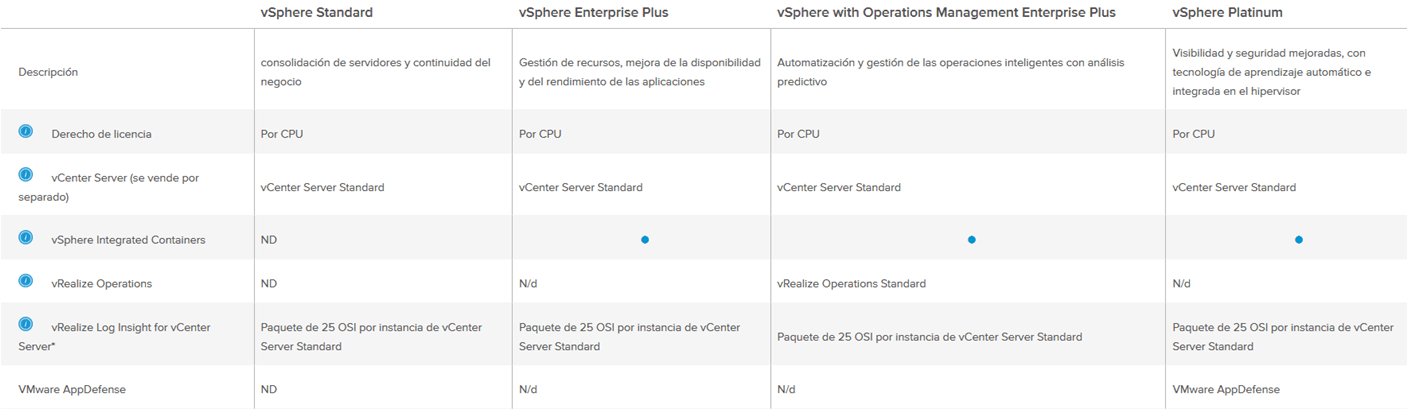
Understand How VMware licenses work It has become considerably more complex since the changes in the business model and the end of traditional perpetual licenses. If you manage environments with vSphere and vCenter, it's normal to have questions about what happens when the license expires, what happens if you don't renew support, or how version lifecycles like v7 or v8 affect you.
In many companies they still coexist old perpetual licenses with active or expired support contracts, while new installations are moving towards subscription-based models. This creates a significant mess: Do the hosts shut down? Do you lose access to vCenter? Do the virtual machines continue to function normally? Let's break it down calmly, using practical examples and clarifying all those nuances that aren't always clear in the official documentation.
VMware legacy licensing model: perpetual licenses and support
For many years, VMware worked with a very simple scheme: Perpetual license + optional supportYou paid once for the vSphere or vCenter license (per CPU, per instance, etc.) and that license was valid indefinitely for that major version, for example, vSphere 7. On that basis, you would purchase a support and maintenance (SnS) plan of one, three or more years.
With that combination, the behavior was clear: while support was activeYou were entitled to minor updates and patches (for example, from 7.0 to 7.0 Update 3) and even, depending on the contract, to upgrade from one major version to another (from 7 to 8) if the maintenance agreement allowed it. Furthermore, you could open support cases with VMware technical support and receive official assistance.
When the support contract was expiringThe perpetual license remained valid, but you could no longer upgrade to newer versions or apply certain maintenance-related patches. You also lost your entitlement to official technical support, although the software continued to function normally within the version you already had deployed.
Many current environments remain in this situation: companies with vSphere/vCenter 7 perpetual licenses and a three-year support contract nearing its expiration date. This is where the doubts begin about what to do before that time arrives, and what the real consequences are of letting the support expire.
What happens when upgrading from vSphere/vCenter 7 to v8 with an older license?
A typical case is that of someone who has perpetual licenses for v7 with active support and is considering upgrading to v8 before maintenance expires. The reasoning is usually: "If I upgrade to v8 now, will I be able to continue using v8 until the end of its support life, even though my support expires in a couple of years?"
In the classic model, as long as your support contract is in effect, you can upgrade to an eligible higher version according to your agreement (in this example, upgrading from v7 to v8). Once the change is made and the new key or corresponding upgrade is applied, your perpetual license is associated with vSphere/vCenter 8.
When that maintenance expires, you will no longer be entitled to new updates or patches beyond what was already released and available while your support was active, with the risk of encountering startup problems after patches. However, The software keeps workingYou can continue using vSphere/vCenter 8 until its official end of life (EoL), as long as you do not violate other terms of the license agreement.
The end-of-life date of a major version, such as vSphere 8 in 2027 (For reference), this marks the point after which VMware stops providing patches, security fixes, and support, regardless of whether you have an active contract. This means that, in practice, even if your perpetual license remains valid, operating that version beyond its End of Life (EoL) involves accepting security and compatibility risks, as well as a complete lack of official support.
Therefore, if you have some leeway, a common strategy is take advantage of the support period To upgrade to the latest stable version (for example, v8) before your contract expires. This way, you maximize the lifespan of your environment within the license you've already paid for, even though support will end a few years before the official end of life for the version.
What happens when the vCenter Server license expires
One of the most worrying points is understanding exactly what happens when vCenter Server license expires Or the evaluation period ends if you were testing the product. The behavior in this case is clearly documented and should be kept in mind to avoid any surprises.
When the vCenter license expires, the system interprets that it no longer has a valid key to manage the environment. As a result, All ESXi hosts managed by that vCenter are taken to the disconnected state. within the vCenter interface. You'll see that they stop responding from the centralized console's point of view, even though the hosts themselves continue running.
It is important to note that The virtual machines hosted on those hosts do not stopThey continue to function exactly as they did before the expiration: the services they provide remain active, and end users don't even need to notice the change, as long as you don't need to perform centralized management operations from vCenter; if you need to replicate or clone virtual machines For testing purposes, this management will have to be done at the host level.
As long as vCenter remains without a valid license, You will not be able to manage those hosts from the vCenter consoleYou will not have access to features such as vMotion, DRS, HA, centralized templates, or snapshots coordinated from the vCenter inventory. You also will not be able to use the cluster view normally or perform orchestrated tasks that depend on vCenter.
The way to continue managing your environment while you don't renew your vCenter license is to connect directly to each ESXi host through its own interface (for example, the Host Client web interface). From there you can power on, power off, or restart virtual machines, modify resources, mount datastores, etc., but you will lose all the centralized management advantages that vCenter offers for medium or large production environments.
vCenter reactivation and host reconnection
The good news is that, as soon as assign a new valid license key When you install a new license on your vCenter Server instance, the behavior reverts almost automatically. Upon entering the new license (for example, by renewing or updating your contract with VMware and applying the key), vCenter returns to full operational mode.
After that reassignment, the ESXi hosts that appeared as disconnected In most cases, they reconnect to the vCenter system automatically, without any further action required on your part. They resume their previous management state, regain cluster membership, and all functionalities associated with centralized management are restored.
The inventory of virtual machines also It is now displaying correctly again in vCenter Once the hosts are reconnected, it's easy to resume daily administration, monitoring, and automation tasks that were interrupted during the license period.
In complex scenarios, it may be necessary to manually force the reconnection of a host or review certificates and credentials, but from a licensing perspective, The key is to have a valid vCenter licenseWithout it, the product's design itself prevents it from being used as a centralized console in the long term.
This makes it clear that, although virtual machines can continue to function even if the license expires, Relying on unlicensed vCenter is not feasible This is suitable for any environment where centralized management is important. It's perfectly possible to manage this in the short term, but it's neither a stable nor a recommended solution in the medium term.
Use of the systems after the expiration of the license or support
It is important to distinguish clearly between license expiration y end of support contractbecause their practical effects are not the same. When the vCenter key expires (due to evaluation or usage limits), what happens is what we've already seen: the hosts disconnect from vCenter, even though the virtual machines continue running.
If what ends is the support and updates contract (SnS) associated with your perpetual license, the software continues to function normally. Nothing is disconnected, services are not shut down, and features are not disabled. You simply lose the right to new versions, certain patches, and official technical support.
In that scenario, you can continue using your vSphere/vCenter systems without problems, but You must accept a series of limitationsYou will not be able to upgrade to new, officially supported builds if they are released after your end-of-support date, and in case of complex issues, you will not have direct support from VMware. Therefore, it is advisable to have procedures in place for perform backups of virtual machines and mitigate operational risks.
Therefore, for many organizations, the main motivation for renewal is precisely to maintain access to critical updates and security patchesIn infrastructures where security and stability are key, operating with an old version without patches can become a risk that is difficult to justify at the audit or regulatory compliance level.
Furthermore, if you plan to integrate your environment with new hardware or new applications For those requiring recent versions of vSphere or VMware Tools, without active support you'll likely be stuck with an outdated stack and face compatibility issues that are difficult to resolve.
Reasons to renew or migrate to a current licensing model
Although the temptation to "make do with what you have" is understandable, it's worth carefully weighing the Reasons to renew licenses or adopt the new subscription model from VMware. It's no longer just about having support or not, but how your environment fits into the official platform lifecycle.
One of the key factors is the end of life (EoL) of the version that you're using. At that point, even if your license is "perpetual," the platform stops receiving patches and security updates, and the manufacturer is not obligated to help you in case of serious problems. Operating a production environment with an unsupported product always increases the risk.
Another element to consider is the compatibility with new features and with the rest of the VMware ecosystem (NSX, vSAN, backup tools, etc.). Often, to benefit from significant performance, security, or automation improvements, you need to be on a relatively recent version, which usually requires an active support contract or a current subscription.
From a purely operational point of view, many companies opt for renew licenses and support For peace of mind: knowing that, in case of a serious error, bug in a specific build, or security incident, there is a manufacturer behind it that they can escalate to and obtain patches or temporary solutions.
Finally, it should be considered that VMware has been shifting its strategy towards subscription licensing modelsThis is especially true in modern or cloud-integrated environments. In the medium term, remaining tied to outdated perpetual licenses could hinder the adoption of new solutions or integrations with other vendor services.
Best practices for managing vSphere and vCenter licenses
To avoid surprises and service interruptions in your infrastructure, it is recommended to implement a series of good practices for license management in VMware environments, especially when you combine older and newer versions or different types of contracts.
The first recommendation is to bring strict control of expiry dates of licenses and support contracts. Recording these milestones in your management tool (ITSM, CMDB, corporate calendar, etc.) will allow you to plan renewals or migrations with sufficient margin, instead of reacting at the last minute.
It is also helpful to document clearly. which hosts and which vCenter instances They use each type of license, as well as its maintenance status. This makes it easier to make informed decisions, for example, about which cluster is worth upgrading first to v8 or to a more modern subscription model.
Another key aspect is testing in a laboratory environment version updates or licensing changes, to avoid unexpected problems in production and to practice how create lightweight virtual machines that are useful for quick testing. Upgrading from v7 to v8, for example, may involve compatibility changes with certain plugins, backup tools, or third-party integrations.
Finally, it is advisable to periodically review the life cycle policy VMware for the versions you have deployed. Keeping track of general or extended support end dates will help you avoid getting stuck on an outdated release just when you need to incorporate new hardware or new platform features.
With all these nuances clear—from the difference between perpetual licenses and subscriptions, to the specific behavior of vCenter when its license expires—it becomes easier to make balanced decisions about what to do with your VMware licensesIn most cases, the goal is to find the right balance between cost, security, stability, and technological evolution capabilities, while always keeping in mind how all of this impacts the continuity of the services your virtual machines are providing.


Passionate writer about the world of bytes and technology in general. I love sharing my knowledge through writing, and that's what I'll do on this blog, show you all the most interesting things about gadgets, software, hardware, tech trends, and more. My goal is to help you navigate the digital world in a simple and entertaining way.