- Printing failures in Chrome and Edge are usually due to corrupted websites, extensions, outdated drivers, or Windows errors.
- Trying other applications and changing problematic drivers such as PCL 5(e) helps to isolate and resolve the source of the error.
- Purging the print queue, reinstalling the printer, and using manufacturer tools usually restores system stability.
- While the problem is being resolved, printing to PDF or using other viewers and browsers allows you to continue working without getting stuck.
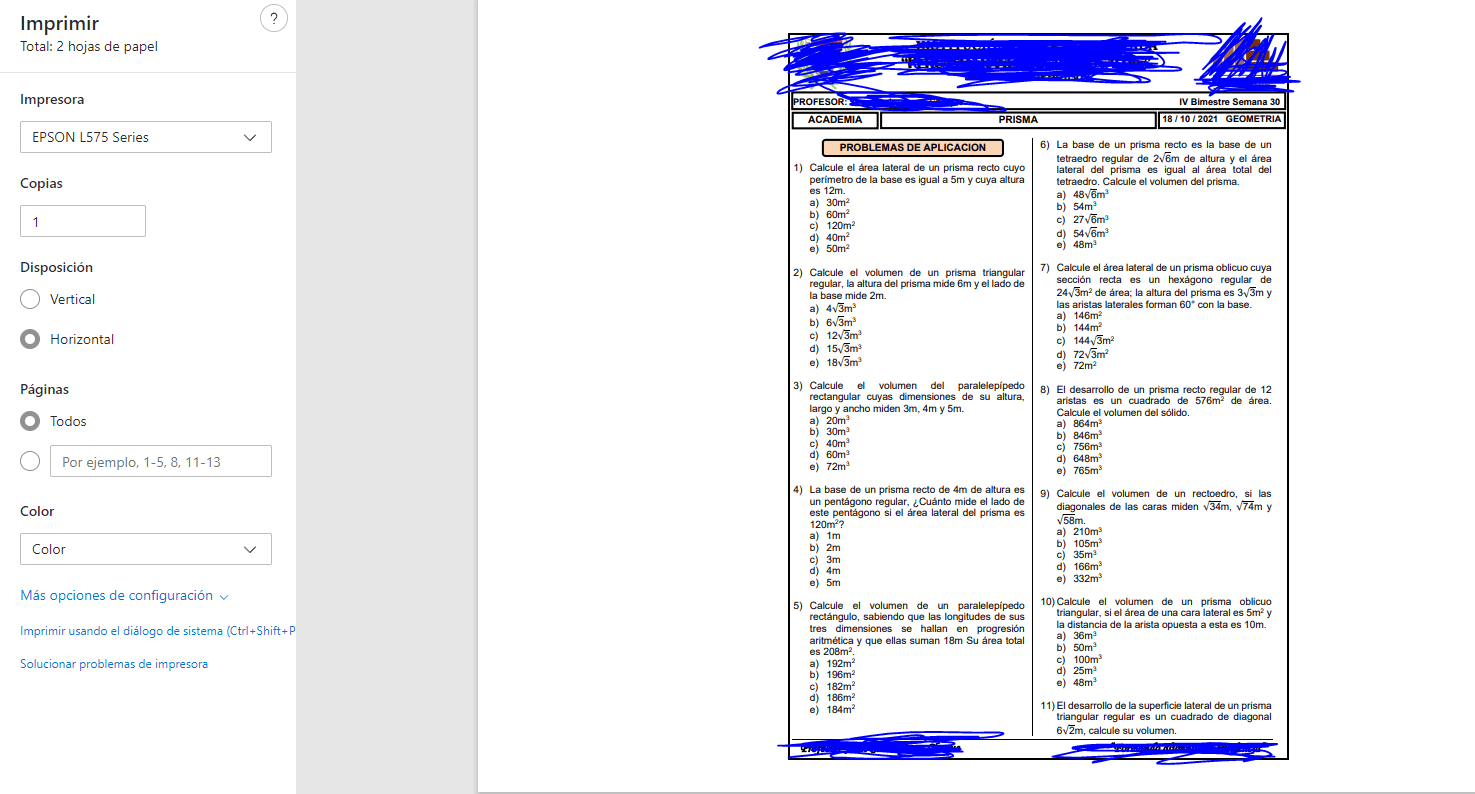
When you suddenly encounter an error while printing from Chrome or Edge , it's normal to panic: the browser seems to be working fine, the printer is on, there's no clear message… but the paper won't come out or the result is completely different from what appears on the screen. And to make matters worse, sometimes it only happens with a specific browser or with certain documents.
The good news is that, although these printing errors can be very frustrating and confusing , they can almost always be diagnosed by following a logical order: first, check if the problem lies with the website or document, then with the browser, then with the printer drivers, Windows itself, or even a specific update. Below you'll find a comprehensive guide to help you rule out possible causes and stop struggling with your printer.
Error printing from Edge: where to start
Before we start tinkering with the system, it's important to understand that a printing failure in Microsoft Edge can be caused by many different points in the "chain": from a poorly designed webpage to a faulty printer driver, the browser itself, or a Windows bug. The key is to narrow down the source rather than trying things randomly.
In practice, problems usually stem from one of these sources: a corrupted document or website, Edge, a printer driver, Windows , or the connectivity/hardware itself. Therefore, the first step is to determine if the problem only occurs on one page, only in Edge, or if it affects all programs on the computer.
If you're seeing messages like " Print preview error " or the job is simply stuck in the queue forever without reaching the printer, the most effective thing to do is follow a series of steps in order, and don't take anything for granted: not that the printer is correctly installed, not that the driver is the right one, not that the web page is well built.
Try other websites or online documents
A very common problem is that it lies not with the browser or the printer, but with the webpage or online document you're trying to print. Certain graphics, embedded fonts, or code snippets may be corrupted or poorly defined, preventing the Edge or Chrome print engine from generating a proper preview.
To check if this is the case for you, open a different website (for example, a simple news or online documentation website) and try printing it from the same browser: use the settings menu or the shortcut Ctrl + P to open the print dialog box, choose the same printer you were using and send the job.
If the second site prints correctly, it seems the problem is limited to the original website or document . Sometimes it's due to complex CSS styles, scripts, or embedded elements that cause the preview to fail or the printer to receive malformed data. A helpful way to check is to print a "clean" version of the page.
In Edge, you can activate immersive reader mode by clicking the corresponding icon in the address bar. Once the page is displayed in reader mode, try printing it again. This will eliminate most of the styles and complex elements that might be causing the browser to struggle.
Check if it prints correctly from other applications
When you see that the error is repeated on several different pages but only from a specific browser, the next step is to find out if the problem is limited to Edge or Chrome or if the printer actually doesn't work well with any Windows application.
A classic test is to use Microsoft Word or another text editor . Open a new document and generate test content (for example, using the command =rand(10) in Word to create several paragraphs). Then try printing that document with the same printer you were using from the browser.
If Word prints correctly, try WordPad, Excel, or other programs you have installed. If they all print documents without issue, the problem is greatly reduced: the fault most likely lies with the Edge printer itself or how it communicates with the print driver.
However, if you also can't print from Word, Notepad, or any other application, the problem is usually with the printer driver, the hardware, Windows, or connectivity . In that case, you'll need to focus on updating the driver, checking cables, your Wi-Fi network, and the system's general printing settings.
In some recent scenarios, a particularly annoying behavior has been detected: when sending a print job from Edge or Chrome , the print window is displayed normally, but as soon as you confirm the action, the browser closes abruptly or the job remains eternally in the queue with a "Queued" status without progressing or being able to be canceled.
In these cases, when you open the print queue manager, you'll see the pending file, but it's impossible to delete it. If you restart your computer, the print job disappears, but Windows then considers the printer disconnected, forcing you to remove and re-add it for it to work again. The strange thing is that often, if you open the same PDF in Adobe Reader or print it from another application, the printing works perfectly.
There have also been cases where the problem started after a specific Windows security update (for example, patch KB4560960 in Windows 10 versions 1903/1909), and both Chrome and the new Edge Chromium began crashing when sending print jobs. When this occurs across multiple machines with the same build, it's very likely a conflict between a certain version of Windows and specific printer drivers.
In enterprise environments, cases have been reported where, with the print queue stuck in Edge, it's later discovered that the problem doesn't just affect the browser: all system applications begin to fail to print , including Notepad itself. At that point, the diagnosis focuses almost entirely on the type of driver installed.
PCL 5(e) controllers and other problematic drivers
A very common culprit in printing errors from Chromium-based browsers (Chrome, Edge, Opera, etc.) is the PCL 5 or PCL 5e driver . On many computers, replacing this driver with another type has instantly resolved browser crashes, blocked print queues, and print jobs that never reach the printer.
The recommendation is to replace the PCL 5(e) driver with one of these alternatives : a modern V4 driver from the manufacturer, a PCL 6 driver, a PostScript (PS) driver, or an XPS driver, provided they are available for your printer model. It is usually sufficient to download the latest version from the manufacturer's website and install it over the existing one, or better yet, after completely removing the old printer.
To check which driver you're using, go to your printer settings in Windows , open the printer properties, and check the driver name or print processor type. If you see explicit references to PCL5 or PCL5e, it's worth trying the change. Many system administrators have confirmed that after replacing PCL5 with PCL6 or PS, browsers no longer crash when printing.
On systems with multiple users who print from Edge or Chrome daily, a simple driver change has avoided having to touch the browser, reinstall it, or manipulate the queue every other day, something that on Terminal Server or remote desktops can save a lot of headaches.
Update printer drivers and software
Even if you don't have a PCL 5(e) printer driver, it's important to check if you have the latest version . Manufacturers fix compatibility issues with new versions of Windows and changes in browsers like Chrome or Edge, so an old or generic driver can cause many problems for no apparent reason.
Go to the manufacturer's official website (HP, Epson, Canon, Brother, etc.) and find your exact model. From there you can download the latest driver , and in many cases a complete software package that includes diagnostic tools, ink level management, scanning, and more. Sometimes, Windows installs a basic driver that works temporarily but isn't optimized for all functions.
On systems where the printer frequently malfunctions, it can be a good idea to install the manufacturer's full software instead of relying solely on the automatic Windows driver. Some brands, like HP, even require you to create an account and register the product to take advantage of all features, but in return, they include wizards that detect and correct communication errors between the PC and printer.
If you already had that software installed and the problems persist, check if it includes a diagnostic or repair utility . Many manufacturers include one precisely to guide the user step by step when Windows doesn't provide clear information about what's happening.
Check the printer's physical and network connectivity
As obvious as it may seem, many printing errors from Chrome or Edge stem from a poor physical or Wi-Fi connection . Before messing with drivers and settings, take a minute to check your cables, printer status, and network.
If the printer is connected via USB, make sure the cable is securely plugged in at both ends and try a different USB port on your computer just in case. It's not uncommon for a faulty port to cause Windows to intermittently "see" the printer, resulting in the print queue getting stuck for no apparent reason.
For printers connected via Wi-Fi, keep in mind that a simple change of network password or a router reset can leave it isolated. Check the printer's display to see if it appears connected to the correct network, and on your PC, verify in Device Manager or the Printers panel that the status shows as "Connected" or "Ready."
It's also crucial that the printer is within the actual range of the wireless network . If it's at the edge of the coverage area, you'll see strange behavior: print jobs that sometimes arrive and sometimes don't, or print jobs that get stuck when the signal drops momentarily. In that case, moving it closer to the router or using an Ethernet cable can make all the difference.
When the problem only occurs from a specific browser but the connectivity seems correct, don't rule out printing something from another app (Word, Notepad, PDF viewer) to confirm that the printer-PC communication is working before proceeding with more advanced steps.
Specific problems when printing from Chrome
Chrome is by far the most widely used browser, which means any printing-related bugs are much more noticeable. With so many users and frequent updates, it's easy for bugs to appear in a specific version that only affect certain websites, printers, or settings.
A fairly common symptom is that when trying to print a page, the Chrome print preview looks fine, but the printed version doesn't match. In some cases, documents have been reported missing crucial elements, such as barcodes or graphics, while the text appears correctly. When printing the same PDF with another browser or from Adobe Reader, the page prints completely, including those barcodes.
These types of errors usually indicate an incompatibility problem between Chrome's rendering engine and certain graphic elements , which may be implemented in a particular way on the website or in the PDF. As has been seen in many cases, clearing data, resetting Chrome, or even reinstalling it from scratch doesn't always solve the problem, because the source lies not so much in the browser's local configuration as in how it interprets those elements.
In these cases, the most practical solution is to temporarily change your workflow: open the PDF in Adobe Reader or another viewer for printing, or use a different browser while the bug in Chrome is being fixed. It's not ideal, but it's preferable to wasting time trying to replicate a print job that the browser version itself can't generate correctly.
While it doesn't fix all problems, a thorough browser cleanup can sometimes resolve unusual printing errors in Chrome. This is especially true if the cache and cookies haven't been cleared in a long time, or if corrupted data has accumulated.
To do this, open Chrome, tap the three-dot icon in the upper right corner , go to "More tools," and then to "Clear browsing data." In the time range field, select "All time" to ensure you delete all relevant history.
Make sure to check the boxes for “Browsing history”, “Cookies and other site data”, and “Cached images and files” . Once you confirm and the process is complete, close Chrome completely and reopen it. Then, try printing the same page or document again to see if the problem is resolved.
It's not a panacea, but when the problem is caused by a corrupted cached file or a cookie interfering with the page content, this cleanup might be just what's needed to get the preview and printing working normally again.
Purge the print queue in Windows
There are times when, after several failed attempts, the Windows print queue becomes inconsistent : jobs that don't disappear, pending files that can't be printed or canceled, or processes that get stuck consuming resources.
When you reach that point, the most effective solution is usually to "start from scratch" and completely empty the print queue . Doing so from the graphical interface isn't always enough, because there's often a final, phantom print job that won't disappear even after restarting your PC.
The most reliable method is to use the command line with administrator privileges. Open CMD as administrator and first run this command to stop the print spooler service:
net stop spooler
This stops the service and clears any pending jobs from memory. Then, restart it with the following command so that Windows can resume printing normally:
net start spooler
After purging the queue this way, the bottleneck that was preventing Edge or Chrome from correctly sending new jobs usually disappears . From there, you can try again, and if the problem persists, continue debugging drivers or configurations.
Uninstall and reinstall the printer in Windows
The relationship between Windows and printers has never been particularly idyllic. It's not uncommon for drivers to become corrupted over time, for remnants of previous installations to accumulate, or for conflicts to arise after a system update, leading to intermittent or widespread printing errors from any application, including the web browser.
If you've already tried changing the driver and purging the print queue, another very useful step is to completely remove the printer from the system . To do this, open Device Manager, locate the printer, right-click it, and choose "Uninstall device." It's recommended to restart your computer afterward to ensure that all traces of the driver are removed from memory.
If you also had the manufacturer's software installed, it's best to uninstall it from the Programs and Features panel to ensure no old components remain that could interfere with the new installation. Once your system is clean, reconnect the printer (via USB or network), turn it on, and let Windows detect it again.
In many cases, Windows will automatically download an updated driver, or you can manually install the latest driver package from the manufacturer. After this initial reset, the printer should work again from Edge, Chrome, and any other application.
If the printer still doesn't respond, the next reasonable step is to try it on another computer or mobile device (if it has Wi-Fi). If it doesn't respond there either, the problem is likely hardware-related, and depending on the printer's price, it might not be worth trying to repair it out of warranty.
Extensions, incognito mode, and permissions in Chrome
It's important to remember that many times, the source of a printing error in Chrome lies in a misbehaving extension or a permission setting that blocks key browser functions. Add-ons for blocking ads, modifying page content, or managing PDFs can interfere more than intended.
A quick way to check is to use Chrome's Incognito mode , which by default disables all extensions (unless you've specifically authorized them for that mode). Open an Incognito window with Ctrl + Shift + N (or Cmd + Shift + N on macOS) and try printing the same webpage from there.
If printing works fine in incognito mode , the problem is almost certainly with an extension. To identify it, go to the Chrome menu, enter "Extensions," and disable them all. Then, enable them one by one and test printing after each change until you find the one causing the issue.
In addition to extensions, it's advisable to review permissions and privacy and security settings . From Settings > Privacy and Security > Site Settings, check that there are no settings that prevent interaction with the printer or the correct download of resources needed for printing.
By adjusting these options and ensuring that Chrome has sufficient permissions to generate and send the preview to the system, many cases where apparently "nothing happens" when pressing Print are resolved, but in reality there is a silent block by some policy or extension.
Curious errors when printing PDFs from Edge
Edge's built-in PDF viewer has also had its quirks. One of the most noticeable bugs detected in previous versions was a glitch where, when printing or converting certain documents to PDF , a number like "123456" would be altered and appear as "114447" in the resulting file.
This error was most noticeable when using the "Microsoft Print to PDF" option from Edge; that is, when instead of sending the content to a physical printer, a new PDF was generated. Upon opening the saved file, it was observed that the number sequence had changed for no apparent reason, and with longer numbers, the confusion could be even more pronounced.
The curious thing is that the bug didn't affect other virtual PDF printers or other programs that generated PDFs, which pointed directly to an internal problem with that Edge feature in a specific version (for example, 14.14393). Microsoft was aware of the bug and fixed it through subsequent updates.
Meanwhile, the recommendation was to avoid using Microsoft Print to PDF from Edge for documents where numbering was critical, and to opt for other methods: print the PDF from another application, use another PDF printer, or directly open the file in a dedicated viewer to make the conversion without surprises.
When your printer fails: alternatives with PDF and saving pages
Sometimes, no matter how hard you try, your printer simply won't work : a replacement part is missing, there's a paper jam, the driver is corrupted… but you absolutely need to save the website content. In these situations, the most practical solution is to use the PDF printing function as an emergency fix.
In Windows, you can select the Microsoft Print to PDF virtual printer from the Chrome or Edge print dialog box (Ctrl + P). Instead of sending data to a physical printer, the system will ask you for a name and location to save the resulting PDF. This way, you'll have the page "captured" in a file that you can then print later or share with anyone who needs it.
If the browser's print dialog box fails or doesn't open, another option is to save the entire page as an HTML file using the shortcut Ctrl + S. This will allow you to open it later from your hard drive, even without an internet connection, and try printing it once you've resolved the printer issues.
In cases where content doesn't print correctly from the browser (for example, because the layout is broken or parts are hidden in the preview), you can always copy the content and paste it into another application . You can select text and images from the web and paste them into Word to print from there, or even take screenshots and paste them into an image editor like Paint or Photoshop.
It's true that it's not the most convenient, and it may require several captures for a long page, but while you locate the source of the printing failure, these solutions allow you to continue working without getting stuck.
With all this in mind, the key is to approach printing errors from Chrome or Edge as a layered problem: first, we rule out specific websites and extensions, then we check browsers and drivers, and finally, we address Windows settings, the print queue, and the hardware itself. Following this order and running simple tests like printing from other apps or changing the driver is usually enough to get the printer working properly again and prevent it from ruining your day every time you click "Print."


Passionate writer about the world of bytes and technology in general. I love sharing my knowledge through writing, and that's what I'll do on this blog, show you all the most interesting things about gadgets, software, hardware, tech trends, and more. My goal is to help you navigate the digital world in a simple and entertaining way.
Table of Contents
- 1 Error printing from Edge: where to start
- 2 Try other websites or online documents
- 3 Check if it prints correctly from other applications
- 4 Printing blocked in Edge or Chrome: stuck queues and browser crashes
- 5 PCL 5(e) controllers and other problematic drivers
- 6 Update printer drivers and software
- 7 Check the printer's physical and network connectivity
- 8 Specific problems when printing from Chrome
- 9 Clear browsing history, cache, and data in Chrome
- 10 Purge the print queue in Windows
- 11 Uninstall and reinstall the printer in Windows
- 12 Extensions, incognito mode, and permissions in Chrome
- 13 Curious errors when printing PDFs from Edge
- 14 When your printer fails: alternatives with PDF and saving pages