- Windows 11 introduces transparency effects that improve aesthetics, but may affect performance on less powerful computers.
- There are different methods to activate or deactivate transparency: from the settings, accessibility options and the registry. Windows.
- Visual customization can also be achieved through third-party applications, although their use involves certain privacy risks.
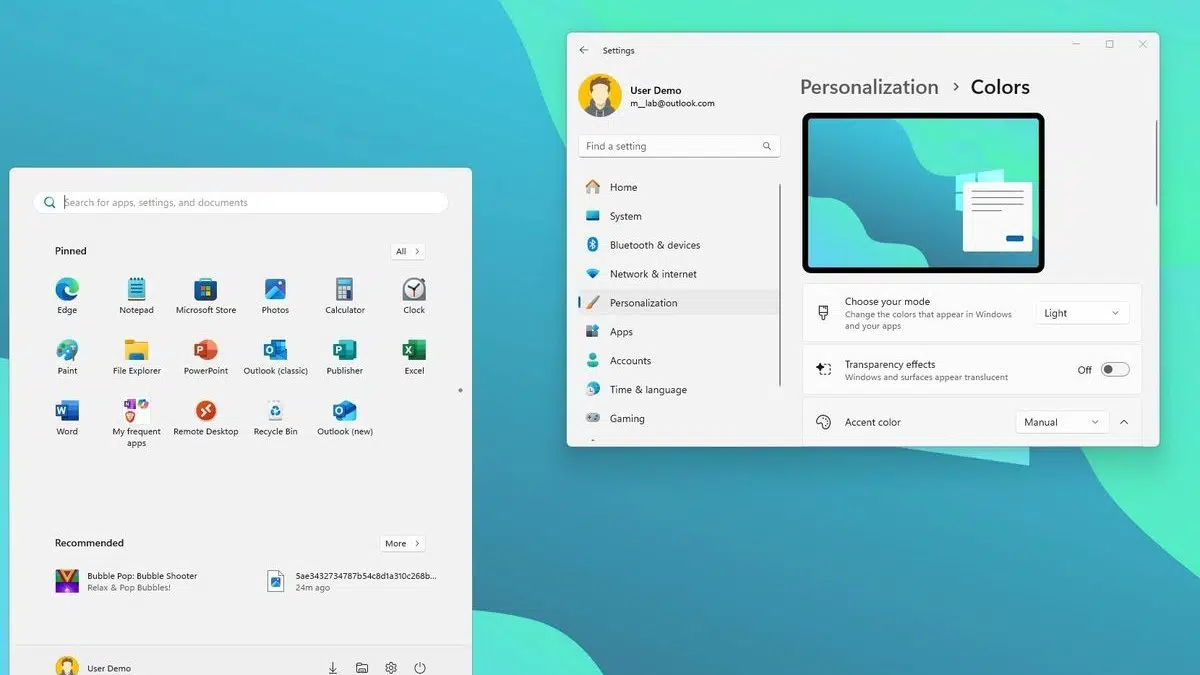
Have you noticed that your Windows 11 desktop has a translucent effect that lets you see the background behind windows, menus, and the taskbar? These transparency effects take the operating system to a new level of visual design thanks to the Mica material integrated into the interface, giving it a modern and elegant touch.
However, many people are looking for ways to enable or disable these effects, whether for visual preferences or to improve the performance of their devices.
What are transparency effects in Windows 11 and what are they for?
Windows 11 has incorporated a visual layer called Mica , part of Microsoft's Fluent design system. This material allows parts of the interface to be partially transparent, with a blurring effect that gently reveals the background or underlying colors. Aesthetically, the result is attractive and modern , adding a sense of depth and freshness to the desktop, which is especially noticeable in the taskbar, Start menu, quick notifications, and Settings app.
The main goal of these effects is to improve the visual experience , making the operating system feel smoother and more polished. Additionally, when a window loses focus, the Mica material automatically changes to a solid color to avoid distractions and keep attention focused on the active task. Although Microsoft claims the performance impact is minimal, some improvement may be noticeable on devices with limited hardware by disabling these options.
Reasons to turn transparency on or off in Windows 11
The reasons for changing transparency settings in Windows 11 depend on your priorities and the features of your PC.
- Improve performance: If you notice that your computer is running slower or if you have a computer with tight specifications, Disabling transparency effects can free up RAM and reduce GPU usage.
- Visual preference: Some people love the translucent effect of the desktop, while others prefer solid colors for a more minimalist or less eye-straining experience.
- Accessibility: People with certain visual difficulties may benefit from disable these effects to improve readability and contrast in the user interface.
- Personalization: By being able to turn these effects on and off, you can customize your environment to your liking and experiment with what you like best or what suits you best at any given time.
How to turn transparency effects on or off from Windows 11 Settings
The easiest way to manage transparency is through the system's Settings app. Microsoft has made this setting easy for any user to find and change quickly and easily.
Let's see it step by step:
- Click the Windows Start button and select “Settings”You can also access it directly by pressing the Windows + I keys.
- In the left sidebar, go to the section "Personalization" and within it look for the section "Colors".
- Once in the Colors category you will see the option “Transparency effects”. Here you can turn the switch on or off according to your preference.
When you enable transparency effects, the taskbar, windows, and some system menus will display that characteristic translucent appearance. If you choose to disable them, everything that was previously transparent will now appear in a solid color, with a more classic look.
Sometimes, even if you enable the switch, the effects aren't applied correctly. If so, it could be due to a problem with your video driver or graphics card. In these cases, it's a good idea to update the driver to the latest version or reinstall it directly to force Windows 11 to apply the visual changes.
Alternative method: Use the Accessibility section to change the visual effects
Another easy way to modify these effects is by accessing the Accessibility options : you can learn more about other features.
- Opens Configuration (Windows + I).
- Choose "Accessibility" in the menu on the left.
- On the right side, enter “Visual effects”.
- Here you will see both the switch “Transparency effects” like “Animation Effects”You can disable both to maximize your computer's performance.
Disabling both animations and transparency is recommended on systems where performance is critical . The change is immediate: in the case of transparency, you'll notice that the windows and taskbar lose their blur effect and display solid colors.

Advanced Edit: Modify the Windows 11 Registry to Adjust Transparency

If you want to go a step further and delve deeper into customization , you can edit the Windows Registry. This method is more advanced and is recommended only for users with some experience, as any errors in the registry can cause serious problems with the operating system. Remember to always make a backup before making any changes.
To change the transparency value using the registry, perform the following steps:
- Open the start menu, type "Regedit" and run the Registry Editor.
- Navigate to route HKEY_LOCAL_MACHINE\SOFTWARE\Microsoft\Windows\CurrentVersion\Explorer\Advanced.
- In the right pane, right-click and choose “New” > “DWORD (32-bit) Value”.
- Write as name UseOLEDTaskbarTransparency, then double-click on it and change its value to 1 for greater transparency, or 0 to disable it. Press OK.

- Next, go to the route HKEY_LOCAL_MACHINE\SOFTWARE\Microsoft\Windows\DWM.
- Find the value ForceEffectMode. If it doesn't exist, create it as a DWORD (32-bit). Change its value to 1 to enable extra transparency, or to 0 to disable it.
- Restart your computer for the changes to take effect.
These adjustments will give you greater transparency than usual in the taskbar and other elements , overcoming the limitations imposed by the standard configuration. This method is designed for those seeking deep customization and who aren't afraid to experiment with the system.
Common problems and solutions when turning transparency on or off
Sometimes the changes applied don't take effect immediately, or the visual effects may disappear for no apparent reason . These are the most common causes:
- Outdated graphics drivers: If your video hardware does not support transparency or has drivers older ones, Windows may disable the effect automatically.
- Performance limitationsOn PCs with limited resources, Windows may turn off transparency to prioritize important processes.
- Accessibility settings that cancel some visual effects to improve the experience for users with visual difficulties.
To resolve this, check the status of your graphics card drivers and make sure your computer meets Microsoft's recommended hardware requirements.
Third-party apps to customize transparency in Windows 11
If you want to experiment beyond the default options in Windows 11, there are third-party applications that allow you to further customize transparency , especially in the taskbar. These utilities can make the taskbar completely transparent or offer advanced effects not natively available.
However, you should be very careful when installing third-party apps . Some require excessive permissions or may collect unnecessary data. Before installing anything, check reviews, the permissions the app requests, and if you have any doubts, look for official alternatives in the Microsoft Store.
Some of the best-known and most valued applications for this are:
- Translucent TB: This is the preferred option for most people and is available directly from the Microsoft Store. It allows for extensive customization and instant changes to the taskbar's transparency.
- Taskbar X, TaskbarTools y Classic Shell: These are other alternatives for modifying both transparency and other visual aspects of the Windows environment. Their additional configuration options make them perfect for those looking for complete customization.
Don't forget to always check the permissions and origin of these applications to protect your privacy and the security of your device.
Transparency effects in Windows 11 provide a modern and elegant aesthetic, but they can also impact performance on certain devices. You have several methods at your disposal, from Settings and Accessibility to advanced registry editing and external applications, to manage this feature according to your needs. Customizing the visual experience of the system allows you to adapt it to your style and requirements, whether you want to enjoy a more modern look or to optimize resources and improve readability.

Passionate writer about the world of bytes and technology in general. I love sharing my knowledge through writing, and that's what I'll do on this blog, show you all the most interesting things about gadgets, software, hardware, tech trends, and more. My goal is to help you navigate the digital world in a simple and entertaining way.