
If you see something huge on your iPhone screen , it's almost certainly in zoom mode. Here are the steps to take your iPhone out of zoom mode.
iPhone is in zoom mode
When your iPhone is in Zoom mode, everything on your iPhone screen appears magnified and oversized, making it difficult to operate your device.
When this happens, most customers start wondering if their iPhone is broken or infected with malware.
Fortunately, this magnified screen on the iPhone has nothing to do with hardware problems and is usually the result of activating the Zoom accessibility feature on your device.
The Zoom accessibility feature in iOS is designed to allow iPhone users with limited imagination to zoom in by touching the iPhone screen with 3 fingers.
It looks like you have enabled the Zoom accessibility feature in your iPhone settings and this feature has been unintentionally activated on your device.
Can't zoom out on iPhone
Most customers try to exit Zoom mode with the standard pinch gesture and wait for the program to return to its regular size.
However, standard pinch and other finger gestures don't work while your iPhone is in Accessibility Zoom mode.
Finger gestures when the iPhone is in Zoom mode are totally different and most customers with regular imagination are not usually used to Zoom mode gestures.
Easy ways to get iPhone out of Zoom mode?
As you might have guessed, you need to be able to get your iPhone out of Zoom mode by tapping your iPhone screen twice with three fingers.
If double-tapping doesn't work, try tapping again, but this time keep your fingers on the screen after the second tap and drag them up or down to zoom in or out of the screen.
Disable Zoom Mode on iPhone
Follow the steps below to disable Zoom mode on iPhone, to prevent Zoom mode from being accidentally re-enabled on your device.
1. Go to Settings > Accessibility > scroll down and click on Zoom.
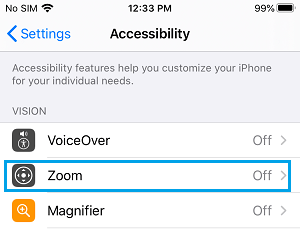
2. On the next screen, turn off Zoom by moving the toggle switch to OFF.
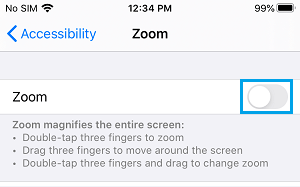
After that, you will no longer see your iPhone zooming.
- Easy Ways to Disable “Unlock iPhone to Use Devices” Message
- Easy Ways to Stop iPhone Screen from Turning Off Regularly

My name is Javier Chirinos and I am passionate about technology. Ever since I can remember, I have been interested in computers and video games, and that passion has turned into a job.
I have been publishing about technology and gadgets on the Internet for over 15 years, especially in mundobytes.com
I am also an expert in online marketing and communication and have knowledge in WordPress development.