- Autocorrect and spell check are not the same: turn off automatic changes without losing the visual feedback.
- It can be disabled globally in Keyboard and also per app from Edit > Spelling & Grammar.
- Learn how to accept/ignore/undo suggestions and use Ignore/Learn word.
- Complemented with text replacements and shortcuts to write faster without errors.
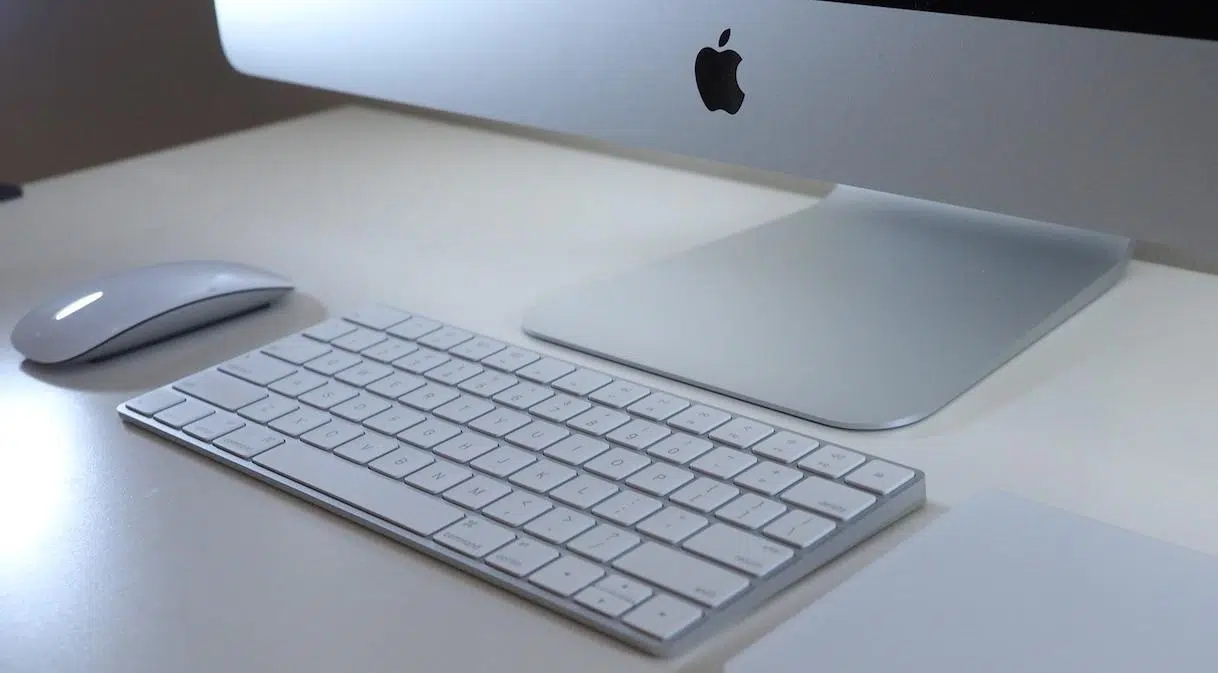
Those of us who write daily often appreciate a helping hand that saves us from slips and misplaced commas, but there are days when autocorrect turns against us and we can't stand it. Between technical terms, proper names and neologisms that do not yet appear in the dictionary, the auto-correct feature can replace perfectly valid words with words that don't make sense in context. Apple leaves it enabled by default because, generally speaking, it reduces typos; and, to be honest, it makes many of us lives easier.
Still, not everyone wants that help, and that's perfectly legitimate. If you prefer to check your writing yourself or work with specific vocabulary, You can disable autocorrect on macOS quickly and easily.. Of course, when you do this you'll have to pay more attention to what you type to avoid idioms like "haiga" or confusions like "a ver"/"haber". Below you'll see how to turn it off system-wide, how to disable it only on certain apps y How to control the red underline in spell check.
Autocorrect vs. Spell Check: What Each Does
First of all, it is important to distinguish between two things that are often confused. Autocorrect automatically replaces words as you type, as soon as it detects what it interprets as a mistake. The spell checker, on the other hand, doesn't change anything on its own: it highlights in red what it considers incorrect, so you can decide what to do next.
This difference is key, especially if you work in multiple languages or frequently introduce uncommon terms. Turning off autocorrect does not prevent red lines from appearing. under certain words; this depends on the spell checker and the active dictionaries. The good thing is that, even with autocorrect turned off, you can mark a word as "learned" or ignore her for stop bothering you about that document or the entire system.
Disable AutoCorrect on macOS (Global Setting)

The method varies slightly depending on the version of macOS, but the goal is the same: go to the keyboard options and uncheck the auto-correct box. I leave you two very simple routes.
Quick access with Spotlight: press ⌘ + Space, type “System Preferences” or “System Settings” (depending on your version) and press Enter. It's the most convenient shortcut if you can't remember where everything is..
- macOS with System Settings (modern versions, such as Ventura, Sonoma or Sequoia):
- Opens System settings trust your Mac.
- In the sidebar, go to Keyboard.
- In the section Text input, press Edit.
- Disable the option «Automatically correct spelling» and confirm with Accept.
- Optional: uncheck also "Automatically capitalize initial letters" if you don't want macOS to capitalize the first word of each sentence.
- macOS with System Preferences (previous versions):
- Go to System preferences > Keyboard.
- open the tab Text.
- Uncheck the box «Automatically correct spelling». If you wish, disable it as well "Automatically capitalize initial letters".
With these steps, macOS will stop replacing your words with suggested alternatives. The system will no longer make silent changes while you type., which is especially useful if you deal with professional jargon, brand names, abbreviations, or your own terms.
Turn off auto-correction for one app only
It may only be bothering you in a specific program (your code editor, a note manager, or the browser). In these cases, there is no need to touch the global setting.; just disable it within the application itself.
- Open the app and go to the menu Editing > Spelling and Grammar.
- Click on «Automatically correct spelling» to uncheck it. If the check mark doesn't appear, it's disabled.
- If you don't see commands spelling or grammar in the Edit menu, check the app-specific settings or menus, because some come with their own corrector.
This app-based approach is very practical if you write in multiple languages across different tools. You can keep autocorrect active in your email., for example, and have it turned off in your note-taking software or IDE.
How to turn on autocorrect if you change your mind
If you change your mind or just want to try again, re-enabling the feature is just as easy. The path is identical to the one described above, but marking the option again automatic correction.
- In System Settings (or System Preferences), go to Keyboard.
- En Text (or in Text Entry > Edit), active «Automatically correct spelling».
- If you are interested, take the opportunity to configure text replacements: Creates abbreviations that macOS will expand into complete words or phrases.
With autocorrect turned on, macOS detects what it interprets as errors and suggests replacements as you type. It's a quick way to reduce typos and oversights. when you're in a hurry or typing on small screens.
Interact with suggestions: accept, ignore, and undo
Even if you have autocorrect turned on, you have the final say. macOS lets you accept suggestions on the fly, skip them, or revert any changes. that doesn't convince you.
- Accept suggestionsIf there's only one, continue typing and it will be automatically applied. If you see multiple suggestions, choose the one that applies.
- ignore suggestions: press the key I (Escape) and continue typing without accepting changes.
- Undo an automatic correction: When macOS corrects a word, it usually displays a continuous underline for a moment. Place the cursor right afterward, and your original spelling will appear to select it. You can also press and hold the key. Control, click on the word and choose «Back to «.
Also, if a word is underlined in red, you can decide what to do with it. Control-click and choose "Ignore Word" or "Learn word«. Ignoring will stop it from being underlined in that document; Learning will add it to the dictionary, and it will no longer be marked as incorrect in any other file.
Can the red underline be disabled system-wide?
This is a common question, especially among multilingual users or those who work with languages that aren't available in the system. The global switch that exists is the self-correction switch. (so it doesn't automatically replace words). Instead, the spell checker's red underline depends on the spell checker and active dictionaries.
As of today, macOS does not offer a single, universal switch for Turn off the red underline in absolutely all apps. In many, you can uncheck it from the menu Editing > Spelling and Grammar; in others, you have to search in the app's own Preferences. And some tools use their own review libraries, independent of the system.
If your primary language is unavailable or you switch between several, you have several options: Mark words you use often as "Learned", change the default spell checker language where applicable, or disable spell check/grammar features in every app that bothers youThis way, you'll avoid the underlining fest without sacrificing the review process where it really benefits you.
Text Replacement: Shortcuts That Type for You
Along with auto-correct, macOS includes a very useful replacement system to speed up your work. In Keyboard > Text you can create abbreviations that expand on the fly: for example, “mc” for “Thank you very much” or “dir” for your full address.
It's a separate, complementary feature that works even if you have autocorrect turned off. Helps you type faster without changing words on your own, because replacements only pop up when you enter exactly the shortcut you defined.
Useful shortcuts and tricks around the keyboard
Beyond spelling, some shortcuts will make your writing easier. The first is the classic ⌘ + Space to open Spotlight and quickly access System Settings, apps, and documents. If you frequently change keyboard settings, this shortcut saves you time.
Another one that comes in handy when you alternate between several windows is fullscreen (it is usually Control + Command + F in many apps). And if you are a format freak, remember the action of «Stick with the same style» to maintain the appearance of the document without dragging strange styles; in many applications it is activated with a combination that includes ⌥ (Option) + ⌘ (Command) together with V.
Advantages of maintaining autocorrect
If you write a lot of emails, reports, or chats every day, leaving it active makes sense. Reduces typical typos and stumbling letters when you type quickly, and prevents you from missing an accent or capital letter. For most, it saves time and improves readability.
In addition, the system learns with use: the more words you mark as "Learn", you'll have fewer false alarms. And you can always reverse a spot correction in seconds, so it doesn't tie your hands either.
When it is convenient to deactivate it
If you work with technical language, brand names, surnames, niche jargon, or mixed languagesAutocorrect can be more annoying than helpful. In that case, disable it globally, or better yet, only in the apps where it's really slowing you down.
It's also a good idea to turn it off if you're creating names of variables, paths, commands, or labels that should never be changed (developers and code editors know this well). In all other scenarios, you can keep it enabled to take advantage of its benefits.
Detailed steps: old and new macOS paths
So you don't get lost, here's a rundown of both routes with the most common tags in Spanish. Menu names may vary slightly depending on the version., but the essence is the same.
- With Spotlight: press ⌘ + Space, type “System Settings” and Enter.
- Go to Keyboard.
- En Text input, press Edit.
- Activate or deactivate «Automatically correct spelling». Optional: adjust automatic initial capitalization to your liking.
- Without Spotlight: Open the icon System settings in the Dock or Launchpad, and follow the path above.
- On older macOS: go to System Preferences > Keyboard > Text and mark/unmark «Automatically correct spelling».
To control behavior per app: Editing > Spelling and Grammar and set “Automatically correct spelling.” If the menu does not show these options, check the internal settings of the application; some browsers or editors include their own spell checker.
How to Deal with Underlines: Ignore and Learn
If you see a lot of red lines and they distract you, take advantage of contextual options. With Control pressed, click the underlined word and choose:
- Ignore word: The term will be ignored when it appears again in that document, but may be underlined again in others.
- Learn word: The system adds it to the dictionary and stops marking it as incorrect in any document.
This is the most direct way to live with the corrector when you work with surnames, technical terms and product namesIf you combine this practice with autocorrect disabled, you'll avoid automatic substitutions without sacrificing visual feedback where it's useful.
Common mistakes and how to avoid them
A common fault is Turn off autocorrect and forget about automatic capitalization, which results in sentences that start with a lowercase letter and give a bad impression. Review both boxes at the same time and decide what works for you in each workflow.
Another classic is not to use text replacement: you would be missing out A very powerful shortcut for phrase templates, signatures, or quick repliesSpend five minutes creating your most frequently used abbreviations and you'll see the benefits immediately.
Real-life cases: when autocorrect really gets in the way
There are those who, as soon as they get a new Mac, turn off autocorrect and spell check out of habit. And there are those who live well with the red underline, but He can't stand it when a word changes itself while he types.If it happens to specific apps (for example, your notes app), remember that you can disable it only there without affecting the entire system.
It may also happen that you are using a language not supported on macOS. In that case, even with autocorrect disabled, the red underline will tend to appearThe most effective solutions are: disabling spelling correction per app, marking words as "Learn," and, if the app allows it, changing the spell checker language. If there's no global "total off" option for underlining system-wide, These shortcuts are the way.
After all, it's about improving your productivity, not fighting it. macOS gives you room for fine-tuning: global when appropriate, application-specific when you need it.
If you've made it this far, you already know how to distinguish between autocorrect and spell check, how to disable and enable the feature as needed, how to control suggestions (accept, ignore, and undo them), and how to Tame the red underline with Ignore and Learn WordKeeping help on where it helps and turning it off where it bothers you is the best way to write smoothly and with your style intact.

Passionate writer about the world of bytes and technology in general. I love sharing my knowledge through writing, and that's what I'll do on this blog, show you all the most interesting things about gadgets, software, hardware, tech trends, and more. My goal is to help you navigate the digital world in a simple and entertaining way.