- The option to disable automatic updates in the Store has disappeared on many computers, and the classic methods (registry/GPO) no longer work.
- Today we can only manage temporary breaks and control drivers; exclude drivers in Windows Update can avoid cascading updates.
- If the switch is still present in your Store, use it; otherwise, consider using the manufacturer's tools and always create a restore point.
If you're wondering how to disable automatic updates from the Microsoft Store, you're not alone ; lately, the traditional option to block them has moved, disappeared on many computers, or simply no longer works as it used to, which is generating doubts and confusion among home and professional users.
In this guide, we've compiled everything we've found in the top-ranked sources for this query : from the classic steps in the Store itself when the switch is still available, to the current limitations confirmed by the community, to alternatives and complementary measures with Windows Update, drivers and manufacturer tools, plus a useful overview of Microsoft Update and the Automatic Updates options on older systems.
What's happening with Microsoft Store automatic updates?
For years, the Microsoft Store had a clear toggle to prevent apps from updating automatically . Simply open the store, go to settings, and uncheck the "Auto-update apps" box. On many devices, this toggle has disappeared without official explanation, a fact highlighted in several community threads.
The practical result is that if you rely on apps from the Store, the system tends to keep them updated regardless . This makes sense from Microsoft's perspective: more security, fewer bugs, and a more uniform ecosystem. But for advanced users who require specific versions for compatibility or workflow reasons, it means losing control.
Some tests carried out by the community, including by technical sites, indicate that the usual shortcuts no longer work : editing the registry or applying certain group policies to block these Store updates has no effect in recent versions; everything points to Microsoft having closed the loopholes that previously worked.
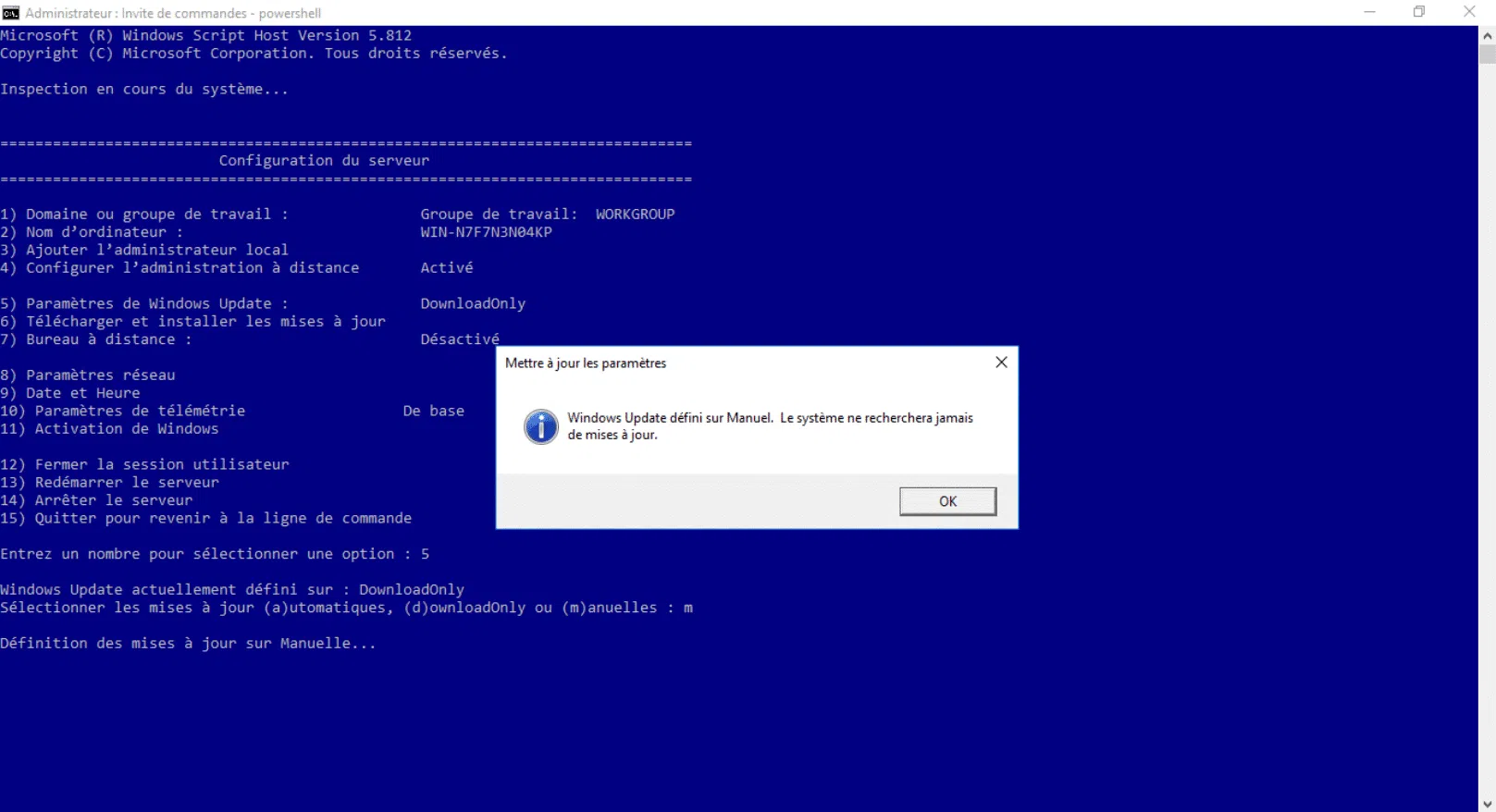
Currently, the only native workaround mentioned is the ability to pause updates for a limited period, between one and five weeks . After that time, the update will eventually install. It's a temporary solution, not a permanent block, and it's designed more for the Windows Update channel than the Store itself, although it can partially mitigate the impact.
This evolution aligns with a general trend across major platforms: prioritizing a controlled experience over extreme customization . In exchange for fewer issues and a smaller attack surface, users lose some flexibility. Third-party tools may emerge to try and reverse this trend, but as of today, there is no simple and reliable way, sanctioned by the system itself, to completely disable automatic app updates from the App Store.
One additional note if you browse community threads: platforms like Reddit display notices about cookies and similar technologies ; it doesn't affect the technical content, but it explains why a privacy banner sometimes appears before you read the experiences shared by other users.
Ways to manage or limit updates today
If your system still has the toggle for automatic app updates in the App Store, that's the first thing you should check . It's not always visible, but when it is, it's still the most direct way to take control.
- Open the Microsoft Store app from the Start menu or by searching for it by name.
- Click on the more options menu (the three dots or equivalent options) in the upper right corner.
- Go to "Settings" to view store settings related to apps and their updates.
- Turn off "Automatically update apps" if the switch is available in your version and build.
Note that in many recent versions of Windows, this checkbox has disappeared or no longer works as intended . In such cases, the Store itself or the system may still force app updates to comply with security and maintenance policies.
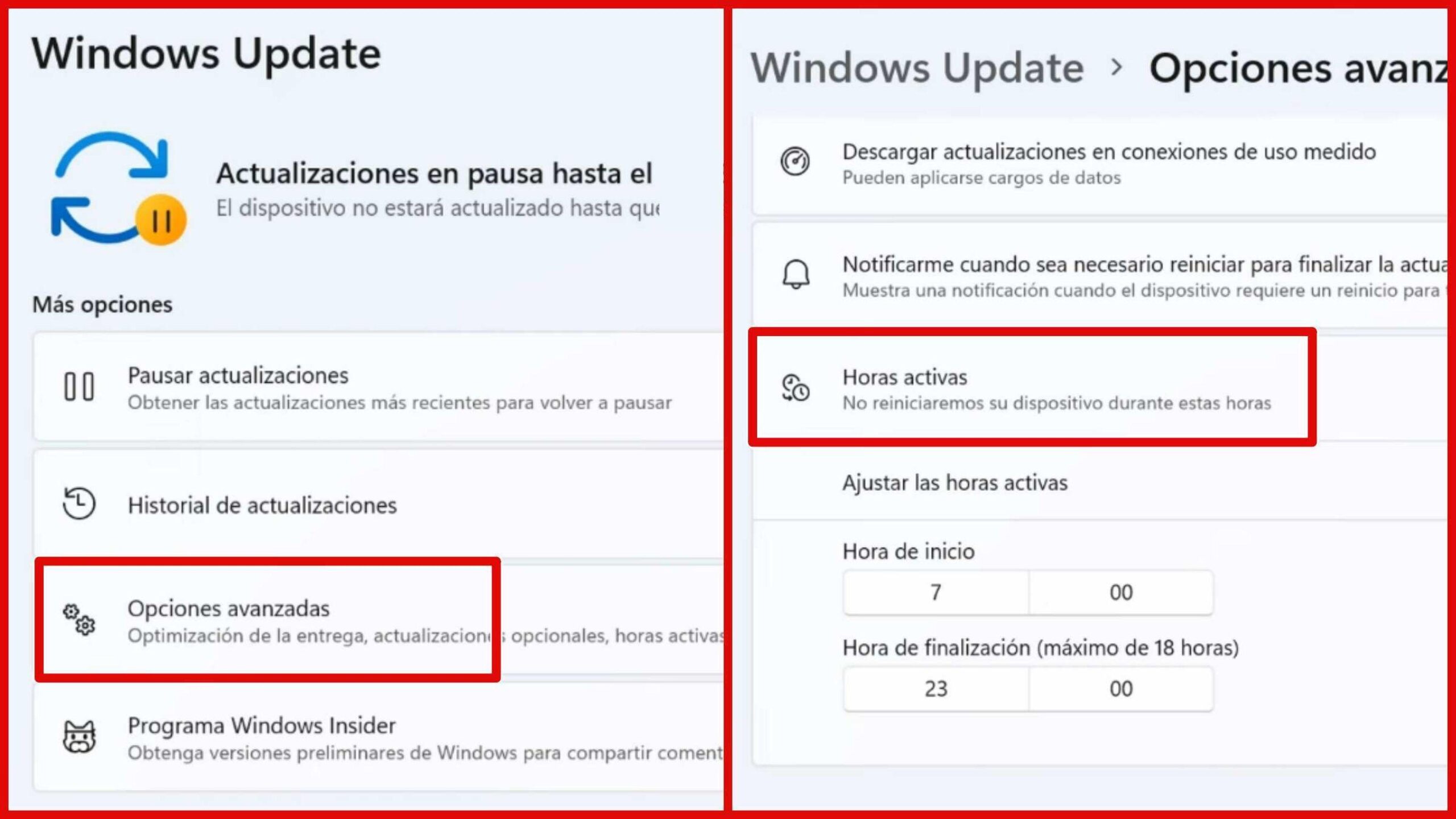
Another temporary measure is to use the update pauses offered by the system . In Windows 10 and Windows 11, you can pause Windows Update for 1 to 5 weeks; although this isn't a feature specifically designed for the Store, in practice it can delay some of the changes that affect you, with the limitation that everything resumes once the pause expires.
Also check the role of the drivers, because some drivers can pull installers or components that reactivate or force the updating of complementary software . Here's a recommendation shared in the community: exclude driver updates from Windows Update for Windows 10 and 11, so that drivers don't arrive automatically and you decide when to apply them.
How can you exclude drivers from Windows Update? In Windows 11, this option is found in the advanced settings of Windows Update and, in professional environments, through group policies or device installation policies; in Windows 10, the process is similar. The goal is to prevent drivers from being automatically installed via Windows Update, thus avoiding cascading updates. If you work in a managed environment, coordinate these decisions with your administrator.
As an alternative strategy, some propose the opposite: a thorough update of the manufacturer's entire software stack . For example, if your computer uses Intel hardware , installing or updating with Intel Driver & Support Assistant can align drivers and software components so that no part is left unfinished and triggers unpredictable changes later.
Before messing with drivers or support tools, create a system restore point . It's a useful safety net if, after trying one approach (whether blocking drivers in Windows Update or switching to the Intel utility), something stops working properly and you need to revert to a previous, trouble-free state.
A tip for interacting with the community: when an answer in official forums helps you, mark the contribution as helpful or as a solution . This makes it easier for others to find the information faster and helps higher-quality recommendations gain visibility.
Key Context: Windows Update and Microsoft Update, and Classic Options on Older Systems
It's important to distinguish between Windows Update and Microsoft Update . Traditionally, Windows Update has focused on delivering security patches and improvements to the operating system itself, while Microsoft Update expands its scope to include Microsoft products such as Office and other components. This distinction, documented since the days of Windows 2000, Windows XP, and Windows Server 2003, explains why some computers received only system updates and others also received updates for Microsoft applications.
If you're using Windows Update in a legacy environment and need to switch to Microsoft Update, the traditional process was very simple : visit the Microsoft Update website (update.microsoft.com/microsoftupdate), start the service, accept the license agreement when prompted, and install the component if it wasn't already present. Afterward, a Microsoft Update shortcut was added to the Start menu, under All Programs.
It was also possible to reverse the process: stop using Microsoft Update and return to Windows Update . From the Microsoft Update website itself, under Change settings, the box to disable Microsoft Update software and allow the exclusive use of Windows Update was checked; after applying the changes, a warning appeared indicating that Automatic Updates could no longer deliver patches from Microsoft Update, and it was necessary to confirm with Yes.
For those who need to fine-tune patch scheduling on older systems, there is specific documentation (for example, the knowledge base article that describes how to schedule these updates on Windows Server 2003, Windows XP, and Windows 2000), a useful reminder if you manage machines that still rely on these processes.
Windows XP Service Pack 2 introduced the Security Center, a central location for checking the status of the firewall, Automatic Updates, and antivirus software . When any of these components failed or were disabled, the system displayed a warning icon and a notification balloon in the notification area prompting the user to correct the issue.
If you needed to enable or adjust Automatic Updates in XP, you could do it in two ways: with an automated solution or manually . The quick way involved a "Fix it for me" wizard, while the manual method gave you complete control over every option.
- Open the Security Center panel: Start > Run, type wscui.cpl and accept.
- Select "Automatic Updates" to configure how and when patches were applied.
- Choose from the available options according to your maintenance needs:
- Automatic (recommended): Allow the system to automatically download and install updates, with the option to set the day and time.
- Download but decide when to install: The system downloads the files and you trigger the installation when it suits you.
- Notify without downloading or installing: You receive notifications and, from there, you take manual control of the entire process.
- Disable Automatic Updates: The system does not manage anything and directs you to the Windows Update website to choose, download and install manually.
Although we mostly work with Windows 10 and Windows 11 today, this historical overview helps to understand Microsoft's approach to centralization and automation . It also explains why, in current scenarios, the company may have restricted options that previously allowed for more manual management of apps in the Store.
With all of the above in mind, the picture is clear: on modern computers, completely disabling automatic updates from the Microsoft Store is usually impossible using conventional methods . Where possible, use the Store's toggle switch; if it doesn't exist, take advantage of temporary pauses and monitor drivers to avoid side effects, using manufacturer utilities when appropriate and always keeping a restore point handy. The balance between security and control is delicate, but with these guidelines you can minimize surprises without constantly battling with the system.


Passionate writer about the world of bytes and technology in general. I love sharing my knowledge through writing, and that's what I'll do on this blog, show you all the most interesting things about gadgets, software, hardware, tech trends, and more. My goal is to help you navigate the digital world in a simple and entertaining way.