- about:config centralizes advanced preferences and allows you to create, edit, reset, or delete settings invisible in the standard panel.
- Search and data types (boolean, number, string) make it quick to locate and precisely adjust parameters.
- Key about pages like about:memory, about:profiles, or about:protections provide diagnostics, performance, and privacy information.
- Practical tweaks (cursive fonts, zoom.maxPercent, memory and session), plus maintenance (plugins and clean reinstall).
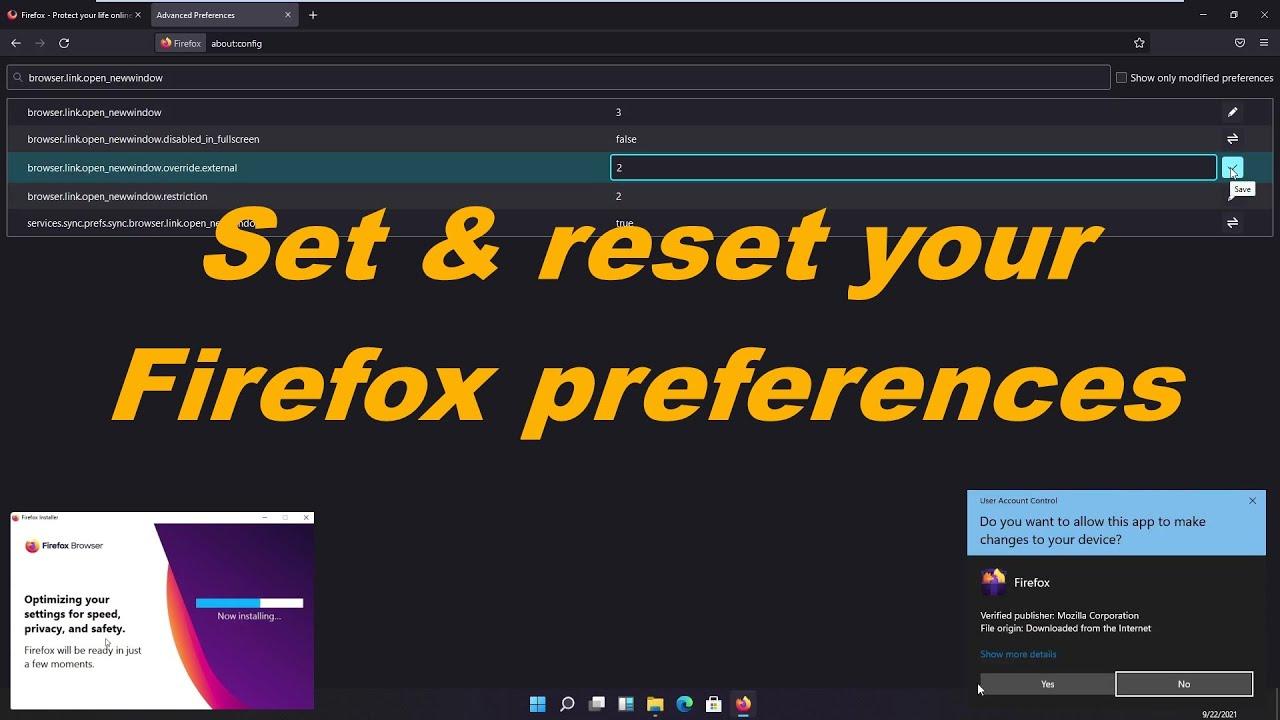
If you've ever felt that the settings visible in Firefox's configuration panel aren't enough, you'll be interested to know that there's an advanced settings area that can take the browser to the next level: about:config. This hidden page contains hundreds of internal preferences , many of them invisible in Settings/Preferences, that control everything from performance to font behavior, zoom, and privacy.
However, caution is advised. Modifying settings without understanding their effect can destabilize the browser . Therefore, this guide explains in detail how to access, search, change, add, reset, or delete preferences; we review useful internal pages (the famous "about:" pages), and cover practical settings for memory, fonts, and zoom. You'll also see what happens when an option appears with a padlock icon and how to proceed if you need a clean reinstall.
What is about:config and how to access it
The Configuration Editor (also called Advanced Preferences) is the about:config page. Firefox reads your preferences from profile files like prefs.js and user.js , in addition to the application's built-in defaults. This combination allows the browser to apply default settings, user changes, and advanced customizations every time it starts.
To access it, type about:config in the address bar and press Enter (or Return on macOS). You'll see a security warning ; in recent versions, the button says "Accept the risk and continue," while in older versions, it might say "I'll be careful, I promise!" After passing the warning, you'll have access to the list.
Once inside, you can click on “Show all” to see each profile preference or use the “Search preference name” box at the top. The search function is not case-sensitive , although the exact name of each preference is, so be careful when typing it.
Find, edit, reset, and delete preferences
Locating a preference is as easy as typing part of its name. For example, typing “ocsp” will bring up entries like security.OCSP.enabled. This filter works by matching the name and, sometimes, the value , helping you narrow down results in profiles with thousands of settings.
Boolean preferences (true/false) can be changed with a double-click or the Toggle button. You can instantly switch from false to true or vice versa , which is useful for enabling experimental options or temporarily disabling features.
If you prefer a string (text) or number (integer), double-click or tap Edit. Enter the new value precisely and confirm with Save. Decimals are not allowed in numbers, and in strings, avoid unnecessary spaces to prevent reading errors.
To restore factory settings, use the Reset button; to remove a manually added preference, tap Delete. Preferences you added may disappear from the list after a restart , provided they are not already included in the application's default settings.
Create new preferences and data types
If you're looking for a name that doesn't exist, about:config will offer to create that preference. The wizard will ask you to choose the data type : Boolean (true/false), Number (integer), or String (text). This is a quick way to enable parameters that Firefox doesn't display by default.
When creating a boolean, it's initially set to true and you can toggle it with Toggle; for numbers and strings, you'll need to enter a value and Save. Remember to document for yourself why you created it ; it will save you time if months later you wonder what that hidden setting did.
Profile location and configuration files
Firefox loads preferences from multiple sources. The application has internal defaults , the profile saves changes in prefs.js, and, if it exists, user.js can inject preferences on each startup. This enables persistent and dropdown customizations.
On Windows , you'll find the user.js file (if you created one) in your profile folder, for example: C:\Users\Username\AppData\Roaming\Mozilla\Firefox\Profiles\profile.default-release. This file is a classic method for enforcing certain values each time Firefox is opened, while prefs.js reflects the state after your session modifications.
About pages: essential for advanced users
In addition to about:config, Firefox offers a range of internal pages accessible from the address bar. Type about:about to see the complete list available in your version . Below is an overview of the most useful ones, with a summary of their functions:
- about: about: index with links to all available about: pages.
- about: addons: plugin manager (extensions and themes).
- about: buildconfig: your Firefox build data.
- about: cache: Cache information on memory, disk, and applications.
- about:certificate: certificate store for people, servers and authorities.
- about:checkerboard: “checkerboard” record for graphical diagnosis.
- about:compat: List of sites with special user agent settings for compatibility.
- about: config: The advanced settings editor you are exploring.
- about: crashes: Shipments and reports of unexpected closures.
- about: credits: recognition for those who contribute to the project.
- about:debugging: Debugging extensions and related components.
- about: downloads: panel with the downloads made.
- about: home: integrated home page.
- about: license: software licenses included.
- about:logging: Logging module manager.
- about: logins: manager of credentials saved in the browser.
- about:loginsimportreport: Report of imported passwords and logins.
- about: logo: Displays the browser logo.
- about: memory: Detailed RAM usage reports and measurement tools.
- about: mozilla: quote from the legendary “Mozilla Book”.
- about: networking: Network traffic diagnostics (experimental).
- about: newtab: new tab page with shortcuts and content.
- about: plugins: list of plug-ins detected by the browser.
- about: preferences: Standard Settings/Preferences panel (here you can change the default search engine).
- about: privatebrowsing: direct access to private browsing.
- about:processes: Process and performance viewer by tabs and tasks.
- about: profiles: : Management and details of Firefox profiles on the system.
- about: profiling: Performance profiler settings.
- about: protections: panel with tracking protection statistics.
- about: rights: information about your rights as a user.
- about: robots: a funny wink “of robots to humans.”
- about:serviceworkers: status of registered Service Workers.
- about:studies: : details of component studies and tests.
- about: support: Troubleshooting information (support page).
- about: sync-log: records (logs) of the synchronization service.
- about: tabcrashed: : notification when a tab is blocked.
- about: telemetry: data that Telemetry collects and sends to Mozilla.
- about: third-party: : loaded third-party modules and their impact.
- about: unloads: “Unloaded” tabs to reduce memory consumption.
- about:url-classifier: URL classifier details.
- about: webrtc: WebRTC session and status information.
- about:welcome: page displayed after installation is complete.
- about:windows-messages: Messages that Windows sends to Firefox windows.
Some screenshots you see in tutorials may not match your current version. With each update, Mozilla refreshes the text and options , but the core purpose of these internal pages remains the same.
Practical settings: fonts, zoom and memory
“Cursive” and “Fantasy” font families
In Windows, the generic cursive font family is usually resolved with Comic Sans MS. If you prefer a different font for this set , open about:config, search for “cursive”, and edit the preference font.name-list.cursive.x-western. Change the value to the name of your desired font (for example, Verdana in the classic example) and click Save.
The change takes effect immediately and can be reverted with Reset. Note that the generic "fantasy" family cannot be selected from here ; Firefox does not expose an equivalent selector for that group in about:config.
Maximum zoom with zoom.maxPercent
By default, the zoom can be increased up to 500%. If you need greater magnification , look for zoom.maxPercent and edit its value (for example, 600). From that point on, the interface will allow you to further increase the page zoom.
There's a peculiarity: in some versions, the Ctrl++ shortcut is capped at 500, but Ctrl+mouse wheel will allow you to exceed that limit . Check the behavior in your specific version to confirm how each zoom method interacts.
Image memory: browser.cache.memory.capacity
Decoding images from the cache consumes RAM depending on the cache size and the number of images involved. The `browser.cache.memory.capacity` parameter allows you to regulate this consumption with three approaches: -1 (automatic, Firefox decides based on RAM availability), 0 (does not decode from the cache), or a number indicating the maximum in kilobytes.
If you cannot find the preference, create it as an Integer and define the desired limit; for example, 10000. For this setting to take effect , the related preference browser.cache.memory.enable must be set to true.
Smoother rewind/forward: browser.sessionhistory.max_total_viewers
Firefox caches recently viewed pages to speed up the Back and Forward buttons. This behavior is controlled by `browser.sessionhistory.max_total_viewers` . Setting it to -1 lets the browser decide based on RAM availability; if you prefer manual control, enter a fixed number of pages to cache.
Increasing this improves the smoothness of navigating back to previous pages, but also increases memory usage . Adjust according to your computer's capabilities and your browsing habits.
Minimize on Windows: config.trim_on_minimize
In Windows systems, there's a `config.trim_on_minimize` preference that determines whether the system can reclaim memory when Firefox is minimized. With `true`, minimizing frees up RAM at the cost of slightly longer restoration times ; with `false`, speed is prioritized when maximizing again, while maintaining memory usage.
If the preference doesn't exist, you can create it as a Boolean and test which value best suits your needs. With plenty of free RAM, leaving it at false might work perfectly ; on less powerful systems, true can reduce RAM consumption when you minimize the browser.
Privacy: Enhanced Anti-Tracking Protection
In the standard settings panel (about:preferences), Enhanced Anti-Tracking Protection should be enabled. Go in and choose the Standard level for a good balance between privacy and compatibility. If you're extremely concerned about tracking, you can choose Strict, keeping in mind that it might break some websites.
This layer works by blocking known trackers and other invasive elements. Combined with the fine-tuning options in about:config , you can achieve a very private environment without sacrificing too much convenience.
When a preference appears locked (not editable)
You might encounter grayed-out entries with a padlock icon. This indicates that the value is locked by the application or policies and cannot be modified from about:config. This is common in managed environments or hardened browsers.
A common issue reported by users is trying to enable older TLS suites , such as security.ssl3.rsa_aes_256_sha, and discovering they are blocked for security reasons. If you see that padlock icon, you won't be able to change them in the interface . Consider whether you really need this compatibility, as it's generally discouraged for security reasons; if the policy comes from the browser itself or from company guidelines, there's no internal setting that can reverse it.
Maintenance and troubleshooting
Before blaming a hidden setting, check your add-ons and plugins . Problematic extensions can spike RAM usage or cause strange crashes . Go to about:addons and uninstall, disable, or update anything you don't use or that's outdated.
If nothing else works, a clean reinstall can save the day without losing your personal data. Download the latest version from mozilla.org and close all windows . On Windows, delete C:\Program Files\Mozilla Firefox (and C:\Program Files (x86)\Mozilla Firefox if applicable); on macOS, remove the app from Applications; on Linux , uninstall using your distribution's package manager or delete the firefox folder if you used the binary.
Next, run the installer and, when it finishes, let Firefox launch. Your profile (bookmarks, passwords, etc.) is in a different location , so it shouldn't be affected by this process. Even so, we recommend backing up your profile just in case.
Very important: avoid third-party installers. Some "cleaners" can permanently delete your profile (extensions, cache, cookies, bookmarks, settings, and passwords). If you're going to modify your profile, consult instructions on how to back up and safely restore your information.
With these guidelines, you can navigate about:config with confidence, modify what truly matters, and revert if something doesn't go as planned. The key is to proceed step by step, note your changes, and test : from tweaking italic fonts or increasing the maximum zoom level, to refining memory management or strengthening privacy with anti-tracking protection. And if something is locked, you'll know it's due to policies or security measures, and that you should explore alternatives instead of forcing it.


Passionate writer about the world of bytes and technology in general. I love sharing my knowledge through writing, and that's what I'll do on this blog, show you all the most interesting things about gadgets, software, hardware, tech trends, and more. My goal is to help you navigate the digital world in a simple and entertaining way.