- TaskbarX allows advanced customization of the taskbar in Windows
- It has several styles, colors and transparency levels adaptable to any user.
- Includes useful options for animations, multiple monitors, and quick settings
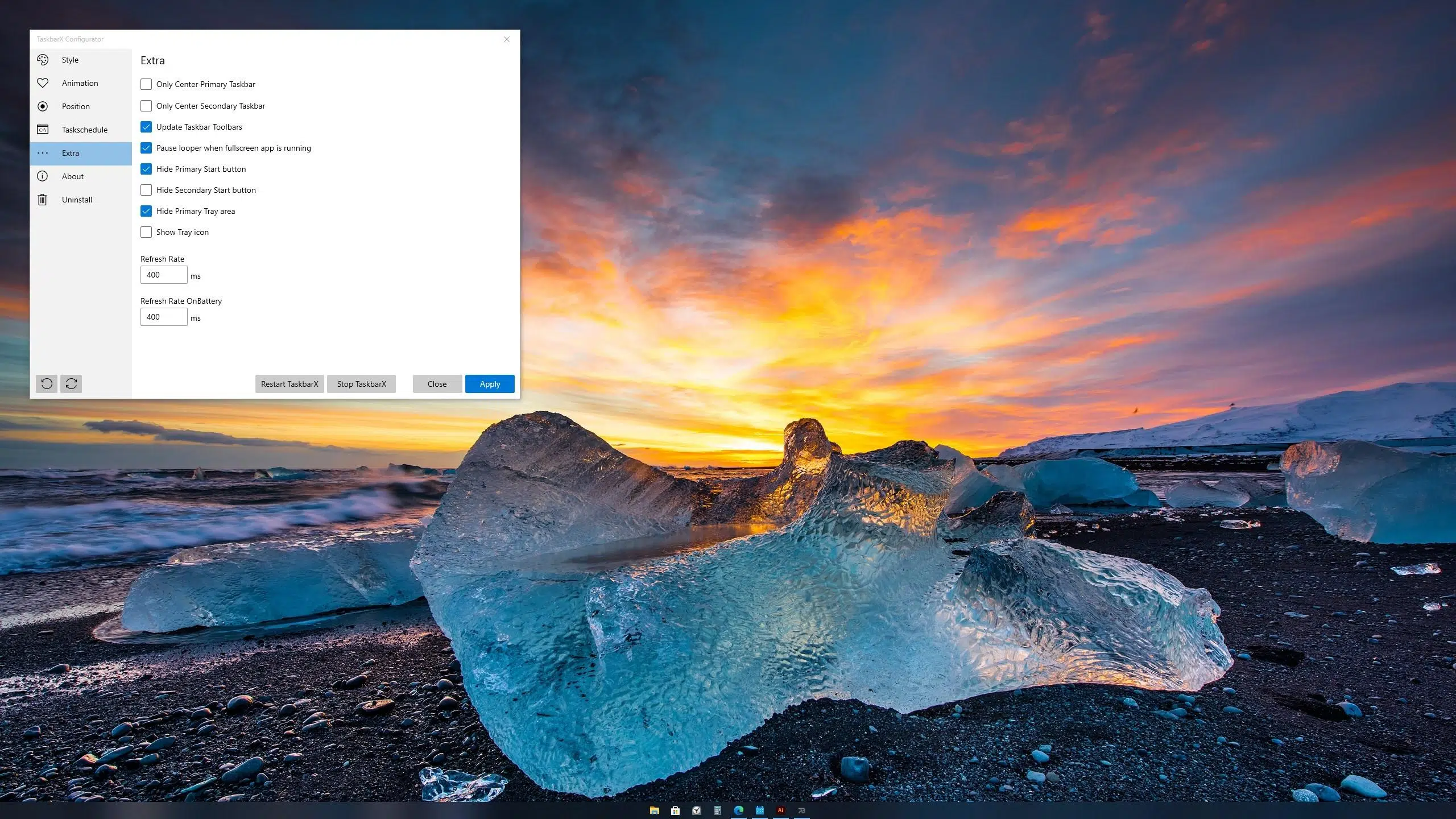
Today, customizing the appearance of Windows goes far beyond changing the wallpaper. Many users seek to give their system a distinctive touch, and in this process, the taskbar has become one of the most important elements to modify. However, Windows severely limits this customization by default, and that's where TaskbarX comes in —a lightweight yet powerful application that allows you to adjust the taskbar to your liking.
If you've ever wished your taskbar icons were perfectly centered , wanted to play with transparency , experiment with custom colors, or explore different visual styles without messing with the registry, TaskbarX is your best friend. Here you'll discover how to download, configure, and get the most out of TaskbarX on Windows , with tips , clear explanations, and everything you need to make your taskbar the star of your desktop.
What is TaskbarX and what is it for?
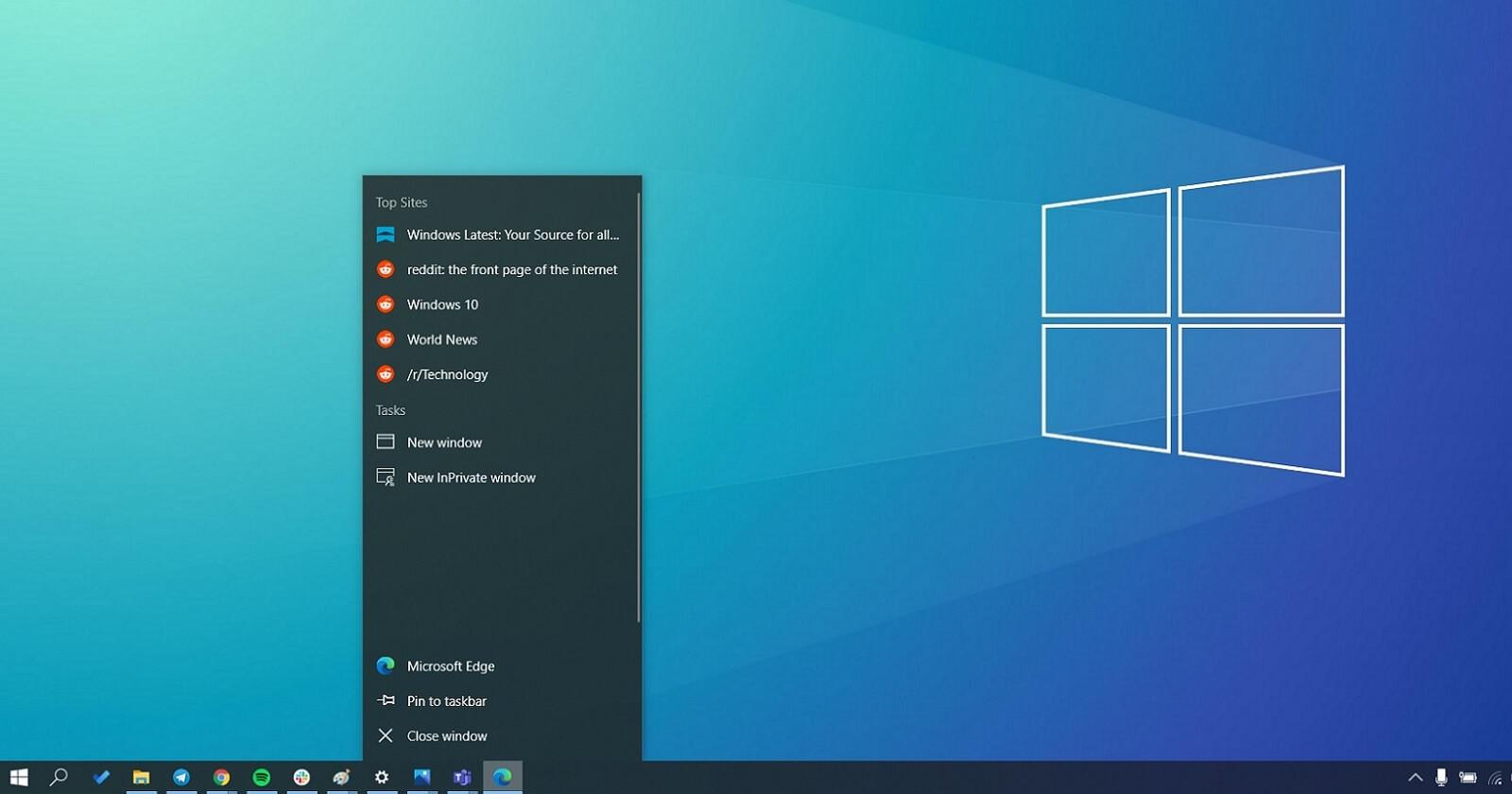
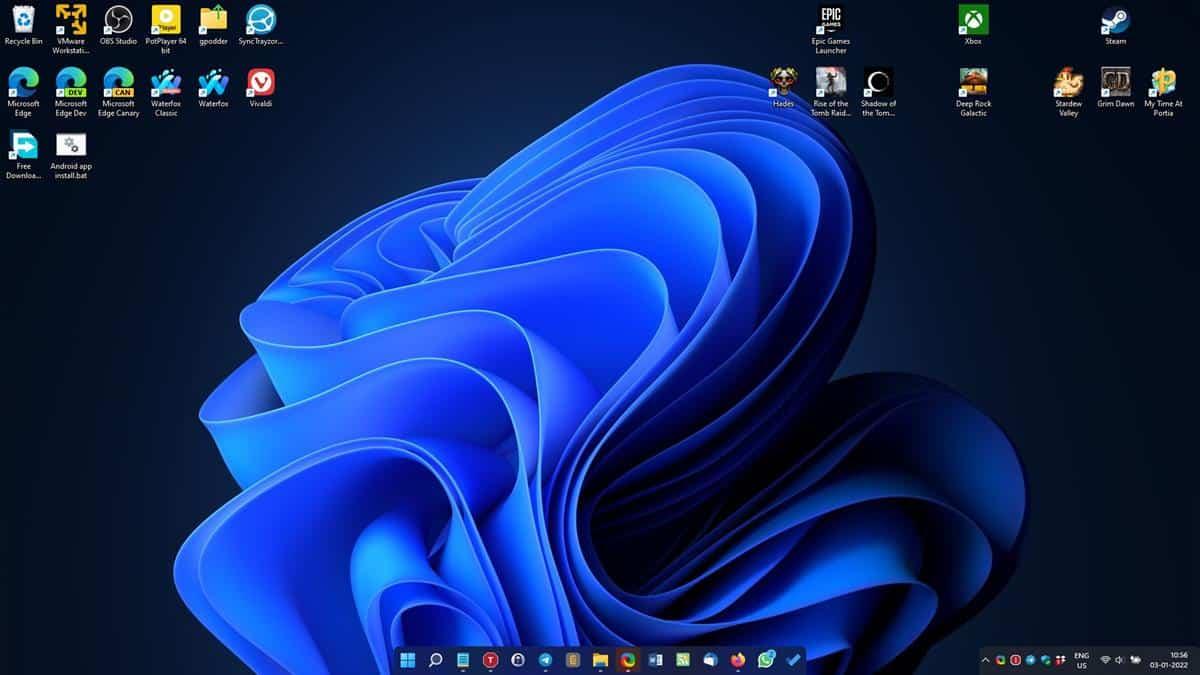
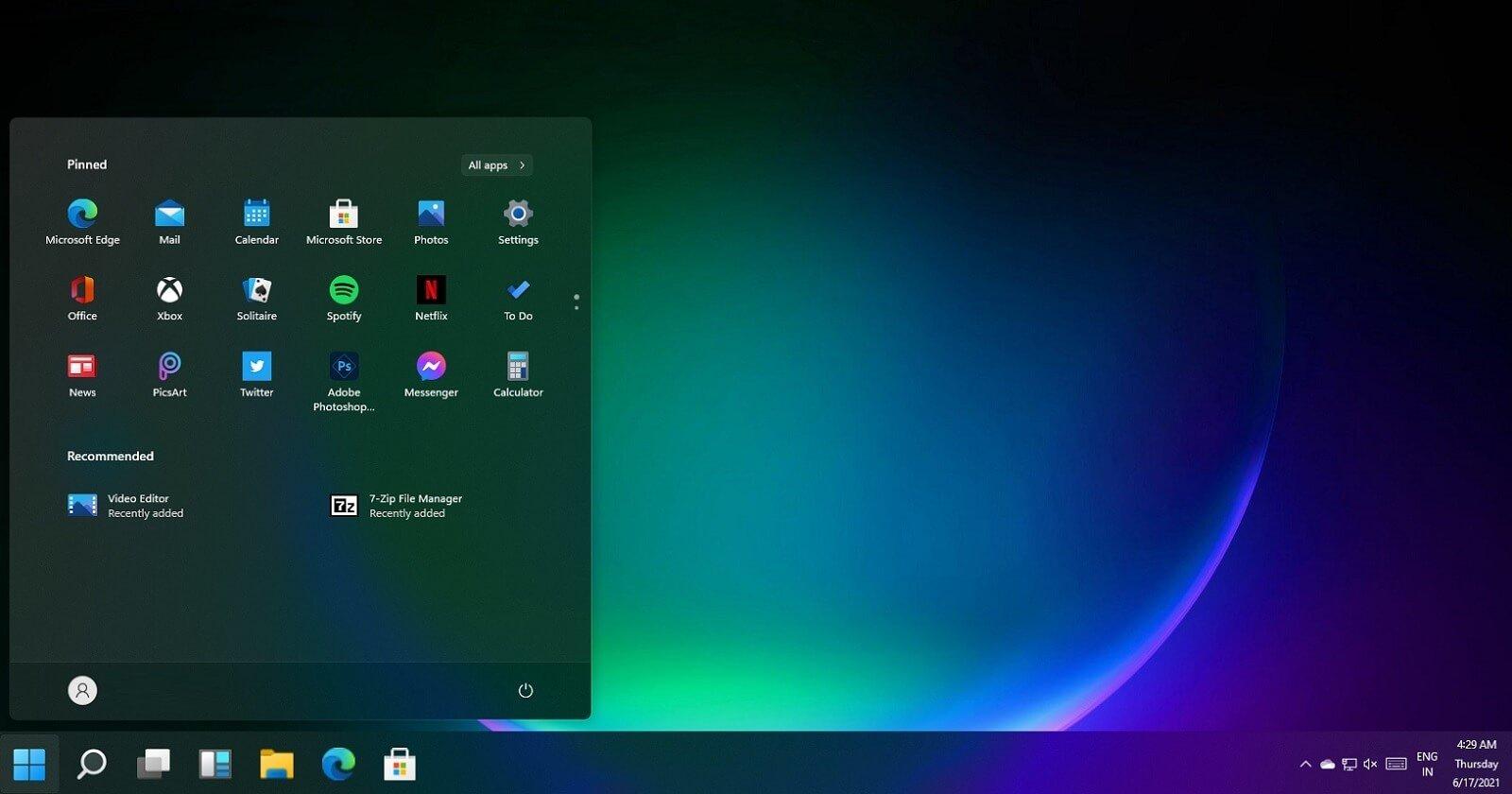
TaskbarX is a free and open-source application specifically designed for Windows 10 and later versions , whose main objective is to take taskbar customization to the next level. Initially conceived to automatically center taskbar icons (similar to what Windows 11 offers ) , the program has since added many more customization features and complete control, such as the ability to modify styles, adjust transparency, choose custom colors, and set animations for icon movements.
TaskbarX's flexibility allows both novice users and Windows tuning enthusiasts to enjoy a truly unique and dynamic taskbar . Whether you prefer a clean, minimalist aesthetic or a more colorful and modern look, this small app has something for you.
How to download TaskbarX: versions and where to find it
One of the great advantages of TaskbarX is that it offers several download options tailored to each user's needs. You have two main options:
- Portable version free: download as a ZIP compressed file and no installation requiredIdeal if you want to use the app without leaving any traces or if you prefer not to install anything on your system. Simply unzip it and you're done.
- Microsoft Store version: available for a symbolic price (around one euro/dollar), which allows you collaborate with the project and also get advantages such as direct installation on the system, automatic updates, and a more accessible icon in the notification area to manage everything from there.
- There is an additional option for more advanced users using Rainmeter: TaskbarX is also offered. as a Rainmeter skin, although this method is more technical.
Either version contains the core features for customizing your taskbar, and you can choose the one that best suits your style.
Getting Started: Installation and Initial Configuration
If you choose the portable version of TaskbarX, the process is really simple and you won't have to deal with installers or unusual permissions. Just follow these steps:
- Download the ZIP file from the official website or from the project's GitHub page.
- Unzip the contents into a folder of your choiceYou can put it anywhere, although it's recommended that it not be a very long or hidden route.
- Locate the file TaskbarX Configurator.exe and double-click to open the settings panel. This is the brain of the application and from here you will control all the settings related to customization.
If the taskbar stops responding or you lose centering for any reason, you can reapply the changes by running the TaskbarX.exe file from that same folder. The entire process is reversible and doesn't modify critical Windows files, so you can experiment without worry.
Exploring TaskbarX customization options
The TaskbarX configuration panel is divided into several distinct sections. In each section, you can modify the visual and functional aspects of the taskbar in a very intuitive and immediate way.
Visual Styles: Choose the look of your taskbar
The "Style" section groups together the different visual styles you can apply to the taskbar. TaskbarX offers no fewer than six main styles :
- Default appearance (the one that Windows brings by default)
- fully transparent
- Transparent with gradient
- Opaque (no transparencies)
- Blur (blurred, background blur type)
- Acrylic (acrylic effect, very much in the style of Fluent Design that Microsoft has been including in recent years)
Each of these styles can radically alter the bar's appearance, from a minimalist, almost invisible look to a modern and striking acrylic effect . The best part is that you can change styles as often as you like and preview the effect in real time.
Custom colors and gradients
Another useful feature of TaskbarX is the ability to choose the exact color you want to use for the bar, whether it's a solid color or a gradient effect . This allows you to match the bar to the background, icons, or your color preferences, creating a more harmonious and customized environment.
Transparency and opacity settings
You can play with the transparency levels or activate opaque mode for a more classic finish. Additionally, diffuse mode and the acrylic effect offer a sense of depth and elegance , as if the bar is floating above the background.
Animations for centering icons
One of TaskbarX's most distinctive features is its ability to animate icon movement when you launch an application, switch windows, or modify settings. You can choose different animation styles and adjust the speed , resulting in a smoother and more modern look.
Multiple Monitor Options
If you use more than one monitor, TaskbarX lets you adjust the position of the bars on each screen , define whether centering affects all or only the main screen, and configure the spacing between them. You can also manage whether the system tray participates in centering, which is useful in extended setups.
How to apply and save your changes
After customizing styles, colors, and effects, simply tap "Apply" for the changes to take effect in real time. There's no need to restart, so you can continue adjusting and refining your settings until you're satisfied.
To make future modifications easier, it's a good idea to save your favorite combinations so you can quickly restore them if you decide to experiment with different styles.
What to do if TaskbarX stops working or you have problems
In rare cases, the taskbar may become unresponsive or lose its centering after an update or restart. The solution is usually to rerun TaskbarX.exe from the folder where you extracted the application. If you're using the Microsoft Store version, you can also restart it from the icon in the notification area. If the problems persist, check for conflicts with other programs or consult the project's community, which is very active.
The advantages of the Microsoft Store version include automatic installation, Windows-managed updates , and a notification area icon for quickly managing settings or restarting the app. Both methods offer the same level of customization and control, but supporting the project through purchase contributes to its ongoing development.
While its primary function remains automatically centering icons , TaskbarX's numerous customization options and additional features make it a very comprehensive tool. From adjusting icon spacing and applying visual effects to configuring animations and multi-monitor support, it offers an advanced level of control over the taskbar. The active community shares configurations and helps other users, enriching the overall experience.
Ultimately, it's the ideal solution for those who want a modern, personalized taskbar with a tailored aesthetic, without compromising the stability or performance of their device.

Passionate writer about the world of bytes and technology in general. I love sharing my knowledge through writing, and that's what I'll do on this blog, show you all the most interesting things about gadgets, software, hardware, tech trends, and more. My goal is to help you navigate the digital world in a simple and entertaining way.
Table of Contents