- Use fast public DNS like Cloudflare, Google Quad9 reduces latency and speeds up the response of the eShop and online.
- Adjusting parameters such as MTU, band, and WiFi channel further improves the stability and speed of the connection on the Switch.
- The actual speed also depends on the router, the state of the servers and the quality of the microSD card used to install games.
- Choosing the right DNS provides extra advantages in security, privacy, and access to online services compared to the operator's DNS.
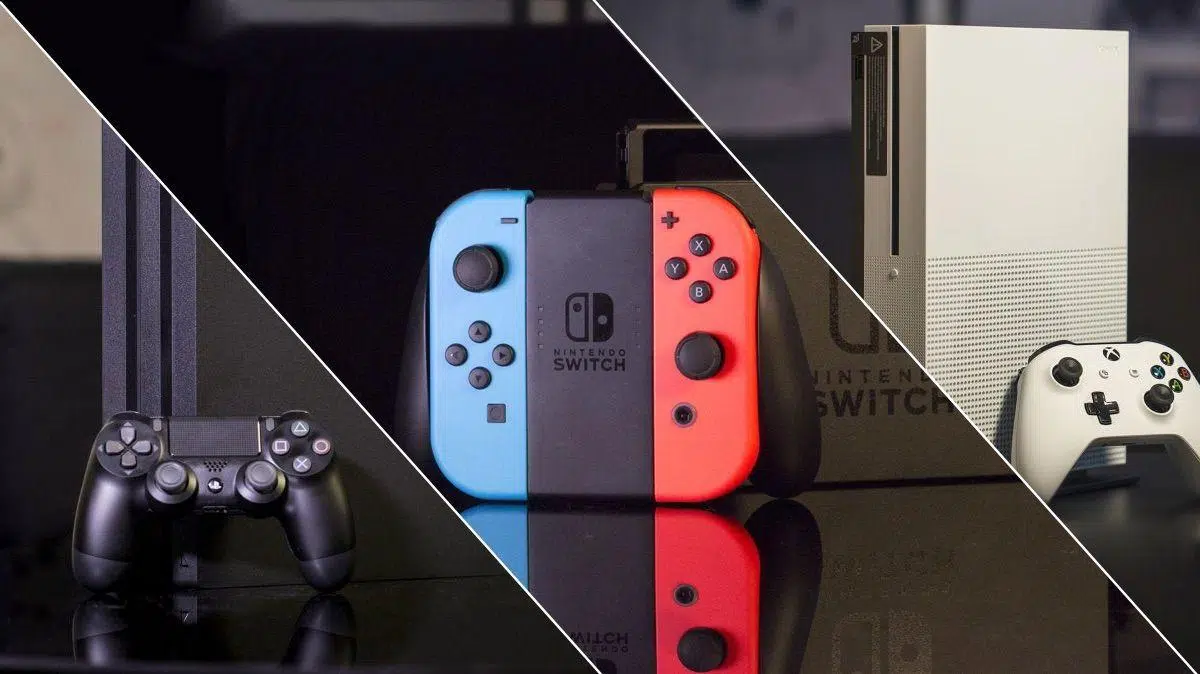
If you own a Nintendo Switch or are considering upgrading to a faster internet connection, you've probably wondered why the console sometimes downloads so slowly from the eShop, even with a good fiber optic connection. The truth is, a simple DNS adjustment and some network settings can make a huge difference in download speed , both for digital games and updates.
It's not uncommon to see users with 1 Gbps fiber optic connections barely getting 20 or 30 Mbps on the Switch… until they tweak their network settings. Switching to fast DNS servers like Cloudflare's (1.1.1.1) or Google's and properly tweaking the connection can multiply the actual download speed on the eShop several times over , as well as improve stability in online games.
What is DNS and why does it affect speed on Nintendo Switch?
To understand why tweaking the DNS can so greatly improve the experience, it's helpful to have a clear grasp of the basic theory. The DNS (Domain Name System) works like an internet phone book : it translates names like "eshop.nintendo.net" into numerical IP addresses that servers understand.
When your Switch wants to connect to the eShop, online game servers, or any web service, it first queries the DNS server for the IP address corresponding to that domain. If that DNS server is slow, far away, or overloaded, each name resolution takes longer than expected , adding extra latency to all your connections.
In practice, this means that even if you have a good fiber optic connection, a slow DNS can make your connection much sluggish , with longer loading times, slow downloads , or even minor interruptions when playing online games.
Furthermore, DNS doesn't just affect speed. Depending on the provider you use, it can also impact security, privacy, and even access to certain content . Some block dangerous websites, others allow you to bypass certain geographical restrictions, and still others keep varying amounts of logs of your online activity.
Real-world example: how a DNS change boosted Switch speed
To move beyond theory, it's worth discussing a very typical case. A user with a 1 Gbps fiber optic connection and the Switch connected via Ethernet cable only saw around 25-26 Mbps download and 10 Mbps upload speeds in the console's network tests, which is completely ridiculous for that connection.
He tried everything: configuring DMZ, opening ports, redirecting traffic from the router… and nothing worked . However, by simply changing the DNS servers to Cloudflare's (1.1.1.1 as the primary), the speed jumped dramatically: it went to around 120 Mbps download and around 46 Mbps upload, without changing anything else.
What does this tell us? That many times the bottleneck is neither in the console nor in the fiber, but in the operator's own DNS server , which may be slower, overloaded, or poorly optimized for certain traffic routes.
Obviously, you won't always see such a dramatic improvement, but changing your DNS often results in a noticeable speed increase, lower latency, and fewer buffering issues when browsing the eShop or playing online . And best of all, it's a risk-free and reversible change that you can try in minutes.
Most used public DNS servers by gamers (and their addresses)
There are many alternative public DNS services to those offered by your default internet provider. Among online gamers, some have gained a strong reputation for their speed, stability, and security features . These are the most popular:
Cloudflare DNS
Cloudflare has become a classic among online gamers. It focuses heavily on privacy (it doesn't log or sell your activity) and, above all, is one of the fastest DNS providers in the world , with very low latency.
It also includes DDoS protection and DNSSEC for secure response validation. For a Nintendo Switch that's constantly connecting to online services, this translates to a faster and harder-to-takedown response.
Cloudflare Addresses:
- IPv4: 1.1.1.1 (primary) and 1.0.0.1 (secondary)
- IPv6: 2606:4700:4700::1112 y 2606:4700:4700::1002
Google Public DNS
Google DNS is another leading option. It's a widely used service, accessible from virtually any country, and with excellent response times , which is why it's also very popular for online gaming.
It also includes security mechanisms against DDoS attacks and DNS spoofing, preventing malicious redirects. The downside is that Google does record some activity (anonymized) and stores your IP address for a while , so if you're very protective of your privacy, you might prefer other options.
Google DNS addresses:
- IPv4: 8.8.8.8 (primary) and 8.8.4.4 (secondary)
- IPv6: 2001:4860:4860::8888 y 2001:4860:4860::8844
OpenDNS
OpenDNS is another well-established public service. Its main advantage is that it combines good speeds with security and content filtering features , which is useful if the Switch will also be used by children.
Its features include blocking malicious websites and the ability to apply some parental controls. It works well for gaming, with generally low latency and fairly fast browsing.
OpenDNS addresses:
- IPv4: 208.67.222.222 (primary) and 208.67.220.220 (secondary)
- IPv6: 2620:119:35::35 y 2620:119:53::53
Quad9
Quad9 stands out primarily for its security. It filters malicious domains, blocks malware attempts , and uses encrypted DNSSEC to protect queries , adding an extra layer of protection against phishing attacks and suspicious websites.
Many Nintendo Switch users rate it highly because, in addition to being secure, it usually responds quite quickly and offers a smooth experience in online games and on the eShop.
Quad9 Directions:
- IPv4: 9.9.9.9 (primary) and 149.112.112.112 (secondary)
- IPv6: 2620: faith :: faith and 2620: faith :: 9
Other known DNS
In addition to the ones mentioned above, there are more services you can try if you want to fine-tune things even further. Some have a strong focus on privacy, others on content filtering, and still others on business stability . Among the most talked-about are:
- Level3: 209.244.0.3 to 209.244.0.4
- OpenNIC: 96.90.175.167 to 193.183.98.154
- Norton DNS: 198.153.192.1 to 199.85.127.10
- Comodo Secure DNS: 8.26.56.26 to 8.20.247.20
- FreeDNS: 37.235.1.174 to 37.235.1.177
- puntCAT: 109.69.8.51
They're all compatible with consoles, so you can try them out and stick with the one that works best in your area and with your carrier . They don't all perform the same in every country.
Warnings about using public DNS on your Switch
Before you rush into making changes like crazy, it's worth clarifying a few points. Google, Cloudflare, OpenDNS, Quad9, and similar DNS services are third-party services with their own terms of service , which you should at least skim.
When you configure your switch to use, for example, Google's DNS servers, all domain queries pass through that company's servers . This means they can record, anonymize, and process that data according to their privacy policies (Google, specifically, stores your IP address for a limited time, usually around 48 hours).
If this doesn't convince you, you can always look for other alternatives or even set up your own DNS on your local network using an advanced router or a home server . In that case, you would only need to enter the address of that server in the Switch settings.
It's also very important to distinguish between the use of public DNS servers and the use of VPN services . Solutions like ExpressVPN or Unlocator Hybrid include their own secure DNS resolution, but these are paid services and are typically configured at the router, PC, or app level , not by manually entering DNS addresses on the switch itself.
How to change the DNS on Nintendo Switch step by step
The good news is that changing the DNS on your Nintendo Switch is a simple process, requiring no networking expertise. Just follow a few steps in the console's settings menu and you'll be able to switch between your ISP's DNS and faster public DNS servers whenever you want.
You will only need:
- Your Nintendo Switch (or Nintendo Switch 2(if you read this in the future)
- An internet connection via WiFi or Ethernet cable
Steps to manually configure DNS on a switch:
- On the home screen, tap on the gear wheel icon to open System Settings.
- Go to section Internet > Internet Settings.
- Choose the network you are connecting to (WiFi or wired) and tap on Change settings o Modify settings.
- Search the field DNS configuration and changes from “Automatic” to Manual.
- En Primary DNS, enter the address you want to use (for example, 1.1.1.1 for Cloudflare or 8.8.8.8 for Google).
- En Secondary DNS, enter the backup DNS (for example, 1.0.0.1 from Cloudflare or 8.8.4.4 from Google).
- Press on Save and later Accept to apply the changes.
Once you've done this, you can test the connection from that same menu or simply go to the eShop to see if you notice any improvements in page loading and game downloads.
Other network settings on the switch that affect speed
DNS is just one piece of the puzzle. On the Nintendo Switch, there are at least two additional settings that can be very helpful: the MTU size and the choice of Wi-Fi band/channel.
The MTU (Maximum Transmission Unit) is the maximum size of data packets sent over the network. For many connections, a value of 1500 works very well and reduces packet fragmentation , resulting in less overhead and better performance.
To change the MTU on the Switch, simply go to the same menu where you modified the DNS, find the MTU option , and set a value of 1500. If your connection doesn't support that size without fragmentation, you can run ping tests from a PC or lower that value slightly (for example, to 1472) until you find the optimal point.
If you're using Wi-Fi, it's also worth checking which band and channel you're connected to. The 5 GHz band usually offers better speeds and less interference than the 2,4 GHz band , provided your router and switch are relatively close.
Within the 5 GHz band, the less congested higher channels (for example, 149 to 165) usually work particularly well if your country allows them . Some Switch models sold in Japan may have certain channels blocked depending on the Wi-Fi region, but this is very specific and generally won't affect most users.
Relationship between DNS and actual download speed on the eShop
Many people wonder to what extent DNS affects actual download speed. DNS doesn't increase your connection's maximum bandwidth, but it can speed up everything that happens before and during the initial stages of a download.
When you visit the eShop, your console makes multiple DNS queries to load images, game listings, content servers, and so on. If each of these queries is resolved faster, the store responds more quickly, and downloads start sooner and more reliably.
Furthermore, by connecting to servers distributed around the world, a good DNS can help you choose more efficient connection routes , sometimes resulting in higher speeds and lower latency to Nintendo's servers.
Even so, other key factors shouldn't be overlooked. The quality of your router, the state of your ISP's network, congestion on Nintendo's servers, and even the performance of your microSD card can limit your speed even with a very fast DNS; if you want to detect bottlenecks in your network.
MicroSD, large downloads, and the real limitations of the hardware
If you primarily use the Switch for digital games, you'll know that current games are incredibly large. Many titles come in compressed formats (NSZ and similar), which means the console has to decompress them on the fly while downloading.
Imagine you're downloading at 50 MB/s but your microSD card can only write at a sustained speed of 20 MB/s. In that case, the card becomes the bottleneck , and no matter how many miracle DNS servers you use, the installation will be choppy.
That's why it's recommended to use high-end microSD cards, capable of maintaining consistent write speeds of around 90-100 MB/s , such as a Samsung Pro Plus or equivalent cards from reputable brands. Many cheap 1 TB cards, for example, start strong but then plummet to 20 MB/s after just a few GB.
In environments where advanced download managers are used on modified consoles, larger network buffers and multiple download threads are typically employed to better utilize the connection, even if the microSD card is running low. However, on a standard Switch, your best option is primarily to choose a good card and avoid filling the internal memory completely.
Differences between DNS and VPN for gaming
Public DNS servers are sometimes confused with VPN services like ExpressVPN or Unlocator Hybrid. A DNS server only translates names to IP addresses, while a VPN creates an encrypted "tunnel" that changes your route and often your apparent location.
ExpressVPN, for example, offers very fast servers optimized for gaming and streaming , with DDoS protection and no activity logs. It can work great for playing games from other countries or protecting yourself on public networks , but it's not a classic public DNS service with IPs you simply enter into your console.
Unlocator Hybrid combines VPN and DNS to allow access to geo-blocked content and game servers in other regions , as well as improving the stability of some routes. Its DNS servers (185.37.37.37 and 185.37.39.39 for IPv4) are used within its paid service.
For the topic at hand—improving download speed and eShop responsiveness on a standard Switch— the essential solution is switching to fast public DNS servers . A VPN can be a useful addition in certain situations, but it's not required to see improvements in everyday use.
Why a good DNS is so important for online gaming
Beyond downloads, a good DNS also influences online gaming. Every time your console needs to contact matchmaking, authentication, or game room servers, it will use the DNS.
If this process is quick, it reduces the added latency on each connection, and while it won't work miracles on ping, it does help to have a more stable connection and minimize delays in setting up games . With certain unstable connections, changing the DNS can resolve quite annoying micro-disconnections.
There's also a security factor. DNS services like Quad9, OpenDNS, or some enterprise solutions block malicious domains and phishing , which is very useful if you share your network with other devices or with children who might click on anything.
In more advanced cases, certain DNS or VPN combinations even allow access to game servers that are not officially available in your region , opening the door to trying out titles, events, or versions that you otherwise couldn't enjoy from your country.
Given all of the above, it makes sense that the most "hardcore" gamers, upon getting a new console, would first change their DNS settings to faster, more reliable, and more secure ones , instead of sticking with the default provider's settings.
All these settings—fast public DNS, a well-configured MTU, a stable 5 GHz band, and a good microSD card—form a very powerful combination to get the most out of the Nintendo Switch when you download games from the eShop or spend hours playing online, and although they don't guarantee miracles, they do greatly increase the chances that your connection will be closer to what you're actually paying for.

Table of Contents
- 1 What is DNS and why does it affect speed on Nintendo Switch?
- 2 Real-world example: how a DNS change boosted Switch speed
- 3 Most used public DNS servers by gamers (and their addresses)
- 4 Warnings about using public DNS on your Switch
- 5 How to change the DNS on Nintendo Switch step by step
- 6 Other network settings on the switch that affect speed
- 7 Relationship between DNS and actual download speed on the eShop
- 8 MicroSD, large downloads, and the real limitations of the hardware
- 9 Differences between DNS and VPN for gaming
- 10 Why a good DNS is so important for online gaming
