- Acer Care Center centralizes the maintenance and support of Acer equipment in Windows 11, including battery, diagnostics and updates.
- There is a vulnerability (CVE-2021-45975) in versions V4.00.3000 to V4.00.3034 that is fixed in V4.00.3038 or higher.
- The update can be performed automatically or manually from the drivers and manuals section of the official Acer website.
- If the app doesn't appear or there's no specific version for Windows 11. It is possible to combine native Windows tools with support and downloads from Acer.
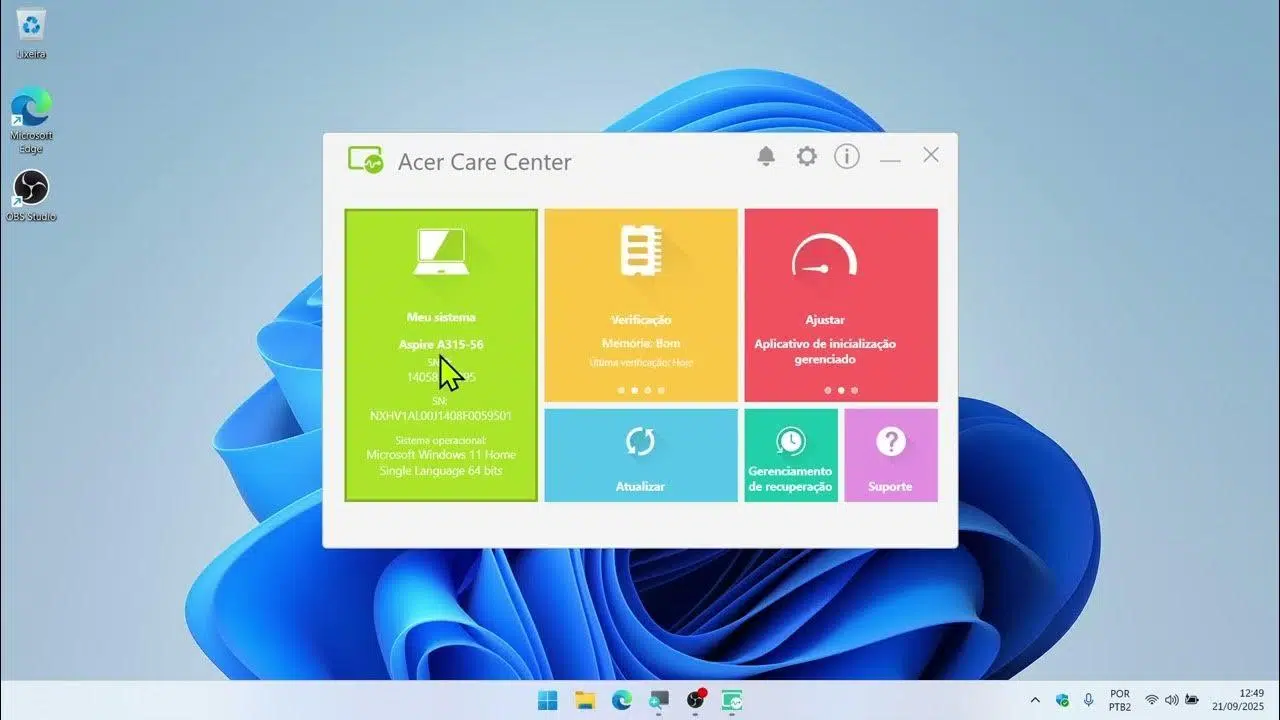
If you have an Acer computer with Windows 11 If you've heard of Acer Care Center but aren't sure what it is, how to use it, or if it's still compatible, here's a complete and straightforward explanation. We'll cover its purpose, how to install or recover it if it's disappeared, how to update it correctly, and what security issues have been identified in older versions.
Throughout this guide we will review Step-by-step guide to using Acer Care Center in Windows 11We'll cover options for managing the battery, updates, backups, and, very importantly, how to ensure you're not using a vulnerable version of the program. We'll also see what to do if the tool doesn't appear on your computer, or if the Acer website indicates that your model isn't fully compatible.
What is Acer Care Center and what is it used for in Windows 11?
Acer Care Center is an official Acer application designed for manage and maintain your PC centrallyDiagnostics, system status, driver updates, support, and, on some models, battery settings and system recovery.
In Windows 11 it remains useful as long as you have one Updated version compatible with your modelIn many portable Acer comes pre-installed from the factory, but after upgrading from Windows 10 or after a clean reinstall, it often disappears and you have to find and install it again.
It's important to understand that it's not an essential tool for the computer to function, but it is very practical for centralize maintenance tasks and take advantage of specific Acer features, such as battery health monitoring or shortcuts to technical support.
On some newer Acer devices, related applications are also offered, such as Acer Control Center or simplified variants, but the operating logic is very similar: to bring together in one place the utilities for health, assistance and device updates.
Security vulnerability in Acer Care Center: what you should know
Acer has acknowledged a security vulnerability affecting certain versions of both Acer Care Center and Acer Control CenterThis vulnerability has been registered under the identifier CVE-2021-45975 and makes it necessary to update the program if you are using an affected version.
The problem lies within a specific range of software versions, so simply having Acer Care Center installed is not enough; it is essential. check the version number and make sure that a corrected or later version is being run.
The affected versions of Acer Care Center are from V4.00.3000 to V4.00.3034If your device has a version within that range, Acer's official recommendation is to update as soon as possible to mitigate the security risk.
To close the security hole, Acer indicates that you need to update at least to the version V4.00.3038 from Acer Care Center, or any later version available for your model. Starting with that build, the vulnerability CVE-2021-45975 is resolved.
This type of vulnerability often allows, in certain cases, the elevation of privileges or manipulation of internal system processes, so it's best not to ignore it. If you have a relatively recent Acer And if you've never used the app, it's very likely that it's on one of the listed versions and you'll have to update it manually.
How to check if you have Acer Care Center and which version you are using
Before you start downloading anything, you should confirm if Acer Care Center is now installed on your Windows 11 PC And, if so, which exact version you have. That information will tell you whether or not you fall within the range affected by the vulnerability.
To check this in Windows 11, you can rely on the actual system setting and in the app's interface. The steps are simple and you don't need advanced technical knowledge, just follow the correct order to locate the program.
First, you need to open Windows app settings. Press the key Press the Windows key and select the gear icon. To open the Settings app, you can also right-click the Home button and choose "Settings" from the context menu.
Within Settings, access the section ApplicationsIn Windows 11, you'll usually see "Apps" in the left column; go there and then open the "Installed apps" section or something similar, where you'll find a list of everything you have installed.
In the program list, scroll down or use the search bar to locate the entry. “Acer Care Center”If it appears in the list, it means you have it installed. Click on the entry or, if you prefer, launch the program from the Start menu by searching for “Acer Care Center”.
Once the application is open, you will find an information icon (usually represented by a symbol similar to ě� or by an “i” in a circle). Tap that icon to see the application information and exact version number which is installed on your computer.
If the version number you see is between V4.00.3000 and V4.00.3034This means you're using a vulnerable version and need to update. If it's the V4.00.3038 or higherYou already have a corrected edition and you don't need to do anything else in this regard.
It may happen that, when searching in the list of installed programs, Acer Care Center is nowhere to be found.In that case, it's not a version problem: you simply don't have the program on your computer and you'll have to install it using the methods we'll see below.
Method 1: Automatic Acer Care Center update on Windows 11
Acer Care Center is designed to update automatically In most cases. That is, if you already have it on your computer and the live update system is working correctly, the program itself should download and install the new versions as Acer releases them.
The live update mechanism usually activates automatically, so the user typically doesn't notice the process. However, it's advisable to... manually check which has indeed been updated to the latest available version, especially if you are concerned about the CVE-2021-45975 vulnerability.
To check this, first make sure that Your PC is connected to the Internet Open Acer Care Center from the Start menu. Once inside, take a moment to check if the program displays any pending update notifications or any "Update now" or "Check for updates" buttons.
On many models, the application performs this process in the background, so simply leave it open for a few minutes to connect to Acer's servers. When it's finished, tap the information icon again () to review the current installed version and check that it is V4.00.3038 or a newer version.
If, after giving the live update system some time, the version is still outdated, or the program doesn't even show an update option, the best course of action is to proceed directly to the manual update method Downloading the installer from the official Acer website.
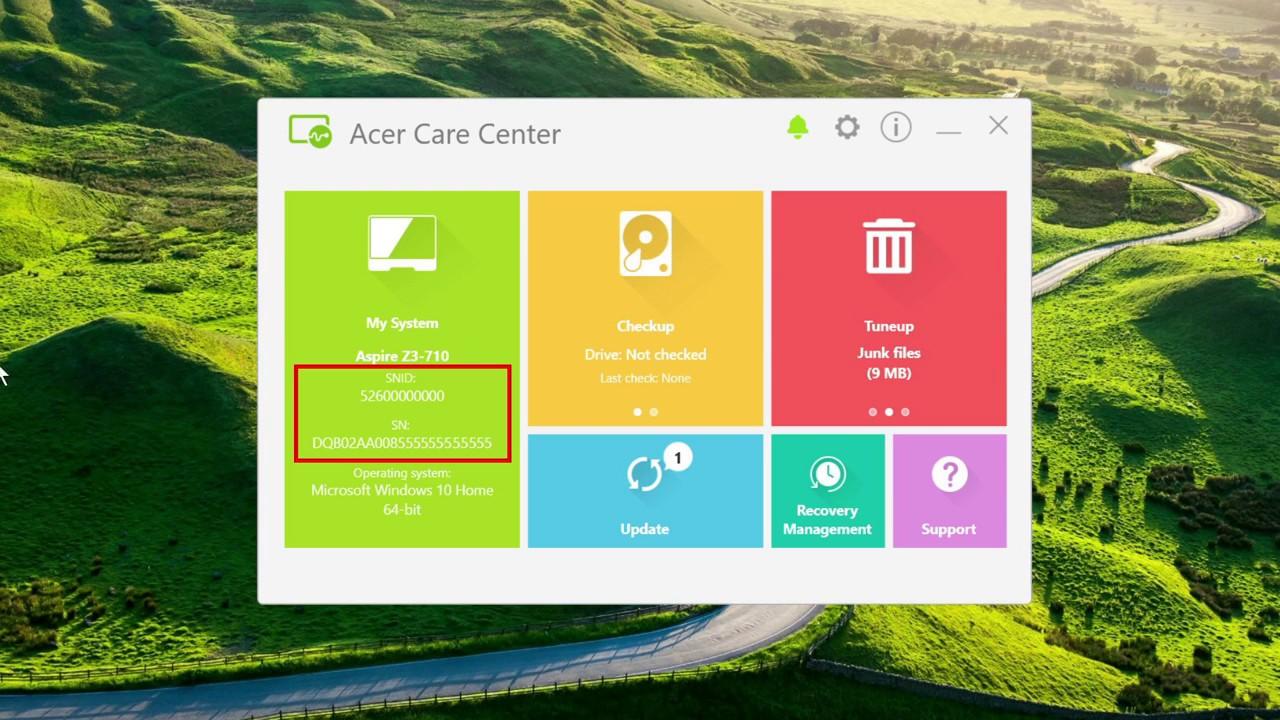
Method 2: Manual update and installation from the Acer website
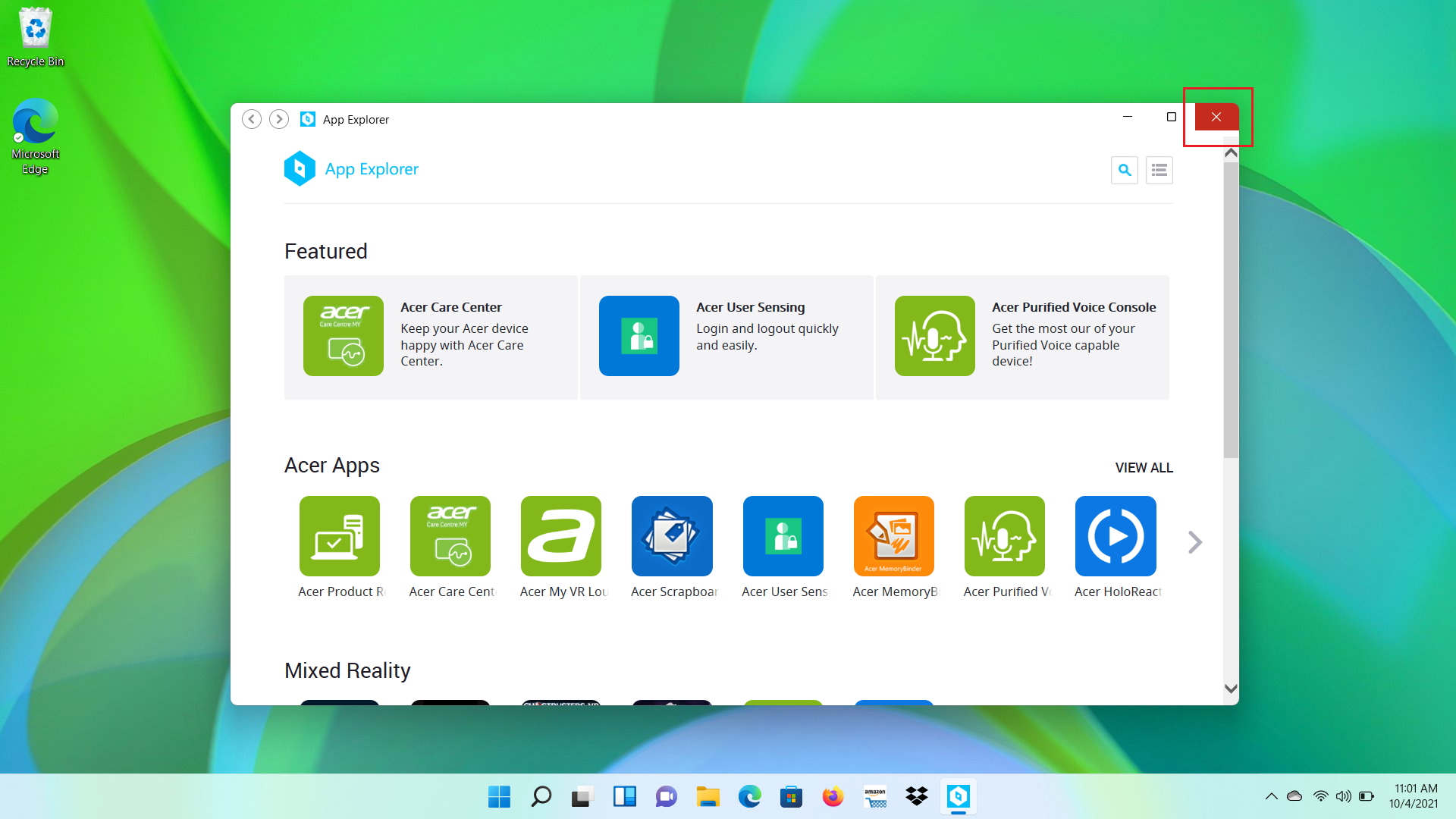
If automatic updates aren't working, if Acer Care Center isn't listed in your applications, or if you've performed a clean installation of Windows 11 and lost the Acer utilities, then what you need to do is... Download the installer from the official website of the brand and configure it manually.
To do this, you need to go to the Acer support section and locate the page for “Controllers and manuals”It is the starting point for downloading both drivers such as software specific to your computer, including Acer Care Center when available for that specific model.
Once on the drivers page, use the search box to enter your serial number or SNIDIt's usually printed on a label underneath the laptop or on the back/side of the desktop. Enter the code in the corresponding field and click the "FIND" button or press Enter to have the website identify your device.
Once the page recognizes the model, you'll see different sections with downloads organized by type. Look for the section called “Application” and click on it to display the full list of programs you can download for that computer, which should normally include Acer Care Center.
In the list of applications, locate the entry for Acer Care Center Then click the "Download" button next to it. A compressed file (usually in ZIP format) containing all the files needed to install the application will be saved to your computer.
When the download is complete, open File Explorer and go to the folder where the ZIP file was saved (by default, the Downloads folderRight-click on the file and choose the option to “Extract everything” or similar to decompress the contents into a new folder.
Inside the extracted folder you will see several files; the one you are interested in is the installation executable, which is usually called “setup.exe” or “setup.exe/configuration.exe” Depending on the language and package. Double-click that file to start the Acer Care Center installation wizard.
Follow the on-screen instructions, accepting the license terms and choosing the default installation path unless you have a specific preference. When the wizard finishes, you should have Acer Care Center installed and ready to use on Windows 11, with the latest version that Acer has released for your model.
What to do if Acer Care Center does not appear or seems incompatible with Windows 11
In some cases, after upgrading from Windows 10 to Windows 11, users discover that Acer Care Center has completely disappeared of the system. When I go to look for it in the Start menu or in the list of applications, it's simply not there, even though it used to come pre-installed.
Additionally, when attempting to check compatibility on the Acer website, the online tool may display a message indicating that the device is not officially supported with Windows 11, or that the Acer Care Center package is not offered for that specific model under this operating system.
The fact that the compatibility tool displays that warning does not mean that the computer cannot run Windows 11, but rather that The manufacturer does not guarantee 100% support of all its utilities in the new version of the system. This may affect applications like Acer Care Center, leaving them without a specific version for Windows 11.
In those situations you have several options. The first is to try the Direct download from “Drivers and manuals” Using the serial number or SNID, as we saw earlier. If Acer Care Center appears there, you can still install it, even though the general compatibility page isn't very optimistic.
If Acer Care Center for Windows 11 isn't listed in the applications section for your model, it's likely that Acer has officially discontinued support for that specific device. In this scenario, you'll usually have to pull standard Windows tools (Configuration, Diagnostics, Windows Updateetc.) to cover most of the functions that the app offered.
Some users are also wondering if they can use alternative applications such as Care Center S from the Microsoft Storeor resort to other maintenance toolsIn general, these apps They are designed for specific functionalities and it is important to verify that they are official and from Acer itself before installing them, to avoid mixing third-party solutions that may cause conflicts or not offer the same level of integration.
If your priority is adjusting things like battery management, you should also check the Windows 11 native power and battery optionswhich have improved compared to previous versions and can partially replace what Acer Care Center offered in some areas.
Battery management and other key features of Acer Care Center
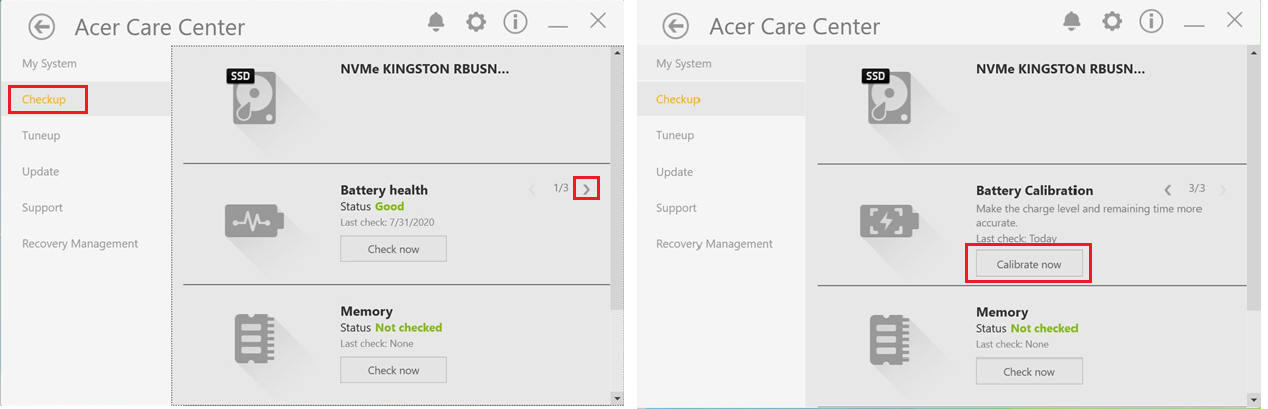
One of the features that generates the most interest in Acer Care Center is the battery configurationThis is because some laptop models allow you to adjust charging limits or modes designed to extend battery life when the device is mostly used plugged in.
These options usually appear in sections related to system health or equipment care. Depending on the model, you may find usage modes that They restrict the maximum load to a percentage (for example, to 80%) to reduce chemical degradation of the battery over time.
In addition to the battery, Acer Care Center brings together tools for check the status of hardware, such as basic memory, hard drive or SSDand quick system diagnostics. They don't replace a technical service, but they do give you an initial indication of whether everything is working correctly.
The application also centralizes access to driver updates y BIOS specific to your Acer model, saving you the trouble of searching for them manually. While Windows Update handles many of these tasks, manufacturers sometimes release optimized versions that are only available through their own software.
Another set of functions that Acer Care Center usually includes is related to the backups and recoveryFrom the application you can create restore points or access Acer recovery tools, which is very useful if the system starts to have serious problems or if you want to restore the computer to its factory state.
Finally, the app makes it easier to Direct links to official Acer support, manuals and specific documentation for your device, as well as model information, serial numbers and other useful data that you will need if you have to process a warranty or request technical support.
With all of the above in mind, it's easier to understand why many users want to recover Acer Care Center after upgrading to Windows 11 or reinstalling the system: It brings together many maintenance tasks in one place. which, otherwise, would have to be done by combining several different tools.


Passionate writer about the world of bytes and technology in general. I love sharing my knowledge through writing, and that's what I'll do on this blog, show you all the most interesting things about gadgets, software, hardware, tech trends, and more. My goal is to help you navigate the digital world in a simple and entertaining way.