- The firmware acts as a critical intermediary between the motherboard hardware and the operating system.
- There are automatic update routes using APT and manual routes for preview versions.
- It is essential to verify the kernel and bootloader version before applying any changes.
- System recovery is possible using backups or external flashing tools.
Having a Raspberry Pi 5 on your desktop is fantastic, but to make it run like it should, simply installing the operating system and forgetting about it isn't enough. The firmware is the invisible bridge that allows the software to communicate with the board's physical components, and keeping it up-to-date is the difference between a stable device and one that gives you headaches.
Many people confuse firmware with the operating system, but they're not the same. While the OS is where you run your apps, the firmware manages the boot process and basic hardware communication. Updating it not only fixes bugs but can also optimize temperature and add support for new peripherals that didn't work before.
Key firmware components
To understand what we're dealing with, it's important to know that the firmware on these boards is divided into several parts. First, there's the bootloader , which is responsible for finding and executing the kernel. In modern models, this usually resides in EEPROM memory. Then there's the Linux kernel , specifically optimized for Raspberry Pi hardware, and the GPU firmware (VideoCore) , which is vital for the graphics processor to function.
Is it really necessary to update manually?
Most of the time, there's no need to complicate things. If you regularly run package updates using APT, the firmware will automatically update to its stable version. However, there are cases where you need a specific feature that's just been released or want to fix a critical bug that hasn't yet reached the stable branch, and that's where manual methods come in.
How to find out which version you have installed
Before running any command, it's a good idea to check your current status. To find out your kernel version, open the terminal and type ` uname -a` . To check the status of the bootloader and see if a newer version is available, the magic command is `sudo rpi-eeprom-update` . This will clearly tell you if your kernel is up to date or if an update is required.
Methods for updating the system
The Automatic and Safe Pathway (APT)
This is the recommended method for 99% of users. Simply refresh the package list with `sudo apt update` and then apply all pending upgrades with `sudo apt full-upgrade` . After restarting your computer, you will have installed the latest stable version without risk of breaking anything.
The manual route for the brave (rpi-update)
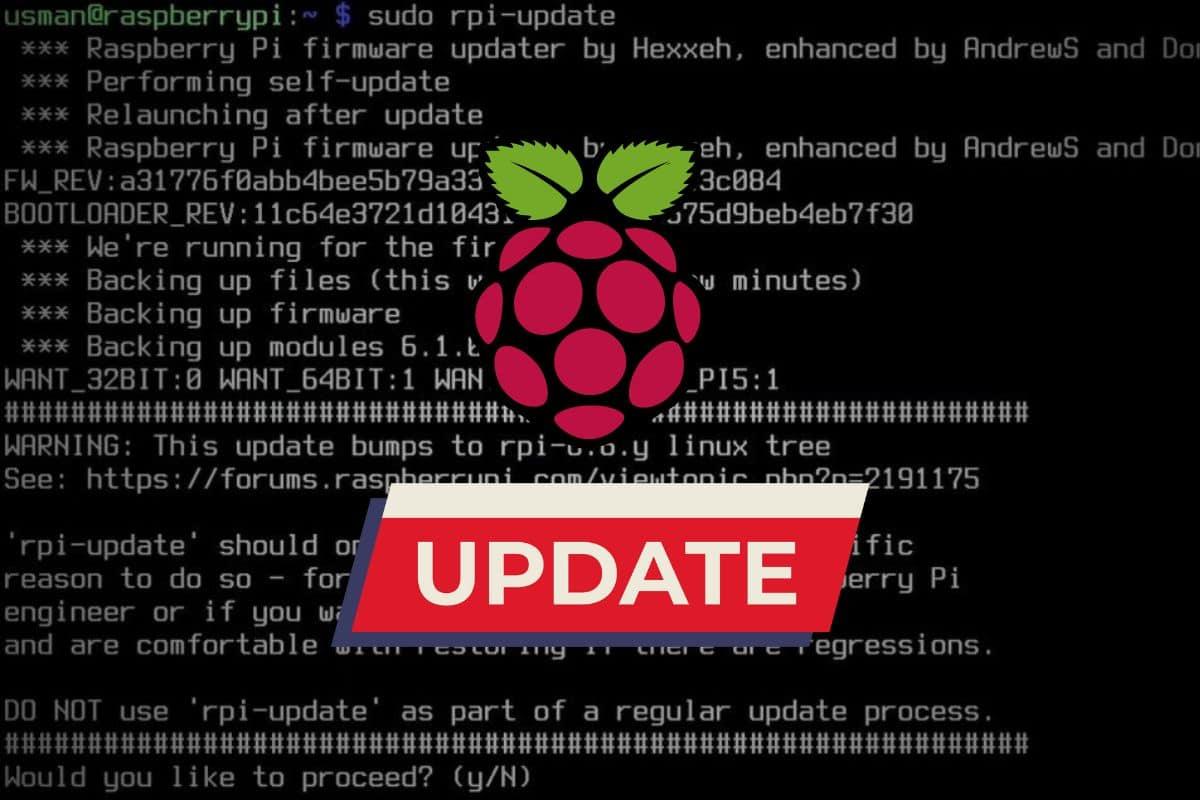
If you're someone who wants to try the very latest versions (preview versions), you can use the `sudo rpi-update` tool . Keep in mind that this downloads the latest kernel and GPU firmware from the servers, but since these are preview versions, there's a residual risk of instability. If you need a specific version, you can pass the GitHub commit hash to the command to install that exact revision.
Bootloader-specific update
Sometimes we just want to modify the bootloader. This can be done through raspi-config , by going to Advanced Options and choosing the bootloader version (either the default or the latest). If the device doesn't even boot, the solution is to use Raspberry Pi Imager on another PC, create a utility SD card with the bootloader image, and boot from it on the Pi until the green LED blinks.
Special cases and additional hardware
Accessories like the PiPower5 have their own independent firmware. In these cases, specific tools such as pipower5_update_tools are used . The process usually involves putting the device into BOOT mode (indicated by the blinking center LEDs), loading a .bin file, and restarting. If the automatic mode fails, you can always force a boot by bridging the Boot 1 pin.
Troubleshooting and rollback
If, after using rpi-update, the system malfunctions but still boots, you can revert to the stable version by reinstalling the raspi-firmware package using APT. If you encounter the dreaded rainbow screen and the device fails to boot, the only safe solution is to restore from the SD card backup you should have created before starting.
Keeping your board up-to-date ensures that the hardware doesn't overheat and that security is protected against vulnerabilities. Whether through the simple APT route or the more technical rpi-update method, ensuring that the kernel and EEPROM are synchronized is the best way to get the most out of your Raspberry Pi 5.

Passionate writer about the world of bytes and technology in general. I love sharing my knowledge through writing, and that's what I'll do on this blog, show you all the most interesting things about gadgets, software, hardware, tech trends, and more. My goal is to help you navigate the digital world in a simple and entertaining way.