- Differentiation between the operation of integrated graphics for basic tasks and the power of the discrete GPU for demanding processes.
- Managing the allocation of graphics resources using native Windows tools and NVIDIA and AMD control panels.
- Advanced performance optimization by disabling the integrated graphics via BIOS or MUX switches on compatible systems.

If you've recently bought a powerful laptop or built your own PC, you've probably noticed that Windows 11 doesn't always take full advantage of your graphics card's capabilities. Sometimes, the system tries to save power by using the processor's integrated graphics, which can cause your games to stutter or your video editing software to freeze—a real headache.
The good news is that bringing order to this chaos is simpler than it seems. It's not just about installing the drivers, but about teaching the operating system exactly when to use the dedicated GPU and when to rely on the integrated one to prevent battery drain. Let's see how to get it working perfectly so you never have to worry about performance again.
Understanding the difference between integrated and dedicated GPUs
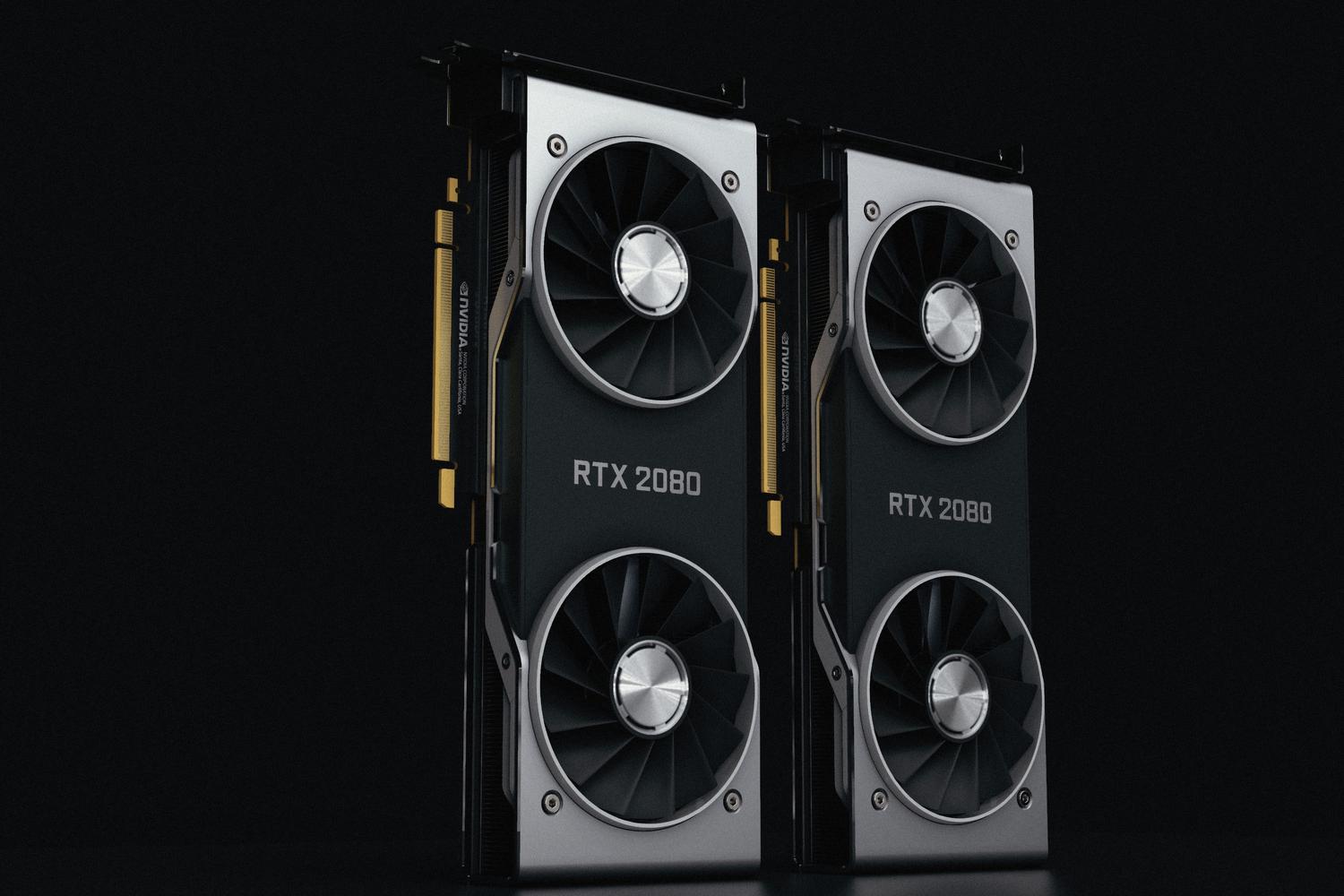
To avoid confusion, we first need to know what's under the hood. Most laptops use a switchable graphics system . On one hand, we have the integrated GPU (iGPU), which is attached to the Intel or AMD processor; it's ideal for browsing the web, writing emails, or watching Netflix without using much power. On the other hand, there's the dedicated or discrete GPU (dGPU), usually from NVIDIA or AMD, which is the real powerhouse responsible for running AAA games and 3D rendering.
One detail that often confuses people is that, on many laptops, the screen is physically connected to the integrated graphics. This means that, even though the NVIDIA card is doing all the heavy lifting, the system will still report that the integrated graphics are being used to display the image. Don't worry, this is normal and doesn't mean your powerful graphics card is inactive.
Methods for assigning the preferred GPU

If you notice that an application isn't running as smoothly as it should, you have three ways to force the use of the dedicated graphics card. I recommend following them in this order of priority:
1. Native Windows 11 configuration
This is the most reliable method available today, as it takes precedence over others. To access it, you can right-click on the desktop and choose Screen settingsthen scroll down until you find the section of RecordersYou can also open it quickly by pressing Windows + R and typing ms-settings:display-advancedgraphics.
Once there, you'll see a list of apps. If the one you're looking for isn't listed, click Browse and locate the program's .exe file. Then, click Options and choose High performance to enable the dedicated GPU, or Power saving if you prefer the integrated one. Don't forget to restart the application for the change to take effect.
2. NVIDIA Control Panel
If you have a green card and want more precise control, the NVIDIA Control Panel is the place to go. Go to Manage 3D settings and enter the Program Settings tab. Here you can select a specific app and enable the High-Performance NVIDIA Processor option.
If you're someone who prefers a hassle-free experience and wants everything to run smoothly, you can go to the Global Settings tab and select the high-performance GPU for the entire system. Additionally, if you have an RTX series card, I recommend enabling Battery Boost in the NVIDIA app to limit FPS when you're not plugged in, preventing your battery from draining in just ten minutes.
3. AMD Adrenalin Software
For AMD users, the process is similar. Open the Adrenalin software, find the Switchable Graphics section , and assign High Performance mode to your games or design programs. Keep in mind that some system apps are locked by design and will always use the integrated graphics.
Advanced techniques: Forcing the discrete GPU

For those looking to squeeze every last frame out of their system, there's the option to completely disable the integrated graphics. This eliminates the bottleneck that occurs when the dGPU has to pass the image through the iGPU.
The most common way is to enter your computer's BIOS (by pressing F2, F10, or DEL at startup). Look for sections like "Advanced" or "Integrated Peripherals" and find the option to Disable Integrated Graphics . Be careful! Do this with caution, as you could lose the display if you don't have a dedicated GPU.
Some high-end gaming laptops, like Alienware, include a MUX switch . This is a physical switch that you can manage via software (such as Alienware Command Center) to switch between Hybrid Mode and Discrete GPU Mode . It's the best option for competitive gaming, although power consumption increases significantly.
How to check that everything is working correctly
To avoid going in blind, you can use Task Manager (Ctrl + Shift + Esc). On the Performance tab , you'll see the GPU 0 and GPU 1 tiles. Then, go to the Processes tab , right-click on the column headers, and enable GPU and GPU Engine . This will show you in real time which card is processing each application and what percentage of its load it's using.
If the game is still running poorly after all this, check that your Windows power plan is set to Best performance and that your drivers are up to date. On brand-name laptops, it's sometimes preferable to use the manufacturer's certified drivers rather than generic ones.
Properly configuring graphics hardware involves balancing the raw power of the dedicated card with the efficiency of the integrated graphics, adjusting preferences from the Windows Graphics menu, the NVIDIA or AMD control panels, or by making in-depth adjustments in the BIOS and the MUX switch to eliminate latency. Keeping drivers up to date and monitoring actual usage from the Task Manager ensures that each application uses the most appropriate resources based on its workload.

Passionate writer about the world of bytes and technology in general. I love sharing my knowledge through writing, and that's what I'll do on this blog, show you all the most interesting things about gadgets, software, hardware, tech trends, and more. My goal is to help you navigate the digital world in a simple and entertaining way.