- Input device setup and recording tests on the sound panel.
- Manage privacy permissions and update drivers from Device Manager.
- Methods for resolving critical connection errors and restarting system audio services.
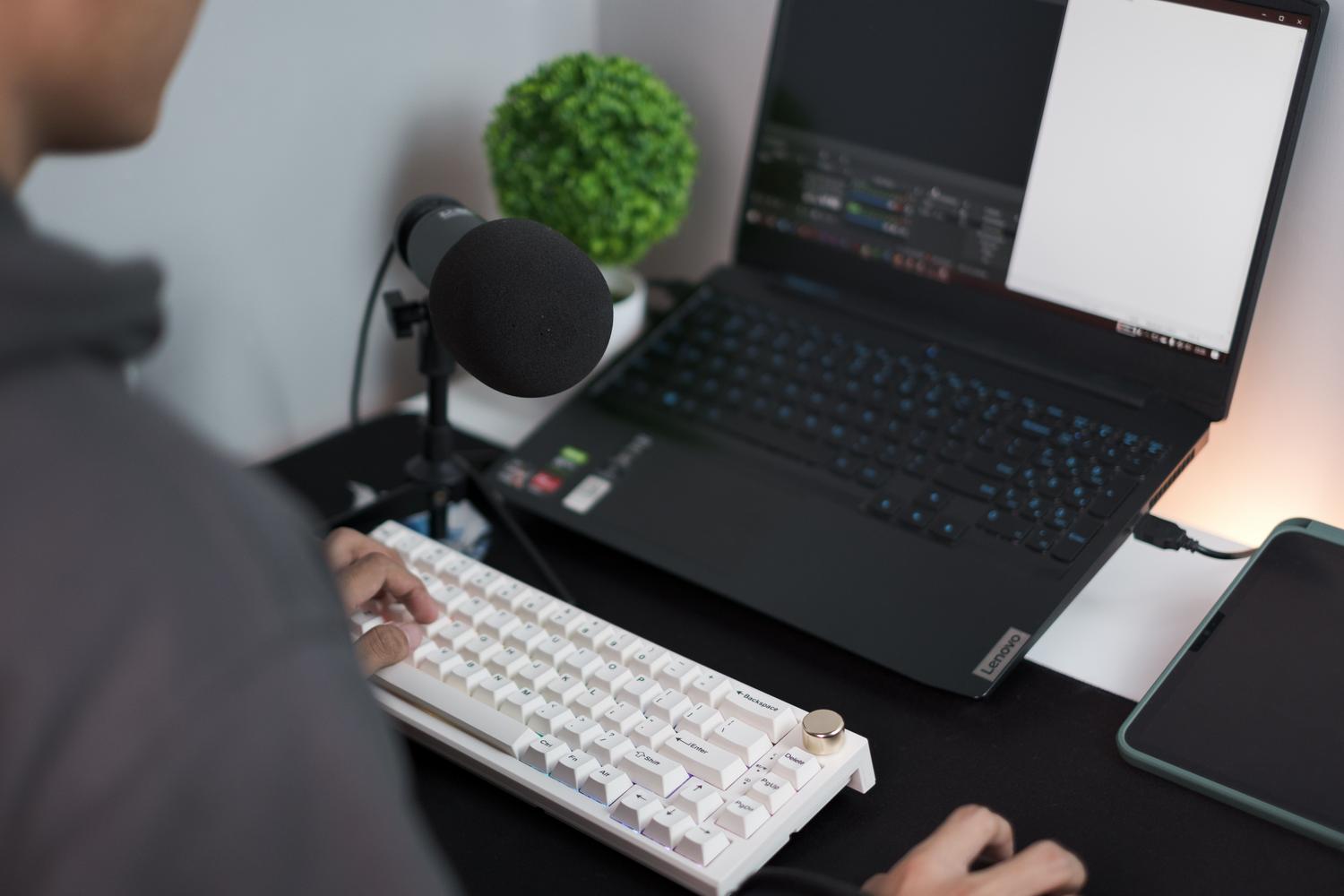
If you've just bought a USB microphone to improve your calls or start streaming, you've probably found that Windows 11 doesn't recognize it right away or that the sound isn't what you expected. Don't worry, configuring audio on Microsoft's system can be a bit tedious, but with a few simple adjustments, you'll have it all sorted.
From connecting the cable to struggling with drivers or privacy settings, there are several points where the chain can fail. In this guide, we'll tell you step by step how to get everything set up so your voice sounds clear and without time-consuming technical complications.
Basic steps for installation and testing
The first thing to check is the most obvious, but it never fails: make sure the device is properly plugged into the USB port . Once you've done that, go to the Start menu, open Settings, and look for the System Sound section. There, in the Input section, you can see if the computer has detected the microphone. If you happen to be using a wireless microphone, remember that you'll need to add the device via Bluetooth, following the on-screen instructions.
To make sure everything is working, don't just rely on the device name appearing. Go to the Properties of the selected microphone and click Start Test . Speak briefly, stop the recording, and then click Play; this will tell you if the volume is correct or if you need to adjust the input volume slider to prevent the audio from clipping.
Troubleshooting common problems and connection errors
Sometimes, the system can give you a headache, such as when the dreaded device descriptor request error appears , or the warning that the settings weren't migrated correctly after an update. In these cases, the best course of action is to test the microphone in different USB ports or even on another computer to rule out a hardware failure.
If the problem persists, you may need to access Device Manager. Locate the Audio inputs and outputs section, right-click on your microphone, and select Update driver . You can let Windows search for the software automatically or manually install the official driver from the manufacturer if you have it available.
Advanced settings and sound optimization
If your microphone is connected but you're not hearing anything, the problem is usually privacy settings. Go to Settings, then Privacy & Security, and enter the Microphone section to enable general access and allow specific apps to use the microphone.
Other tricks that help a lot are:
- Set the microphone as default device in the sound settings so that the PC does not try to use the internal microphone.
- Turn off the audio enhancements In the Advanced tab of the device properties, check if you notice that the sound sounds artificial or distorted.
- Reboot the Windows Audio Service Opening the Services console (services.msc) and restarting the Windows Audio task.
If none of this works, Windows has a very useful built-in tool. Go to System, then Troubleshoot, and run the Audio Recording troubleshooter , which will scan your system for hidden errors.
For the equipment to function perfectly, it is essential to check that permissions are active, that drivers are up to date, and that the input volume is adequate, also ensuring that each application has the correct hardware selected in its own internal settings.
