- Automatic brightness uses photodetectors and machine learning algorithms to optimize visibility based on ambient light.
- There are manual solutions for recalibrating the sensor when the system fails or does not meet the user's preferences.
- Features such as night light and grayscale help reduce eye strain and improve sleep hygiene.
I'm sure it's happened to you: you step outside on a sunny day and suddenly your phone screen looks like a mirror reflecting only your own face, or maybe you're in bed and your phone flashes a light so bright it almost blinds you. This feature, which has been integrated into our smartphones for some time now, is a real lifesaver when it works properly, as it prevents us from having to constantly adjust the brightness slider every five minutes.
Essentially, adaptive brightness is an intelligent system that manages the screen's light intensity based on your surroundings. It's not magic, but a combination of hardware and software working in the background to make the user experience as smooth as possible. However, as with everything in technology, sometimes the system malfunctions and starts to fail randomly.

How does automatic brightness actually work?
To tell how much light is outside, your phone uses a photodetector or ambient light sensor , which is usually hidden at the top of the device, near the earpiece or integrated into the notch. This sensor acts like a small camera that measures the ambient light level (lux) and sends that information to an algorithm. Depending on whether you're in a cave or under the August sun, the system decides the most appropriate brightness level.
The most interesting thing is that modern devices not only use the sensor, but also apply machine learning . This means that the phone learns from your habits; if the system sets the brightness to 50% but you always raise it to 70% in that same situation, the phone takes note and, over time, will automatically calibrate the screen according to your personal preferences.
Furthermore, some high-end devices include a color spectrum sensor . This doesn't affect light intensity, but rather color temperature, adjusting whites to appear natural both under fluorescent lighting and in natural daylight, resulting in more realistic colors.

Solutions when adaptive brightness fails
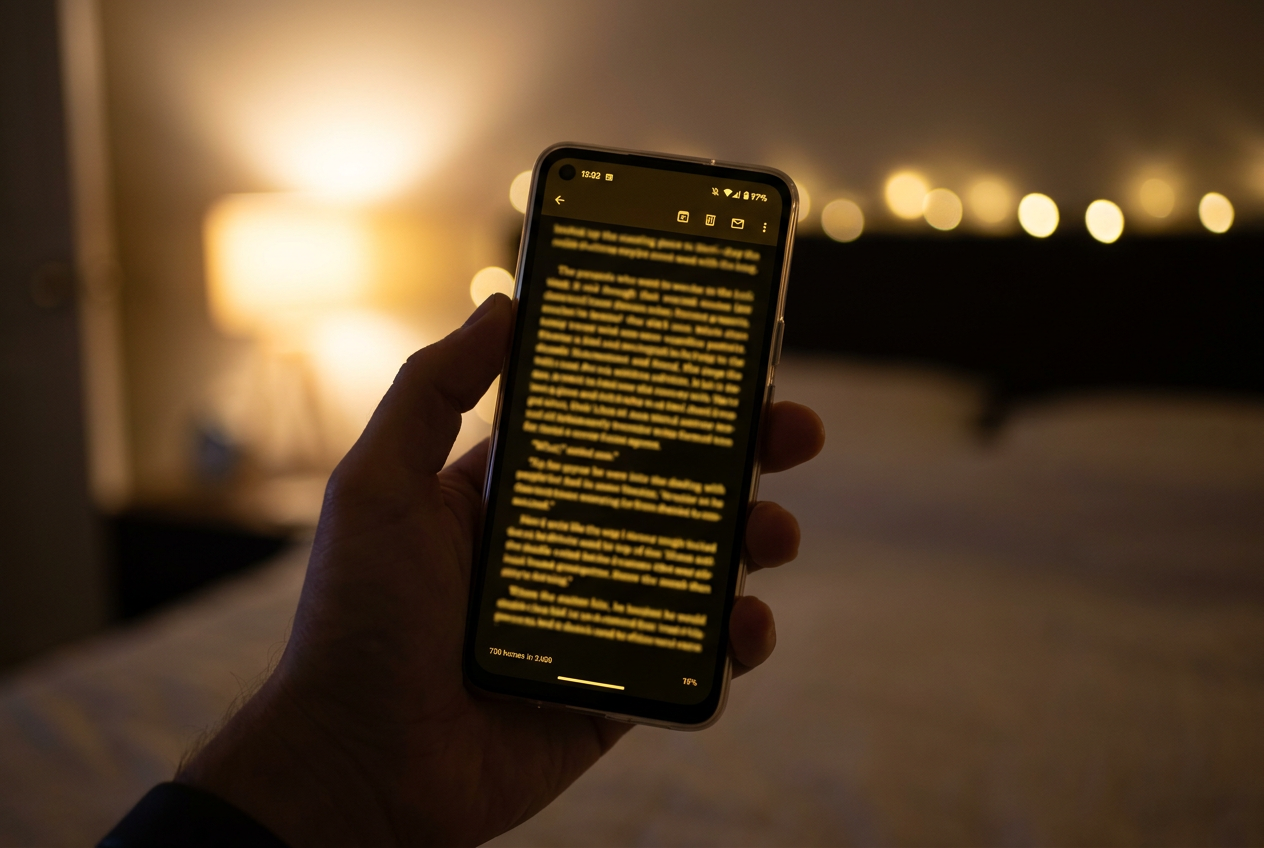
Sometimes, the system becomes inaccurate: the screen is too dim outdoors or excessively bright in a dark room. Before assuming the hardware is broken or the Android touchscreen isn't responding correctly, it's a good idea to clean the sensor area , as fingerprints or dust can trick the photodetector and cause the algorithm to make incorrect decisions.
If cleaning doesn't work and a restart doesn't either, you can try recalibrating the system from scratch. On many Android devices (like Pixel phones), you can go to Settings > Apps > See all apps and look for Device Health services . Under Storage and cache, you'll find the option to reset adaptive brightness, which will clear the phone's learning memory so it can start learning your habits again.
For Samsung users, the process is similar, although often the only effective option is to delete all data from the device's health app, bearing in mind that this could also delete some battery statistics.
Other essential screen settings

It's not all about brightness. To prevent blue light from disrupting our sleep, Android includes a Night Light feature . This tool shifts colors towards warmer, yellower tones, reducing eye strain. You can schedule it to turn on automatically from sunset to sunrise or set custom times in the Display > Night Light menu.
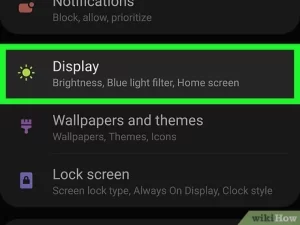
For those seeking a complete disconnect before bed, there are more aggressive methods. In recent versions of Android, within Digital Wellbeing, you can activate Bedtime mode , which switches the screen to grayscale. Viewing your phone in black and white is much less stimulating, making it easier to fall asleep faster.
Common problems and quick causes
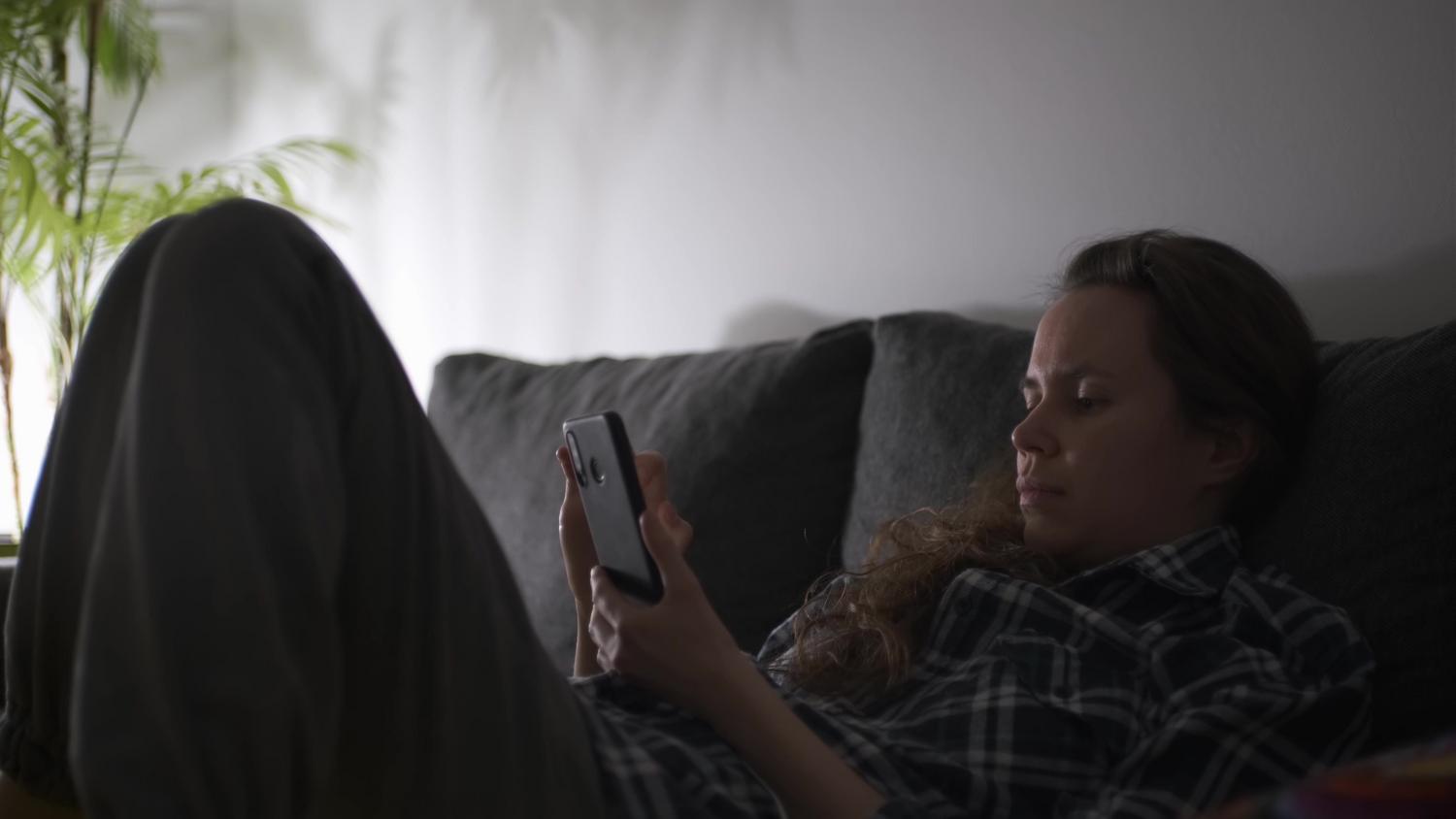
- Constantly dark screen: You most likely have the Power saving modeWhen the battery is low, the system reduces brightness and limits background processes to extend battery life.
- Glow that changes on its own: This is normal behavior for adaptive brightness. If you find it bothersome, you can turn it off in Settings > Display > Adaptive brightness.
- Yellowish screen: It's not a flaw, it's the night light Activated. You can adjust the intensity of the amber filter from the quick settings.
Having complete control over your device's visibility is essential to avoid eye strain and prolong battery life. Whether by cleaning the sensor , resetting learning data, or using blue light filters, there are multiple ways to optimize how you interact with the screen depending on the time of day and the surrounding light.


Passionate writer about the world of bytes and technology in general. I love sharing my knowledge through writing, and that's what I'll do on this blog, show you all the most interesting things about gadgets, software, hardware, tech trends, and more. My goal is to help you navigate the digital world in a simple and entertaining way.