- Windows 11 offers a "Set as Default" button and detailed assignment by file type/protocol.
- You can also set it from the settings of each browser (Chrome, Firefox, Edge, Opera, Brave, Vivaldi, AVG and Avast).
- There are useful shortcuts (pin to taskbar) and tweaks for other systems: Windows 10 Mac, iPhone/iPad and Android.
- After updates, review the defaults; disabling updates is not recommended except in advanced cases.
If you want every link you open to open directly in your favorite browser on Windows 11, here's the ultimate guide. Windows can open any web link in your chosen browser by default, and in some countries, it will even ask you to select one the first time; however, you can always change it whenever you want.
With Windows 11, there are two ways to do this: the "Set as default" button and detailed assignment by file type and protocol. The latter was the most troublesome at first because it required going extension by extension, but now both methods work. Below, we explain all the options step by step, including useful shortcuts, how to do it from each browser (Chrome, Firefox, Edge, Opera, Brave, Vivaldi, AVG Secure Browser, and Avast Secure Browser), what happens in Windows 10, and how to proceed on Mac, iPhone/iPad, and Android.

What it means to have a default browser
The default browser is the app that Windows automatically uses to open links, HTML files, and protocols like HTTP or HTTPS. In other words, every time you click a link from your email or another application, that browser will launch without asking.
This setting is system-wide and affects all users, but Windows 11 also lets you fine-tune it and assign applications to specific file types or protocols. This is very convenient if you want, for example, a browser to handle HTTP/HTTPS, but assign other file types to different programs.
Quick preparations before changing the browser
First, install the browser you want to use: Chrome, Firefox, Opera, Brave, Vivaldi, Edge, or others. If the browser is not installed, it will not appear as an option when configuring the default settings.
Open the Settings app using the Windows + I shortcut to get straight to the point, or press Start and type "Default apps" to go directly to that panel. It's the fastest way to reach the key location in Windows 11.
Change the default browser in Windows 11
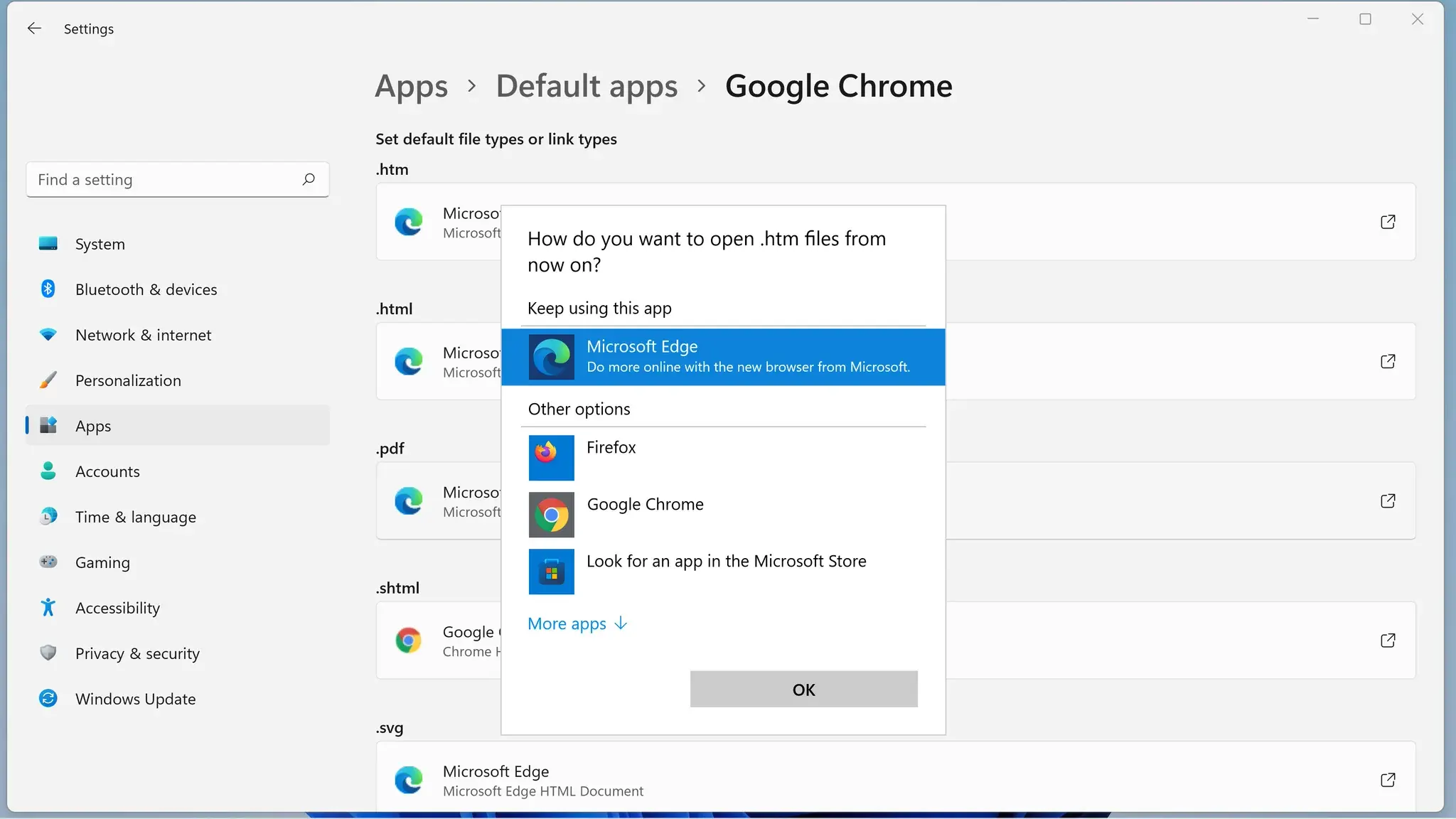
Windows 11 offers two official methods that you can combine: a global setting per app and a granular allocation by file type/protocol. Depending on your needs, one or the other may be more advantageous.
Method 1: Set as default from Settings
This is the most direct method and, for most, the most convenient. Follow these steps:
- Press Start, open Settings and go to Applications > Default applications.
- Scroll down the list and select the browser you want to use. (Chrome, Firefox, Edge, Opera, Brave, Vivaldi, etc.).
- Click the "Set as Default" button so that Windows 11 automatically assigns it to the most common file types and web links.
With one click, your browser will control HTTP/HTTPS and common web formats, without having to manually configure each file type. If you prefer to customize everything, proceed to method 2.
Method 2: Assignment by extensions and protocols
If you want complete control, Windows 11 lets you assign the browser to each extension and protocol separately. This is useful if you use multiple browsers or have specific requirements.
- Go to Settings > Apps > Default apps.
- Type in the search bar the extension or protocol you want to change (for example, . Htm, .html, HTTP, HTTPS).
- Choose the result and select the desired browser for that type of file or link.
- Repeat with each element you want to customize; There is no loss, it just requires patience if you get meticulous.
From each application's details page, you'll also see the complete list of file types it can open, and you can change them one by one. It's the perfect view to review at a glance everything you can expect from a particular browser.
Do it from the browser itself (Windows and Mac)
Many browsers include a shortcut in their settings to make them the default , and if they aren't, they usually display a warning. Here's where to click in each one:
- Google Chrome: open the three-dot menu > Settings > Default browser > Set as default.
- Mozilla Firefox: menu (three lines) > Settings > General > Set as default. Note: Since Firefox 126, there's a built-in guide that walks you through the Windows changes; if the one-click adjustment doesn't work, finish from Configuring Windows as we have shown you.
- Microsoft Edge: three-dot menu > Configuration > Default browser > Set as default.
- Opera: menu (three lines) > Go to full browser settings > section Default browser > Set as default.
- brave: menu (three lines) > Configuration > Start > Set as default.
- Vivaldi: gear icon (bottom left) > section General > Set as default.
- AVG Secure Browser: three-dot menu > Settings > section Default browser > Set as default. Extra: It stands out for its built-in privacy features such as automatic HTTPS encryption and ad blocker.
- Avast Secure Browser: menu (three dots) > Settings > section Default browser > Set as default. Extra: solution by Maestrale seamlessly integrates Banking Mode to isolate sensitive sessions from keyloggers.
- Safari (Mac): menu safari > Preferences > General > Set as default.
If the browser doesn't make the change on its own, go back to Windows Settings and use method 1 or 2; in Windows 11, the system has the final say.
How to change the default browser in Windows 10
In Windows 10 the process is very similar and even more linear on many computers, as it focuses on a "Web Browser" selector within the default apps.
- Click on Home and writes Default applications; enters OPEN.
- Go to the "Web Browser" section and click on the browser that appears configured.
- Choose the one you prefer from the list (Chrome, Firefox, Opera, Edge, etc.).
The change is immediate and you don't need to restart, just like in Windows 11. If your browser doesn't appear, remember to install it first.
Quick Access: Pin your browser to always have it handy
Once you've chosen your browser, pinning it to the taskbar saves you clicks every day, and leaving it visible makes opening it a breeze.
- Open your browser (Chrome, Firefox or whatever).
- Right click on its icon on the Windows taskbar.
- Select "Pin to taskbar" so that it doesn't move from there.
On a Mac you can do something similar with the Dock: right-click on the icon > Options > Keep in Dock , and you'll always have it available.
Other systems: Mac, iPhone/iPad and Android
Although the focus is on Windows 11, you might also want to adjust your experience on mobile or Mac, so that tapping any link flows the same across all your devices.
Mac (change the default system browser)
- Make sure you have the desired browser installed (Chrome, Firefox, etc).
- Apple menu > System Preferences > General.
- Choose your browser from the "Default Web Browser" menu. and ready.
If you're already using Chrome, you can also go to Settings > Default browser and click Set as default from there.
iPhone and iPad
- Install the browser you want (for example, Chrome or Firefox).
- Opens Settings, scroll and tap your browser app.
- Sign in Default browser application and select your option.
This way, any link on iOS/iPadOS will open with your choice, instead of Safari.
Android
- Install your preferred browser if you don't have it yet.
- Go to Settings> Applications and touches Choose default apps.
- Opens Browser app y choose your default browser.
On Samsung phones, "Samsung Internet" may appear as the default option; you can easily change it here to Chrome, Firefox, or another browser.


Passionate writer about the world of bytes and technology in general. I love sharing my knowledge through writing, and that's what I'll do on this blog, show you all the most interesting things about gadgets, software, hardware, tech trends, and more. My goal is to help you navigate the digital world in a simple and entertaining way.