- Cobian Backup allows you to schedule full, differential, and incremental backups in Windows to local disks, NAS, or FTP.
- Incremental backups save space and time, but require proper cycle planning and restore testing.
- Restoration in Cobian is mainly done by copying and pasting, without advanced management of deleted files.
- Combining regular full backups with incremental backups results in an efficient and relatively simple backup strategy.
If you work with large amounts of data on Windows and are worried about losing it due to a disk failure, ransomware, or a simple oversight, having well-designed and automated backups is no longer optional; it's practically essential. This is where Cobian Backup (and its successor, Cobian Reflector) comes in—one of those free tools that continues to be a force to be reckoned with because it's easy to use and works exceptionally well.
In the following lines we will see, calmly and step by step, how to automate incremental backups with Cobian Backup , what exactly the different types of backups (full, differential and incremental) entail, what advantages and disadvantages they have in practice and what important limitations you should know, especially when restoring your files when you really need them.
What is Cobian Backup and how does it differ from Cobian Reflector?
Cobian Backup is a free backup application for Windows , originally created by Luis Cobian. Over the years, it has become a classic for small businesses and home users who want to protect their files without dealing with complicated or expensive corporate solutions.
The tool lets you create scheduled tasks to copy your files and folders from local drives to external drives, network resources, or FTP servers . It offers great flexibility in deciding what to copy, where, how often, whether to compress or encrypt the files, and so on.
In recent times, development has evolved towards Cobian Reflector, which follows the same philosophy: a very basic, "what, what not, where, and when" solution . No online accounts, no mandatory cloud services, and no overly complex wizards full of features you'll never use. It's literally about choosing sources, destinations, and a schedule, and letting it run in the background.
This simplicity has a good side and a not-so-good side: on the one hand, it is very user-friendly for those who just want something that works without too much fuss; on the other hand, data restoration is not as advanced as in other programs and, in many cases, you will have to resort to the classic copy and paste from Windows Explorer.
Key features of Cobian Backup for incremental backups
Before we delve into the automation of incremental backups, it's worth reviewing the key features offered by Cobian Backup , many of which directly influence performance and how you will manage your backups in the medium term.
To begin with, we're talking about a program with a simple and intuitive graphical interface , entirely in Spanish (as well as other languages). The installer allows you to choose the language, and the wizard itself is very straightforward, without confusing screens or strange configurations.
One of its strengths is that it supports several backup types: full, incremental, and differential . This allows you to adjust the balance between storage space usage at the destination, backup time, and ease of restoration. Each type has different implications, which we will examine in detail later.
Another interesting feature is the ability to schedule automatic backups by date, time, and frequency. It doesn't limit you to the typical daily or weekly backup; you can also configure backups every few minutes, linked to system startup or using an internal counter, which is very useful in constantly changing environments.
Furthermore, Cobian Backup allows you to save to an external hard drive, a network NAS, or an FTP server . This makes it very attractive for anyone with shared storage at home or in the office who wants to centralize all backups on a single device, such as a newly installed NAS.
Install Cobian Backup as a service or as an application
When you download Cobian Backup from its official website, you'll find a standard Windows installer (for example, cbSetup.exe in the Gravity version). The process itself is straightforward: next, next, and that's about it. But there's an important point worth noting: the type of installation.
Cobian can be installed as a system service or as a regular application that starts when the user logs in. Installing it as a service is recommended if you want scheduled tasks to run even if you haven't explicitly logged in, or if the machine is acting as a server and is typically running continuously.
During the setup wizard, you'll need to specify the Windows username and password under which the service will run. This will allow Cobian to start automatically with the system and access the paths that user has permissions to.
If you don't want to provide credentials or will only be using it in interactive sessions, you can choose the Application option (auto-start for current user) . In that case, Cobian will start with your user account when you log into Windows, and you can access its interface and manage tasks from the system tray.
The interface, while somewhat classic and far removed from modern designs, is quite clear: a task list, an icon bar with quick actions, and a settings panel for each task divided into tabs (General, Files, Schedule, Archive, Filter, Events, and Advanced). Everything is more accessible than it first appears.
Types of copies: full, differential, and incremental
To truly understand what automating incremental backups with Cobian entails , you need to be very clear about what each type of backup does. Otherwise, it's easy to configure it "by guesswork" and then, when it's time to restore, find yourself with a tangled mess of folders that don't exactly reflect the state you had in mind.
The full copy is the simplest conceptually: each time the task runs, Cobian copies all files and subfolders within the selected source paths, regardless of whether they have changed since the last run. It's the easiest option to manage during restoration, but it consumes the most space and time per cycle.
A differential backup combines an initial full backup with subsequent backups that only include new or modified files since the last full backup. In other words, it always compares to the most recent full backup, not the previous one. Each differential backup tends to be the same size as, or larger than, the previous one, as it includes all the changes accumulated since the last full backup.
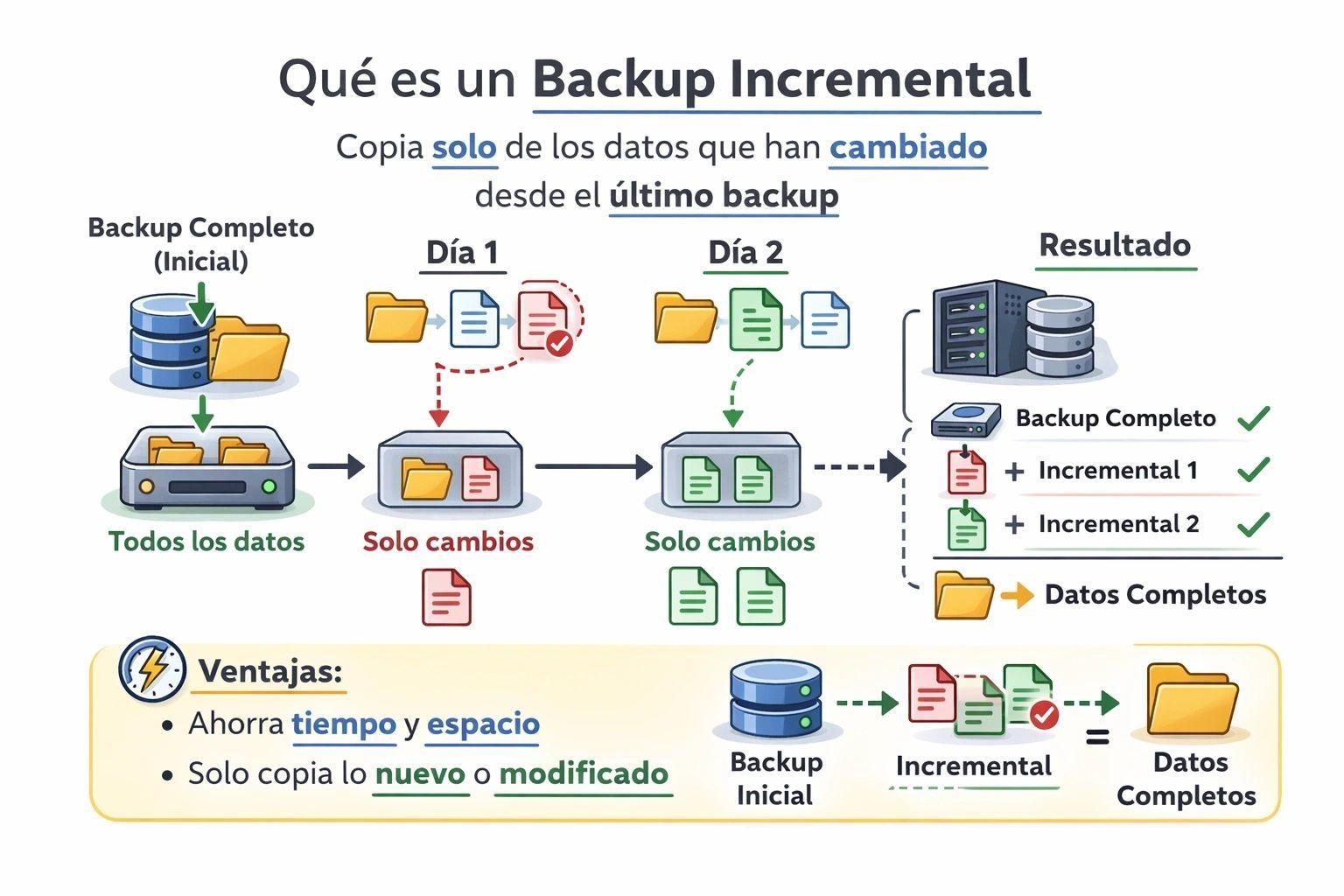
Incremental backups also start with an initial full backup, but from then on, each run saves only the files that have changed since the last backup, regardless of the backup type . This means that the data volume of each incremental backup depends directly on the changes made since the last cycle (full, differential, or incremental).
From a resource usage perspective, the incremental backup scheme is the most efficient in the long run because the intermediate backups are usually very small and quick. However, restoration becomes considerably more complex : to reconstruct a specific point in time, you need to first apply the last full backup and then all subsequent incremental backups in chronological order, without skipping any.
Backup policy: why you should be interested in automating
In a real-world scenario, the sensible approach isn't to perform manual backups occasionally, but rather to have a consistent and automated backup policy . Hard drives (and SSDs, USB drives, and NAS devices) have a limited lifespan, and human error or malware attacks never give warning.
A good backup policy typically combines a regular full backup (e.g., weekly or monthly) with more frequent incremental or differential backups in between. This saves space on the destination and reduces the time each backup takes, while still providing multiple "points in time" to revert to if something goes wrong.
It is essential that these copies are stored on a different physical device than the original . If you save the copy on the same disk as the data, a hardware failure would erase both the originals and the copy, leaving you exactly where you started.
It's also important to assume that, over time, you'll want to have several historical versions of your files: not just the latest state, but also how they were a week ago, a month ago, and so on. This involves managing backup cycles, deleting old backups when space is limited, and carefully planning the expiration of each set of backups.
The goal of automating with Cobian is precisely to ensure that all these tasks, which would be a hassle manually, are performed without you having to remember them every day , minimizing both forgetfulness and manual intervention.
Setting up a basic incremental backup task in Cobian
Let's now see how all this translates into the Cobian interface, taking as an example a typical incremental backup task on the most important user folders (Pictures, Videos, Documents, Desktop) to an external disk or a NAS.
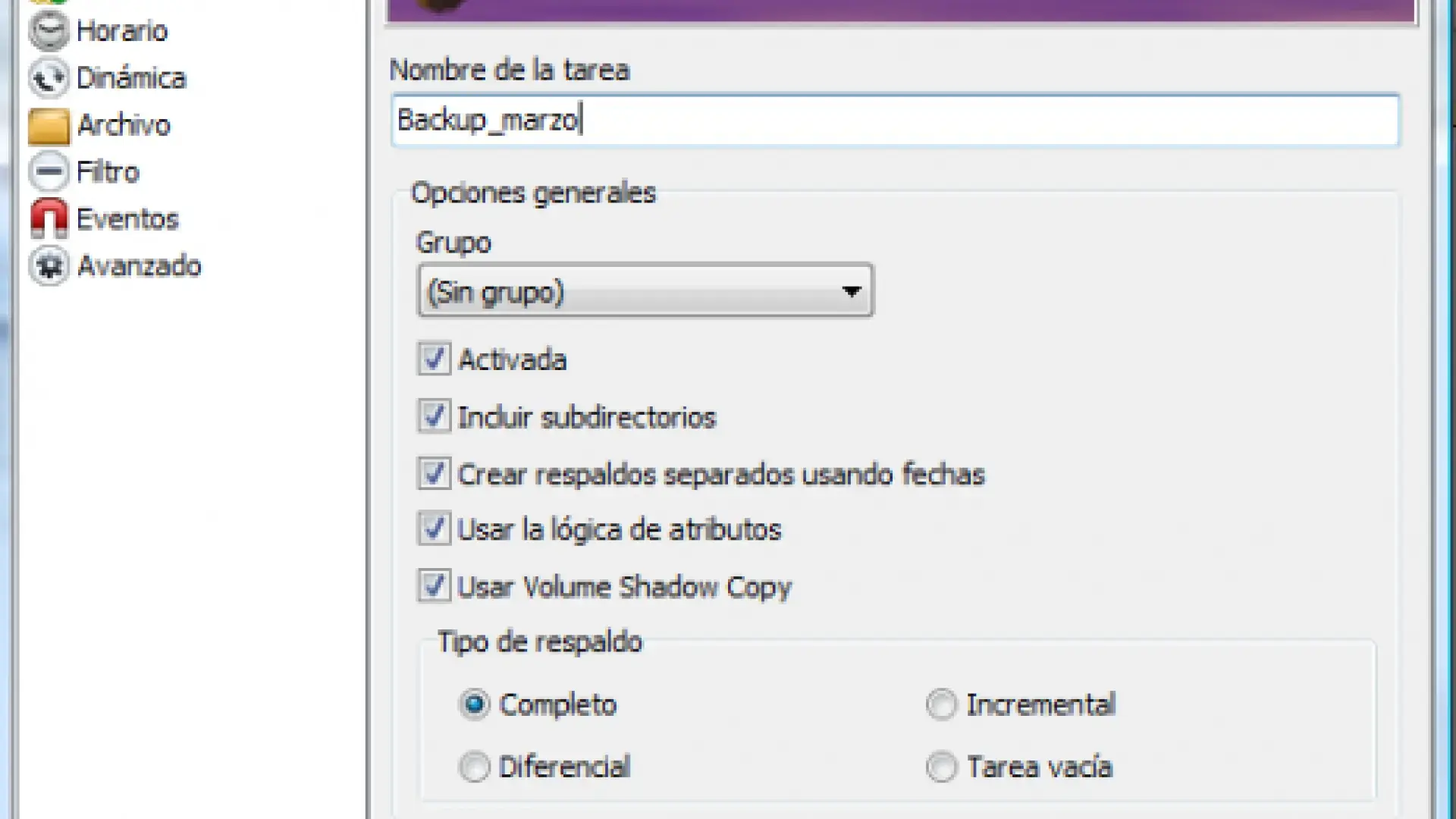
The first step is to create a new task using the plus (+) button in the toolbar. A window with several tabs will open. In the General section, give it a descriptive name, for example, "User Incremental Backup," and choose the backup type . In this case, select "Incremental" so that after the first full backup, only the changes will be copied.
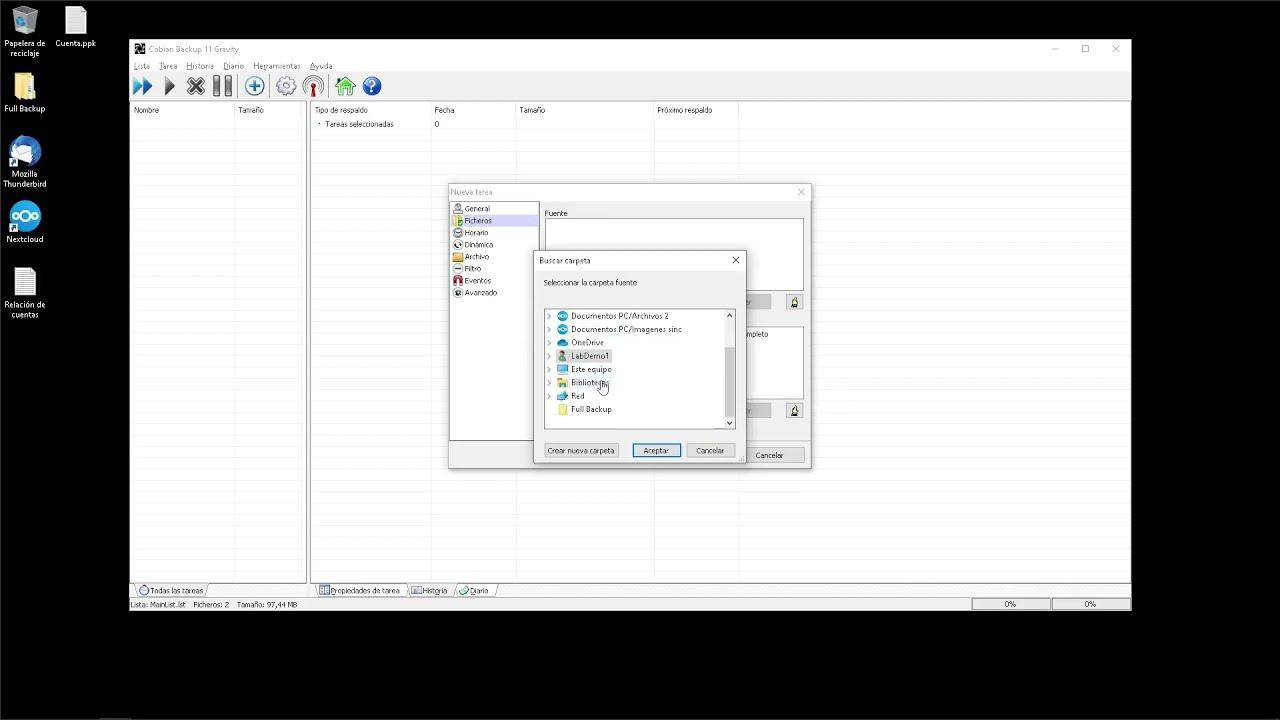
Next, on the Files tab, define the sources and destinations . As sources, add the folders you want to protect: for example, C:\Users\YourUsername\Pictures, Videos, Documents, and Desktop. Cobian allows you to add multiple source folders and send all copies to a single destination directory, which is very convenient for keeping everything in one place.
In the destination field, you can choose a drive letter on a USB hard drive , a network share folder on a NAS, or even an FTP server if you want to copy the file outside your local network. If the destination isn't listed, simply click Add and navigate to the appropriate drive or share.
On the Schedule tab, you define the execution frequency . Here you have considerable flexibility: you can choose daily backups at a specific time, backups every few minutes, weekly, monthly, or custom backups. You can also run the task at system startup or using an internal timer. For a personal environment, a combination of regular full backups and daily incremental backups is typical.
In the File menu, you can configure compression and encryption . Compression reduces the space used on the destination, at the cost of slightly more CPU and time. Encryption adds a layer of security so that even if someone gains physical access to the backup device, they cannot read the data without the key. This is especially recommended if you back up to external drives that are frequently moved.
Filters, events, and advanced options
Cobian Backup includes several additional sections that, although often left with the default values, can make a difference in certain configurations, especially when you automate incremental backups with many exclusions.
On the Filter tab, you can define rules to include or exclude files . For example, you might want to exclude temporary files, caches, or certain types of very large files that you don't want to replicate (ISO images, huge raw videos, etc.). This helps to further reduce the data volume in each incremental backup.
The Events section allows you to associate actions before or after the task . A typical example is stopping a service, closing a program that locks certain files, or running a script before starting the backup. After the backup, you could restart that service or run another auxiliary utility.
In Advanced you will find options such as the ability to delete empty folders from the destination , adjust execution priorities, control behavior in the face of errors and other parameters designed for users who want to fine-tune the operation of the task as much as possible.
Another useful feature, especially when automating in critical environments, is the ability to send email notifications when a copy completes successfully or fails. This lets you know instantly if a destination disk becomes unavailable or if the task gets stuck for any reason.
Performance of incremental backups and file verification
Something that often surprises many users is that, after a first quick full copy to a NAS or network drive, subsequent incremental copies can be much slower , especially on network connections and with large directory trees.
The explanation lies in the fact that Cobian, before deciding which files to copy, needs to check what has changed . This involves listing both the source and destination folders, comparing timestamps, sizes, and even attributes, to determine which files are new, which have been modified, and which can be omitted because they are already properly backed up.
In a network environment, this comparison phase can saturate the connection, especially with a gigabit-connected NAS and a large number of small files. Even if the theoretical network speed is high, the bottleneck is usually the number of I/O operations and the latency of accessing the remote file system , rather than simply the bandwidth.
Therefore, it is not uncommon for the first complete copy to "fill" almost the entire gigabit, while subsequent incremental copies seem to go at less than one megabyte per second, precisely because the time is taken up by the verification process and not so much by the transfer of new data.
This behavior is normal in file-level tools like Cobian, and is part of the price to pay for having detailed incremental backups without resorting to low-level snapshot systems or solutions specifically designed for servers.
The major weakness: restoring incremental backups with Cobian
One of the less intuitive aspects of Cobian Backup is that, despite offering very efficient differential and incremental backups, it does not have an advanced restoration system that automatically reconstructs the final state of your data, taking into account deleted, renamed, and other files.
In its official help documentation, the application itself makes it clear that the recommended method for recovering data is to use Windows Explorer to copy and paste from the backup folders to the desired location. In other words, Cobian essentially just writes the backups; it doesn't manage an intelligent restoration process that interprets the change history.
This creates an obvious problem with differential and incremental backups: although the theoretical scheme says that, to recreate the final state, you should take the last full backup and then apply the last differential or the entire chain of incremental backups, in practice Cobian does not know which files have been voluntarily deleted from the source.
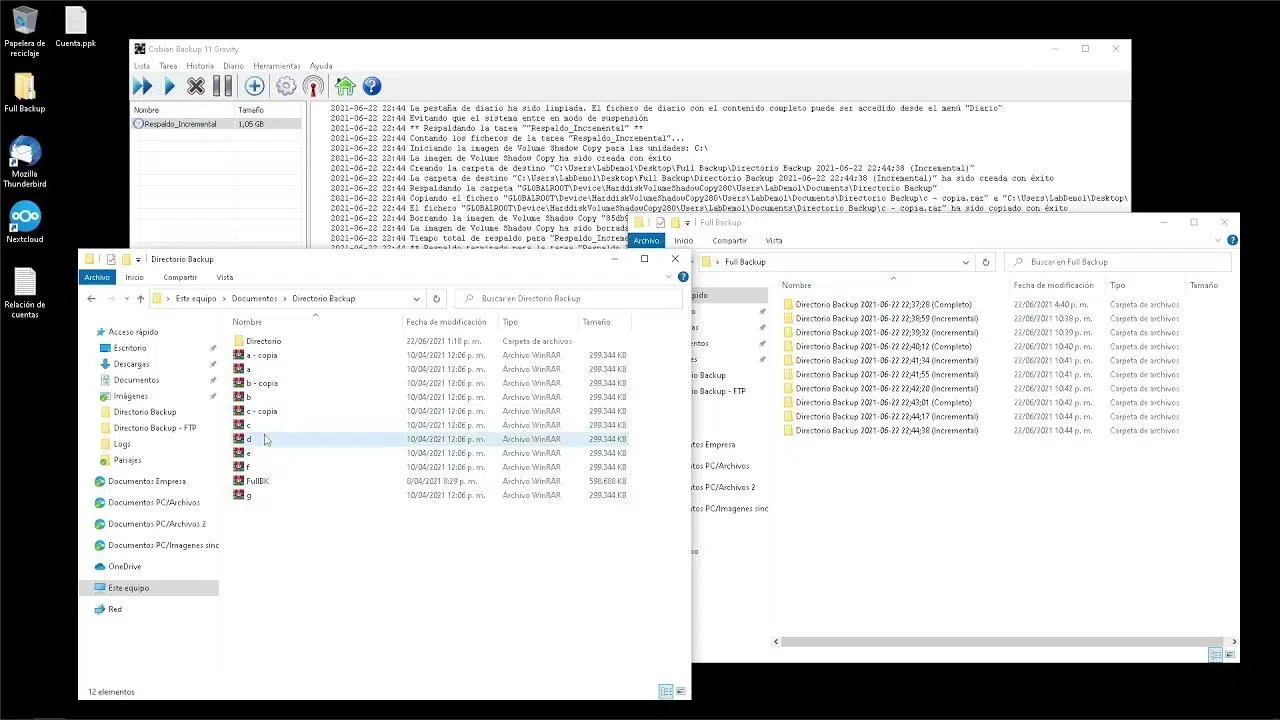
Let's look at a simplified example. Imagine a folder called Test_Cobian with three text files: Test1.txt, Test2.txt, and Test3.txt. You configure a differential copy task to an empty destination folder and run it for the first time: since there are no previous references, Cobian performs an initial full copy of all three files.
Next, you modify Prueba3.txt and run the task again. Cobian detects the change from the last full backup and creates a new folder, with date and time stamp, where only Prueba3.txt is saved as a separate file. Everything is working correctly so far.
Next, you create a new file, Test4.txt, and intentionally delete Test2.txt from the original folder. When you run the differential backup again, Cobian detects Test3.txt (modified) and Test4.txt (new) as changes and places them in a third backup folder. The backup system, from the perspective of "saving changes relative to the full backup," has worked perfectly.
The problem arises when the original disk fails and you need to restore it. You know that, in the last healthy state, the original folder contained Test1.txt, Test3.txt, and Test4.txt; Test2.txt had been intentionally deleted. To rebuild, you recreate the Test_Cobian folder and first copy the contents of the initial full backup . Then you overwrite the last differential backup, accepting that you will overwrite files with the same name.
The result is that, at the end of the process, you end up with Test1.txt, Test2.txt, Test3.txt, and Test4.txt. In other words, you have also recovered the files you intentionally deleted , because the initial full copy still contains Test2.txt and Cobian hasn't removed any of it from the destination.
Something very similar happens with incremental backups: although the theoretical restoration scheme requires a chain of copies, in practice Cobian does not remove files from the destination that no longer exist in the source, unless you do it manually, which is unrealistic if we are talking about thousands of files distributed across many folders.
The conclusion is clear: Cobian does backups very well, but its restoration is not very "smart" for scenarios where you need your backup to exactly represent the final state of a dataset, including files that have been intentionally deleted.
Best practices for using incremental backups with Cobian
Despite this limitation in restoration, Cobian Backup can still be an excellent tool if you adapt your way of working to how the program is designed and how it handles incremental and differential backups.
One option is to use incremental backups as a short-term change history , but rely on regular full backups as a "snapshot" of the system that's easier to restore. This way, in case of disaster, you can recover the most recent full backup and, if you deem it necessary, manually review some later incremental backups just to recover specific files.
Another useful practice is to differentiate between data that changes frequently and relatively static data . The latter (for example, a library of personal photos that you no longer touch except to add new ones) can be backed up less frequently, while working documents, active projects, or databases that are exported periodically can use a more aggressive incremental backup scheme.
If you're very concerned about accidentally including deleted files in a restore, you could consider manually cleaning specific folders from the backup periodically, or using external scripts that compare sources and destinations and remove from the backup anything that no longer exists in the original. However, this requires advanced knowledge and extreme caution.
In any case, it's highly recommended to test the restoration process before committing to any strategy. Set up a test environment, restore some full and incremental backups to another location, and see exactly what you get. There's nothing worse than discovering the flaws in your backup system the day your hard drive actually fails.
In short, Cobian Backup and Cobian Reflector offer a very flexible and powerful way to automate incremental backups in Windows , especially to NAS and external drives, as long as you understand how backups behave and what their limits are when it comes to going back in time with your data.

Passionate writer about the world of bytes and technology in general. I love sharing my knowledge through writing, and that's what I'll do on this blog, show you all the most interesting things about gadgets, software, hardware, tech trends, and more. My goal is to help you navigate the digital world in a simple and entertaining way.