- DSC allows you to automate server configuration and maintenance Windows in a declarative and scalable way.
- Integrating DSC with Azure and tools like ArcGIS Enterprise makes it easier to manage and orchestrate massive IT resources.
- The focus on consistency, compliance, and efficiency reduces risk and frees up time for strategic tasks.

Efficient management of Windows servers and computers is crucial for any modern business environment. Automating repetitive processes and maintaining desired system configurations not only saves time but also reduces errors and enhances security. One of the most powerful yet underappreciated tools in this area is Desired State Configuration (DSC), a feature integrated into PowerShell that allows for the declarative and repeatable management, automation, and security of Windows resources.
If you've ever had to manually configure servers, ensure critical services are up and running, or deploy software consistently across multiple machines, you know how tedious it can be. DSC was created precisely to solve these tasks: define the ideal state of your systems and let PowerShell and its tools do the heavy lifting, automatically correcting any deviations. Furthermore, it integrates seamlessly with both on-premises and cloud environments, offering advanced capabilities within Azure, enabling large-scale configuration management and providing complete control over your IT infrastructure.
What is Desired State Configuration (DSC) and how does it work?
DSC is a PowerShell extension whose primary purpose is to ensure that the resources of a Windows system are always maintained in the state defined by the administrator as "desired." Instead of writing endless step-by-step scripts, you simply describe how a server should be configured, and PowerShell DSC ensures that this description is continuously followed, automatically correcting any deviations or reporting them so that you can take action.
Among its advantages, DSC offers consistent, scalable, and secure management of servers and workstations, allowing for rapid configuration across multiple systems. This is vital in enterprise environments, where consistency and ease of recovery from incidents are fundamental.
DSC in PowerShell: Concepts and Main Components

DSC is based on three fundamental pillars: configurations, resources, and the Local Configuration Manager (LCM).
- Configurations: These are PowerShell scripts that define the desired state (for example, which services should be active, which applications should be installed, which firewall rules should be applied, etc.). When we run a configuration, a Managed Object Format (MOF) file is generated that describes that state.
- Resources: Resources are reusable objects that represent individual system components, such as services, files, logs, roles, or applications. Each resource exposes properties and actions to configure its state.
- Local Configuration Manager (LCM): It's the engine resident on every Windows machine that applies, monitors, and maintains configurations. The LCM constantly monitors the machine for compliance with the desired state and takes corrective action if necessary.
The typical workflow involves creating the configuration ( PowerShell script ), running it to generate a MOF file, and applying this file to the target machines, either manually or automatically. DSC compares the current state with the desired state and makes the necessary changes to match both.
Advantages of using DSC to automate Windows administration
- Declarative automation: You don't describe the steps, but rather the end result. This makes configurations easier to understand, maintain, and scale.
- Multi-environment management: DSC can be applied to both physical and virtualized servers, and even to cloud machines (Azure, for example).
- Consistency and compliance: You always know how each system should be and can automate its repair in the event of unwanted changes, ensuring regulatory compliance.
- Scalability: A single configuration can be applied to hundreds or thousands of servers, reducing the risk of human error.
How to get started with DSC on Windows
DSC is integrated into PowerShell and is part of the Windows Management Framework, starting with PowerShell version 4.0. Supported operating systems include Windows Server 2016, 2019, 2022, and recent versions of Windows 10/11.
To check if you have DSC available, open PowerShell and run:
Get-DscLocalConfigurationManagerBelow are the typical steps for using DSC in Windows system administration:
- Install or import DSC modules: Many resources are included out of the box, but more advanced ones can be found in the PowerShell Gallery (for example, Install-Module 'PSDscResources' -Verbose).
- Define a configuration: In PowerShell, you use the keyword
Configurationto create the configuration. Basic example:
Configuration MiConfiguracionWeb {
    Import-DscResource -ModuleName 'PSDscResources'
    Node 'localhost' {
        WindowsFeature IIS {
            Ensure = 'Present'
            Name = 'Web-Server'
        }
    }
}- Generate the MOF file: When you run the configuration, PowerShell will create the MOF file that serves as a “recipe” for the desired state.
- Apply settings: Use the cmdlet Start-DscConfiguration to deploy the configuration to the target machine.
- Monitor and maintain: The LCM monitors whether the machine meets the desired state, and can automatically alert or correct any deviations.
Cloud DSC: Azure Automation State Configuration
One of DSC's biggest advancements is its integration with Azure through the Azure Automation State Configuration service. This allows you to manage and monitor the configuration of Windows (and Linux ) servers, even outside of Azure, from a single control panel.
In Azure, the typical flow is as follows:
- Enable State Configuration: It is activated from the Azure portal by creating an Automation account, and associating Virtual machines or physical.
- Import required DSC modules: Resources are added from the PowerShell Gallery and imported into the Automation account.
- Upload configuration: The DSC configuration file (e.g., .ps1) is uploaded to the portal, where it can be compiled and assigned to the target machines.
- Monitor status: Azure provides visual reports on the status of each node or server, showing whether they are healthy or require remediation.
Additionally, Azure Automation allows you to orchestrate more complex processes, enabling scalable deployments on demand and ensuring compliance across development, testing, and production environments.
Practical example: keeping a service always active in Windows using DSC
A classic case in administration: ensuring that the IIS web service is up and running at all times.
With DSC we can define a configuration that ensures that the 'W3SVC' (IIS) service is always running:
Configuration ServicioWebActivo {
    Node 'localhost' {
        Service IIS {
            Name = 'W3SVC'
            State = 'Running'
            StartupType = 'Automatic'
        }
    }
}
Once the configuration is executed and applied, the service will be monitored. If an incident causes it to stop, DSC will automatically restart it or notify the user, depending on the LCM configuration.
DSC in large environments: orchestration, pull servers, and scalability
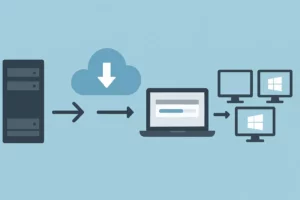
In large infrastructures, DSC allows you to define a single desired state and distribute it to all the necessary nodes. This is where 'Pull Servers' come into play—central servers where client nodes periodically query and download updated configurations and resources. With this approach, it's easy to ensure uniformity across hundreds of servers by updating changes at a single point.
This translates into simple and very flexible management, where:
- All machines receive their configurations from a central server.
- Security policies, software installation, roles, or specific configurations are applied depending on the node type (server, workstation, etc.).
- It is possible to integrate management with version control systems, storing configurations in Git for example.
Best practices and key tips for using DSC
- Modularize your configurations: Divide into small, reusable resources. This makes it easier to maintain and scale the infrastructure.
- Use version control: Manage configuration scripts in Git or another similar tool, enabling traceability, collaboration, and error rollback.
- Test in staging environments: Before implementing changes in production, validate changes in test environments. Tools like Pester (for PowerShell) facilitate automated testing.
- Document and use clear naming: It helps a lot in collaboration and infrastructure maintenance, especially in large teams.
DSC in hybrid environments and regulatory compliance
DSC enables organizations to meet compliance requirements and best practices recommended by bodies such as NIST and FISMA. It facilitates compliance with standards like NIST SP 800-53 regarding the management and monitoring of base configurations. Furthermore, it automates the application and verification of security policies, helping to reduce the risk of non-compliance and strengthening the security posture.
DSC applied to specific software: the case of ArcGIS Enterprise
Third-party tools, such as Esri's ArcGIS Enterprise, have adopted DSC to simplify large-scale installation, upgrades, and configuration. Esri offers dedicated DSC modules that help automate ArcGIS Enterprise deployments, including sample JSON files and ready-to-use workflows. This enables administrators to quickly deploy or restore complex systems, reduce errors, and promote consistency across development, test, and production environments.
It is worth highlighting that ArcGIS Enterprise, through PowerShell DSC and Python scripts , facilitates tasks such as portal synchronization, scheduled content updates, user management, and usage metrics control, offering much more powerful and flexible management through automation.
Automating Mass Deployments: Azure DevOps, DSC, and Real-World Examples
Orchestration possibilities increase when we combine DSC with Azure DevOps or Azure Automation. A common example is end-to-end infrastructure provisioning: imagine we need to create dozens of identical virtual machines in Azure, with their applications, policies, and configurations.
Using workflows and PowerShell scripts (including DSC), it is possible to:
- Automate the creation of resources such as networks, accounts, storage, affinity groups and virtual machines.
- Apply DSC configurations to each machine during or after deployment.
- Monitor and update status from Azure or external systems.
This approach radically reduces the time spent on repetitive tasks and minimizes human error.
DSC vs. other automation and scripting tools
DSC integrates seamlessly with PowerShell and Windows, but it can also be complemented or compared with solutions like Chef, Puppet, Ansible, or custom Python scripts. The key differentiator is DSC's declarative paradigm and the continuous monitoring that ensures state compliance, going beyond mere script execution.
However, many companies combine DSC with other tools depending on the complexity of the environment, multi-platform requirements (Linux-Windows), or more customized workflows.
Practical scenarios and common situations where DSC makes a difference
- Configuring and securing Windows roles and features on new servers.
- Rapid deployment of environments SharePoint, IIS, SQL Server, Active Directory or your own applications.
- Automated enforcement of security policies and updating of network or firewall configurations.
- Synchronized management of development, testing, and production servers.
- Rapid system restoration in the event of an incident thanks to "self-healing."
In all these cases, DSC saves countless hours of work, improves quality, and allows time to be devoted to more strategic tasks.
Final Considerations and Additional Resources
Automating Windows administration through Desired State Configuration is one of the best ways to improve efficiency, security, and quality in IT infrastructure management. It allows administrators and DevOps teams to eliminate repetitive tasks, reduce the likelihood of errors, and ensure a higher level of compliance and consistency.
If you need to manage a server farm, keep critical systems always up and running, or simply ensure your environment evolves with minimal manual effort, DSC is the ideal tool. Microsoft and vendors like Esri provide ready-to-use resources, modules, and examples that you can adapt to your organization's specific needs. Embracing these practices not only optimizes your time but also improves the health and future of your systems.

Passionate writer about the world of bytes and technology in general. I love sharing my knowledge through writing, and that's what I'll do on this blog, show you all the most interesting things about gadgets, software, hardware, tech trends, and more. My goal is to help you navigate the digital world in a simple and entertaining way.
Table of contents
- 1 What is Desired State Configuration (DSC) and how does it work?
- 2 DSC in PowerShell: Concepts and Main Components
- 3 Advantages of using DSC to automate Windows administration
- 4 How to get started with DSC on Windows
- 5 Cloud DSC: Azure Automation State Configuration
- 6 Practical example: keeping a service always active in Windows using DSC
- 7 DSC in large environments: orchestration, pull servers, and scalability
- 8 Best practices and key tips for using DSC
- 9 DSC in hybrid environments and regulatory compliance
- 10 DSC applied to specific software: the case of ArcGIS Enterprise
- 11 Automating Mass Deployments: Azure DevOps, DSC, and Real-World Examples
- 12 DSC vs. other automation and scripting tools
- 13 Practical scenarios and common situations where DSC makes a difference
- 14 Final Considerations and Additional Resources