- Queries in Access allow you to filter, modify, and analyze data efficiently.
- There are different types of queries: selection, action, parameters and totals.
- Optimizing the use of indexes and expressions improves query performance.

Microsoft Access is a powerful tool for managing databases , and advanced queries allow for more efficient analysis, process automation, and improved data management. In this article, we'll explore the available query types, their features, and how to apply them in different scenarios.
If you work with Access and are looking to improve how you interact with stored information, a thorough understanding of advanced queries will allow you to optimize your workflow and extract useful information quickly and efficiently. Furthermore, if you are interested in migrating your Access databases to SQL Server , this can complement your knowledge of the software.
What is a query in Access?
An Access query allows you to extract , filter, and manipulate data stored in tables. With a query, you can select , update , or delete data without directly modifying the source tables. This makes it an essential tool for anyone handling large volumes of information.
Types of queries in Access
There are several types of queries in Access, each with different purposes. Below we list the most commonly used ones:
Selection consultation
This is the most common type and allows you to retrieve specific data from one or more tables. You can use filters and sort the data as needed.
Action Consultation
This type of query modifies data in tables. It is divided into four categories:
- Update query: Allows Modify specific fields in the records of a table.
- Removal query: Used to delete records from a table according to certain criteria.
- Query of attached data: Adds records from one table to another, useful when combine data sets.
- Create Table Query: Generate a new table with the results of the consultation.
Totals query
It allows you to perform calculations such as sums, averages, and counting records, grouping them by specific categories. This capability is very useful when creating reports.
Parameter query
It prompts the user to input a value to customize the data retrieved on each execution, optimizing the query according to specific needs.
Cross-reference consultation
Organize the data in a pivot table format , with values grouped in rows and columns, making it easier to analyze complex information.
How to create and use advanced queries in Access
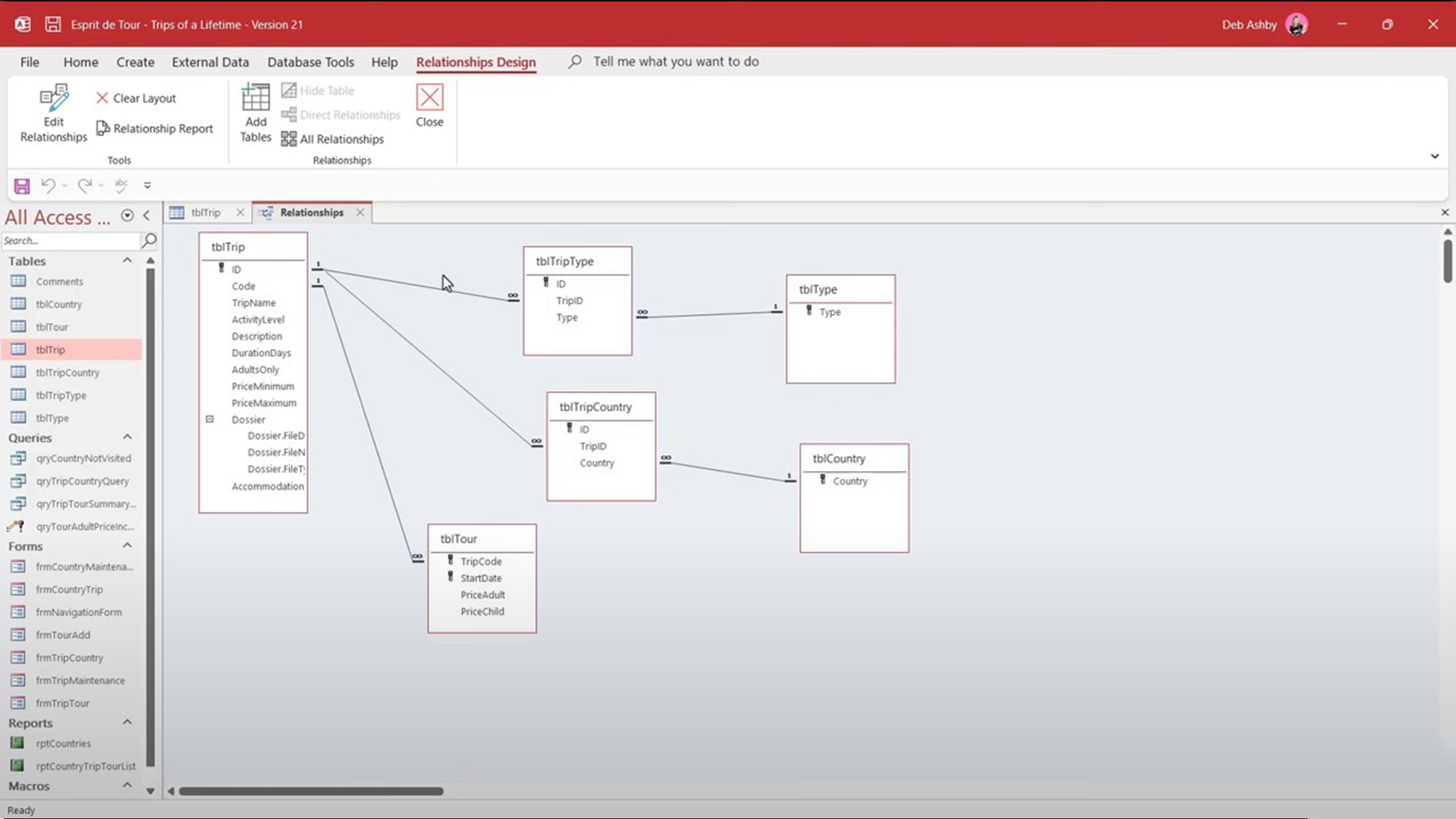
Creating a select query
To create a select query in Access, follow these steps:
- Open Access and select the database in which you want to work.
- Go to the tab Create and click Query design.
- Select the tables you want to query and add them to the designer.
- Drag the required fields to the design grid.
- Apply filter criteria if required.
- Click on Run to get the results.
How to use an update query
Update queries modify existing records. To create them:
- Open Access and go to Query design.
- Select the table that contains the data to be modified.
- Click on Update query tab Design.
- Define the fields to modify and in line Upgrade to, enter the new values.
- Run the query.
Delete Query: Clean up unnecessary records
To delete records in bulk:
- Open the query designer and select the affected table.
- Change the query type to Elimination.
- Sets the criteria to define which records will be deleted.
- Execute the query with caution, since deleted data cannot be recovered.
Customizing and optimizing queries in Access
To maximize the efficiency of your queries, consider these aspects:
- Indexes: Adding indexes to frequently queried fields improves the Processing speed.
- Use of expressions: You can calculate values within queries using features y operators.
- Avoid unnecessary queries: Filter and select only the data required to reduce There of execution.
These practices will allow you to manage databases more efficiently, reducing processing time and improving the quality of the reports generated . If you need more information on how to update records in Access , you can consult our detailed guide.

Finally, remember that working with advanced queries in Access not only helps you obtain specific data, but also improves the quality of the information you manage. Understanding how queries work is essential for any user who wants to use Access effectively.


Passionate writer about the world of bytes and technology in general. I love sharing my knowledge through writing, and that's what I'll do on this blog, show you all the most interesting things about gadgets, software, hardware, tech trends, and more. My goal is to help you navigate the digital world in a simple and entertaining way.