
Do you want to know why your port USB it does not work or does not recognize your keys? If you upgraded from a previous version of Windows to Windows 10, then it is not uncommon for this to happen; because the USB ports do not work as they should.
It may seem like your USB port can't or won't recognize any device you put into it. That means none of your USB devices, whether it's your keyboard, mouse, or printer, will actually work, but it's up to you to determine whether the problem is with the USB port or the devices themselves.
If the USB port is not working properly, it can be resolved, just continue reading this post to get that information.
Causes of USB ports not working
When it comes to this USB port issue, there are several probable causes. These are as follows:
- Problem with your power supply unit.
- The USB port is damaged.
- Bad power management settings.
- USB drivers are outdated or corrupted.
- The USB device is damaged or faulty.
Here you can learn about: How to Fix USB MTP Error in Windows 10
Symptoms of USB port not working
If you have a habit of repeatedly inserting and removing your USB devices from your USB port, this can result in an unresponsive port. In this particular state, the USB ports will not recognize any device that is plugged in.
As we said earlier, before you can proceed with the fixes, you must first determine that the USB ports not working is a result of the ports themselves, and not the device(s) that are trying to connect to them.
To determine whether or not this is the case, you'll need to plug your USB device(s) into a different USB port, on a separate computer system. If the device connects without a problem, then you know the problem is with the port. If the port on the new system can't detect the device, then you know that device is the culprit. If you can't reformat the USB device, you may need to replace it, depending on what it is.
When USB ports stop working, below are the most common symptoms associated with this situation:
- The USB port does not detect the device connected to it.
- The operating system will display an error message and then prompt you to remove and/or replace the device.
Either way, you'll want to dig deeper into the possible causes of your USB ports not working. Were they damaged in some way? There are several methods you can and should adopt.
You definitely need to take a closer look at your USB ports and examine them. Is it full of dust, is it clean? If you are on a desktop machine and your USB ports are all located on the back of the computer, then there is a good chance that dust has become embedded inside the ports.
Dust buildup is capable of reducing airflow to computer components, which in turn causes it to overheat. This is particularly common among systems portable, where overheating can reduce its performance. So before you try any of my tricky fixes below, you should try using compressed hair to clean things up.
You should also look at any USB cables (if you use one), which connect devices to your system. Examine them for any problems; do you have a close connection? Is it damaged? These are all things you should be aware of.
USB port not working – How to fix it
If the problem is with the port itself, you may need to resort to replacing the entire motherboard. This is all fine, with desktop solutions, but with laptops, it can be quite difficult. So, soldering becomes an option.
If you have a laptop, you may want to consider physically repairing the port. But this all depends on whether the port is at fault or not.
That being said, now that you are familiar with the various probable causes, we can now turn our attention to possible solutions. Below are several tried and tested solutions that you can use if your USB port is not working. Whether the solution will work or not largely depends on the cause.
Solution 1: Restart your system if the USB port is not working
When your USB ports seemed to stop working, have you tried restarting your computer? This old tech support solution is well-known, for one particular reason: because it is effective.
With the unrecognized USB device connected to your computer, you should try to restart the system immediately. Once the computer has finished booting, the USB ports should function normally, assuming they are not damaged.
Solution 2: Check for hardware changes if the USB port is not working
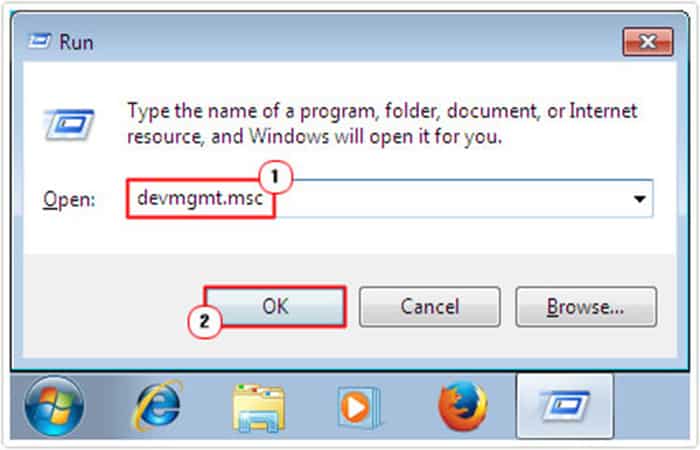
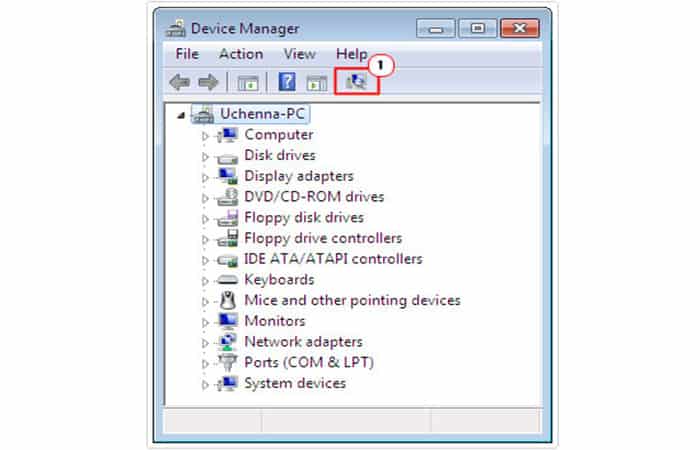
This next solution should probably come before you reboot your system and is actually designed to save you from having to reboot your entire computer. That being said, if USB port not working is an issue for you, then you should try using the Scan Changes feature of hardware at the Device administratorTo do so, simply follow the instructions below:
- Step 1:: First, boot your computer with administrative rights (assuming it isn't already).
- Step 2:: Then press Windows + CHEAP, writes devmgmt.msc and click Accept.
- Step 3:: Once the is loaded Device administrator, click on the icon Check for hardware changes and then check if your USB device has been detected.
Solution 3: Disable USB Selective Suspend feature if the USB port is not working
Are your USB ports not working even after trying both methods? Then you should consider changing your power management settings as they might override your USB controller, inhibiting its ability to detect new devices.
This is particularly common on laptop systems. If you want to keep your power consumption to a minimum, then you should consider using the low power profile in Windows.
USB Selective Suspend is a power-saving feature designed to cut power to your USB device in order to prolong battery life. In most cases, this feature works without a hitch, but there are instances where it can and does cause problems with USB ports.
In situations like this, you will need to disable it, to do so, simply follow the instructions below:
- Step 1:: First, start your computer with administrative rights.
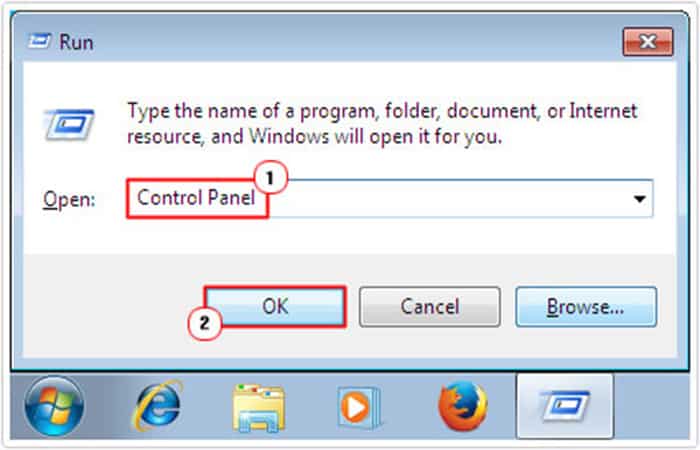
- Step 2:: Then press Windows + CHEAP, writes Control panel and click Accept.
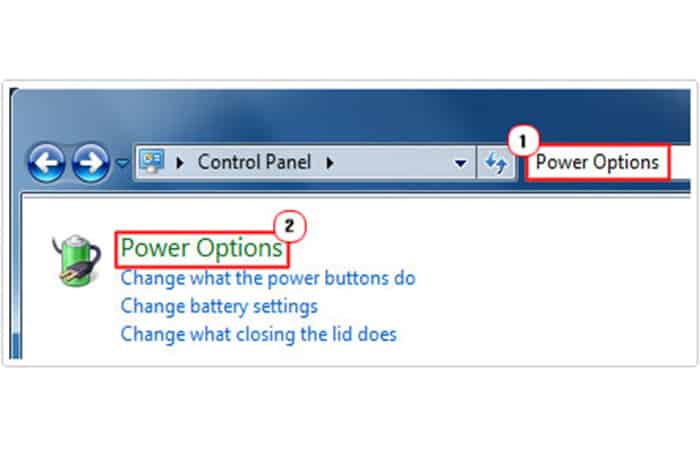
- Step 3:: When the load is Control panel, writes Energy options in the box Search Control Panel, then click Energy options.
- Step 4:: This will take you to the screen Energy options, from here, click on Change plan settings, along with your selected preferred plans.
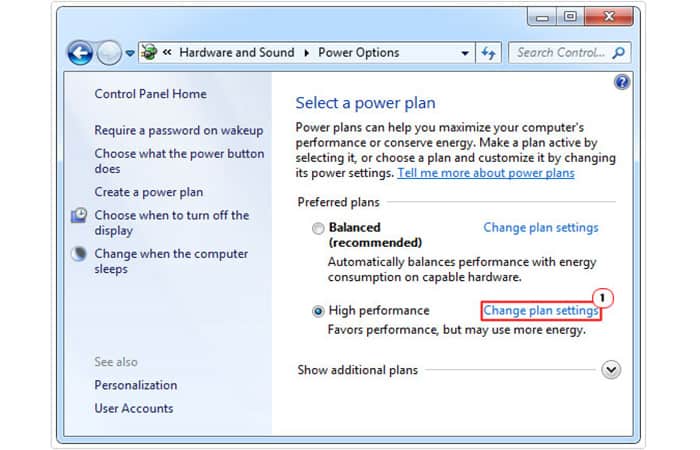
- Step 5:: The screen will appear Change plan settings, Click on Change advanced power settings.
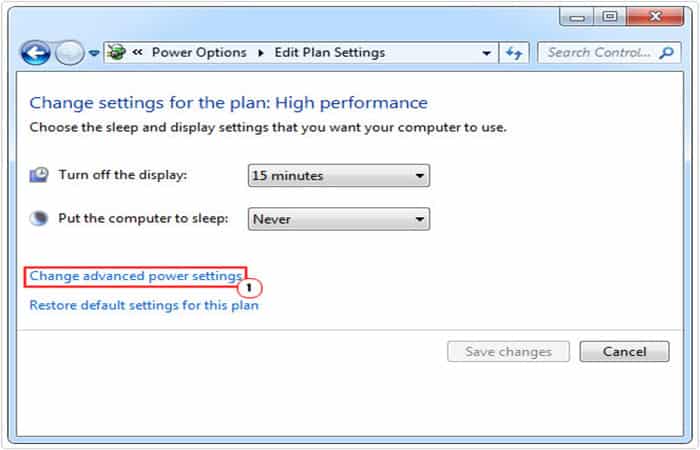
- Step 6:: The applet will appear. Advanced Power OptionsSimply Deactivate USB selective suspend settings, in USB configuration and click Accept.
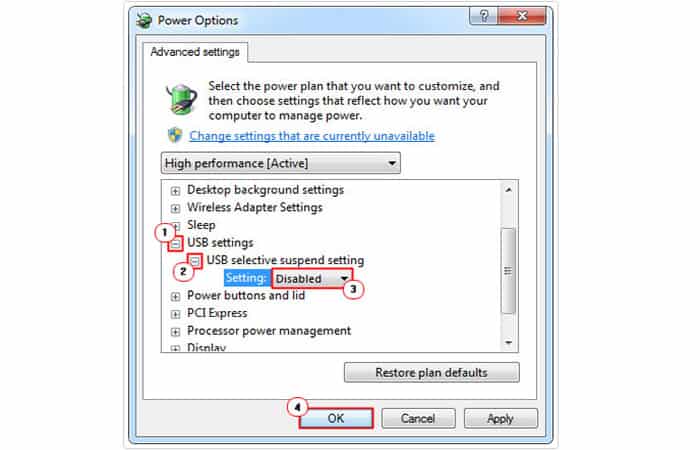
- Step 7:: Once complete, restart your computer.
Solution 4: Disable and enable drivers if USB port is not working
Is your USB port not working after disabling the USB Selective Suspend feature? Then you should try disabling and re-enabling the USB drivers. This should allow the drivers to recover from their previous unresponsive state. USB drivers are what control the USB ports, you can find them in Device Manager.
To perform this step, simply do the following:
- Step 1:: First, start your computer with the appropriate administrative privileges.
- Step 2:: Then press Windows + CHEAP, writes devmgmt.msc and click Accept.
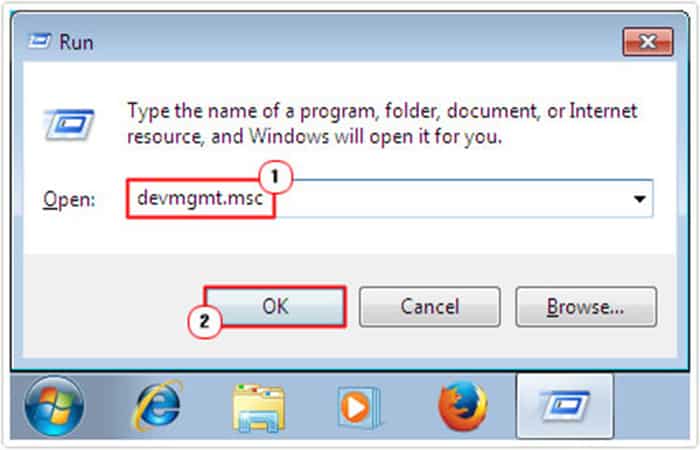
- Step 3:: When the load is Device administrator, click on the icon +, next to Universal Serial Bus controllers, then right-click the first USB controller and select uninstall.
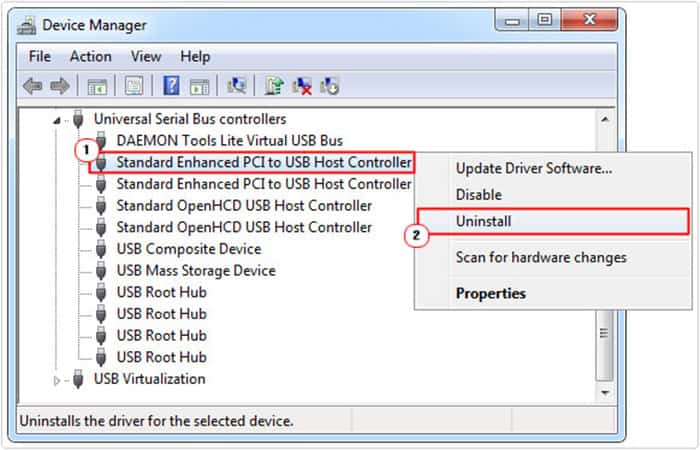
NOTE: : You will need to repeat this process until all USB drivers have been removed.
- Step 4:: When finished, restart your computer.
After the computer boots up, it will automatically scan your hardware for any changes and reinstall drivers for any USB controllers you previously removed. Once it's complete, you'll need to check that the ports are working.
Solution 5: Check CMOS if USB port is not working
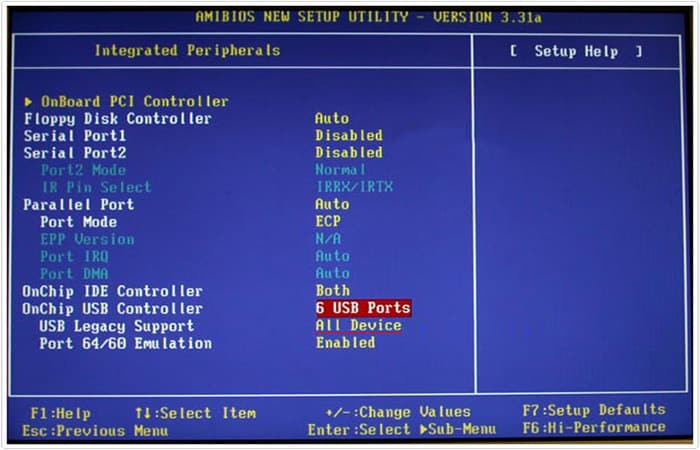
With older systems, it was possible to enable and disable the USB controller in the BIOS. If you have a 2010 or newer system, I recommend checking the BIOS to make sure USB is enabled or set to legacy within the CMOS setup screen.
Solution 6: USB port not working due to system issues
If your USB port is not working after trying all the solutions above, that is an indication of one thing only. That the problem is due to a hardware issue.
This could be the power supply, not providing any other power to the ports, it could be a physical problem, with the USB port, becoming physically damaged.
Whatever the cause, I recommend you seek expert support, especially if your only option is to replace the motherboard and power supply.
Alternatives you can use if your USB port is not working
Many laptops are now equipped with a port USB-C, and some PCs and Macbooks no longer offer any other connectors. To multiply the sockets on a computer, you can connect a "hub", a small device with USB connectors, or even an HDMI port, an SD card reader, a jack, an ethernet port and others. Vava, Ugreen, Anker: here are the options you can use if your USB port does not work.
The mere existence of USB-C hubs is a testament to the main drawback of most modern computers, especially slimmer ones like MacBooks: the limited number of ports and their poor diversity.
If you want to connect a device with a non-USB-C cable, a hub is the most efficient solution for combining multiple types of ports into a relatively compact package.
The best alternative you can use if your favorite USB port is not working is the model Vava 7-in-1 USB-C Hub (VA-UC017) because it's reasonably priced, has the perfect amount of ports all of which can be used at top speed, is sturdy, and is small and light enough to handle and fit into a bag.
1. Vava 7-in-1 USB-C Hub (VA-UC017)
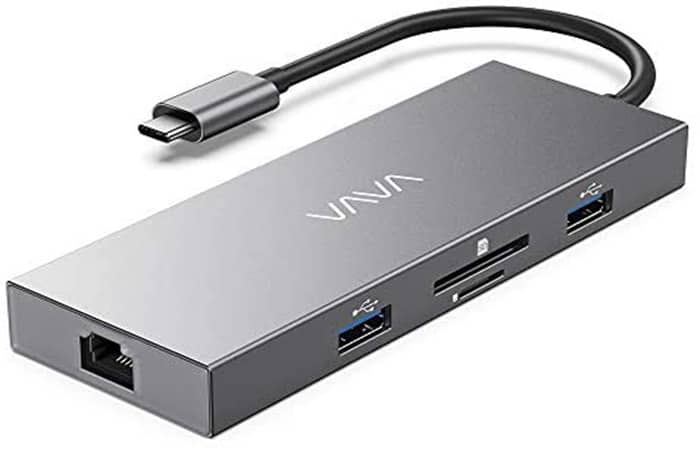
The best USB-C hub you can use if your USB port isn't working. This portable hub offers all the ports you could ever need: three USB 3.0, one HDMI, one USB-C dedicated to charging, and SD and microSD card readers.
With three USB-A ports, an HDMI input (4K compatible), SD and microSD readers, and a USB-C port for power, Vava 7-in-1 USB-C Hub (VA-UC017) offers the common connections that most users need.
It's powerful enough to function as a full-time docking station on a desktop and small enough to fit into a laptop case while traveling. It doesn't include an Ethernet port, but it's half the price of equivalent models that do.
2. Ugreen 9-in-1 USB-C Hub
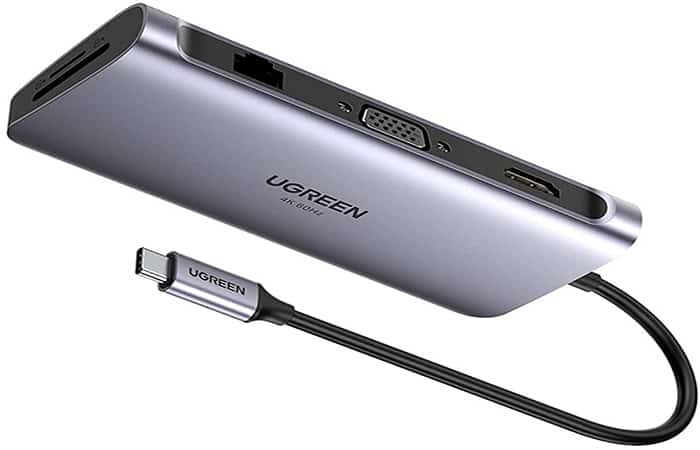
It's the best alternative you can use if your USB port isn't working, and it also comes with an Ethernet and VGA port. Slightly larger than the main selection, this hub has the same ports, plus Ethernet and VGA, plus a handy detachable cable.
- At the time of publication the price was €65
El Ugreen 9-in-1 USB-C Hub It offers similar performance to Vava's VA-UC017, with the addition of an Ethernet port and a VGA connector (the latter used to connect older displays and projectors), all for roughly twice the price.
Its USB-C cable fits into the body of the hub, which is a plus. If you need those extra connectors, go with this hub, but if not, save your money and go with the better option.
3. Anker 3.0W 60-Port USB 10 Hub
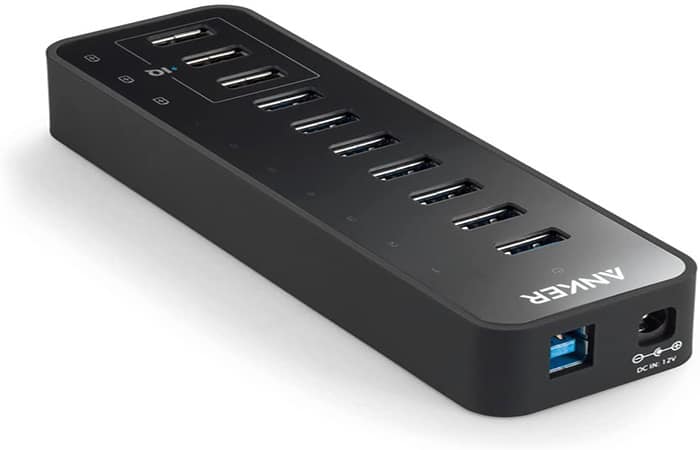
This is the third alternative you can use if your USB port is not working that has more ports. Its seven USB 3.0 data transfer ports and three high-speed charging ports face upwards, so cables and plugs take up less space on your desk.
If you want to be able to connect as many peripherals as possible to your computer, Anker’s 3.0W 10-Port USB 60 Hub is the model for you. It has seven upward-facing USB-A 3.0 data transfer ports and an LED activity indicator for each of them.
It also has three 12-watt (2,4 A) power ports for charging. As a bonus, it's aesthetically very sober - nothing like the hideous 1990s models, unlike other hubs we've tested.
Keep in mind that the 3.0-Port 10W USB 60 Hub Anker's only comes with a USB-A to USB-B cable, so you'll need to purchase a USB-B to USB-C cable separately to connect it to most newer computers.
4. Dell D6000 Universal Docking Station
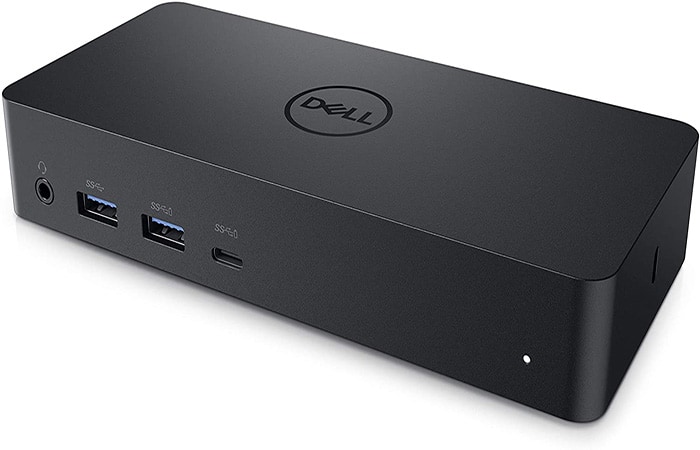
This is a dedicated charging dock on your desk that you can use if your USB port isn't working. This docking station is much more expensive and is designed to stay permanently on your desk. But it has more outlets and you can charge devices without an additional AC adapter.
- At the time of publication the price was €185,78
Docking stations (or docks) are typically larger and have more ports than hubs. Most importantly, they can provide their own power, without a separate USB-C charger, making them a better solution if you plan to leave it on your desk all day. ThereOf the five USB-C stations we tested, the Dell D6000 Universal Dock It stands out with four USB-A ports, one USB-C, one HDMI port and two display ports for video, one input Gigabit Ethernet and a 3,5mm jack for sound.
You may also be interested in reading about: 6 Best USB-C Mice Most Used This Year
This model worked just as well with a PC as it did with a Mac. Plus, at 65 watts, it offers the highest charging power of any dock. And it's the cheapest of the bunch (though it costs four times the price of the Vava Hub).
Conclusion
As you can see, these are the solutions and alternatives you can use if your USB port is not working. We also recommend that you seek an expert when performing an inspection of your motherboard. We hope we have helped you with this information.

My name is Javier Chirinos and I am passionate about technology. Ever since I can remember, I have been interested in computers and video games, and that passion has turned into a job.
I have been publishing about technology and gadgets on the Internet for over 15 years, especially in mundobytes.com
I am also an expert in online marketing and communication and have knowledge in WordPress development.