- Identify and resolve reasons why programs may not display windows even when running in the background.
- Manage applications that can run in the background to optimize the system and prevent errors.
- Follow specific solutions according to the version of Windows and the type of application (Win32 or UWP).

Have you ever tried to open a program on your Windows computer and, although you see it listed in the Task Manager , the window never actually opens? This annoying problem is more common than you might think and can be caused by a variety of factors: from configuration settings and compatibility issues to installation errors and simple shortcut confusion.
In this comprehensive article, we'll delve into all the possible causes, solutions, and the latest recommendations on how to deal with a program running in the background but not opening a window in Windows. We'll use the most relevant and up-to-date information and supplement it to give you the most complete guide available on this issue, leaving no detail out.
Why can a program run in the background without showing its window?
Understanding the root cause of the problem is the first step to solving it permanently. Programs that run in the background without displaying their interface usually do so because something is preventing the main window from appearing. Below, we detail the most common reasons:
- Program loading failure or corrupt files: The software may have been installed incorrectly or some files may have become corrupted, preventing the graphical interface from displaying correctly.
- Compatibility issues: If you try to run an older app on a modern version of Windows, or vice versa, you may encounter these types of errors.
- Errors in shortcuts: Shortcuts store paths that, if changed after an update, can cause the executable to start incorrectly and not display.
- Lack of administrator permissions or privileges: Many applications require certain elevated permissions to display their window or function properly.
- Background Run Settings: Windows settings can allow or deny applications from running in the background, which sometimes interferes with the interface.
- Conflicts with login, system services, or antivirus: Some internal services and security programs may block or interfere with the launch of applications.
Identifying which of these factors is preventing the program from functioning properly is key to implementing the most appropriate solution.
How to check if the program is really in the background?
Before applying any solution, it's important to confirm that the process is running but simply isn't displaying its window. On Windows, you can do this in several ways:
- Accesses Task Manager by pressing Ctrl + Shift + Esc, or right-clicking on the taskbar and choosing “Task Manager.”
- Look for the problematic application in the process list. If it appears in the list but you don't see its window, it's a sign that it's running in the background.
- If the app is in the system tray (next to the clock), check if it has an icon there; sometimes the window is minimized to that area.
If you confirm that the process is running but you cannot see or restore its window, you can proceed with the following solutions.
Step-by-step solutions if a program runs in the background but doesn't open a window in Windows
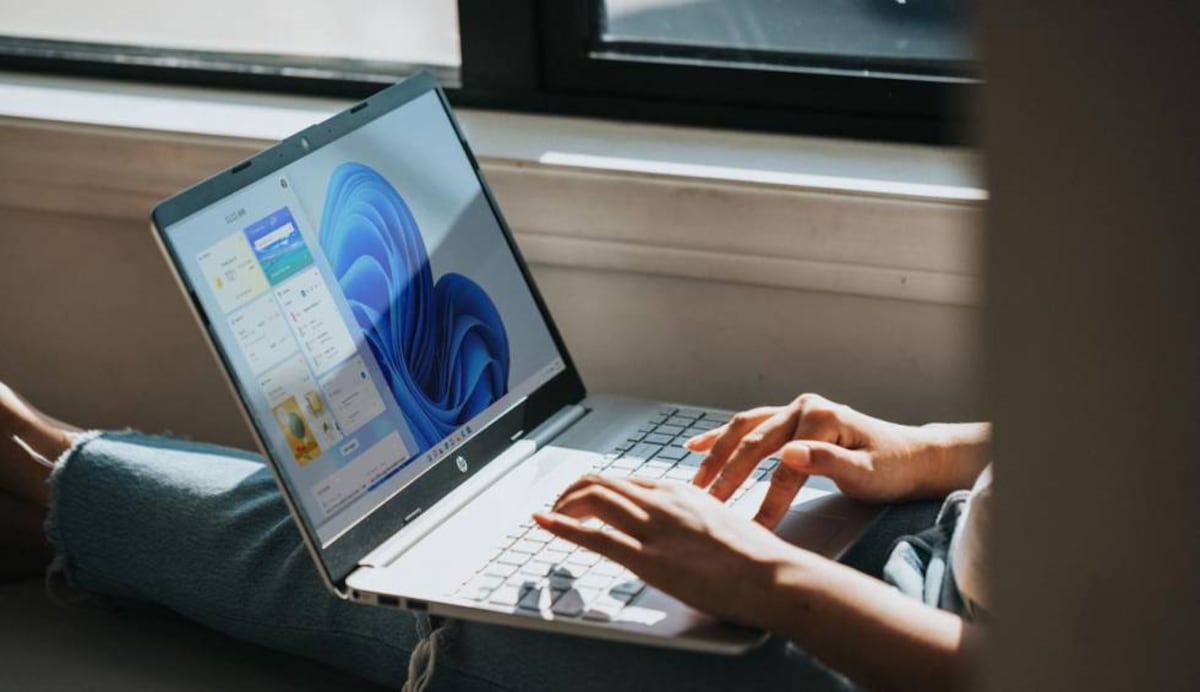
There are multiple methods to solve this problem. From the simplest actions to advanced procedures that allow you to regain control over any rogue application. Here's a summary of all the tested options:
Restart the computer
It may seem basic, but restarting Windows is the quickest way to fix most temporary program-related issues. This frees up resources, restarts system services, and can close stuck processes that might be preventing your application from displaying correctly. After restarting, try opening the program again.
Update the problematic app
Often the problem lies in an older version of the program with unpatched bugs. Visit the developer's official website or use the software's built-in update options. Always install the latest version compatible with your operating system to fix bugs and improve compatibility.
Check the architecture: 32 or 64 bits
A mismatch between the program's architecture and your Windows system can even prevent the window from opening. Make sure to install the 32-bit version on older computers and the 64-bit version on modern systems. Although Windows 11 is only distributed in 64-bit, it is still compatible with 32-bit applications, but not vice versa.
Run the program as administrator
Insufficient privileges may prevent some functions, including opening the program window, from working. Right-click the program icon or its shortcut and select "Run as administrator." If the program then displays correctly, configure its shortcut to always open as administrator by accessing the shortcut's properties and checking the "Run as administrator" option.
Avoid old shortcuts and open the real executable
A shortcut can become outdated if the path to the executable has changed after an update or reinstallation. Go to File Explorer, locate the program's actual installation folder, and run the main file directly. If the application opens correctly, create a new shortcut from that file.
Restore the system to a previous point
Windows automatically creates restore points before major system changes. If the problem occurred after an update or the installation of new software, you can restore your system to a previous point when everything was working correctly. Search for "Recovery" in the Start menu and follow the steps to select and restore a suitable previous point.
Use Windows compatibility mode
Windows Compatibility Mode allows you to simulate older environments to run applications that haven't been updated. Right-click the executable file, select "Properties," and go to the "Compatibility" tab. Check the box next to "Run this program in compatibility mode for" and select the appropriate Windows version (XP, 7, etc.). Apply the changes and try again.
Reset or repair the app (especially for UWP apps)
For apps downloaded from the Microsoft Store or UWP apps , Windows allows you to reset them without uninstalling. Go to Settings > Apps, find the problematic app, tap "Advanced options," and click "Reset" or "Repair" if the option is available.
Uninstall and reinstall the program
If none of the above solutions have worked, try completely removing the application and reinstalling it from scratch. Always download the installer from the developer's official website to ensure you have the latest version, free of modifications or malware . Restart your computer after uninstalling before reinstalling.
Redownload the app to avoid file corruption.
If you continue to experience problems after reinstalling, the installation file may be damaged or modified. Download the software again, preferably from the official website, and verify its integrity using tools like VirusTotal to rule out an infected or corrupted file.
Use the Windows troubleshooter
Windows includes automatic troubleshooters specifically for Microsoft Store apps, but also for other areas. Type "Troubleshoot other problems" in the Start menu, select "Windows Store apps," and follow the steps. The system will run checks and may apply fixes automatically.

Update Windows to resolve incompatibilities
Windows updates not only include new features, but also fix bugs and incompatibilities in the system and its applications. Go to Settings > Update & Security > Windows Update , check for new updates, and install them. If you encounter errors while updating, use the official Microsoft tool to force the update.
Check the Application Identity Service
This service is essential for modern apps to function. Press Windows + R, type “services.msc”, and locate “Application Identity”. If it’s stopped, double-click it and enable it. Make sure its status is set to “Running”.

Use System File Checker (SFC)
If you suspect corrupted Windows files, use the SFC tool. Open Command Prompt as an administrator (search for "cmd" in Start, right-click, and choose "Run as administrator"). Type sfc /scannow and press Enter. The system will scan for and attempt to repair corrupted files.

Disable Windows SmartScreen Filter
The SmartScreen filter may mistakenly block legitimate apps, flagging them as potentially dangerous. To disable this feature, search for "SmartScreen" in the Start menu, go to "App & browser control," and turn off Smart App Control. If you prefer not to disable the feature, you can choose to allow occasional app execution through the security notification.
How to Manage Background App Activity in Windows
One of the keys to ensuring programs run correctly in Windows is managing background activity. Microsoft and other experts recommend restricting programs you don't need running, because in addition to improving performance and extending battery life, it prevents conflicts with windows that aren't displayed.
Apps that can run in the background are typically modern apps downloaded from the Microsoft Store (known as UWP apps), but some classic apps can also run this way.
Controlling background apps in Windows 10
To manage which apps can run in the background:
- Access the menu Configuration from Windows Start.
- Go to the section of Privacy policy.
- In the left panel, select Background apps.
- Disable apps you're not interested in with the toggle next to each name.
It's helpful to keep only the apps you need to receive notifications or updates enabled. For example, you can disable apps like Tips or those you never use.
Administration in Windows 11
The process is somewhat different:
- Go to the Configuration of Windows.
- Click on Applications in the left column.
- Choose Installed applications.
- Find the problematic app, click on the three dots and select Advanced.
- In the Background Management section, drop down the menu and select “Never” to prevent the app from running when you’re not using it.


Passionate writer about the world of bytes and technology in general. I love sharing my knowledge through writing, and that's what I'll do on this blog, show you all the most interesting things about gadgets, software, hardware, tech trends, and more. My goal is to help you navigate the digital world in a simple and entertaining way.