
Welcome to the ultimate guide from milprogramas for Microsoft Visio . We've compiled all the information you need about this leading product. With increasing interest, it's important to stay informed about the tools available to you when using any Microsoft Office product . So, I invite you to keep reading and learn everything about this program with us.
What is Microsoft Visio?
Visio is a powerful tool, primarily used to create professional diagrams and vector graphics. Visio simplifies the task of bringing your ideas to life with well-constructed diagrams, plans, and blueprints. Innovative tools allow you to take your work to the next level with features and techniques not found in other software.
The list of things you can create is only limited by your own imagination. Create flowcharts, floor plans, engineering designs, organizational charts, and more – it’s all possible in Visio. Shapes and templates make your workflow seamless, allowing you to produce beautiful, accurate designs for many purposes.
With an Office 365 or Microsoft 365 subscription , multiple team members can work on the same Visio project in real time. Update your content with real-time information to automatically refresh data and reflect changes as they occur in the world.
Why use Microsoft Visio?

Visio is the ideal tool for creating complex diagrams, visualizing processes, as well as illustrating diagrams, workflow charts, sales history, sales projections and business relationships.
It has the toolset needed to take a plan from concept to completion. Create visual presentations for any project, whether you work in architecture or web design. Visio continues to empower users to incorporate detailed concepts into charts and diagrams that can be shared with teams, employees, and clients.
Visio is extremely easy to use for everyone. From IT professionals to entry-level clients, Visio receives nothing but positive feedback on its initiative design and ease of access. Give your work a more professional and visually appealing design with the pre-made templates, built-in shapes, and applicable effects.
Microsoft Visio versions
Visio is currently available in more than one edition, as well as in different plan options. At the time of writing, Microsoft offers two different Visio Online plans , in addition to a standard and a professional version of the software.
Each version contains the core capabilities of Visio, while higher-end solutions offer more features to meet the needs and requirements of more demanding customers, such as small and medium-sized businesses or organizations.
Microsoft Visio Features
- Create professional diagrams to represent any business process with ease.
- Use shapes to plan architecture, websites, mobile apps, and other processes without having to draw it yourself.
- Choose from thousands of available templates to give your new project a head start.
- Be productive on the go with Visio Online, making your work accessible from anywhere. Web navigator.
- Get noticed with over 10 different supported file formats to export your Visio creations or import someone else's projects.
- Communicate with your team in real time through Office 365 integrations and Microsoft Teams.
Advantages and disadvantages
Microsoft Visio is a versatile tool, but it is not the best option for everyone. Be sure to check out our experts' opinions on what Visio's strengths and weaknesses are and how they could impact your business after your purchase.
Pros, benefits and strengths of Microsoft Visio:
- The user experience is simple with an intuitive interface. The user-friendly interface and tools make it easy to get up and running. Advanced users have options to work with shortcuts and advanced techniques.
- Flowcharts, diagrams and wireframes can be prepared very easily even without extensive technical knowledge.
- Stencils and templates make it easy to start new projects with industry-standard requirements built into your project by default.
- Automated linking of diagram objects based on your own set rules, making it easier to work on your canvas.
- Connect your flowcharts and diagrams to real-time data with automated updates, making projects more dynamic and interactive.
Cons, drawbacks and weaknesses :
- The desktop application is not available for users of Mac y Linux, which slightly limits availability for those without access to Visio Online.
- Keeping shapes aligned can be difficult if you don't have a good eye for spatial design.
- It lacks aesthetic and design-driven suggestions when working on diagrams like website and app wireframes, or keeping complicated diagrams pleasing to the eye.
- Printing or publishing your diagrams is not as easy as it could be.
- It does not come as part of any Office subscription.

How to obtain it?
There are several ways to purchase Microsoft Visio and start using the most innovative and cutting-edge planning and diagramming software of 2021. Each purchasing method is better suited for different groups of people – review your options and purchase your Microsoft Visio software today.
Purchase online
Many versions of Visio are distributed by online retailers and resellers around the world. If you are looking for a way to acquire the latest and even older versions of Visio, the best option is to find a trusted reseller in the online marketplace.
Subscribe to Office 365 / Microsoft 365
While Visio isn't part of the Office 365 suite of applications, subscribing to the suite allows you to use Visio Online. You can purchase an Office 365 subscription on our website or visit the official Microsoft Store page for other options, such as student discounts, family plans, or business plans.
How much does Visio cost?
Microsoft Visio is available in several different editions, as well as several different versions thanks to Microsoft's Office update cycle. Additionally, different licenses also come with different costs. Below we'll give you a quick overview of the options when purchasing Microsoft Visio.
How to install this program?
Before you begin the installation process, make sure your computer meets the computer requirements for installing and running Visio. If your device is not strong enough to meet these requirements, you may experience problems installing and working with Visio. Requirements can be found in the installation instructions section.
- Redeem your product key at com/setup, then you have to Log In with your respective Microsoft account. Enter the product key so you can associate the account with your license. (Note: you will not be able to unlink this account in the future.)
- If you haven't started yetsession, Sign in to your Microsoft account associated with on by clicking the button Log in.
- Navigate to the Office start page, then click the button Install Office.
- Choose Services and subscriptions.
- Find the version of Vision, then select Install.
- Start the installation file. If User Account Control prompts you, Do you want to allow this app to make changes to your device? Choose Yes.
- Wait for the installation to complete. You will know that the installer has finished running once you see the phraseYou're all set! Visio is now installed on the screen.
- Follow the on-screen instructions to launch Visio and begin working. You may need to sign in with your Microsoft account to properly license your Visio product and use the online functionality.

System Requirements
The following requirements apply to Visio Standard 2019 and later versions. Earlier versions of Visio may run on computers that do not meet these requirements. Computer and processor : 1,6 GHz or faster (64-bit) or 2 cores (32-bit)
- Conference proceedings: 4 GB RAM (64-bit) or 2 GB RAM (32-bit)
- HDD: its minimum capacity must be 4 GB of available disk space
- Display: must have a resolution of at least 1280 x 768. 32-bit with an acceleration of hardware for 4K or higher.
- Graphics: Graphics hardware acceleration requires DirectX 9 or later, with WDDM 2.0 or higher for Windows 10 (or WDDM 1.3 or higher for Windows 10 Fall Creators Update).
- Operating System: Windows 10, Windows Server 2019
- Browser: the current version of Microsoft Edge, Internet Explorer, Chrome or Firefox.
- .NET version: Some features may require .NET 3.5 or 4.6 and higher to also be installed on your device.
- Other requirements:
- Online functionality requires an Internet connection.
- A touch-enabled device is required to use any multi-touch functionality. Please note that touch features are optimized for use with Windows 10.
- Cloud file management features require OneDrive, OneDrive for Business, or SharePoint.
- A Microsoft account or organizational account is required for license assignment.
Microsoft Note: Product functionality and graphics may vary depending on your system configuration. Some features may require additional or advanced hardware or server connectivity.
How to use this program
Visio is an incredibly innovative app that provides each and every user with ease of use, accessibility tools, and familiar features.
Gestures such as drag and drop, aligning asset positions, and automatically connecting shapes or other elements should be easily recognizable by everyday computer users. These gestures make building your diagrams more efficient and faster than ever, reducing the need for manual work and repeated tasks.
In addition to basic movement and use of Visio, there are some standout features that you should learn the ins and outs of from the start. Knowing these features allows you to take full advantage of Visio's productive and easy-to-use workflow to improve your projects and performance.
How to use templates in Microsoft Visio
Stencils can easily speed up your Visio workflow. With a wide variety of pre-designed assets available for free, stencils get your new project up and running and save you from having to manually set up your foundation.
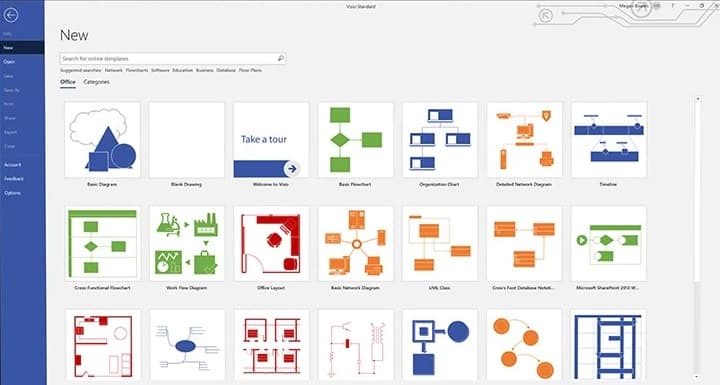
This is how you use a template in Microsoft Visio.
- Open Visio, then select Archive → New.
- Choose or search for a template:
- Select an existing template from the tab Office o Templates.
- Search for templates online or select one of the suggested searchesPlease note that the Software, Engineering, and Database categories are only available in Visio Professional 2016 and later.
- If prompted for the template, select the units of measurement you want to use.
- Click the button Create to bring the template into your project.
Don't want to use a template? No problem. Simply select the Basic Diagram to start from scratch without any pre-added elements or settings.
How to work with diagrams within this program
Diagrams are the core of Visio. They make up each and every one of your projects, no matter if you want to create a flowchart or a web design plan. They are made up of shapes, which essentially function as the building blocks of your diagram.
Let's learn the basics of Visio shapes and how to use them to create and build your diagrams:
- To create a diagram, drag shapes from the gallery. Symbols in the window Forms to the canvas and then connect them. There are different ways to connect shapes, but the easiest way is to use AutoConnect arrows.
- Transform your shapes by resizing and rotating them:
- Use the square selection handles to change the height and width of a shape. Click and drag the selection handle to enlarge the shape without changing its proportions. Use the handle on the side of a shape to make the shape taller or wider.
- El rotation controller is located above a selected shape. Drag it right or left to rotate the shape.
- Add data to each of the forms by writing them in the window that says Shape data. (If the window is missing, go to View → Show group → Task panels → Shape data).
- Many shapes in Visio have special behaviors that are useful for displaying unique data and creating interactive elements. For example, stretching a shape People show more people and stretch a shape flower in growth indicates growth.
- In the tab Design, You can customize its shapes by applying various themes.
How to create flowcharts with this program
When working in Visio, you will most likely want to create some flowcharts to illustrate your thought process, the development of a project, or to show any data in a fluid motion. Here you can find the step-by-step tutorial to create a basic flowchart in Visio.
- Open Visio and click on the category Flowchar
- Double click on the option Basic flowchart.
- Drag a flowchart shape onto your drawing to add a step to your process. You can add as many steps as you like. You have access to the following flowchart shapes:
- Start / End: the first and last step of your process.
- Processing: represents a step in your process.
- Decision: You must indicate the point at which the decision corresponding to the next step is made.
- Thread: are several steps that are applied to form a subprocess somewhere else.
- Document: This step results in a document.
- Data: indicates that information enters the process from outside or leaves the process.
- Reference on page: indicates that the previous or next step is located somewhere else in the drawing.
- Off-page reference: Use this shape to create a set of hyperlinks between two pages in a flowchart, or between a subprocess shape and a separate flowchart page that shows the steps in that subprocess.
- Connect the shapes in your flowchart by placing your mouse cursor over your first shape, then clicking the little arrow that appears and points to the shape you want to connect to.
- If the second shape is not directly in front of the first, click and hold the small arrow, then drag it to the second shape.
- Add text to a shape or connector by selecting it and typing. Once you're done, click any blank area to stop typing.
If you need any further help with Visio, feel free to express it in our comments section below. Come back to our portal whenever you like for more informative articles related to modern technology! See you in our next post.

My name is Javier Chirinos and I am passionate about technology. Ever since I can remember, I have been interested in computers and video games, and that passion has turned into a job.
I have been publishing about technology and gadgets on the Internet for over 15 years, especially in mundobytes.com
I am also an expert in online marketing and communication and have knowledge in WordPress development.
Table of Contents
- 1 What is Microsoft Visio?
- 2 Why use Microsoft Visio?
- 3 Microsoft Visio versions
- 4 Advantages and disadvantages
- 5 How to obtain it?
- 6 How much does Visio cost?
- 7 How to install this program?
- 8 System Requirements
- 9 How to use this program
- 10 How to use templates in Microsoft Visio
- 11 How to work with diagrams within this program
- 12 How to create flowcharts with this program