Unmountable_Boot_Volume error prevents the pc from beginning, making it inaccessible and unusable. Fortunately, Unmountable Boot Quantity Error in Home windows 10 shouldn't be all the time attributable to arduous disk failure and it may be fastened.

Unmountable Boot Quantity Error in Home windows 10
Unmountable Boot Quantity Error can happen attributable to an error in working system, corrupted system information, broken RAM and likewise attributable to Onerous Drive harm, specifically in case of older computer systems.
When this error happens, you will notice a Blue Display screen with “Your PC bumped into an issue and must restart.” error message.

In lots of circumstances, Home windows working system manages to repair the issue by itself and one can find the pc working usually after restart.
If Home windows is unable to repair the issue, you won't be able to bypass the Blue Display screen of Demise, even if you happen to restart the pc a number of instances.
The one technique to acquire entry to your pc in this case is to restart your pc using a bootable USB Drive.
If you happen to do not need a Bootable USB drive, you possibly can create one proper now by going to a different pc and following the steps talked about on this information: How one can Create Bootable USB Drive.
1. Restart PC and Watch for 4 Hours!
Consider it or not, we personally witnessed a 7-year-old pc recovering from Unmountable Boot Quantity Error, when it was restarted and allowed to remain on for about 4 hours.
You may strive for these steps you probably have the persistence to attend for 3 to 4 hours or transfer to different strategies to repair this drawback.
1. Use the Energy button to close down pc and allow it to chill down (15 to half-hour).
2. Press the Energy button to restart the pc and wait as the pc tries to repair the issue and finally ends up with a black display screen.
3. Go away the Pc on Black display screen for about 3 to 4 hours.
Hopefully, you'll be stunned to see your pc again to normal. If not, you possibly can transfer to different strategies as supplied under.
2. Use Automated Restore
Maybe the simplest technique to repair Unmountable Boot Quantity Error is to restart your pc using a Bootable USB Drive and check out the Automated Restore possibility that turns into obtainable upon restart.
Word : You could have to Allow USB Drive Boot possibility in your pc, in case you are unable to enter the pc using Bootable USB Drive.
1. Use the Energy button to Energy OFF the pc.
2. Insert Bootable USB Drive into the Pc and press Energy button to restart your pc.
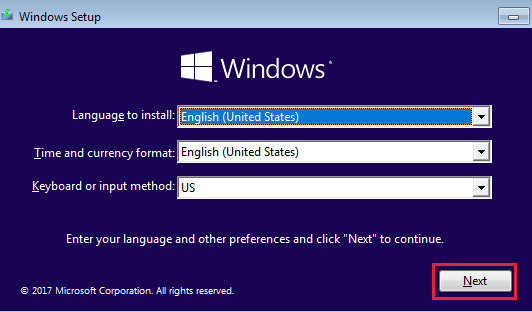
3. On Home windows Setup display screen, choose Language , Forex , Keyboard and click on the Subsequent button.
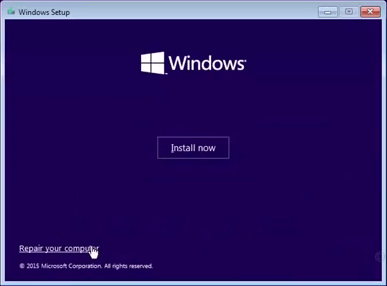
4. On the following display screen, click on Restore your pc possibly positioned on the lower-left nook.
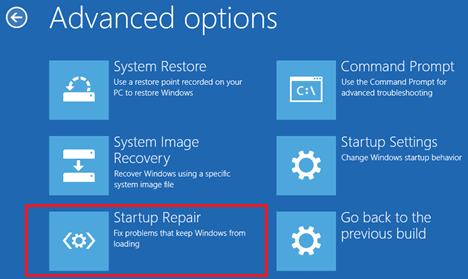
5. Subsequent, navigate to Troubleshoot > Superior choices > Startup Restore (or Automated Restore).
6. Click on on Subsequent > Home windows 10 or the working system that's at the moment put in on your Pc.
5. Observe the onscreen directions to finish the Startup Restore course of.
Word: It may well take a very long time for the restore course of to be accomplished. Just remember to enable the Startup Restore software to take your personal time and don't attempt to finish or abort the method.
3. Use Chkdsk
Unmountable Boot Quantity Error will be brought on attributable to arduous disk errors. Therefore, observe the steps under to verify and restore arduous disk errors in your pc.
First, use the Energy button to power OFF pc. Insert Bootable USB Drive into the Pc and press the Energy button to restart Pc.
After the pc restarts, click on Subsequent > choose Restore your pc possibility and navigate to Troubleshoot > Superior choices > Command immediate.
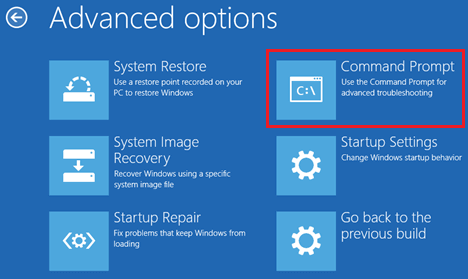
On the Command Immediate window, type chkdsk /rc: and press the Enter key on the keyboard of your pc.
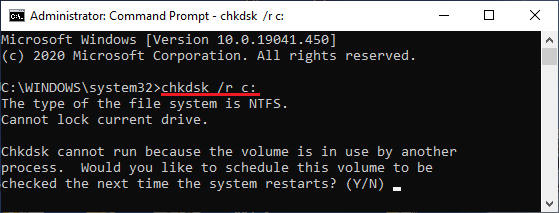
Chkdsk could ask you to run subsequent time the system restarts. If this occurs, kind Y and restart your pc.
Patiently await the Chkdsk Command to search out and repair Onerous Disk Errors in your pc. As soon as, the Chkdsk command is full, restart your pc and see if the issue is fixed.
4. Restore Grasp Boot File
The Grasp Boot File (MBR) helps the pc to find Home windows working system and correctly load the working system.
Energy OFF the pc using Energy button . Insert the Bootable USB Drive into Pc and use the Energy button to Restart Pc.
After the pc restarts, click on Subsequent > choose Restore your pc possibility and navigate to Troubleshoot > Superior choices > Command immediate.
On the Command immediate display screen, kind bootrec /fixmbr and press the Enter key.

Watch for the command to finish and likewise run bootrec /fixboot and bootrec /rebuildbcd instructions to repair this concern.
After working above instructions, kind Exit and press the enter key to shut the command immediate display screen and restart your pc.
5. Use SFC Scan
SFC or System File Checker is one other built-in Home windows utility that it's best to attempt to repair this drawback.
Use the Bootable USB drive as well as your pc and navigate to Command Immediate display screen, utilizing steps as supplied in above strategies.
On the Command Immediate display screen, kind sfc /scannow and press the enter key on the keyboard of your pc.
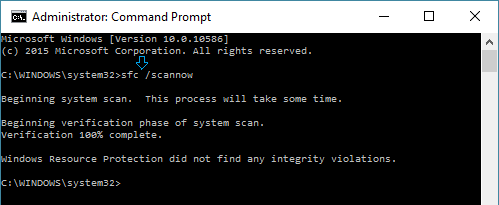
Patiently wait as Home windows 10 tries to scan and repair system file issues on your pc.
6. Reinstall Home windows 10
If not one of the above strategies work, you possibly can attempt to Reinstall Home windows 10 on your pc.
The drawback of this technique is that you'll find yourself dropping all the information and information on your pc.
Shut Down the pc and restart using Bootable USB Drive . As soon as the pc begins, click on on Subsequent and choose Set up Now possibility.
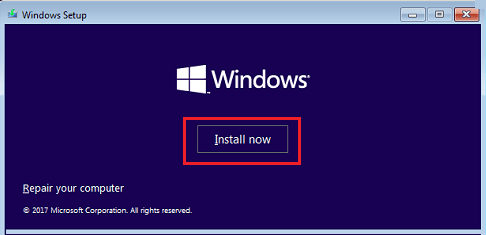
Observe the onscreen directions on Reinstall Home windows 10 in your pc.
- How one can Repair 100% Disk Utilization in Home windows 10
- How one can Repair Corrupt Consumer Profile In Home windows 10

My name is Javier Chirinos and I am passionate about technology. Ever since I can remember, I have been interested in computers and video games, and that passion has turned into a job.
I have been publishing about technology and gadgets on the Internet for over 15 years, especially in mundobytes.com
I am also an expert in online marketing and communication and have knowledge in WordPress development.