- Folder Redirection syncs in the background and lightens the profile, improving login and logout times.
- Roaming User Profiles copies the profile at startup and uploads it upon closing; if the profile is large, it becomes slow.
- Avoid redirecting AppData and monitor PST; use primary machines, DFS, and clear policies for stability.
- OneDrive with Known Folder Move and Work Folders modernizes synchronization; Offline Files remains useful on non-NAS devices Windows.
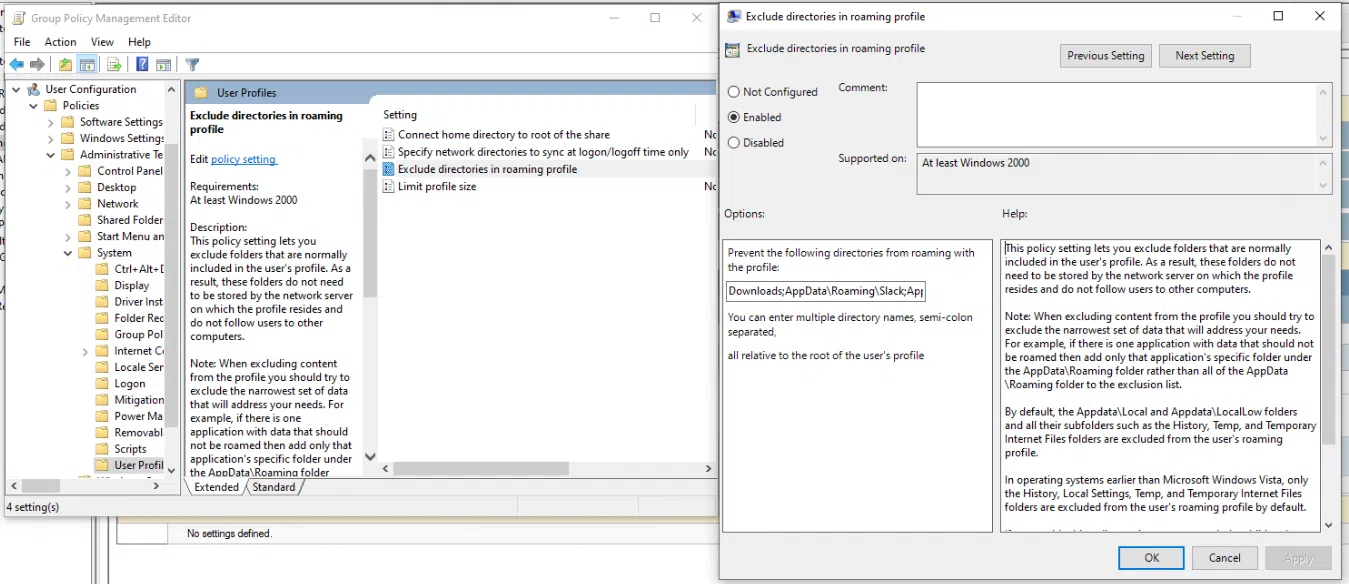
In enterprise Windows environments, managing user data and system preferences can be a headache if the right strategy isn't chosen. Folder Redirection and Roaming User Profiles are two distinct approaches that Microsoft has offered for years to centralize data, simplify administration, and allow users to move between computers without losing their experience or documents.
In this practical guide, I'll explain in detail and without beating around the bush when to use each option, what advantages and drawbacks each one has, and how to combine them with current technologies like OneDrive and Work Folders. The goal is to help you improve login and logout times, protect your information, and reduce common issues such as corrupted profiles, slow startup times, or crashes caused by large files on your desktop.
What is Folder Redirection and how does it work?
Folder Redirection allows you to change the path of familiar folders in a user's profile (Documents, Desktop, Pictures, etc.) to another location, typically a network share on a server. For the user, the experience is seamless : they still see their usual folders, but the data is saved in the new path defined by the administrator.
This redirection can be configured manually or with Group Policy, with GPO being the recommended method in a domain. Centralized management facilitates backups, permission control, and compliance , and also helps laptops work offline thanks to Offline Files, which is usually enabled as the default behavior for redirected folders.
A key advantage over other mechanisms is its synchronization method. Folder Redirection doesn't need to download or upload all content at login or logout ; the user can start working immediately, and synchronization is handled in the background, reducing waiting times and bottlenecks during peak hours.
Another key difference is that when you redirect folders, their contents are no longer part of the profile and the C:\Users structure that it might otherwise roam. This reduces the profile's size and speeds up logins , especially if you often see desktops full of files or Documents folders that are several gigabytes in size.
Today, if you have OneDrive licenses and storage , Microsoft promotes Known Folder Move in OneDrive to redirect and sync Documents, Desktop, and Pictures. OneDrive's sync technology (shared with Work Folders) is more modern and robust than Offline Files; moreover, OneDrive handles scenarios outside the corporate network very well.
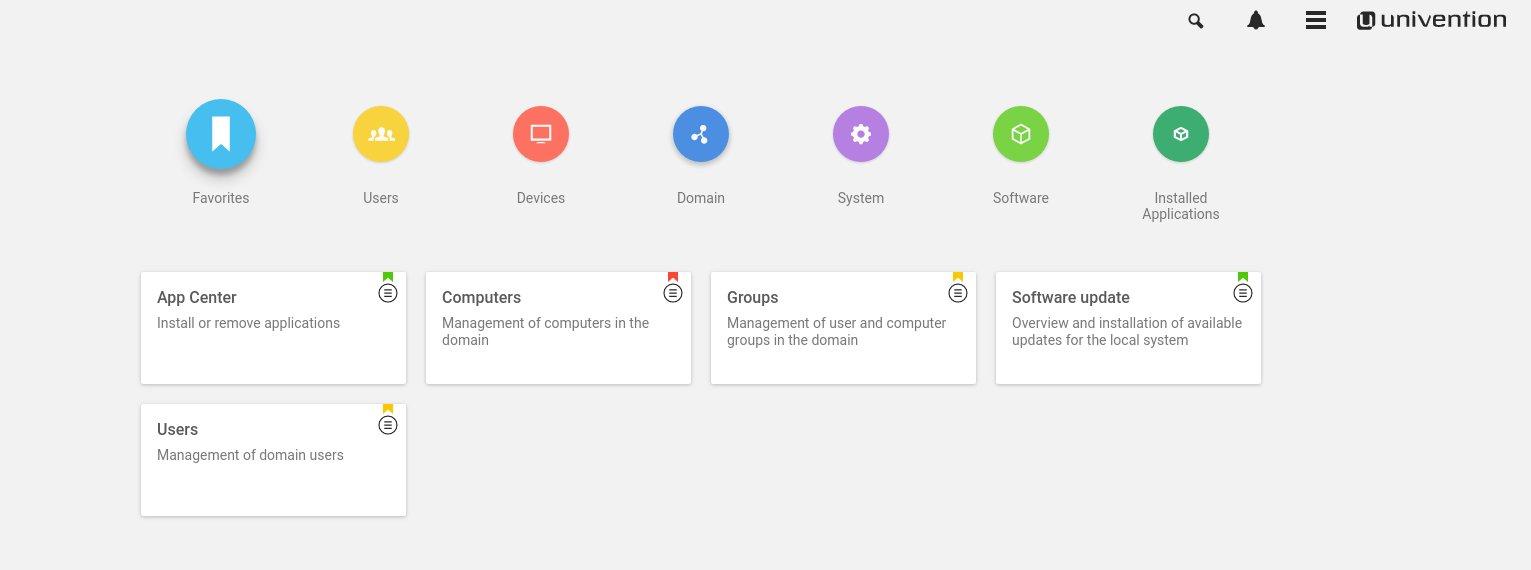
However, Offline Files still has its place: it even works with non-Windows NAS devices , something Work Folders doesn't support. If your storage isn't Windows or you don't use OneDrive, Folder Redirection with Offline Files remains a solid option.
In advanced deployments, the use of primary computers can also play a role: by limiting the application of redirection to computers designated as primary for each user, you prevent private data from being downloaded to shared or pass-through machines . This logic, based on the msDS-Primary-Computer attribute of the Active Directory schema , adds a layer of control and security.
From an operational standpoint, Folder Redirection via GPO is reliable. If you notice that a GPO isn't being applied consistently, the problem is usually in the infrastructure (DCs, replication, policy scope or security), not the redirection feature itself.
What is Roaming User Profiles and how does it differ?
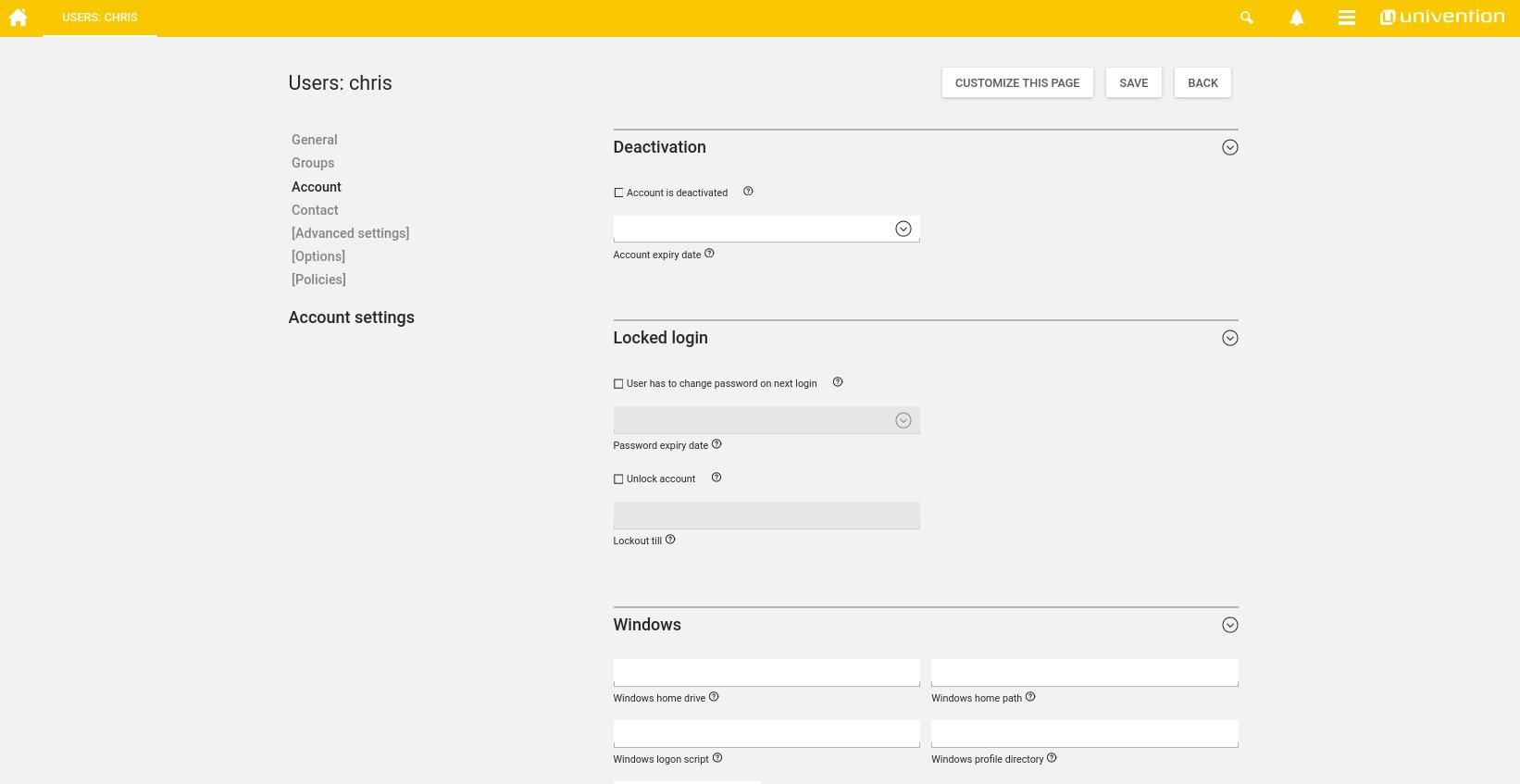
Roaming user profiles store the user's complete profile on a network resource and download it upon login, merging it with any existing local profiles. Upon logout, the changes are back up to the server , allowing the user to maintain system and application settings across multiple computers.
This idea sounds good in theory, but its main Achilles' heel is performance. The larger the profile, the longer it takes to log in and out . And guess what: in practice, many users accumulate huge files on their Desktop or in Documents, making the wait feel endless.
In fact, many administrators have been abandoning roaming profiles in favor of folder redirection. Redirection empties the roaming profile of data and eliminates the need to move gigabytes on every logon/logoff, without the user losing their information or the experience of using their usual folders.
One sensitive area is the AppData folder . Redirecting AppData might seem tempting for syncing application settings, but many programs don't play well with redirected AppData . Problems have been reported with software from Autodesk, Intuit, Adobe, and custom developments that assume local paths or incorrectly encode profile paths.
If you're considering roaming profiles along with redirection, remember this rule of thumb: redirected folders are no longer counted as part of the roaming profile . This reduces the size of what the system copies at startup and shutdown, improves performance, and helps avoid some network latency.
Another common issue involves Outlook PST files. Leaving PST files in redirected or offline cached locations is not supported and often results in corruption or crashes. If you find PST files in your Desktop or Documents folder, move them to a non-synchronized location or, better yet, migrate the content to mailboxes or data files managed by the server.
What happens to the folders you don't redirect if you're also using roaming profiles? Those folders travel as part of the profile , which is why selecting the folders to redirect is critical for streamlining the process and maintaining acceptable response times. Generally, redirect Documents and Desktop and avoid AppData unless you have very specific requirements and are conducting tests.
In large networks or those with peak authentication times early in the morning, roaming profiles exacerbate bottlenecks if everyone is downloading and uploading content simultaneously. Distributing profiles across multiple servers can help, but it doesn't address the root cause if the profiles are large.
If your users also switch subnets or work from other offices via VPN , latency worsens the situation. In these scenarios, redirection with background synchronization and primary host policies typically provides a much smoother experience.
Good practices, scenarios and modern alternatives
In summary, the lessons learned in the field: in most organizations, Folder Redirection is far superior to roaming profiles due to its performance and simplicity. Roaming can be useful for synchronizing system settings and very specific applications , but it requires discipline to avoid carrying over large amounts of data in each session.
If you're already using redirection and are worried about the initial migration, don't be: the first application of the GPO will automatically move and synchronize the data from local folders to the network location you define, without you having to copy it manually. However, do check beforehand for any PST files or other blocking files.
For laptops and users who work remotely, Offline Files allows you to continue working even without an internet connection. In the wizard and Group Policy Objects (GPOs), you can decide whether a folder is available offline , and even schedule behaviors such as background synchronization.
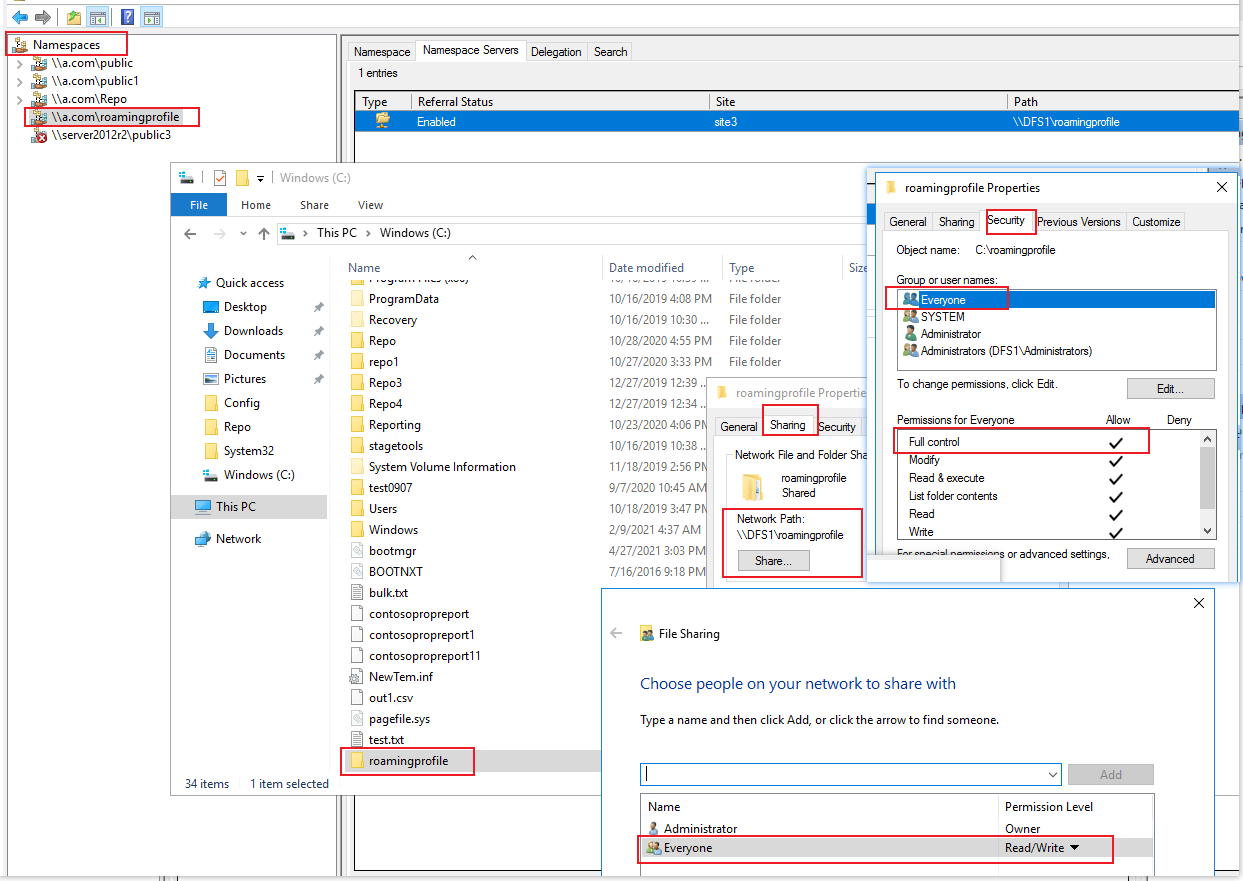
When multiple locations are connected via VPN and users are constantly moving, it's essential to design where network routes point and how information is replicated. DFS can help you publish consistent routes and replicate data between servers at each location, minimizing latency when accessing from another office.
Regarding security, redirecting the Downloads folder can lead to some unusual situations: when running a downloaded file as administrator, a permissions warning might appear because the administrator doesn't own the redirected user resource. Consider whether redirecting Downloads makes sense or if you'd prefer to keep it local to avoid issues with User Account Control (UAC).
The use of primary computers is an extra layer of control that deserves attention. With policies to use profiles and redirection only on primary computers, Windows checks at logon whether the current computer is designated for that user. If it is, it applies redirection and allows the roaming profile ; if not, it loads a cached local profile (or creates a new one) and removes redirections according to the action configured in the previous policy.
This behavior depends on the Active Directory schema supporting the msDS-Primary-Computer attribute and the administrator having designated the appropriate computers for each account. The result is reduced data exposure on computers that shouldn't store it , faster first boot times on non-primary machines, and mitigated profile corruption when mixing different architectures or configurations.
When discussing performance, there are two very pragmatic recommendations. The first is cultural: prevent users from saving large files within their user profile (especially on the Desktop) and encourage them to store data on drives or folders on the computer. The second is technical: review login policies to avoid forcing unnecessary network waits at each startup.
Specifically, the network timeout policy during startup can be adjusted so that the system doesn't freeze the desktop waiting for a network connection unnecessarily. Reducing the timeout to a minimum value helps users start working faster, while synchronization is handled in the background.
If you opt for roaming profiles, consider scaling them: distributing them across multiple servers when there are many simultaneous startups reduces spikes. Even so, the main bottleneck will still be the profile size , so combining it with critical folder redirection is almost mandatory to avoid drastically increasing response times.
A common debate is whether to combine Roaming Profiles and Folder Redirection. Some people combine them so that only certain folders travel while the rest are redirected; others recommend keeping them separate to simplify the process and avoid surprises . If you decide to combine them, be sure to document which folders are redirected (removed from the roaming profile) and which will remain part of the roaming profile.
Regarding AppData, the most common advice is caution. Redirecting AppData can break applications that rely on local paths. Vendors like Autodesk, Intuit, and Adobe have experienced problems with redirected AppData , and internal developments with hardcoded paths tend to suffer even more. Unless there's a compelling reason, avoid redirecting AppData.
Confusion is also common between folder redirection and mapped network drives. These are different approaches to display: a mapped drive exposes a resource with a drive letter , while redirection presents folders within the profile as if they were local, even though they are on the server. Applications that don't fully utilize the Windows APIs may only function with one of the two models.
If you notice slow logons after enabling roaming or redirection, there are very comprehensive diagnostic guides available. Start by checking events, the actual profile size, and latency to file servers , and develop a policy for excluding files that shouldn't be part of the profile. Also, monitor the status of Offline Files if you're using it.
Finally, if someone suggests using Remote Desktop Services as an alternative, that's a different conversation altogether. RDS centralizes the session on a server and completely changes the access pattern ; it might make sense in certain cases, but it doesn't solve the same problem as profile redirection and roaming.
With all of the above in mind, a balanced design typically includes redirecting Documents and Desktop, avoiding AppData except in rare cases, controlling primary computers, and, when licenses are available, moving familiar folders to OneDrive. This results in faster startups, data security on the server or in the cloud , fewer problems when switching computers, and more predictable administration.
In multi-site deployments, add DFS for consistent routing and replication where appropriate, and review whether Downloads should be redirected to avoid problems when privileges are escalated. Above all, define clear storage policies and exclusions that your users understand and adhere to, because technology can only go so far as culture allows.
If your priority is modernizing synchronization, try KFM on OneDrive for key folders and leave the rest with classic redirection or dedicated team drives. The goal is always the same: a streamlined user experience and centralized data , with minimal surprises and maximum resilience to incidents.
Choosing between Folder Redirection and Roaming User Profiles depends on the balance between performance, application compatibility, and mobility. In current practice, folder redirection (or KeyFamily Management with OneDrive) is usually the preferred option , reserving roaming for very specific and well-controlled cases. This way, you avoid monstrous user profiles, speed up each startup, and simplify the experience for both users and the IT team.


Passionate writer about the world of bytes and technology in general. I love sharing my knowledge through writing, and that's what I'll do on this blog, show you all the most interesting things about gadgets, software, hardware, tech trends, and more. My goal is to help you navigate the digital world in a simple and entertaining way.