- VLC not only plays almost any format, it also allows you to convert videos and audios using customizable profiles without installing extra converters.
- The player includes basic editing functions such as trimming, joining clips, rotating videos, and managing subtitles and audio tracks easily.
- It is a free, secure and cross-platform tool, ideal for quick tasks; for complex projects it is advisable to combine it with more advanced video editors.
If you use your computer to watch movies, TV series, or downloaded videos, you're probably already familiar with VLC. This open-source player has earned a reputation for being virtually indestructible. It opens virtually any multimedia file without you having to deal with codecs.But what many people don't know is that VLC hides very useful features for editing and converting videos without installing anything else.
Beyond playback, VLC incorporates a integrated format converter and several basic editing toolsTrim clips, merge them, rotate the video, change the audio, or add subtitles. You can do all of this directly within the program, for free, and without ads or spyware. If you want to learn how to edit and convert videos with VLC step by step and really get the most out of it, keep reading because we're going to take a closer look.
What is VLC and why does it also serve as a video editor?
VLC Media Player is a multimedia player developed by VideoLAN, a non-profit organization that releases its software under a free license. This means it is a program Completely free, ad-free, tracker-free, and available for almost any operating system.: Windows, macOS, Linux, Unix, iOS, Android and more.
Its strength lies in its ability to reproduce almost anything: local files, disks, webcams, external devices, and broadcasts streamingIt supports a huge number of video and audio formats (MP4, AVI, MKV, MOV, FLAC, MP3etc.), which is why it has become the default option for millions of users. If you want to learn more about codecs and how to choose them for your conversions, see how to choose the best codecs.
In terms of playback, VLC includes advanced features such as Subtitle synchronization, fine-tuning of audio and video, filters, equalizer, aspect ratio changes, and playback acceleration or slowdownIn addition, it allows you to customize the appearance using skins, install extensions, and use its own skin editor to modify its interface.
What's interesting for us is that all these capabilities are complemented by a small editing module: VLC can trim video clips, join multiple fragments, rotate them, apply some effects, and convert them to other formatsIt doesn't reach the level of a professional editor like Adobe Premiere, but for quick, everyday tasks it's more than enough.
Another advantage is security and privacy: by not including adware or extraneous components, You can use it with confidence in both home environments and work environments.And being cross-platform, the way you work with it is very similar on Windows, macOS, and Linux, with minor changes in menus and shortcuts.
How to download and install VLC safely
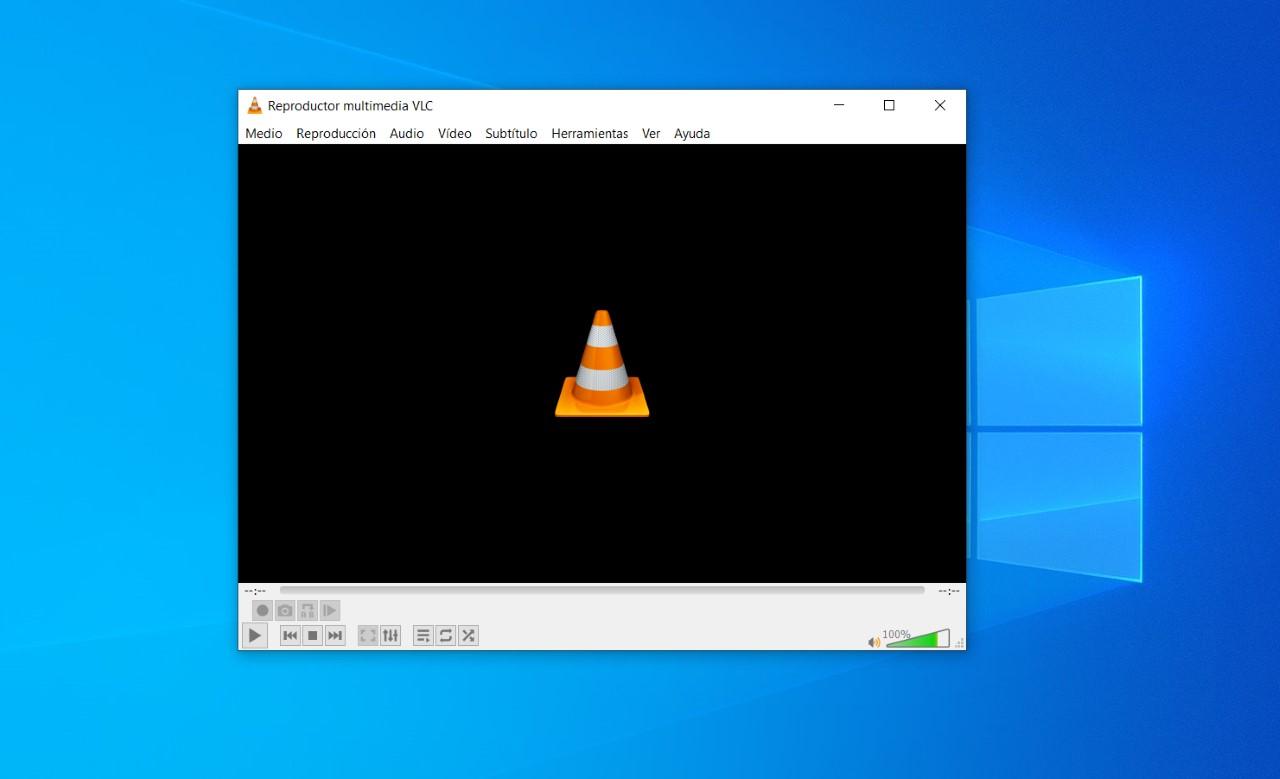
The first thing you need to do to edit and convert videos from VLC is to have the program installed on your computer. Downloads should always be made from official sources. to avoid manipulated versions or versions with added junk.
On desktop computers and portableThe most recommended way is to go to the Official website of VideoLAN (VLC), where you will find updated installers for:
- Windows (including the latest versions of the system)
- MacOS
- Linux and Unix distributions
If you use Windows, you also have the option to install VLC from the Microsoft StoreIt's a convenient route, especially in Windows 11although sometimes The store version may lag slightly behind in features or stability compared to the version downloaded from the official website.If you want to make sure you have the latest version, it's best to use the VideoLAN installer.
On macOS and Linux, it's common to combine the Download from the official website using the system's stores or package managers (For example, Homebrew on macOS or your Linux distribution's repositories). In any case, try to avoid third-party websites that bundle VLC with their own installers, as these may include unwanted software.
VLC also has versions for mobile devices (iOS and Android). These apps They are very comprehensive for playing content, but the editing and conversion functions are more limited. than on a desktop, so ideally, editing tasks should be done on a computer.
How to Convert Videos to Other Formats with VLC
One of VLC's most powerful features is its built-in converter. Thanks to it, you can Convert a video from one format to another without installing additional convertersIt doesn't matter if you have a file in MOV, AVI, MP4 or even an audio file. WhatsAppThe process is very similar.
This tool is very useful when you want Reduce file size, make it compatible with an older mobile device, prepare it for social media, or simply standardize your libraryVLC itself takes care of re-encoding the video and audio to the format you choose.
In most desktop versions, the basic flow is:
- Open VLC and, from the top menu, enter the option associated with files or media (usually "Media" or "File").
- You select the command dedicated to conversion, which is usually called "Convert" or "Convert / Save".
- In the window that appears, click on the button. "Add" to choose the video or videos you want to convert.
- Once selected, choose the "Convert" action and access the output settings.
VLC works with the idea of conversion “profiles”A profile is a set of parameters that define how the file will be transformed: container format (MP4, MKV, etc.), video codec (H.264, HEVC, MPEG-4…), audio codec, bitrate, resolution, filters, subtitles, etc.
The program comes standard with several pre-configured profiles designed for frequent use: video for mobile devicesgeneric PC compatibility, audio-only conversion, etc.If you don't want to complicate things, selecting one of these profiles is usually more than enough.
But if you need finer control, you can edit an existing profile or create a new oneThere is usually a wrench icon or an edit button that opens a window with several tabs:
- In the video section, you choose the codec, bitrate, resolution, frame rate, and you can activate filters.
- In the audio section, you define the format, bitrate, and number of channels.
- In the subtitles section, you decide whether they are embedded or kept separate.
After adjusting everything, you can Save the profile with a recognizable name for later reuseThis is especially useful if you usually convert videos with the same parameters (for example, reducing to 720p and 30 fps so they take up less space).
Back on the main conversion screen, all you have left to do is Choose the destination folder, assign a file name, and press "Start".VLC will begin the conversion and display the progress in the playback bar. The resulting file will be saved in the location you specified, with the format and characteristics defined by the profile.
Mass conversion of multiple videos at once
Another advantage of VLC is that it's not limited to converting a single file. From the same conversion menu, you can... Add several videos (or audios) at once and process them sequentially..
The procedure is practically the same: you access the conversion section, you press Add as many times as you need to select all the files you want to transform and, when you finish, choose the output profile and the destination folder.
VLC will take care of going converting each file sequentially, one after the otherIt doesn't do it in parallel (you won't see multiple simultaneous conversions), but that's not usually necessary for normal use on a home PC.
This batch conversion function is very convenient when you have, for example, a folder full of videos recorded with a mobile phone that you want to adapt to a lighter format, or several clips in an incompatible format that you want to convert to standard MP4.
Remember that everything that applies to videos also applies to audio files: VLC can convert between sound formats (for example, from WAV to MP3 or from AAC to FLAC) using the same profile system.
Basic video editing with VLC: trimming, merging, and rotating
Although VLC isn't a professional editor, it includes some tools that can get you out of a bind when you just need make quick cuts, join clips, or correct the orientation of a videoLet's review the most useful ones.
Trim a video clip (cut)
If all you want is save a specific part of a longer video (for example, a scene, a piece of a tutorial or a fragment to share via WhatsApp), VLC has a very simple recording function.
In the menu at the top, activate the "Advanced controls"This will cause some additional buttons to appear above the typical play/pause buttons. Among them, you'll see a record button with a red circle.
Play the video and, when you get to the point where you want your clip to start, press the record button. Let the video continue playing until you want to cut it. And right there, press the record button again to stop the capture.
VLC will have created a new file with that clip. It is usually saved in the system's default video folder (for example, "Videos" or "My Videos" on Windows). You don't need to configure anything else; you'll simply have obtained a cropped copy of the section you were interested in..
This method It does not allow millimeter-precise cuts. It's like a professional editor, but for separating a scene, removing a long piece you don't want, or creating a quick clip, it's incredibly practical.
Merge multiple videos into a single file
VLC can also be used for merge multiple videos into one, provided that all clips are in the same format or that you convert them beforehand.
It is advisable to make sure beforehand that all the files you are going to merge have same codec, resolution, and containerIf not, you can use VLC's own converter to convert them to the same profile (for example, all to MP4 with H.264 and AAC).
Then, from the "Media" menu or equivalent, choose the option "Open multiple files"In the window that opens, use the "Add" button to upload all the videos you want to combine in the correct order.
Instead of playing them as is, expand the option associated with the play button and select "Turn into"This will take you back to the conversion screen, where you can specify the output file and profile.
When the process begins, VLC will take each clip from the list and It will paste them one after the other into a single resulting file.This way, you can easily create a complete video from several short recordings, ideal for combining footage from a trip, different parts of a course, etc.
Rotate a video that is upside down or vertical.
Have you recorded a video on your phone in the wrong orientation and it appears rotated when you open it on your computer? With VLC you can correct the angle quickly.
Open the file in VLC from the "Media" menu (or simply by dragging it into the player window). Then go to "Tools" > "Effects and Filters"A dialog box with several tabs will open.
Enter the section "Video effects" and then on the "Geometry" tabThere you'll see a box called "Transform". Check it and select the type of rotation you need: 90º, 180º, 270º, flip horizontally or vertically, etc.
After applying these changes, the video will now display with the correct orientation during playback. If what you want is permanently save the rotated fileYou will need to use VLC's conversion function, activating the rotation filter within the profile, so that the change is applied to the resulting file.
Add subtitles and change the audio track in VLC
Another of VLC's strengths is how it handles subtitles and audio tracks. You can add external subtitle files, switch between multiple audio languages, or even replace the original track with a custom one..
For subtitles, the typical process is very straightforward: you open your video and, from the top menu, you enter the option "Subtitle" and then "Add subtitle file"VLC supports the .srt format, which is the most common. Simply locate the .srt file corresponding to the video and click "Open." If you also need to edit subtitles before adding them, you can learn how. Use Word as a subtitle editor.
Once you add it, the subtitles will be displayed in sync with the playback (if the file is properly prepared). You can also adjust the synchronization from the VLC menus if you notice a slight delay.delaying or advancing them by a few milliseconds.
Regarding audio, many videos include multiple sound tracks: different languages, director's commentary, versions with and without effects, etc.In VLC you can easily change them from the "Audio" menu by choosing the track you want to listen to at any given time.
If what interests you is replace the original audio track with another (for example, your own music or a narration)You'll need to combine the audio filter and conversion functions. From "Tools" > "Preferences" and the advanced audio and filter sections, you can configure the use of an external track during conversion, so that the resulting video is generated with that new audio.
In addition, VLC offers various audio and video effects and filters (equalization, brightness and contrast adjustment, saturation, hue, etc.) that can be applied during playback and, in some cases, fixed when you make a conversion, turning the player into a small image enhancement editor.
Limitations of VLC as an editor and more advanced alternatives
Although all of the above demonstrates that VLC is very versatile, it is important to be clear about where its limits are. The editing tools it includes are basic and designed for quick tasks.not for complex projects.
It doesn't offer an advanced timeline, layers, elaborate transitions, animated titles, or professional effects. Nor is it designed for Multicam editing, detailed color correction, or intensive work with large 4K video filesFor that, the ideal solution is to use dedicated editing programs.
One option frequently mentioned as a more comprehensive alternative is AnyMP4 Video Converter UltimateIt's an all-in-one commercial software that combines conversion, editing, and other additional utilities. If you're looking for free or watermark-free alternatives, also check out [alternative name]. 10 programs to edit videos without a watermark.
Among the features that this type of tool offers compared to VLC are:
- possibility of rotate, trim, and cut with greater precisionworking on an interface designed for editing.
- Specific compatibility and optimization for 4K video and high definition formats.
- Advanced quality improvement: Fine adjustments of brightness, contrast, saturation, hue, sharpness, and noise reduction.
- Wide selection of Filters and effects to give the video a specific style.
- More convenient management of custom audio tracks and multiple subtitles, with a clear preview of the changes.
- Extra tools such as Video compressor, GIF creator, metadata editor, and some authoring features.
The choice between continuing to use VLC for everything or moving to a more advanced editor depends on your needs. If you only do simple cuts, occasional conversions, or quick fixes, VLC saves you from installing more programs.If, on the other hand, you need a more comprehensive workflow, a professional or semi-professional editor will make all the difference. There are also web-based solutions for quick edits; check out [link to solutions]. online video editing programs if you prefer not to install additional software.
Ultimately, the most practical solution for many users is to combine both: Use VLC as your default player and for basic editing and conversion tasksand resort to specific software when the project requires a higher level of detail.
Mastering everything VLC can do with your videos — from opening virtually any file to trimming, merging, rotating, adding subtitles, and converting formats — allows you to work much more efficiently without constantly relying on paid software. With a little practice, you'll have a multimedia Swiss Army knife in the same player, capable of solving most everyday situations..


Passionate writer about the world of bytes and technology in general. I love sharing my knowledge through writing, and that's what I'll do on this blog, show you all the most interesting things about gadgets, software, hardware, tech trends, and more. My goal is to help you navigate the digital world in a simple and entertaining way.