- Faster and more private DNS improves the experience and can avoid ISP blocks.
- Windows 11 allows DoH and two switching methods: Configuration and Adapter.
- Configure the router applies DNS to the entire network and all devices.

If your internet connection is slow, some websites won't load, or you're looking for more privacy, changing your DNS settings in Windows 11 can make all the difference. While this option isn't immediately obvious, the process is quick once you know where to click, and it allows you to use faster, more secure servers with extra features like filters or parental controls.
This guide explains in detail what DNS is, the benefits of changing it, and all the methods for configuring it in Windows 11 (from Settings and from the adapter), as well as how to do it at the router level for your entire network. You'll also find alternatives for Windows 10/8/7, macOS, Android , and iPhone , recommendations for well-known servers, and useful tips such as clearing the DNS cache or enabling DNS over HTTPS.
What is DNS and why you might want to change it?
DNS (Domain Name System) is the service that translates names like xataka.com or microsoft.com into IP addresses that computers understand to establish a connection. Without DNS, you would have to memorize numbers, which would be impractical.
By default, your PC uses your internet service provider's DNS servers . They work, but they aren't always the fastest or most private, and sometimes they may be blocked due to provider policies. Manually configuring different DNS servers can improve speed, privacy, and access to sites that your ISP blocks.
In addition, some DNS services offer valuable extras : protection against phishing and malware , content filters , parental controls, or stricter data retention policies. In Windows 11, you can also encrypt DNS queries over HTTPS (DoH) to prevent prying eyes.
Recommended DNS servers and what they provide
There are free and paid public DNS services with different approaches . Here are several well-known ones that you can configure as primary and secondary:
- Google Public DNS: 8.8.8.8 and 8.8.4.4. Easy to remember and good compatibility. Please note that Google may retain IP temporarily (e.g., 48 hours) and anonymous metadata for analysis.
- OpenDNS: 208.67.222.222 and 208.67.220.220. Speed and security; has free versions with phishing blocking and options of parental control, as well as paid plans with advanced features.
- Cloudflare: 1.1.1.1 (and 1.0.0.1 as an alternative). Focused on speed and privacy, very popular for online games due to its low latency and good non-logging practices.
- Quad9: 9.9.9.9 (usually accompanied by 149.112.112.112). Prioritized in security, blocks known malicious domains, completely free.
If you prefer to use the VPN service's DNS servers , that's also possible. For example, NordVPN offers 103.86.96.100 and 103.86.99.100 for its virtual adapters and your physical adapter if you configure it that way.
Practical configuration examples
- Speed-oriented example (Cloudflare): in IPv4 put 1.1.1.1 y 1.0.0.1. If you enable DoH in Windows 11, choose Encryption Only for both entries.
- Security-oriented example (Quad9): in IPv4 uses 9.9.9.9 and as an alternative 149.112.112.112. You will notice proactive blocks from known malicious domains.
- General example (Google): in IPv4 defines 8.8.8.8 y 8.8.4.4. They are DoH compliant and work well as a reference configuration.
Method 1: Change DNS in Windows 11 from Settings (Quick and with DoH)
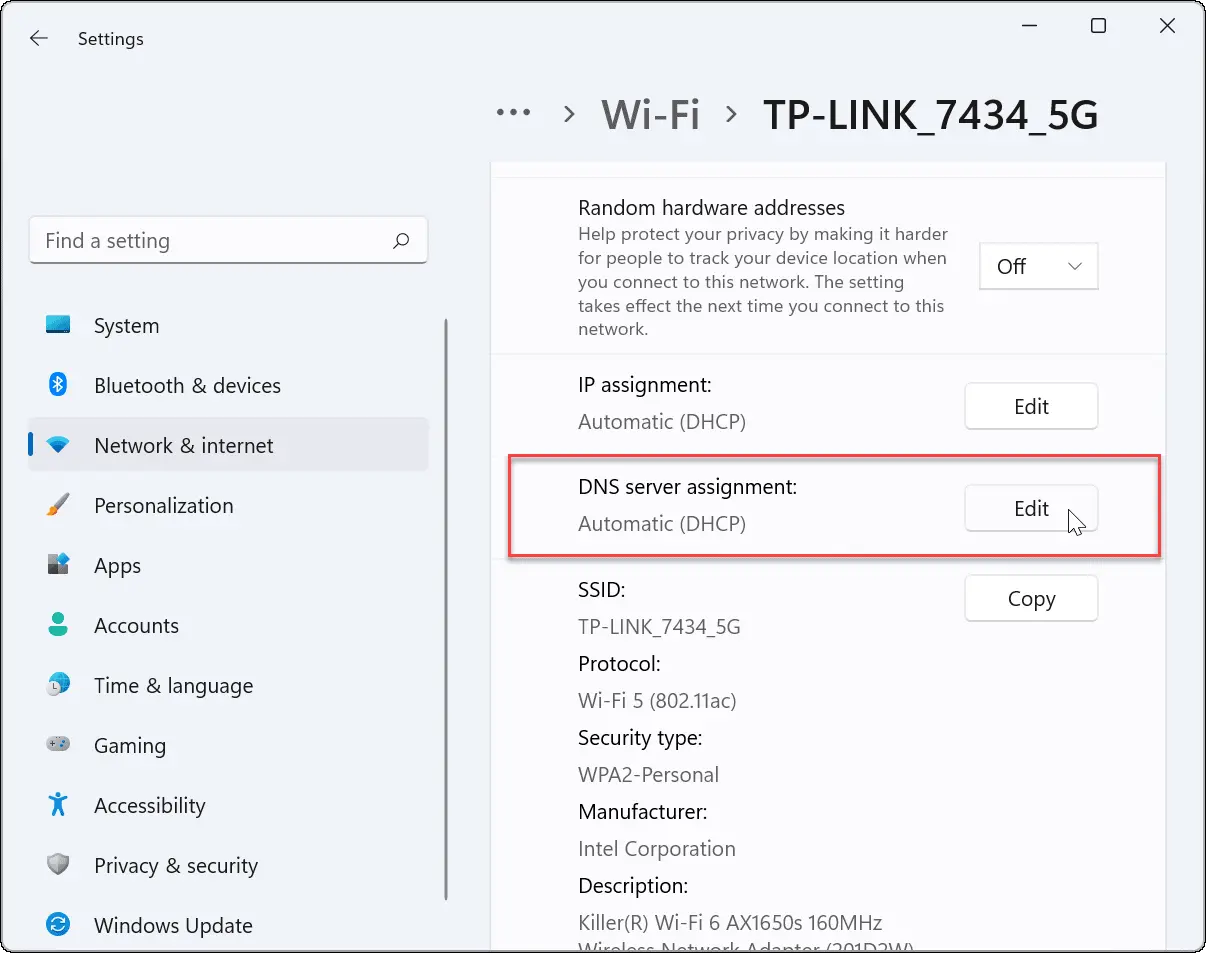
This method is the most direct and allows you to enable DNS encryption over HTTPS if your provider supports it. Use it for both Wi-Fi and Ethernet.
- Open Settings (Windows + i) and enter Network and Internet. Select your active connection (Wi‑Fi or Ethernet) and tap Properties.
- In section DNS Server Assignment, press Edit and change the mode to Manual. Activate IPv4 (and, if you use it, IPv6).
- Fill Preferred DNS y Alternative DNS with the addresses of the chosen service. In the encryption options choose Encryption only (DNS over HTTPS) to enhance privacy where possible.
- Save the changesFrom that point on, name queries will be resolved through the configured DNS.
Tip : If you use IPv6 on your network, you can configure it the same way. If you're unsure, try services like testmyipv6.com to see if you have IPv6 connectivity.
Method 2: Change DNS from adapter options (classic)
This method gives you fine-grained control per adapter and is useful if you prefer the legacy Control Panel path or need to manually adjust both IPv4 and IPv6.
- Go to Settings > Network & Internet > Advanced network settings and enters More network adapter optionsThe window with your connections will open.
- Right click on your active adapter (Wi-Fi or Ethernet) and choose Properties. Administrator permissions are required.
- Choose Internet Protocol version 4 (TCP / IPv4) and press Properties. If you use IPv6, choose Internet Protocol version 6 (TCP / IPv6).
- Brand Use the following DNS server addresses and introduces Preferred DNS y alternative from the supplier you want. You accept and closes.
Note : If you need to configure both (IPv4 and IPv6), repeat the process for each protocol. Windows will apply the resolution based on the availability of each stack.
Change the DNS on the router for the entire network
If you want all your home devices to use the same DNS (PC, mobile, tablet, console…), the most practical thing to do is change the settings on your router.
- Connect via Wi-Fi or cable and access the router's gateway: it is usually 192.168.1.1 o 192.168.0.1. Some operators use portals , the wifilowi.es in the case of Lowi.
- Log in with the router's username and password (listed on the label or in the operator's documentation).
- Find Internet/Network > DNS or Advanced Settings > DNS. On Fritz!Box routers, for example, it is in Internet > Login Data > DNS Server.
- Activate “Use other DNSv4/DNSv6 servers” and introduces the servers primary and secondary that you prefer Save the changes.
Keep in mind that some ISP-provided routers restrict this option. If you can't find it, you may need to change the settings on each device or put the router in bridge mode using your own device.
When is it a good idea to change your DNS?
There are clear situations where forcing a different DNS is a good idea and can solve problems immediately:
- Slow resolution: Your current DNS responds slowly, which slows down the load of sites.
- Insufficient security: the server used does not encrypt queries or does not filter malicious domains.
- “The DNS server is not responding”: errors due to service outage or poor connectivity to that DNS.
- Filtering Blocks: some suppliers prevent certain URLs from being resolved by policy or geoblocking.
- Errors with apps or updates: incidents in downloads, VPN or services like antivirus that are solved with more reliable DNS.
Trying an alternative DNS in these cases is recommended to check if the problem lies in name resolution.
Flush the Windows DNS cache
After changing your DNS settings, some websites may still be accessed using outdated cached data. It's recommended to clear your DNS cache to apply the changes to everything.
- Open the Symbol of the system as administrator.
- Run: ipconfig / flushdns and hit Enter.
You can also restart your computer to ensure that the entire system uses the new settings and clears previous states.
Privacy, Filters, and Encryption: What You Gain by Switching
Changing your DNS can give you added privacy from your internet service provider, which will stop resolving your requests. Additionally, some DNS servers offer configurable filters to block phishing websites, malware, or other unwanted content.
Windows 11 allows you to enforce DNS over HTTPS (DoH) through the Settings app. By selecting Encryption Only in Preferred/Alternative, your queries are encrypted as they travel to the compatible resolver, preventing third parties from seeing which domains you are querying.
If speed is your priority , providers like Cloudflare or Google are usually fast in most parts of the world. If you prefer enhanced security , Quad9 is a very interesting option due to its blocklists.
Quick Start Guide for Windows 10 and Previous Versions
In Windows 10, the flow is very similar to Windows 11 , although many times you will enter through Control Panel:
- Settings > Network & Internet > Network and Sharing Center and then Change adapter options.
- Properties of your adapter > IPv4 (or IPv6) > Properties and brand Use the following DNS server addresses.
In Windows 8/8.1, access is usually gained through Control Panel > Network and Internet > Network and Sharing Center, and then, on the side, Change adapter settings . Next, right-click on the connection, select Properties , and fill in the DNS fields.
In Windows 7 the path is virtually identical: network icon in the bar > Network and Sharing Center > Change adapter settings , right-click on the connection, Properties > IPv4 > Properties and define your DNS.
If you use VPN: example with NordVPN and its TAP adapter
Some VPN services install a virtual adapter (such as TAP-NordVPN Windows V9) . If you want to use the provider's DNS servers on that adapter (or on the physical one), you can specify them manually.
- Open “View network connections” from the Windows search engine or from the Advanced Network Settings.
- Locate the TAP-NordVPN Windows V9 adapter, go into Properties, and edits the DNS Server Assignment a Manual.
- Activate IPv4 and introduces Preferred DNS 103.86.96.100 y Alternative DNS 103.86.99.100. Disable IPv6 if your VPN recommends it.
- Repeat the procedure on your physical adapter (Ethernet or Wi‑Fi) if you want it to also use those DNS when the VPN is disconnected.
Important : If at any time you want to revert to the ISP's DNS, select the option Obtain DNS server address automatically in the protocol properties.
Legacy steps from Control Panel (useful if you're coming from a classic guide)
Some guides and tools still indicate the route through Control Panel , which is still valid in Windows 11, although somewhat hidden:
- Home ⊞ and write Control panel. Go into Network and Internet > Network and Sharing Center.
- Choose your active connection (on the right, Wi‑Fi or Ethernet) and press Properties.
- Choose Internet Protocol version 4 (TCP / IPv4) > Properties.
- Active Use the following DNS server addresses, write your addresses and You accept.
If something still doesn't work after applying changes , go back to the properties and set "Obtain DNS server address automatically" to rule out typos or compatibility issues.
What real improvements can you notice?
Depending on your location and provider , the change may mean less latency in resolution (websites start loading faster), regaining access to sites filtered by your ISP, or more protection against malicious domains thanks to security lists.
The impact varies from network to network , so it's a good idea to try several DNS servers for a few days and stick with the one that gives you the best balance between speed and privacy.
Correct DNS settings can not only improve browsing speed but also increase your online privacy and security, especially when combined with DNS over HTTPS. It's a simple tweak that can make a big difference in your user experience and data protection.


Passionate writer about the world of bytes and technology in general. I love sharing my knowledge through writing, and that's what I'll do on this blog, show you all the most interesting things about gadgets, software, hardware, tech trends, and more. My goal is to help you navigate the digital world in a simple and entertaining way.