- Armoury Crate centralizes the management of driversfirmware and utilities on ASUS ROG and TUF equipment.
- Drivers can be installed from Tools > Driver or manually from the ASUS support website.
- Version 6.0 adds an Update Center to keep internal modules and compatible devices always up to date.
- Extra features such as performance modes, AURA Sync, and game profiles allow you to optimize your PC beyond just drivers.
If you own a ROG or TUF gaming laptop, or a recent ASUS motherboard, you're probably wondering how to keep all your drivers up to date using Armoury Crate without going crazy searching the web for them one by one or using tools to identify missing drivers on your system. ASUS has been changing the program's interface, and many people have gotten lost: updates used to be in one place, now they're in another, and you also have to distinguish between system drivers, utilities, and firmware.
In this article you will find a complete guide in Spanish (Spain) explaining how to install and update drivers from ASUS Armoury Crate , how to do it from the ASUS support website if you prefer, what additional options the application offers (performance modes, lighting, profiles, etc.) and an extensive FAQ section based on the official ASUS documentation.
What is ASUS Armoury Crate and what is it used for?
Armoury Crate is a control and integration application created by ASUS for its ROG and TUF gaming laptops and desktops, as well as compatible motherboards and peripherals. It brings together functions that were previously spread across several utilities (such as ROG Gaming Center or AEGIS III) into a single interface.
From Armoury Crate you can adjust system performance, manage AURA Sync lighting , monitor resources, control fans, create game profiles and, what interests us here, install and update drivers, firmware and specific utilities for your computer.
The application is comprised of several sections or modules: Home, Device, Playground (AURA Sync) , Assistant, Content Services, Feature Library, User Center, and Settings. It also integrates an Update Center from which many of the app's internal driver and firmware updates, as well as those of compatible devices, are managed.
Models compatible with Armoury Crate
ASUS indicates that Armoury Crate supports ROG and TUF series gaming laptops and desktops , as well as many recent ROG, ROG Strix, TUF Gaming and Prime motherboards, and numerous Aura Sync peripherals (keyboards, mice, headsets, AIOs, etc.).
In the case of laptops and desktops, compatibility mainly covers models from 2022 onwards for the most advanced features (such as hybrid GPU modes, custom fan curves or some specific lighting options), although the app also works on older computers with limited features.
To check if your motherboard or device is supported, ASUS maintains a list of devices compatible with Armoury Crate and AURA Sync. This list is frequently updated and is essential if you want to ensure you can control your hardware from the app.
Please note that drivers and utilities are only offered for compatible operating systems (e.g., 64-bit Windows 10/11). If you are using a different operating system, you will need to use other channels or generic drivers; before installing, check the driver certificates and signatures.
Prerequisites and checks before installing drivers
Before updating drivers from Armoury Crate, it's advisable to review a few basic points to avoid errors during download or installation. The most important thing is to have a stable and uninterrupted internet connection , and not to use a VPN during installation or update, as this can interfere with ASUS servers.
It's also important that your laptop or desktop computer is connected to the charger when you're going to update drivers, firmware, or utilities using Armoury Crate, as some operations can consume a lot of power and it's not a good idea for the computer to go into sleep mode or run out of battery in the middle of the process.
Another key point is to temporarily disable any antivirus software or aggressive optimizers that might be blocking Armoury Crate processes, services, or connections. ASUS warns that certain security programs may prevent the installation or update from completing successfully.
If you have already installed a previous version of Armoury Crate and have experienced problems, ASUS recommends using the official uninstallation tool (Armoury Crate Uninstall Tool), restarting your system, and only then proceeding with a clean installation using the current installer.
Install and open Armoury Crate step by step
How you get Armoury Crate depends on whether you have a ROG or TUF laptop/desktop PC , or whether you primarily use a compatible ASUS motherboard or only ROG/TUF peripherals on another computer.
ROG/TUF Gaming Laptops and Desktops
On most ASUS gaming laptops and desktops, Armoury Crate comes pre-installed . You can find the application in the Windows Start menu by typing "Armory Crate" in the search bar and clicking "Open".
On some new computers, the first time you start Windows, a dialog box appears inviting you to install Armoury Crate . Simply accept, and the application will download and install automatically without you having to search for anything else.
ROG, ROG Strix, TUF Gaming or Prime motherboards
If you've just built a PC with one of these motherboards and are using Windows 10 (Creators Update / 1709 or later) or Windows 11 , you should see a pop-up window to automatically install Armoury Crate when you boot up for the first time . Clicking "OK" will download and install the app and associated services.
If you previously declined the installation or uninstalled it, you can always download the "ArmouryCrateInstallTool.zip" package from your motherboard model's support website. Inside, you'll find "ArmouryCrateInstaller.exe," which allows you to reinstall the application and, if desired, AURA Creator as well.
Use of Armoury Crate for peripherals only
If you have ROG/TUF peripherals (keyboard, mouse, headphones, etc.) connected to a non-ASUS PC or one with an incompatible motherboard, you can still install Armoury Crate to manage those devices . The process is the same: download the “ArmouryCrateInstallTool.zip” file from the ASUS support page, extract it, and run the installer.
How to update drivers from ASUS Armoury Crate
One of the most sought-after features is the ability to update drivers directly from Armoury Crate without having to search through the support website. It's important to distinguish between two scenarios: motherboards/desktop PCs, and laptops, as the interface may vary slightly between versions and device types.
Updating drivers on motherboards via Tools > Driver
In the official documentation, ASUS explains that once the app is installed, you can open Armoury Crate by searching for its name in the Windows search box and clicking "Open." Within the application, in the left-hand menu, you will see a section called "Tools."
In the Tools tab, you'll find, among other things, a section called "Drivers ." This lists all the available drivers for your motherboard that are either not yet installed or have a newer version. There's usually a checkbox that allows you to select all the pending drivers with a single click.
To proceed, check the box or select only the drivers you want to update and click the "Download and Install" button . Armoury Crate will download each package from ASUS servers and install them (if you prefer, there are also tools to update drivers automatically, such as Driver Booster). When finished, the system will usually prompt you to restart your computer to complete the process.
Installing utilities from Tools > Utility
In the same Tools section, you'll find the "Utilities" section , which groups together additional programs specific to your motherboard or computer: audio services, monitoring software, small ASUS applications, etc. The process is identical: check the boxes for the utilities you don't yet have installed and click "Download and Install."
Just like with drivers, when the installation of all utilities is complete, the system may request a restart to ensure everything is properly configured and working.
Update center in the Settings section
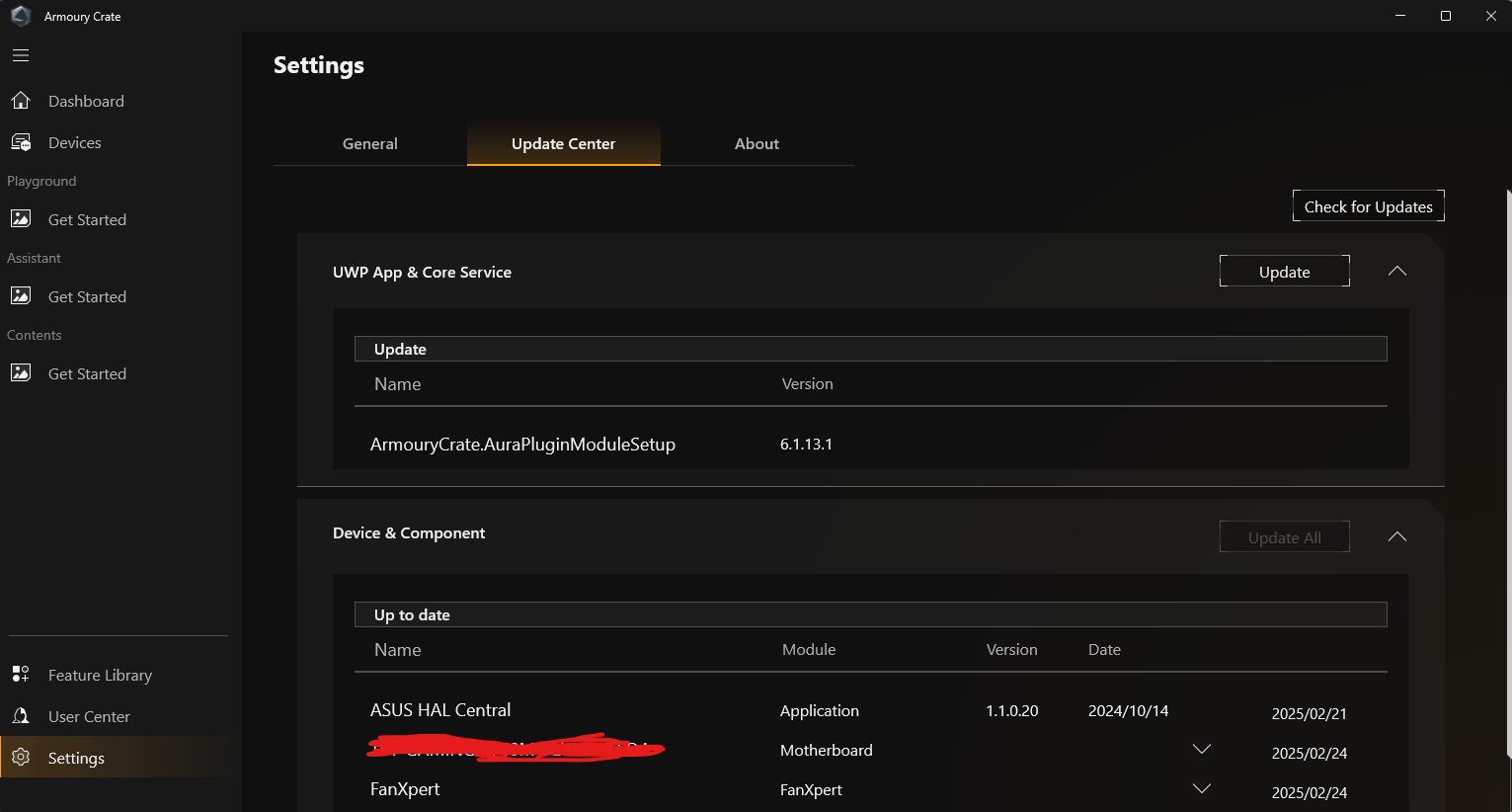
In the most recent versions of Armoury Crate (starting with version 6.0), ASUS has added an "Update Center" within the Settings menu . This is where firmware updates, internal Armoury Crate services, additional modules (Playground, Assistant, Services), and, in some cases, drivers related to those components are managed.
From “Settings > Update Center,” you can tap “Check for updates .” The app will show you a list of items that need updating (firmware, internal drivers, extensions, etc.), and you can choose which ones to apply. It’s a good practice to check this section from time to time to ensure your entire Armoury Crate ecosystem is up to date.
How to install drivers from the ASUS support website
While Armoury Crate is very useful, ASUS also allows you to download and install drivers manually from their support website . This method is especially helpful if you've formatted your PC, if the app isn't working properly, or if you prefer to install only specific drivers; before formatting, you can export the drivers using DISM.
The overall process is quite simple: First, go to the ASUS Support page and type the exact name of your product (motherboard, laptop, desktop, etc.) into the search bar. After pressing Enter, the results will appear, and you'll need to choose the correct category, for example, "Motherboards" within the "Motherboards/Components" section, and then click on the specific model.
Once you're on the product page, go to the "Support" tab and then to "Driver & Utility." From there, you can select your operating system version from a dropdown menu . ASUS only displays drivers for officially supported systems, so if you're using a different system, you'll have to find the drivers yourself.
After selecting your operating system, you'll see a list of all available drivers and utilities : LAN, audio, chipset, SATA, BIOS/firmware, miscellaneous tools, etc. If you manage packages manually, you can use pnputil to install and manage drivers . To download any of them, simply click the "Download" button associated with the item you need.
Once you've downloaded the files, you'll need to manually run the installer for each driver (usually .exe files) and follow the installation wizards. Afterward, it's recommended to restart your PC, especially if you've updated important drivers such as chipset, LAN, or storage controllers.
General use of Armoury Crate: Key sections and functions
Beyond driver updates, Armoury Crate is a comprehensive tool for managing system performance and customization . Version 6.0 introduces a clear structure divided into several main areas.
Home of Armoury Crate
When you open the application, the home screen displays quick system settings , such as memory release, GPU performance, lighting settings, audio, resource monitor, hotkeys, and, on some models, advanced options such as AMD graphics settings or "Slash" lighting.
The memory release option allows you to close background applications to free up RAM. GPU performance control lets you change certain operating modes, which can interact with technologies like BitLocker, so ASUS advises consulting the specific documentation if a recovery screen appears.
Device
The “Device” section displays all Armoury Crate-compatible peripherals and components currently connected: mice, keyboards, motherboards, liquid coolers, monitors, etc. From here, you can access specific settings for each device (e.g., mouse DPI , AIO fan curves, keyboard lighting modes, etc.).
Playground and AURA Sync
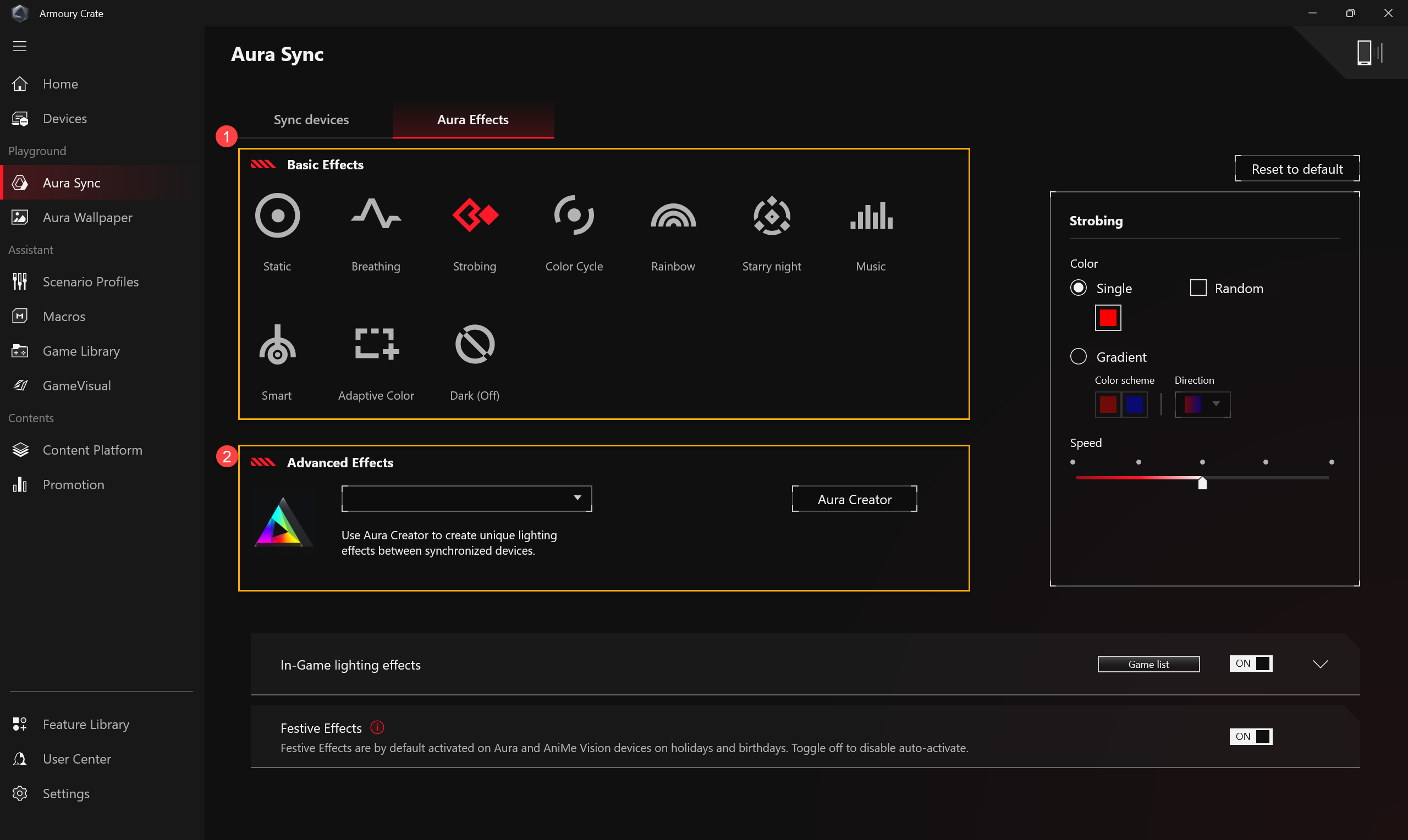
The “Playground” section manages everything related to AURA Sync and RGB lighting . You can synchronize lighting effects between compatible devices, select basic effects (static, breathing, rainbow, etc.), or access advanced effects using the external Aura Creator tool.
In addition, Armoury Crate includes features such as Aura Wallpaper (animated wallpapers with RGB synchronization) or AniMe Vision on compatible systems, which allow animations, battery indicators, and other effects to be displayed on LED panels integrated into the chassis.
Assistant, profiles and macros
The Assistant tab lets you create scenario profiles linked to games or applications . Each profile can adjust the system's performance mode, lighting, audio, or even macros for specific keys. This allows you to configure your computer to automatically switch to Turbo mode and apply a specific lighting scheme when you launch a particular game.
In the macros section, you can record sequences of keystrokes and clicks to assign to additional buttons on compatible keyboards or mice. This is especially useful in MMO games or for productivity shortcuts.
GameVisual, color calibration and OLED
Armoury Crate also integrates the GameVisual module, which offers screen color profiles adapted to different uses (FPS games, cinema, work, etc.) and, in some laptops, a color calibration function compatible with professional devices (such as X-Rite i1Display Pro, among others).
For OLED screens, the app includes optimization and protection settings to extend the panel's lifespan, reducing the risk of image retention or burn-in, and adjusting brightness and contrast parameters.
User Center and Function Library
By logging in with your ASUS account, you can access a User Center with information about your account , registered products, promotions, and events. The Feature Library, meanwhile, allows you to install or uninstall specific Armoury Crate modules (Playground, Assistant, Content Services, etc.) according to your needs.
Operating modes, fan curves, and overclocking
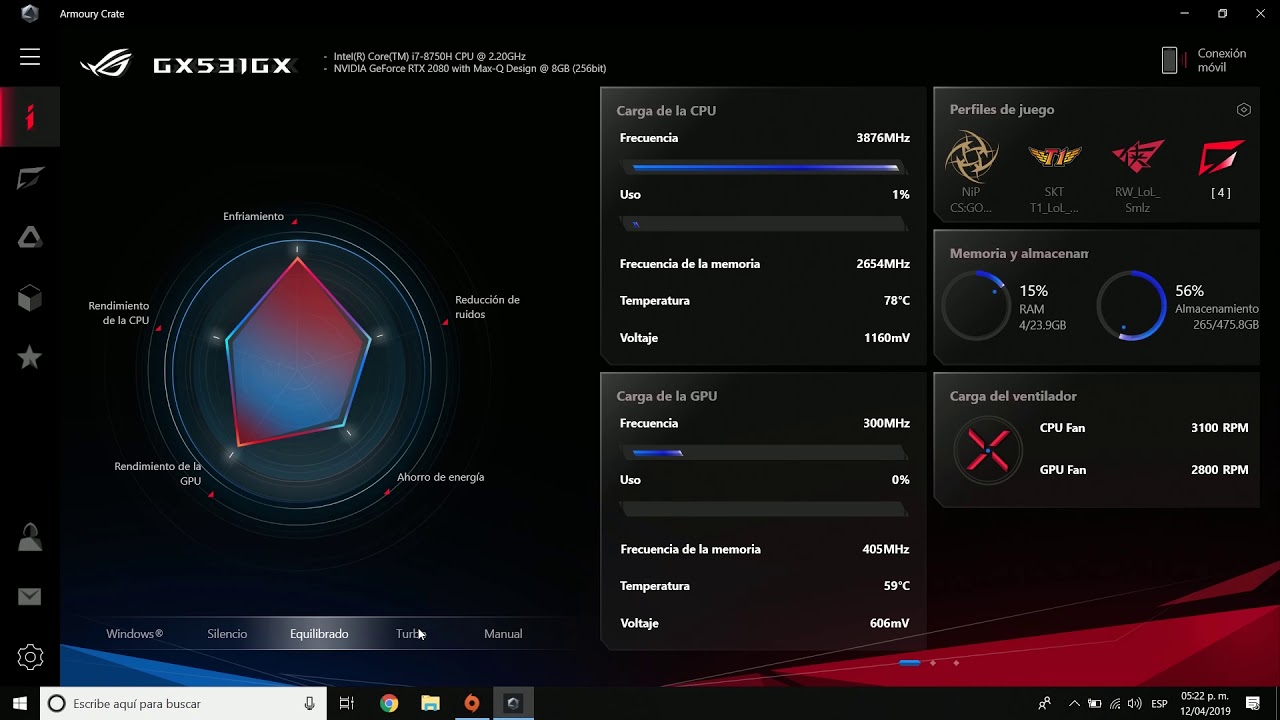
One of the most powerful aspects of Armoury Crate is its performance and cooling control . From the "Operating Mode" section, you can switch between different predefined profiles such as Windows, Silent, Performance, Turbo, Manual, and, on some convertibles, Tablet/Portrait mode.
Windows mode uses the operating system's standard power settings.
Silent mode limits CPU and GPU power to minimize fan noise. Performance mode strikes a balance between noise and power for most uses.
Turbo mode is designed to maximize CPU and GPU performance in games or demanding tasks , at the cost of higher temperatures and noise (it's usually only enabled when the laptop is plugged in). Manual mode allows you to define custom fan curves and, on some models, overclock the CPU and GPU.
On laptops with Intel CPUs , Armoury Crate can expose parameters such as PL1 and PL2 , which define sustained and peak power limits. On AMD platforms, FPPT, SPPT, and SPL are used to describe power limits over different time periods.
For the GPU, you can adjust base clock and memory offsets, as well as a thermal target and options like Dynamic Boost on NVIDIA MAX-Q GPUs. ASUS warns that overly aggressive settings can compromise stability and that, if you experience problems, you can revert to the original configuration by completely shutting down your computer and restarting it after a few seconds.
Installing, updating, and uninstalling Armoury Crate
In addition to the drivers section, it's important to understand how to properly install, update, and uninstall Armoury Crate to avoid service errors or corrupted installations.
For a clean installation, ASUS recommends downloading “ArmouryCrateInstallTool.zip” from the model's support website , extracting it, and running “ArmouryCrateInstaller.exe”. In the wizard, you can choose to install only Armoury Crate, only Aura Creator, or both. Before making any major changes, it's advisable to back up your Windows drivers.
If you need to completely remove the application and all its services, you must use the official "Armory Crate Uninstall Tool ," which can also be downloaded from the support website (in the "Drivers and Utilities" section, selecting your operating system). After the uninstallation is complete, a system restart is required.
If the uninstallation fails, the tool itself generates a log file (for example, ACUTLog_date.logE) in its folder. This file can be sent to ASUS technical support for assistance in diagnosing the problem.
If the app encounters service errors upon opening, ASUS suggests restarting your computer and, if the problem persists, downloading the installer again and reinstalling Armoury Crate . For problematic installations, there is also the “Armoury Crate Lite Log Tool” which allows you to generate detailed logs of the process for technical support.
Frequently asked questions about Armoury Crate and drivers
ASUS documentation includes a good number of questions and answers about how Armoury Crate works , many of them indirectly related to drivers or how to use the app without problems.
A common question is why the Armoury Crate installation prompt doesn't appear after installing Windows 11. In such cases, ASUS recommends checking in the BIOS whether the automatic download function for Armoury Crate is enabled (in the Tools > ASUS Armoury Crate menu). If not, you can enable it, save with F10, and restart.
Another common situation is wanting to install Armoury Crate some time after rejecting it on the first launch . The solution is to go to the Armoury Crate support page and download the manual installer so you can install the app later without problems.
It also explains how to resolve BitLocker recovery screens that may appear if the GPU mode is changed or certain hardware parameters are modified; in these cases, you need to enter the BitLocker recovery key and follow the troubleshooting guides that ASUS links to.
Regarding compatibility, please note that some features (such as advanced GPU modes, resource monitor, AMD AFMF , or connection to the Armoury Crate mobile app) may have limitations or stop working correctly if third-party monitoring tools are used on the game image.
Armoury Crate has become the central hub for installing, updating, and managing drivers, firmware, and utilities on ASUS gaming PCs, offering granular control over performance, cooling, RGB lighting, and game profiles. Using it in conjunction with the official support website, you can keep your system up-to-date without relying on generic or third-party solutions.


Passionate writer about the world of bytes and technology in general. I love sharing my knowledge through writing, and that's what I'll do on this blog, show you all the most interesting things about gadgets, software, hardware, tech trends, and more. My goal is to help you navigate the digital world in a simple and entertaining way.