- AppVIsvSubsystems64.dll is part of App-V/Click-to-Run; its corruption affects Office.
- Repair Office (quick/online) and if that fails, uninstall with the official tool.
- Run SFC/DISM and rule out software interference such as Windhawk.

When Windows and Office decide to act up, a message related to AppVIsvSubsystems64.dll can leave you stranded mid-day. If you encounter errors when opening Outlook, Word , or Excel, or see codes like 0xc0000005 referencing this DLL, you're not alone: it's a known problem, and there's a solution without going crazy.
In this guide, you'll find everything you need to know: what this component is, why it fails, real-world examples (including a case caused by Windhawk ), and the official, safe steps to fix it. We also review why downloading individual DLLs from third-party sites is often a bad idea and what alternatives you have to recover Office and your computer without unnecessary risks.
What is AppVIsvSubsystems64.dll and why does it affect Office?
The AppVIsvSubsystems64.dll file is part of Microsoft's Application Virtualization (App-V) technology and the Click-to-Run mechanism used by modern Office. In other words, it's a dynamic link library (DLL) that helps applications share components and resources efficiently, allowing Office and other programs to make better use of memory and disk space.
Like all shared DLLs, their convenience comes with a downside: if the file reference is incorrect, the file becomes corrupted or disappears, or runtime loading errors occur . This is usually noticeable right when starting an app (Outlook, Word, Project, etc.) or while it's already running.
Common symptoms and messages you'll see
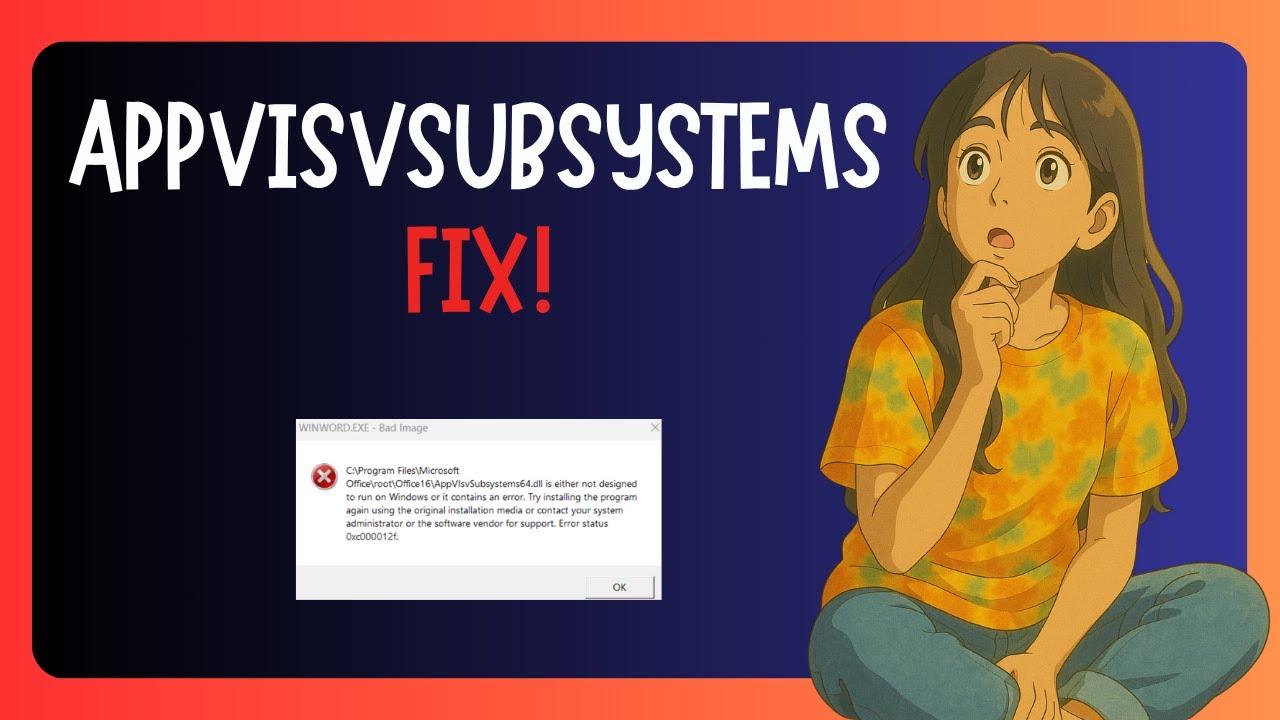
Errors related to AppVIsvSubsystems64.dll (and its 32-bit variant) don't always appear the same, but they share common patterns. These are very common messages that users report when something goes wrong with this App-V/Click-to-Run DLL :
- “appvisvsubsystems64.dll was not found” or “appvisvsubsystems64.dll is missing”.
- "Cannot load appvisvsubsystems64.dll. The specified module could not be found."
- "Access violation in appvisvsubsystems64.dll."
- "Unable to register appvisvsubsystems64.dll."
- "The application failed to start because appvisvsubsystems64.dll was not found."
- "Cannot find appvisvsubsystems64.dll in C:\Program Files\Common Files\microsoft shared\ClickToRun\".
- "Could not start Microsoft Project/Office. A required component is missing: appvisvsubsystems64.dll."
- On 32-bit computers: "The application can't start because AppVIsvSubsystems32.dll is missing from your computer."
The Windows Event Viewer also displays technical details: the name of the failing application (for example, OUTLOOK.EXE ), the faulty module AppVIsvSubsystems64.dll, exception code 0xc0000005, paths such as C:\Program Files\Microsoft Office\root\Office16\, and compilation timestamps. This information helps narrow down whether the problem originates from Office or Windows itself.
Common causes: from file corruption to third-party software
The most common reasons behind this problem are quite mundane: corrupted Office files, incorrect path references, or software interference. In particular, the DLL can be affected by failed updates , unexpected power outages, bad sectors on the disk, or malware that alters components.
Another common cause is that a previous installation overwrites the correct DLL version with an older version, or that an uninstallation leaves the Windows registry with orphaned keys . When Click-to-Run points to a non-existent path or the file is corrupted, errors occur when starting Office.
Be careful with system customization tools: there have been cases where third-party utilities have caused the problem. One specific example reported by users is that the issue was due to Windhawk ; uninstalling or disabling this tool allowed Office to start again.
Finally, manipulating system folders without proper procedure often ends in disaster. If someone tries to move or partially copy key folders like Program Files , Program Files (x86), or Windows to another drive and aborts halfway through, they may leave behind corrupted files and permissions that prevent Office from being repaired or uninstalled normally.
Real cases that illustrate the problem
A common scenario: a user left their PC on and, upon returning, found Outlook closed and no Office apps would start. In the Event Viewer, the faulty module was AppVIsvSubsystems64.dll with error code 0xc0000005. They tried both the quick repair and online repair options for Office without success. After further investigation, they discovered the culprit was the Windhawk utility ; removing it resolved the issue.
Another common scenario: due to a poor migration to a new hard drive, partial copies of "Program Files," "Program Files (x86)," and "Windows" remained, taking up gigabytes of space. The user tried to delete them manually, used a program to "destroy" files, and ended up with a partially functioning system. As a side effect, Office could neither be opened, repaired, nor uninstalled: clicking Modify or Uninstall did nothing. In these cases, the solution involves using official tools to completely remove Office and, if the system is severely damaged, considering an in-place Windows repair.
Quick checks before getting started
First, it's worth ruling out the obvious: restarting, checking for updates, and temporarily disabling potentially conflicting software. Sometimes, simply closing the interfering software revives Office without any drastic measures.
- Restart Windows and try to open the apps of Office.
- Uninstall or disable system tuning utilities (for example, Windhawk if you use it).
- Update Windows from Settings > Windows Update.
- Open an Office app in safe mode to discard problematic plugins (for example, Win+R and type: outlook.exe /safe).
If that doesn't work, continue with the Office repairs suggested by Microsoft and the system checks.
Repair Office: Quick Repair and Online Repair
Microsoft recommends starting with the built-in Office repairs. These are guided processes from the Control Panel that typically restore DLLs and components to their correct state, making them the least intrusive and fastest option for Click-to-Run applications.
- Go to the Windows Control Panel and select “Uninstall a program.”
- Choose Microsoft Office in the list and click on “Change”.
- Choose “Quick Repair” and confirm with “Repair”.
When it's finished, try launching the problematic application. If the error persists, repeat the previous steps, but this time choose Online Repair ; it takes longer, downloads components, and is more thorough.
If the problem persists after online repair, the next step is to uninstall and reinstall Office using the official method, ensuring that all previous traces are completely removed.
Completely uninstall and reinstall Office (official method)
When repairs aren't enough, a complete uninstall and reinstallation is the prudent course of action. Microsoft provides a specific troubleshooter/assistant to remove any traces of potentially corrupted Office 365/2021/2019/2016 .
- Download and run the official Microsoft uninstall tool (Support and Recovery Assistant or Office Uninstall Tool).
- If the browser asks if you want to open "Get Help," accept with "Open."
- Follow the wizard to the end and restart your computer when prompted.
- Reinstall the version of Office you have licensed and check if the error persists. AppVIsvSubsystems64.dll it has disappeared.
This process ensures that the paths in C:\\Program Files\\Microsoft Office\\root\\Office16\\ and C:\\Program Files\\Common Files\\microsoft shared\\ClickToRun\\ are regenerated, restoring the dependencies and libraries that make Office work correctly with App-V.
Check and repair Windows system files
If the operating system has corrupted files, Office may fail even after reinstallation. Therefore, it's a good idea to run the System File Checker (SFC) and, if necessary, DISM, to repair the Windows image and restore subsystem stability.
- Close all Office applications.
- Press Win + Q, type "CMD", and open the Symbol of the system as administrator.
- Run:
sfc /scannow
Wait for it to finish and restart. If SFC cannot repair some files, you can supplement with DISM (as administrator):
DISM /Online /Cleanup-Image /RestoreHealth
After DISM, run SFC again and test Office. Many DLL issues are resolved when Windows rebuilds the system's corrupted binaries and catalogs.
When Office won't repair or uninstall
There are scenarios where clicking "Modify" or "Uninstall" in Office doesn't change anything. This usually indicates a broken Click-to-Run installer, a permissions issue, or inconsistent references to Office in the Windows registry.
Recommendations in these complicated cases :
- Use the official Office uninstall tool mentioned above. It's more effective than the classic panel for cleaning up damaged installations.
- Check that the "Microsoft Office Click-to-Run" service is running correctly (services.msc). If it's frozen, restart it and try the repair again. Online contact.
- Create a temporary local user with administrator permissions and attempt to repair/uninstall from that account (if the current profile is corrupted, this circumvents it).
- If the "Program Files" structure has been tampered with (copies to another disk, partial deletions), consider an in-place Windows repair with the official ISO; it keeps your files and reinstalls the program components. work.
If none of this works, a clean reinstall of Windows is the last resort. It's more drastic, but it usually resolves legacy broken permissions and inconsistent paths after failed disk migration attempts.
The role of malware, hardware, and abrupt shutdowns
Malware infections can delete or modify shared DLLs, and shutdowns or crashes during updates can leave Office incomplete. Run a scan with your updated antivirus software, and if you suspect physical corruption, check the disk with chkdsk and the manufacturer's tools to detect bad sectors.
Unstable hardware (failing RAM, a failing hard drive) causes silent corruption that eventually manifests as DLL errors . Before reinstalling haphazardly, it's worth checking the health of your system to avoid rebuilding on shaky foundations.
32-bit variants: AppVIsvSubsystems32.dll
On 32-bit Office systems or installations, the message may mention AppVIsvSubsystems32.dll instead of the 64-bit version. The procedure is the same: repair Office (quick/online), use the official uninstallation tool if necessary, and run SFC/DISM for Windows . The steps are equivalent; only the binary architecture changes.
About downloading individual DLLs and fix tools: what you need to know
You'll see websites offering appvisvsubsystems64.dll for download, or "DLL Fix Tools" like WinThruster, dll-files.com, or WikiDll. Even if they cite versions, MD5 or SHA-1 hashes, and even show tables with exact sizes, injecting a DLL into system or Office folders is rarely the right solution and adds risks.
Why it's not a good idea :
- An isolated DLL may not match the exact build of your Office/Click-to-Run; even if you copy the file, the load will fail or generate incompatibilities.
- You lose the chain of trust and updates: Office manages its binaries through its own installer and services.
- Some fixers insert adware or make aggressive changes to the registry, making it more difficult to problem.
We've included this information because many guides mention it, but the practical recommendation is to always use official methods: Office repairs, the Microsoft uninstaller, and Windows file verification . Replacing individual DLLs is only considered in very specific and controlled cases (laboratory, test environments).
Good practices to prevent it from happening again
- Avoid surprises by keeping Office and Windows up to date, and don't interrupt installations or updates; also check Common errors that slow down Windows. Let the processes of click-to-run finish and restart when prompted.
- Do not manually move or copy system folders such as "Program Files" or "Windows" to other disks. If you are migrating, use backup tools. cloned reliable and terminates the process; aborting mid-process often breaks permissions and routes.
- Minimize the use of system tweakers. And if you use them, document changes so you can roll them back. As seen with WindhawkA simple disablement can be the difference between Outlook opening or being stuck.
- Perform regular malware scans and monitor disk health. A failing disk is a potential source of malware load of DLL and intermittent corruption.
Routes, modules and technical data that you should know
Modern Office typically resides in paths like C:\Program Files\Microsoft Office\root\Office16\ and uses common components in C:\Program Files\Common Files\microsoft shared\ClickToRun\. When you inspect events, you'll see references to OUTLOOK.EXE , AppVIsvSubsystems64.dll, and exception codes like 0xc0000005 with specific offsets. You don't need to be a forensic expert, but recognizing these clues helps determine whether the source is Office or Windows.
On computers with multiple versions of Office (or Project/Visio), older installations often leave behind DLLs or keys. Therefore, when the problem persists, the official uninstallation tool, which removes previous versions and leftover files, is usually the most reliable solution.
Finally, if you use Project or other standalone apps, the same principles apply. Users have reported appvisvsubsystems64.dll errors when starting Project Professional 2016 (64-bit); these are resolved with the same steps: repairing/resetting Office and verifying the system with SFC and DISM.
If Office is stuck and you can't repair or uninstall it, don't bother with third-party utilities that claim to "repair DLLs." Go directly to the Microsoft tool, perform the cleanup, repair Windows if necessary, and reinstall. This will resolve the vast majority of errors related to AppVIsvSubsystems64.dll , and your computer will return to normal.

Passionate writer about the world of bytes and technology in general. I love sharing my knowledge through writing, and that's what I'll do on this blog, show you all the most interesting things about gadgets, software, hardware, tech trends, and more. My goal is to help you navigate the digital world in a simple and entertaining way.