- The new Photos app prioritizes folders; albums remain in the legacy version or OneDrive.
- People (faces) is only available in legacy Photos; it's not available in the new app.
- Sort by capture date only if the EXIF DateTaken exists; iCloud may alter dates.
- Combines a date/location structure with cloud sharing and additional tools if needed.
Organize your photo library in Windows 11 has changed quite a bit with the latest version of the Photos app. While the system remains simple, it's helpful to understand what's changed from previous versions and how to get the most out of features like folders, legacy albums, OneDrive and iCloud integration.
In the next lines you will find a complete and very practical guide. We explain how to open the app, view and sort your images, what happens to albums in the new Photos, how to manage People in the legacy version, and how to solve the classic mess between capture date and creation date when your photos come from iCloud. We also added Tricks organization and a review of free and paid tools in case your library is huge.
What version of Photos do you have in Windows 11?
First of all, it's important to know if you're using the new Photos app (released in October 2022) or the previous version. Since then, Microsoft has changed several key pieces: in the new app there are iCloud integration On the left panel, an improved navigation experience and features like multi-view, while options like the People tab and grouping by faces disappear.
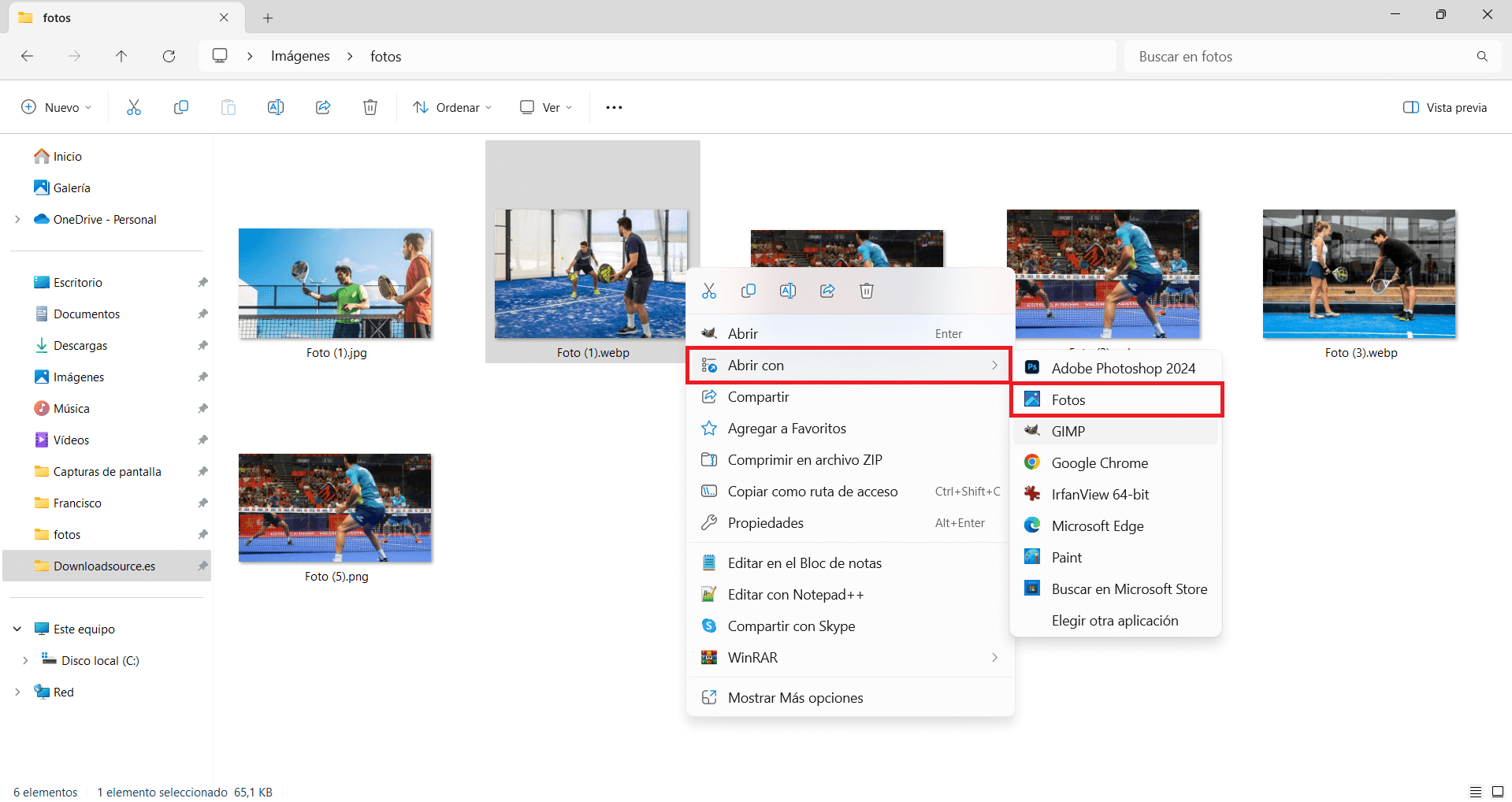
To check your version, open Photos and go to Settings > About. If you see "Up to date," you're using the new version. If you don't see that text, you're using legacy Photos (the classic version), which includes features like Video Editor, Albums and PeopleAt any time, from the new Photos, you can get the legacy edit by going to Settings > About > Get legacy photos.
This nuance is the basis of the entire organization: the new Fotos is committed to a structure more focused on folders, while the legacy one works comfortably with albums and facial recognition.
Open, view, and add locations to your library
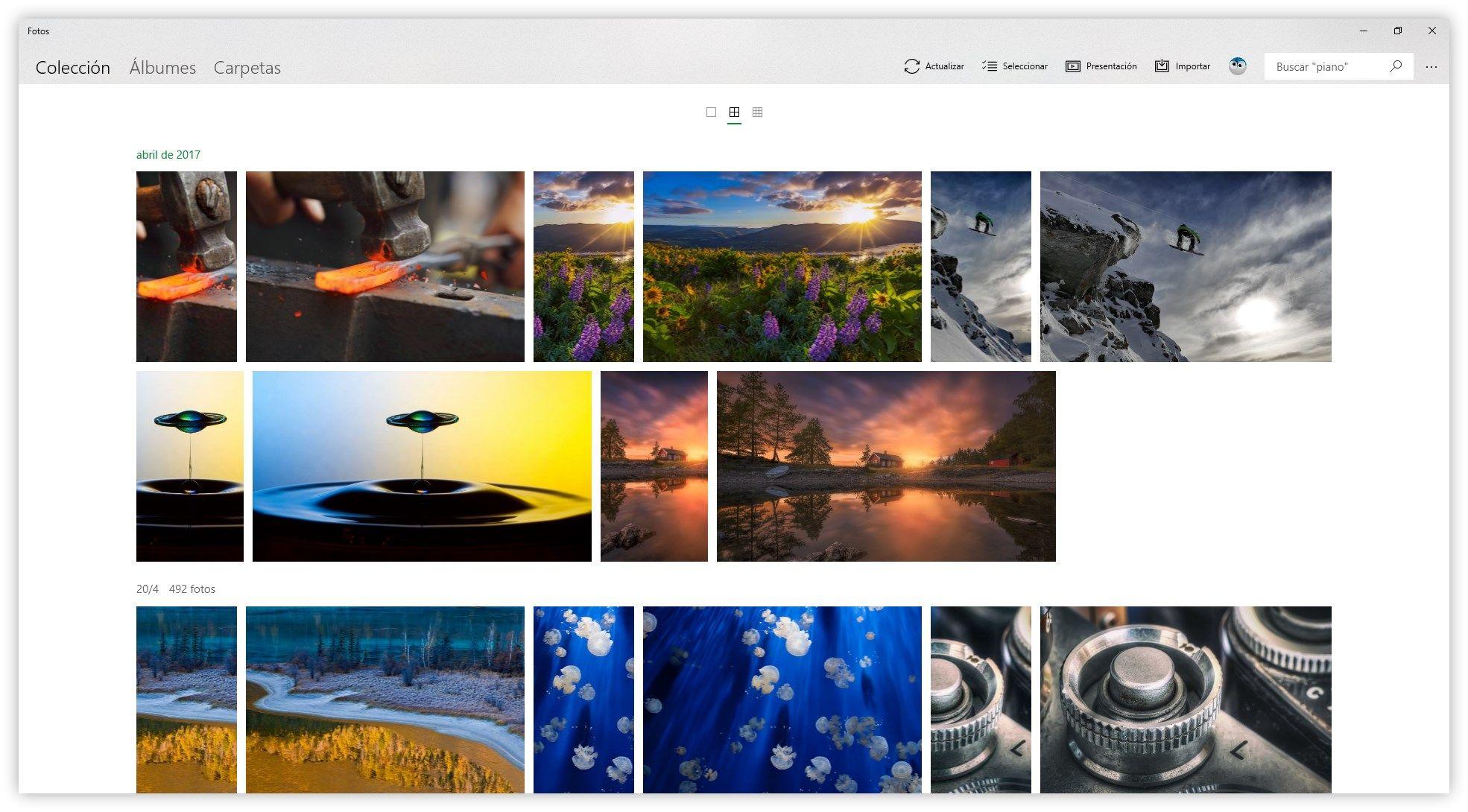
To open Photos, press Home and search for "Photos" in the bar or find the icon in the app list. Once inside, the app displays your collection and lets you navigate through your images with the arrow keys and exit full-screen mode with I.
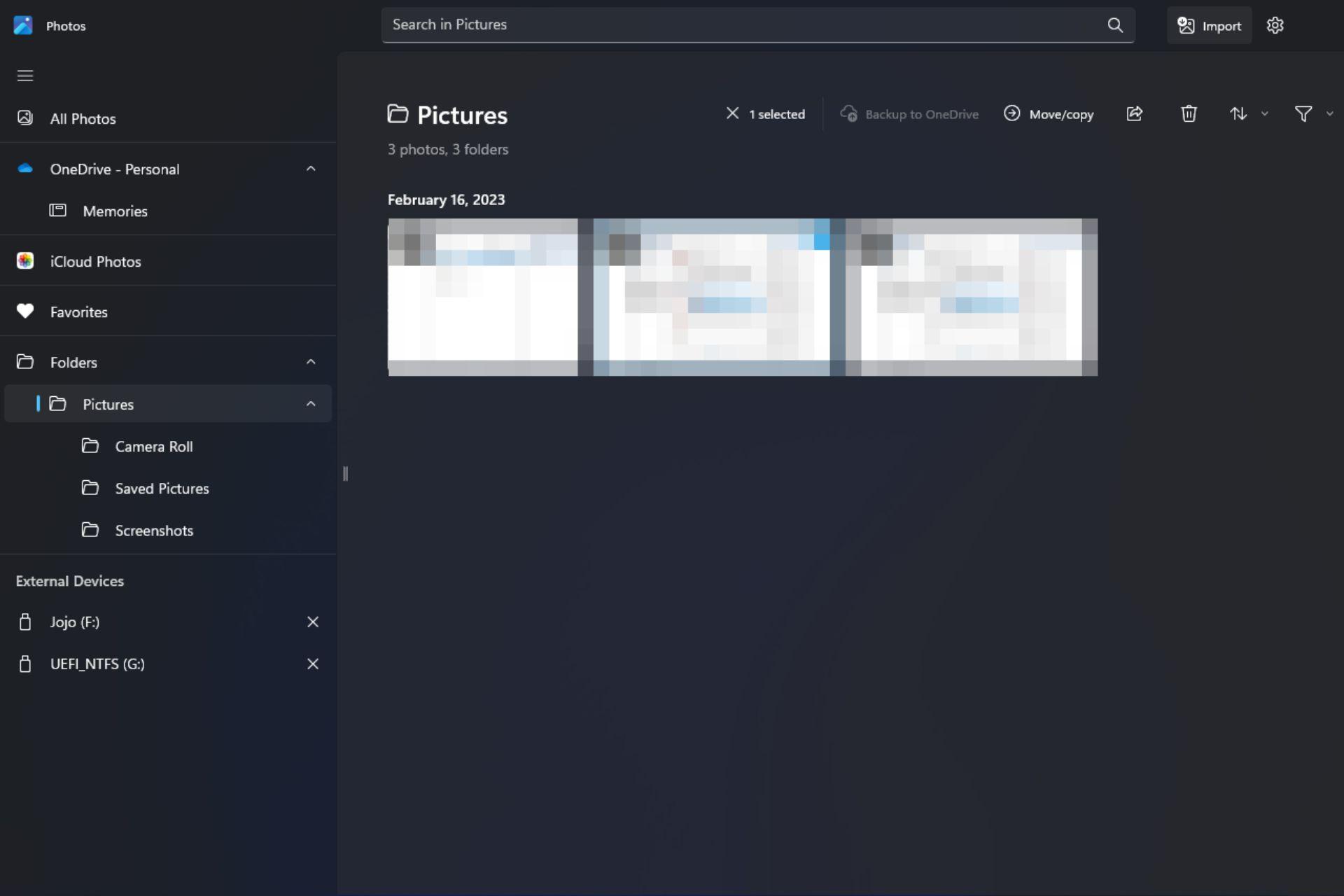
By default, the library includes the Pictures folder, but you can easily expand it. In the left panel, go to the Gallery section and choose Add Folder to add new paths. This ensures that Photos indexes everything you want without having to move files around, keeping your folder structure just as you have it in the browser.
If you like to view your photos by period, you can toggle date views to explore your material on a timeline. This view is ideal when you prioritize memories by years and months and suits those who prefer to browse by timeline instead of searching through folders.
The image collection supports a multitude of formats: for photos, it supports JPEG, PNG, GIF, BMP, and TIFF, and for videos, it supports MP4, MOV, or AVI, among others. In addition, the Photos app has basic editing functions (cropping, adjusting lighting and color, and filters), accessible from the "Edit & Create" button, and with direct saving for safekeeping. your changes.
Albums vs. Folders: How Your Photos Are Organized in the App
Here comes one of the most relevant changes. In the new Photos, Microsoft has oriented the organization towards the folders of the system, moving away from the album model of the previous edition. What does this mean? That your order depends more on how you have the album and less on collections created within the app, with the advantage that this structure will be compatible with any manager or with the Explorer itself. Windows.
If you're coming from legacy Photos and were using albums, you can migrate them by copying them to the Folders section of the new app. In the classic version, creating an album was as simple as tapping "New Album," adding a name, and selecting photos; that logic can be maintained in the legacy version if you reinstall it from the option. Get legacy photos.
For those who definitely want an organization by albums within the Microsoft ecosystem without depending on the legacy version, a very practical alternative is to rely on OneDrive: there you can create albums in the cloud and view them from the Photos app when you have the account synchronized, which allows you to maintain thematic collections without giving up the synchronization between devices.
In everyday life, a good practice is to combine folders by year and month with subfolders by events or locations (for example, 2023/08_Vacations_Cádiz). This structure fits perfectly with the new Photos because it respects the folder base and, at the same time, allows you to locate your files more quickly. galleries.

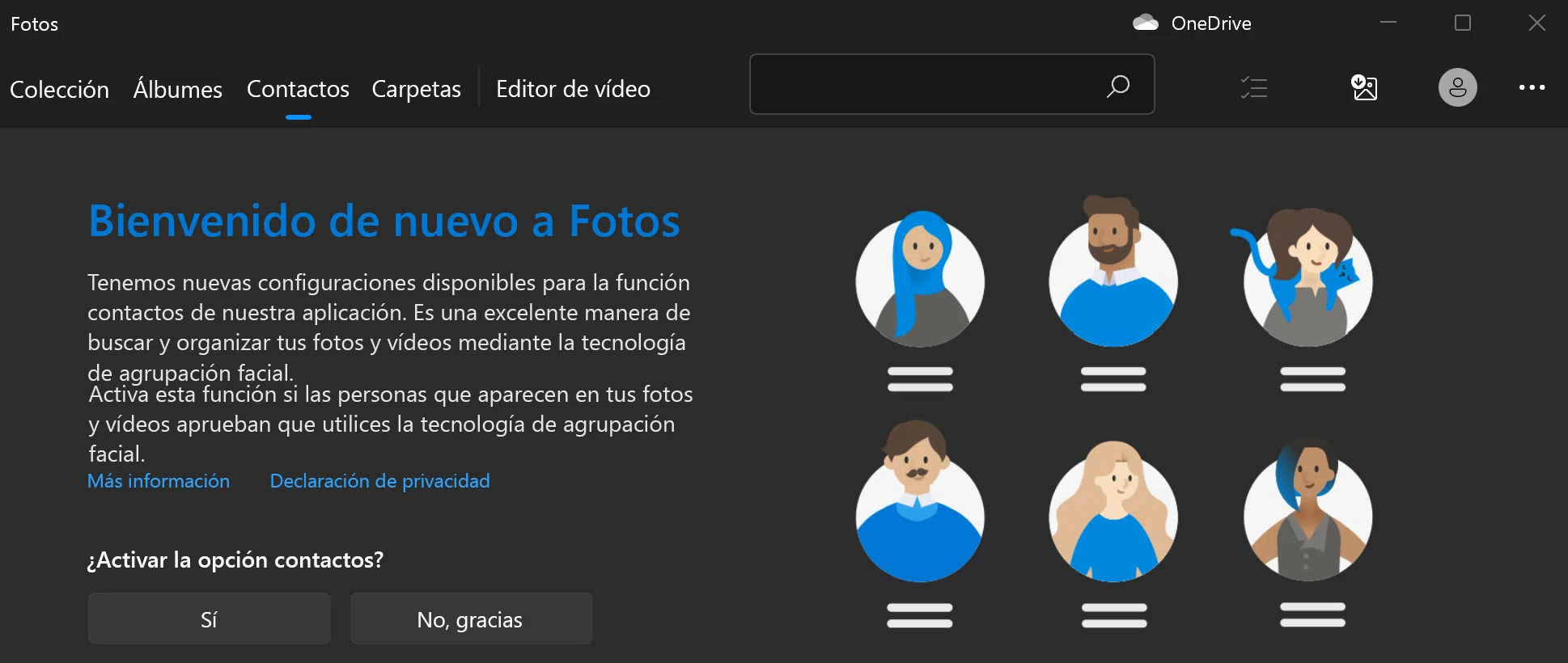
People and face grouping (Legacy Photos only)
The new Photos no longer includes the People tab or face grouping; that feature is available in the legacy edition. If you turn on face grouping, the People view is populated with sets of similar faces, and you can link them to contacts in the Windows People app to keep everything organized. identified.
How to enable it in the legacy app: Open Photos, go to the People tab, and accept the welcome screen to enable grouping. If you'd rather not use it, select "No, thanks," and your previous groupings will be erased. At any time, you can go to the app's settings and turn the grouping feature on or off. People with a click.
Remember that this feature processes your images locally to detect and group faces; Microsoft's documentation details how the legacy version handles data. If you're concerned about privacy or share a computer, consider keeping this feature disabled. group if you don't need it.
Sort by actual capture date and iCloud photos
One of the most common issues when organizing is the difference between "Date Captured" and "Date Created." In practice, "Date Created" is usually the time the file was saved to your computer (e.g., when you downloaded it from iCloud), while "Date Captured" depends on the EXIF metadata (DateTaken) that has the photograph embedded.
If you notice that the order is still odd when you choose Sort by > Capture Date, it's likely that those photos don't have the correct EXIF from the camera or the source service didn't preserve it. In that case, check Properties > File Details to see if there's a "Shot Date" and, if it's missing or incorrect, you'll need to correct the metadata with EXIF editing tools or use a source where the EXIF is intact. Otherwise, Photos won't be able to sort by the actual date shooting.
When your images come from iCloud, it's common for the Created Date to match the day they were downloaded. To ensure Photos sorts them correctly by Capture Date, try syncing them with full metadata (iCloud for Windows updated) or editing the EXIF before adding them to your library. If there's no EXIF, use the app's date-based timeline as an alternative to browsing. Periodically or reorganize into folders by year/month/event.
For very large collections (tens of thousands of photos), it is a good idea to batch process: first group by year into folders based on the detected date, then refine with metadata tools to fix any loose cases, and finally use the by view in Photos. when and where to check the order.
OneDrive and cloud organization
If you use OneDrive while signed in, Photos syncs your OneDrive Pictures library, and you can add other folders manually. OneDrive helps you find memories with a customizable gallery and searches by location, content (people, things), and type (video, screenshot, document), complementing your Company .
To narrow your search by location, type the name of the place in the top bar (add the country if necessary). OneDrive also lets you create albums: select the photos you want and choose Add to album to create collections that you can share with family and friends without moving files from their folders originals.
Formats, basic editing, and new features in Photos
The app supports a wide range of formats (JPEG, PNG, GIF, BMP, TIFF; and MP4, MOV, AVI for video) and offers basic editing from "Edit & Create": cropping, adjusting lighting and color, and applying filters. These are quick changes designed to get your shots ready before share or archive.
New features in the new Photos include an improved film strip for jumping between items without leaving the view, multi-view mode for comparing multiple photos or videos at once, and folder navigation in the left menu to help you keep track of your collections. structured.
Another notable improvement is the integration with iCloud in Windows 11, to see the photos of the iPhone and those on your PC. There's also a Memories experience from OneDrive that lets you relive special moments right on your gallery.
As for the video editor, Microsoft has moved that feature to Clipchamp, which you download from the Microsoft Store or open from Photos (Settings > Open Clipchamp). For quick tasks, Clipchamp lets you create ready-to-use stories. share without leaving the ecosystem.
Practical organizational tips
To avoid depending on a single app, plan your structure by dates and places: Folders by year and subfolders by event/city give you universal compatibility and save you painful migrations if you change tools.
If you prioritize access on any device, combine local organization with albums in OneDrive or Google Photos, knowing that cloud storage can be limited. This way, you can keep your originals on disk and use the cloud to share and remember.
When searching, use the search box by location and the date views. If Photos doesn't sort by capture date, check the EXIF values and correct them before continuing. You'll avoid having to redo the process. albums after.
Finally, remember that the new Photos organizes by folders, and you can get back classic features by installing legacy Photos if you miss People or native albums. This way, you can choose the best of each version and keep your library under control.
With all this, you have a clear map: identify your version of Photos, decide if you work with folders, legacy albums or OneDrive, resolve the order by date taking care of the EXIF and, if your photo library is gigantic, rely on one of the suggested tools to go faster, without losing sight of the fact that the key is in a coherent structure by date and place and in always preserving your Metadata.

Passionate writer about the world of bytes and technology in general. I love sharing my knowledge through writing, and that's what I'll do on this blog, show you all the most interesting things about gadgets, software, hardware, tech trends, and more. My goal is to help you navigate the digital world in a simple and entertaining way.