
There are many ways to send or share photos on your Android phone or tablet . Below are the steps to share any photo or series of photos on your Android phone with family, friends, or anyone you simply want to share photos with.
Share a single photo on an Android phone
When browsing through photos, it is quite common to come across a fascinating photo and feel the immediate urge to send that photo to your friends or family.
Follow the steps below to send or share a single photo from your Android phone or tablet.
1. Open in Photos or the Gallery app on your Android phone or tablet.
2. Tap the button for the photo you want to send or share with others.
3. When you click on a photo, you'll see the Share, Edit, Data, and Delete icons appear at the back of the screen.

4. Tap the Share icon button to launch the Share pop-up menu on your Android phone.
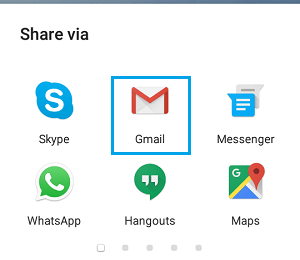
As you can see above, Screen Sharing offers a list of apps you can use to send your chosen photo. You can optionally choose from Gmail, Messenger , WhatsApp , and others to share that photo.
5. In this case, go to Gmail and click on the Gmail icon.
6. When you click on Gmail, you'll see that you're in a new type of email in Gmail. The image you chose may already be linked in the subject line.
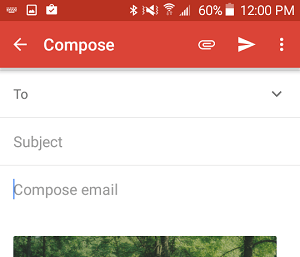
Organize your message, add the recipient's email address and send your email with the image attached.
Send multiple photos to an Android phone
The steps for sharing a bunch of photos on an Android phone are a little different, but you'll still have the same sharing capabilities, making it easy to share photos via email, text content, and messaging apps.
1. Open in Photos or the Gallery app on your Android phone or tablet.
2. Press and hold any photo until you see the verification packets appear on all photos.
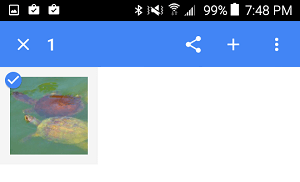
3. Choose all the photos you just have to send by writing in it
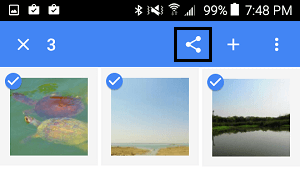
4. Now click on the Share icon button (See image above)
Word: On Samsung and other phones, the share icon will likely be called " Share ".
5. When you click on share, you receive the following message: Share by showing options.
6. Prepare the email or messaging application you need to use to send these photos.
In this case, we're going to use Gmail. Tapping the Gmail icon will launch a new email window with the selected photos already linked to the new message.
All you have to do is write a short message, select the recipient from your contact list and send the email with a series of linked photos.

My name is Javier Chirinos and I am passionate about technology. Ever since I can remember, I have been interested in computers and video games, and that passion has turned into a job.
I have been publishing about technology and gadgets on the Internet for over 15 years, especially in mundobytes.com
I am also an expert in online marketing and communication and have knowledge in WordPress development.