- Windows 11 tightens hardware requirements with TPM 2.0 and Secure Boot, leaving many still-functional PCs out.
- Rufus allows you to create Windows 11 installation USB drives and at one time integrated bypass options for hardware requirements.
- The LabConfig method in the Windows registry enables skipping TPM, minimum RAM, and Secure Boot checks during installation.
- All these bypasses carry security and stability risks, so each user should assess whether forcing Windows 11 on their computer is worthwhile.
If you have a computer that works fine with Windows 10 but you're getting the dreaded message that your PC doesn't meet the requirements for Windows 11 , you're not alone. The TPM 2.0 requirement, Secure Boot, and other hardware filters have excluded many machines that, in practice, could run Windows 11 without too much trouble.
Starting October 14, 2025 , Microsoft will stop providing security patches, technical support, and software updates for Windows 10. Your PC will still boot, but it will become increasingly vulnerable to new vulnerabilities and, of course, will not receive modern features. That's why many people are considering upgrading to Windows 11 using solutions like Rufus and various bypass methods to circumvent compatibility checks.
Context: Why so many PCs are left out of Windows 11
Microsoft insists that Windows 11 is a more modern, efficient operating system with enhanced security features . To this end, it imposes requirements such as the presence of TPM 2.0, Secure Boot, relatively recent processors, and a minimum amount of RAM and disk space.
The problem is that many computers that still perform well with Windows 10 don't include a TPM chip , or have one in a version earlier than 2.0, don't have Secure Boot enabled, or simply use a processor that Microsoft hasn't certified for Windows 11. In many cases, these are perfectly adequate machines for office tasks, browsing, or even some light editing.
Officially, Microsoft recommends buying a new PC or sticking with Windows 10 until the end of its support , but that doesn't convince everyone. That's why different methods have emerged for installing Windows 11 on "unsupported" machines, either by modifying the installation with tools like Rufus or by directly editing the Windows registry (LabConfig).
It's important to keep in mind that all these procedures involve bypassing Microsoft's restrictions . This means there are risks: potential performance issues, stability problems, additional security vulnerabilities, or simply that some future updates may not install correctly.
What is Rufus and why is it so useful for installing Windows 11?
Rufus is a small, free utility for Windows that allows you to easily create bootable USB installation drives . Its main function is to take an ISO image (for example, of Windows 11) and "write" it to a USB drive so you can boot from it and perform a clean installation.
The Rufus file is around 1,3 MB , so the download is practically instantaneous even with modest connections. You'll usually receive an executable file with a name similar to rufus-3.17.exe (the number may vary depending on the version you download), which will appear in your Downloads folder or wherever you chose to save it.
If you use Microsoft Edge, the browser integrated into Windows 10 and Windows 11, you'll see a quick access to recent downloads at the top , from where you can directly run the Rufus installer or the portable executable itself, since the tool does not require a formal installation on the system.
When you launch Rufus, you'll usually see a User Account Control (UAC) warning , informing you that the program may make changes to your computer. This is normal, as it needs administrator access to format the USB drive and write the ISO data.
On the first run, Rufus may ask if you want to check for updates automatically . Accepting this option helps you stay up-to-date with improvements, new compatibility features, and potential bug fixes that may appear over time, which is especially useful when working with recent versions of Windows.
Create the Windows 11 installation USB with Rufus
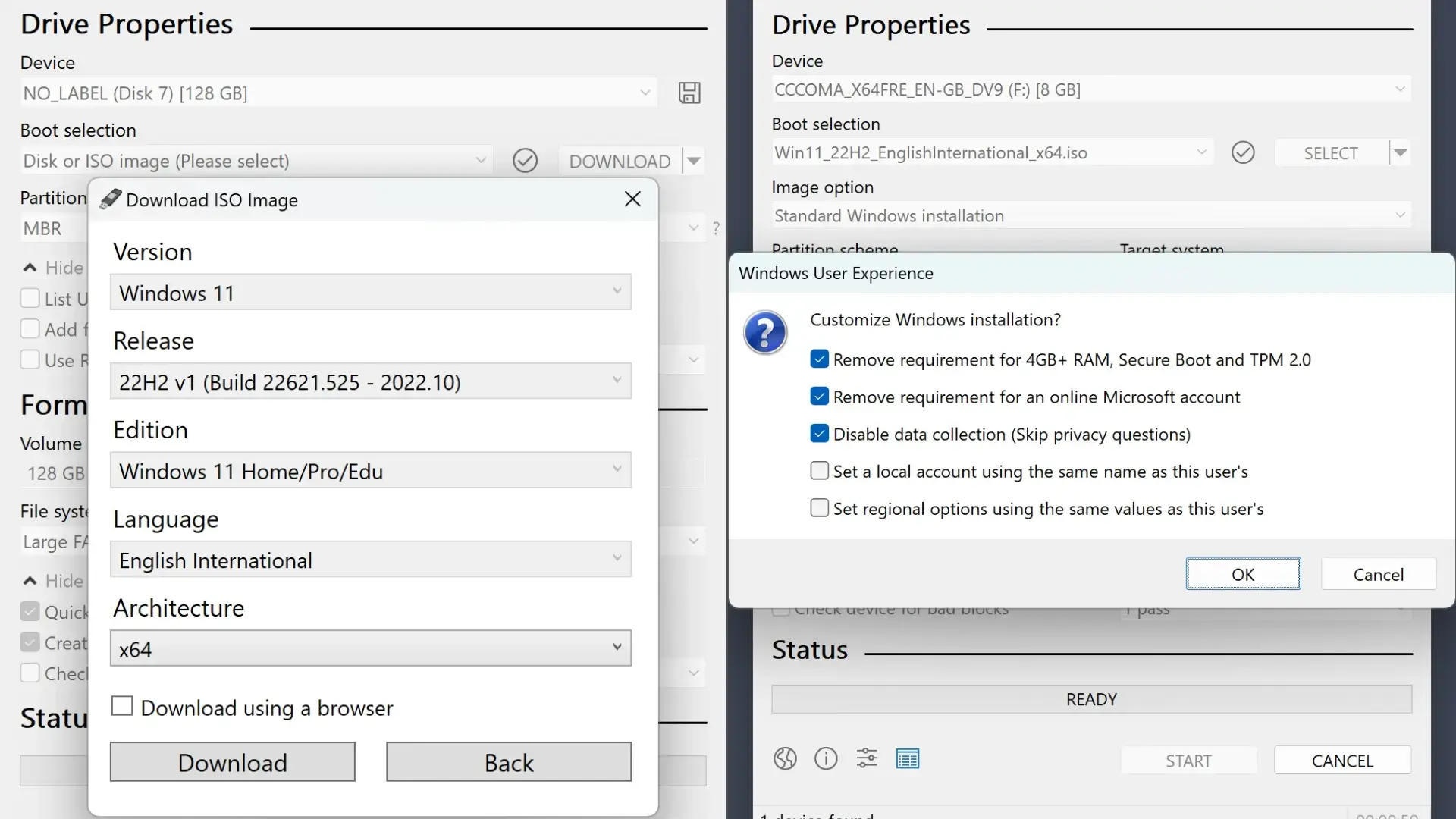
When you open the Rufus main window, you'll see a fairly straightforward interface. At the top is the "Device" section, where you can select the USB drive you want to write to . If you only have one USB drive connected, it will be selected automatically; if you have several, you'll need to carefully choose the correct one from the drop-down list.
The next step is to specify the ISO image you want to use. To do this, in the ISO selection field or "Boot Choice," click the corresponding button, and a standard Windows dialog box will open to locate the image file on your computer. Once you select the Windows 11 ISO, the file name will appear in the main window.
In many cases, creating a USB drive with other ISO images would simply require clicking "START," but installing Windows 11 on a non-compliant PC requires some additional adjustments . For quite some time, Rufus included specific options to bypass certain hardware checks, allowing Windows 11 to be installed on machines without TPM 2.0 or Secure Boot enabled.
Before starting the process, it's crucial to remember that Rufus will completely erase the contents of the USB drive . If you hover your cursor over the "START" button for a moment, a message will appear clearly indicating that all data stored on the USB drive will be lost during the creation of the installation media.
Even if you click without looking, Rufus will display a confirmation window again to remind you that the drive will be formatted. Only when you accept will the program begin working, showing a progress bar and a small text box indicating the current stage of the operation (creating partitions, copying files, etc.). When finished, the progress bar will fill and the status will display the word "READY," indicating that the installation USB drive is now ready.
Rufus' bypass function and its disappearance
One of the reasons Rufus became so popular among advanced users was that it incorporated, in certain versions, the option to semi-automatically bypass Windows 11 hardware requirements . When creating a USB drive from a Windows 11 ISO, the program offered the possibility of skipping the TPM 2.0 check, the Secure Boot verification, or even certain minimum RAM requirements.
Over time, some users have noticed that the unsupported hardware bypass seems to have disappeared from modern versions of Rufus. Even searching the official website, when downloading older versions, many users report that they can no longer find the feature as they remember it.
This has generated quite a few doubts in forums and technical communities: people asking if there is any way to recover the functionality or to find a version of Rufus that still includes it, and others who have directly switched to different manual methods to continue installing Windows 11 on old computers, including solutions like FlyOOBE on unsupported PCs.
Although Rufus remains very useful for creating the installation USB, many of these users have been forced to supplement the tool with other tricks , such as modifying the Windows registry during the installation wizard itself, or editing configuration files within the ISO before creating the bootable drive.
In practice, this means that Rufus is no longer the "magic wand" that single-handedly solves the problem of incompatible hardware, but rather one piece within a slightly longer process where you have to get your hands a bit more dirty , especially if you want to control exactly which Windows 11 restrictions you are disabling.
LabConfig Method: Bypassing TPM, RAM, and Secure Boot from the Registry
Besides Rufus, there's a widely discussed procedure for installing Windows 11 on unsupported computers using a specific registry section called LabConfig . This method allows you to disable the TPM 2.0 requirement, the 4 GB RAM minimum, and the Secure Boot requirement directly during the installation wizard.
It all starts when you try to install Windows 11 from your USB drive (created, for example, with Rufus) and the installer displays the classic message indicating that it cannot continue because the PC does not meet the requirements . At that point, instead of exiting the wizard, you can use a small keyboard shortcut to open advanced tools.
The key combination to use is Shift + F10 , which opens a Command Prompt window. From there, you can launch the Registry Editor by typing regedit and pressing Enter. This gives you access to the Windows registry during the installation process, before the system completes its system requirements check.
Once in the Registry Editor, navigate to the path HKEY_LOCAL_MACHINE\SYSTEM\Setup . When you find the "Setup" key, right-click on it, choose "New," and then "Key." Name this new key LabConfig and confirm by pressing Enter, so that it becomes a subfolder within Setup.
Within LabConfig, several DWORD (32-bit) values are added that act as switches to decide which hardware checks you want to skip. Right-click, select "DWORD (32-bit) Value," and create the value BypassTPMCheck with a value of 1. Repeat the process with BypassRAMCheck and BypassSecureBootCheck , always assigning the value 1, which indicates that these checks should be disabled.
Once you've finished creating these values, you can close the Registry Editor and the Command Prompt window. Returning to the installation wizard and retrying the process should eliminate the incompatibility message , allowing you to complete the Windows 11 installation on a device that, in theory, was blocked due to non-compliance with the TPM, RAM, or Secure Boot requirements.
Risks and warnings when using a bypass for Windows 11
While the LabConfig method and older Rufus bypasses are tempting, let's be honest: modifying the registry and bypassing security requirements is never risk-free. Not only can an error while editing keys cause boot or stability problems, but you're also disabling mechanisms designed to protect the system.
The documentation itself and many tutorials emphasize that following these steps is the responsibility of each user and that the computer may experience performance issues , incompatibilities with older drivers or very demanding applications, or even erratic behavior when major Windows 11 updates arrive.
Just because a PC can complete the installation doesn't mean it's actually hardware-ready for all system functions. It might lack CPU instructions required for certain features, not have full support for some virtualization functions, or the absence of a TPM might limit certain security scenarios.
Furthermore, by not respecting the requirements set by Microsoft, you risk having the checks made even stricter in a future major build of Windows 11, and the system refusing to update or requiring you to repeat part of the bypass process, with the consequent waste of time and possible additional errors.
Therefore, before you rush to install Windows 11 on an officially unsupported PC, it's worth considering whether you really need it, backing up your data, and accepting that, ultimately, you may have to revert to Windows 10 or another system if things don't go as planned.
Experiences and alternatives for older equipment
Many users have already shared their experiences installing Windows 11 on older PCs using Rufus, LabConfig, or other methods. Some report that, for everyday tasks, the system runs quite smoothly despite not meeting the system requirements , while others note minor driver compatibility issues, occasional crashes, or slightly higher resource consumption compared to Windows 10.
Given this situation, some prefer to use Windows 10 until support ends, especially if their machine remains stable and secure. Others choose to upgrade to Windows 11 only on computers that meet at least a significant portion of the official requirements to minimize risks and avoid dependence on registry hacks or third-party tools.
There are also users who have tried alternatives such as installing modified or lightweight editions of Windows (with reduced services) or switching to Linux distributions on very old computers, especially when it is no longer worthwhile to keep pushing a system that demands more and more resources.
In short, the use of Rufus and tricks like LabConfig has opened the door for many computers that seemed impossible to run Windows 11, but always with the caveat that these are unofficial configurations , without guarantees, and where each user fully assumes the technical and security risks involved.
Given how Microsoft's support policy is evolving and how they are gradually tightening security requirements, it's worth thinking carefully before using these bypasses: for many, it may be a temporary way to extend the life of the equipment; for others, it may be time to consider a hardware change or even an operating system change if long-term stability is a priority.
This whole scenario makes it clear that, although Windows 11 brings improvements and a more modern approach, users with unsupported PCs are forced to choose between taking the risk with these methods, staying on Windows 10 until 2025, or looking for alternative solutions; the right decision depends on how much you value security, stability, and the time you are willing to invest in keeping your computer up to date by circumventing limitations imposed by the manufacturer.


Passionate writer about the world of bytes and technology in general. I love sharing my knowledge through writing, and that's what I'll do on this blog, show you all the most interesting things about gadgets, software, hardware, tech trends, and more. My goal is to help you navigate the digital world in a simple and entertaining way.