- Seamless (VirtualBox) and Unity (VMware) require Guest Additions/Tools installed.
- Shortcut: Host+L in VirtualBox; in VMware, it's activated from View > Unity.
- Unity works with guests Windows; Seamless supports Windows, Linux and Solaris.
- If Seamless fails, install Additions and disable 3D acceleration.

Use the apps of the guest as if they were native to the host It's one of the best ideas desktop hypervisors have ever had. That's the promise of VirtualBox's Seamless Mode and VMware's Unity Mode: hiding the VM frame so you only see the guest application windows integrated into your actual desktop.
When you activate Seamless (VirtualBox) or Unity (VMware), the VM "disappears" from view, and you're left with the guest system's windows coexisting with those of the host. In VirtualBox, the shortcut is Host+L (by default, the Host key is usually the right Windows key or the right Ctrl key, depending on your configuration), and in VMware, it's accessed from the View menu. The nice thing is being able to launch, for example, a Windows Photoshop within a Linux or macOS environment, without losing sight of your usual desktop nor jump between full screens.
What exactly are Seamless (VirtualBox) and Unity (VMware)?
In normal mode, Guest applications are drawn inside the VM windowWith Seamless/Unity, that framework is eliminated, guest windows are rendered on the host desktop, and menus, shortcuts, and mouse focus are integrated. Everything remains isolated at the hypervisor level. there is no security breach: Processes continue to run on the virtual machine.
VirtualBox supports Seamless with Windows, Linux, and Solaris guests; macOS as a guest is not supported. VMware supports Unity only with Windows guestsUnity support for Linux was dropped starting with Workstation 12, and additionally, Unity is not available with remote VMs on ESXi.
Essential prerequisites
For seamless mode to work, you need to install the guest tools. In VirtualBox, we're talking about Guest Additions; in VMware, we're talking about VMware Tools. Without these packages, critical features like the built-in pointer, the clipboard shared, drag and drop or the window integration layers themselves.
In VirtualBox, mount VBoxGuestAdditions.iso from Devices > Insert Guest Additions CD Image and run the installer in the guest OS. If the autoboot doesn't start, you can launch it manually. D:\\VBoxWindowsAdditions.exe on Windows. In VMware, go to Virtual Machine > Install VMware Tools, mount the ISO from Tools and follow the typical wizard.
How to enable Seamless in VirtualBox
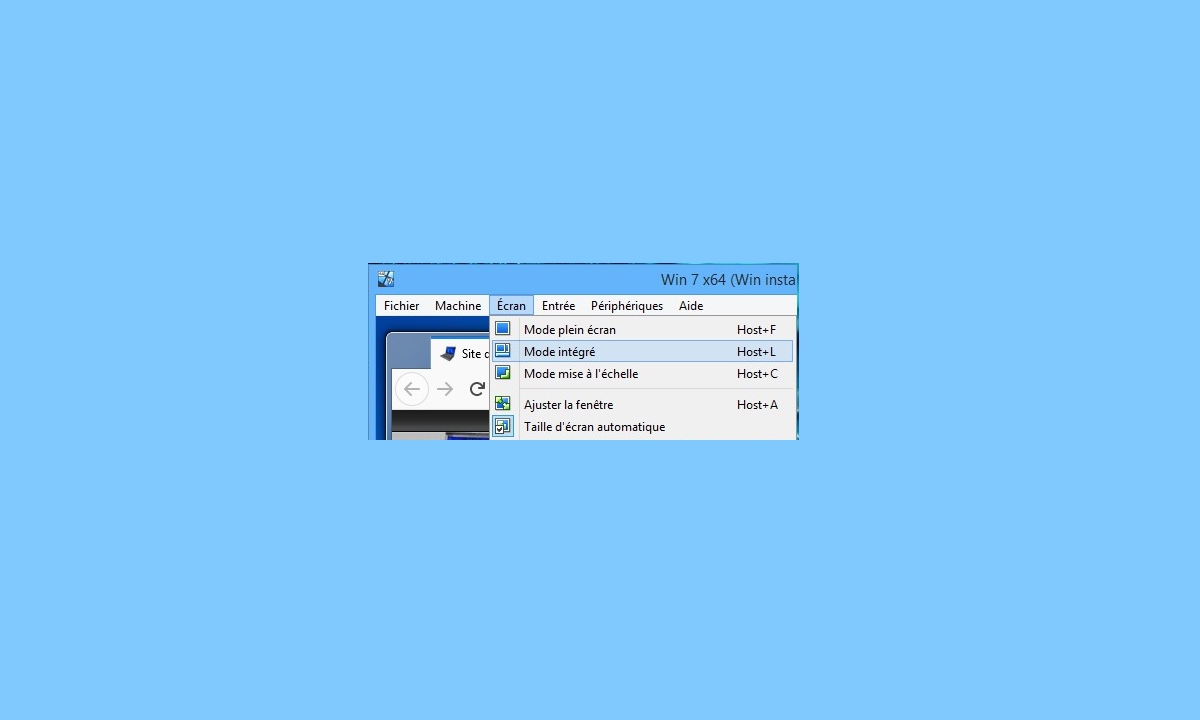
With the VM running and Guest Additions installed, simply press Host+L or go to the View > Seamless Mode menu. If everything is in order, the VM border disappears and you will see the guest windows floating on your host desktop. Some versions report minor issues when minimizing, but overall the experience is stable and very usable.
Remember that the shared clipboard Drag and drop also depend on the Additions. Configure them to your liking in VM Settings > General > Advanced (clipboard and DnD: disabled, guest-to-host, host-to-guest, or bidirectional).
How to enable Unity on VMware (Workstation and Fusion)
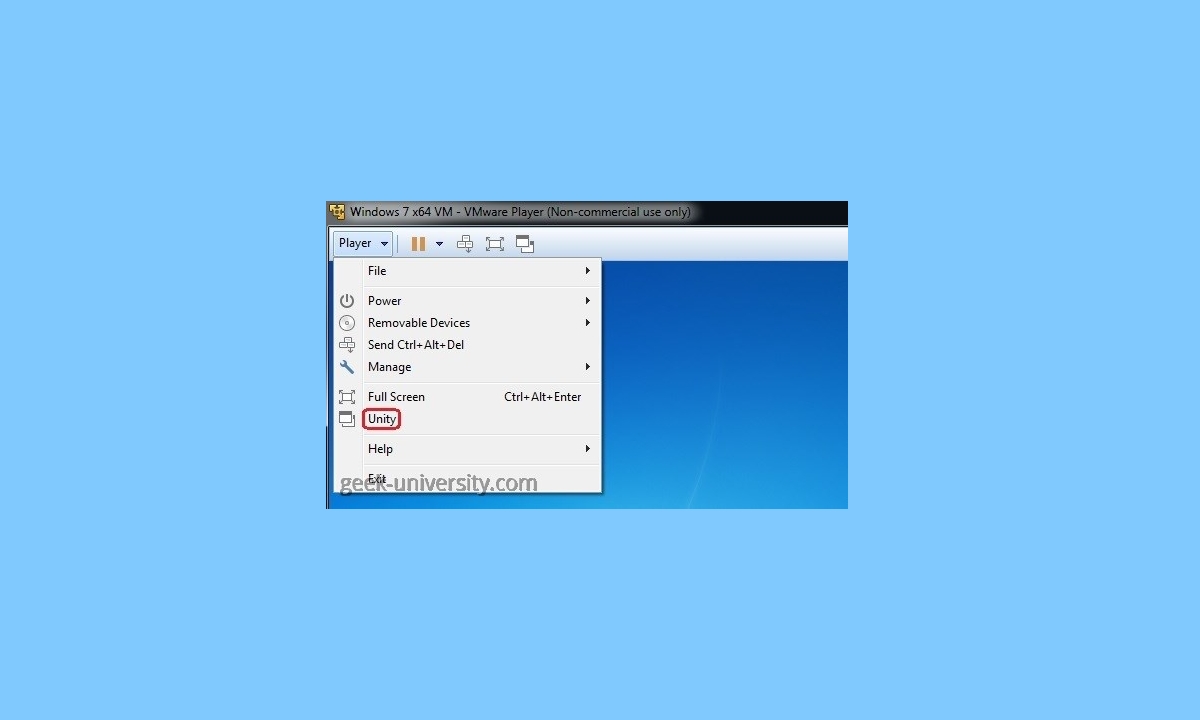
In VMware Workstation/Fusion, with the Windows VM powered on and VMware Tools installed, open the View menu and choose Unity. In Fusion (macOS), you can also choose integration profiles during VM creation: "More Seamless" automatically shares Desktop, Documents, and Downloads, facilitating Unity; "More isolated" restricts these links for security reasons.
Key limitations: Unity does not work with Linux guests on modern versions (since Workstation 12 was retired) and is not supported with remote VMs on ESXi. If Unity doesn't appear or crashes, first check that VMware Tools is up to date and that the VM is a compatible Windows guest.
Troubleshooting: Seamless is grayed out or not working (VirtualBox)
If the Seamless Mode menu is grayed out or pressing Host+L does nothing, check these two critical points: Guest Additions and 3D Acceleration.
- Install Guest Additions: Devices > Insert Guest Additions CD image, and run the installer inside the guest. If it doesn't mount, manually run D:\\VBoxWindowsAdditions.exe in Windows. Restart the VM afterward.
- Disable 3D acceleration: In the VirtualBox manager, select the VM > Settings > Display and uncheck "Enable 3D acceleration". Some GPUs or drivers They do not cooperate with Seamless compositing layers; when disabled, seamless mode usually comes back to life.
If this doesn't work, make sure that the guest's resolution reasonably matches with the host and that there is no shell software or guest themes interfering with window management (on Linux, certain compositing managers can be a pain).
Related integration features: folders, clipboard, drag and drop
To work comfortably in Seamless/Unity it is advisable to activate shared folders, shared clipboard, and drag and drop. In VirtualBox and VMware Workstation/Fusion, these are available by installing Additions/Tools; in ESXi, there are no shared folders and the clipboard is restricted for security.
Fast notes:
VirtualBox and VMware Player/Workstation/Fusion allow shared folders; ESXi does not. Clipboard: In ESXi it is disabled by default and is controlled by VMX parameters (isolation.tools.copy/paste). Drag and Drop It is not supported on ESXi.
VirtualBox vs VMware essential comparison aimed at Seamless/Unity
Both platforms are Type 2 hypervisors on the desktop (Workstation/Fusion/Player and VirtualBox) and Type 1 hypervisors on the server (ESXi). For everyday use with Seamless/Unity, These are the points that matter:
- Host Compatibility: VirtualBox runs on Windows, Linux, macOS, Solaris and FreeBSD; VMware Workstation/Player on Windows and Linux; VMware Fusion on macOS only.
- Guest CompatibilityVirtualBox supports Windows, Linux, Solaris, FreeBSD, and select macOS; VMware officially supports Windows, Linux, Solaris, FreeBSD, and macOS in Fusion. Unity with Windows guests only; Seamless with Windows, Linux and Solaris.
- Guest Tools: VBox Guest Additions and VMware Tools are required for Seamless/Unity and to get integrated pointer, better video, time synchronization, etc.
- USB: In VirtualBox you need the Extension Pack for USB 2.0/3.0; in VMware it comes ready-made. Both require guest tools for clean redirection.
- 3D graphics: VirtualBox reaches OpenGL 3.0/Direct3D 9 and 128 MB of VRAM; VMware goes up to DirectX 11 and OpenGL 4.3 with up to 2GB of VRAM.
- Snapshots: VirtualBox, Workstation, Fusion and ESXi support snapshots; VMware Player no. They are great to try, but They are not backups.
- disk formats: VirtualBox handles VDI, VMDK, VHD and Parallels HDD; VMware uses VMDK.OVF/OVA is common for export/import.
- Linked clones: Available in VirtualBox, Workstation, and Fusion Pro; in ESXi, they can be emulated with PowerCLI scripts or in VDI environments.
- Red: VirtualBox offers NAT, NAT Network, Bridge, Host-only, and Internal; VMware offers NAT (VMNet8), Bridge (VMNet0) and Host-only (VMNet1). Workstation/Fusion Pro include virtual network editor; Player does not.
- centralized management: VirtualBox can be used with PhpVirtualBox and VRDE/VRDP; VMware has vCenter for ESXi, plus Host Client and PowerCLI.
- Storage shared: VirtualBox integrates an iSCSI initiator to connect targets direct to the VM. ESXi supports iSCSI, NFS, and Fibre Channel as datastores. Workstation/Player/Fusion do not have their own iSCSI initiator, but you can use the one from the host system.
- Live migration: VirtualBox has Teleporting between hosts with shared storage; VMware ESXi offers vMotion (and Storage vMotion), more advanced, with simultaneous migrations, with snapshots and at greater distances.
- Encryption: VirtualBox encrypts VMs (XTS-AES-256/128) with Extension Pack; VMware encrypts VMs (AES-256/XTS-AES-256 in vSphere) and adds restricciones (expiration, restricted execution) on Workstation/Fusion Pro and KMS on vSphere.
- Conference proceedings: both support memory ballooning (vmmemctl on VMware). ESXi adds advanced techniques (TPS, compression, deduplication).
- Clustering: VirtualBox no; vSphere yes (HA, DRS, Fault Tolerance).
If your priority is Seamless on Linux or Solaris, VirtualBox is the option. If the need is Unity for Windows with better 3D and VRAM, Workstation/Fusion wins. On servers, ESXi is another planet: Unity does not apply, but in performance and management drag.
Virtual Networks: NAT, Bridge and Company
In Seamless/Unity you will use the network as if you were native. With NAT (default mode in VirtualBox), the guest goes out to the Internet behind a router virtual; the host reaches out to the guest with Forwarding of ports If you configure it, VirtualBox's "NAT Network" allows multiple VMs to see each other behind that NAT.
With Bridged adapter (bridged), the VM appears on the same physical network as the host and receives its own IP from the LAN router: useful if the guest must expose services on the network. In “Host-Only,” the VM talks to the host and other VMs, but does not go out to the LAN. In "Internal," VMs can only see each other. In VMware, the equivalents are VMNet8 (NAT), VMNet0 (Bridge), and VMNet1 (Host-Only).
Practical details: in VirtualBox you can have up to 4 adapters per VM and in VMware, up to 10. On Wi-Fi, bridging may require different techniques or driver restrictions. For Seamless/Unity, there is no "mandatory" mode; choose NAT if you only access the Internet, and Bridge if you need the guest to be "first class" on the network.
Storage and migration when working with Seamless/Unity
Using Seamless/Unity doesn't change how you save virtual disks, but it's good to know your options if you're moving VMs. VirtualBox can connect iSCSI directly as a VM disk (does not create intermediate VDI/VMDK), and also supports NFS/SMB from the host. ESXi uses iSCSI/NFS/FC as datastores and vMotion to hot-move VMs; VirtualBox has Teleporting to live migrate between hosts with the same configuration and shared storage.
If you're going to do aggressive testing on Seamless, snapshot strip, but don't forget the actual backup. There are commercial solutions such as NAKIVO Backup & Replication vSphere/ESXi-oriented solutions that streamline backup and recovery; in desktop environments, synchronize the folders where you store your VMs or use disk imaging software.
Licensing, costs and platform compatibility
VirtualBox is free software (GPLv2) and also has an Extension Pack (free for personal/educational use, commercial license for businesses) that adds USB 2.0/3.0, VRDE, encryption, PXE, etc. VMware Player is free for personal use; Workstation and Fusion require a license (with trial) and offer the full suite of desktop features. ESXi has a limited free edition and vSphere licenses paid with 60-day evaluation.
A compatibility note: if your CPU does not support VT-x/AMD-V, VirtualBox can virtualize by software in specific scenarios (especially 32-bit guests), something that modern versions of Workstation no longer support as they used to. For demanding 3D, VMware has the advantage; for diverse hosts (including FreeBSD/Solaris), VirtualBox gains in reach.
Remote management and APIs
If you manage multiple VMs and hosts, VirtualBox offers PhpVirtualBox (web interface) and VRDE/VRDP for remote desktop; Workstation allows "Workstation Server" for sharing VMs; and in the ESXi world, vCenter It is the star tool with web client and PowerCLI.
To automate, both expose APIs and SDKs in C++, Java and Python. In VMware, you can integrate with Eclipse, use PowerCLI, and leverage vSphere APIs for networking, datastores, and virtual switches. In VirtualBox, the SDK allows you to create, clone, and tune VMs from your scripts without touching the GUI.
Safety and performance tips for using Seamless/Unity
Remember that even though it may seem like everything is "mixed up", the VM remains isolated. Avoid sharing more folders than necessary, measure the risk of two-way clipboard sharing, and assess Windows Information Protection To reduce leaks, if you choose the "More Seamless" profile in Fusion, install antivirus on the guest and check permissions; "More Isolated" is safer in exchange for some inconvenience.
For smooth performance, assign Sufficient RAM and VRAM (e.g., 4GB of RAM and 128–256MB of video for a “light” Windows 10 in VirtualBox, more if you’ll be using 3D in VMware). If you experience lag when enabling Seamless, try adjusting 3D, disabling guest visual effects, and updating host drivers. And if you’re short on memory, Ballooning helps, but remember that it may push the guest to use their swap.
Little extra for macOS and VMware Fusion
En Mac, Fusion is the official route. Make sure you meet the requirements (CPU Intel x86-64, macOS compatible, Enough RAM) and grant Security and Privacy permissions (accessibility, full disk control, and system extensions) for Fusion to load its modules. Unity works great with Windows guests; take advantage of mirrored folders if you prioritize comfort, or disable them if security is paramount.
Choose and configure the Seamless/Unity mode correctly It lets you combine the best of both worlds: native productivity on your host machine with full guest system compatibility. With up-to-date Additions/Tools, a suitable network (NAT or Bridge as needed), thoughtfully enabled integration features, and a smattering of security (encryption, backups, and fine-grained permissions), the experience is very comfortable and stable. If you need Linux/Solaris in seamless mode, go with VirtualBox, and for Windows guests with more capable 3D, VMware Workstation/Fusion offers very polished integration.

Passionate writer about the world of bytes and technology in general. I love sharing my knowledge through writing, and that's what I'll do on this blog, show you all the most interesting things about gadgets, software, hardware, tech trends, and more. My goal is to help you navigate the digital world in a simple and entertaining way.