- Windows Autopilot automates setup and reduces the need for custom images.
- Integrates with Intune and Configuration Manager, supporting hybrid and third-party scenarios.
- It allows you to restore, reuse and recover devices, optimizing their life cycle.
- Supports Microsoft ID login, OOBE customization, and Windows edition switching.

Windows Autopilot is the modern way to get Windows PCs up and running seamlessly , combining the power of cloud services with the native system experience so IT can configure, pre-provision, reset, and recover devices in just a few steps. This approach eliminates the traditional "custom" approach and transforms OEM installations into enterprise-ready systems.
The goal is to maximize productivity from the moment it's powered on : the end user simply connects to the internet and logs in, while policies, applications, and settings are automatically applied in the background. Furthermore, Autopilot covers complete lifecycle scenarios (onboarding, reassignment, and retirement) and can be used with both Windows 10/11 PCs and HoloLens 2 devices.
What is Windows Autopilot?
Windows Autopilot is a suite of Microsoft technologies and services designed for the automated deployment and configuration of Windows 10 and 11 devices . Through its integration with management solutions such as Microsoft Intune and Microsoft Configuration Manager, it standardizes the user experience, reduces deployment times, and eliminates repetitive manual tasks.
Instead of maintaining customized images per model , Autopilot leverages the manufacturer-optimized (OEM) version of Windows already pre-installed on each computer and "upgrades" it to a corporate state, applying policies, installing apps , and, if necessary, changing the edition (for example, from Pro to Enterprise) to enable advanced features.
General information about the process
The Autopilot workflow leverages the cloud to transform an OEM installation into a managed enterprise device . Deployment profiles define the initial out-of-the-box (OOBE) experience, automatic MDM enrollment, directory join type, and visual customization.
During Out-of-the-Box Experience (OOBE), policies are applied and applications are deployed as needed for each role (e.g., productivity, security, communications, or specific tools), so the team is ready to work right out of the box. This process minimizes intervention from both IT and the end user.
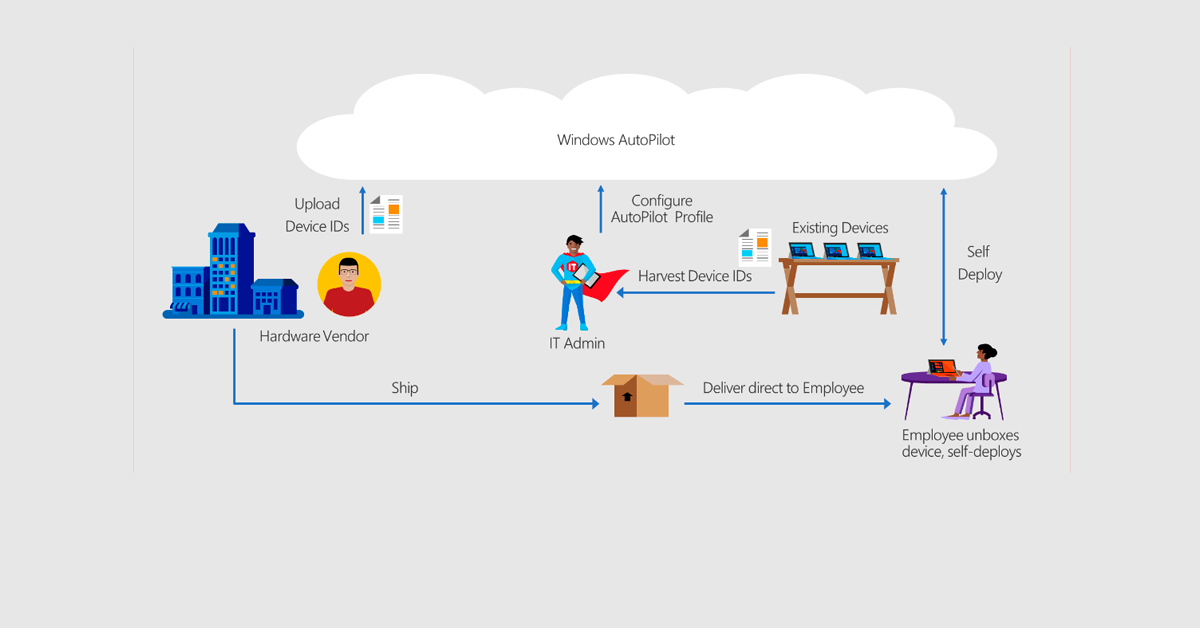
Once deployed, the devices can be managed with different tools , including Microsoft Intune for MDM/MAM, Windows Update policies to keep the system up to date, Microsoft Configuration Manager for more traditional or hybrid scenarios, and also compatible third-party MDM solutions.
Key benefits for IT and business
- Less deployment time and less infrastructureBy eliminating the need to create and maintain custom images, logistics and costs are significantly reduced, while equipment reaches users faster and with fewer errors.
- Improved end-user experience: The interaction is reduced to connecting to the network and logging in with your credentials; the rest happens automatically, in a standardized, and secure manner, without technical steps or unnecessary waiting.
- Total flexibility for remote or distributed scenarios: Cloud-based implementation is a perfect fit for organizations with remote work, multiple locations, or mobile hiring, avoiding in-person visits and support calls.
- Consistency and security by design: Policies are applied uniformly and applications are installed automatically, strengthening compliance, security, and operational consistency across the fleet.
- Lower operating costs and less risk of human error: Automation reduces manual tasks, configuration issues, and time spent by IT teams on each device.
Requirements and compatibility
To use Windows Autopilot, a compatible version of Windows 10/11 (Windows 10 version 1703 and later) and internet connectivity during out-of-box operation (OOBE) are required to contact Microsoft services. Network, licensing, and configuration requirements vary depending on the scenario and the MDM tool chosen.
Directory joining can be Microsoft Entra ID (formerly Azure Active Directory) or hybrid , and MDM enrollment is usually done through Microsoft Intune, although other supported MDM providers can also manage the lifecycle of Windows 10/11 devices.
Autopilot is valid for PCs and also for HoloLens 2 , with specific documentation for setting up these mixed reality devices in corporate environments.
How Windows Autopilot Works (Hands-on Overview)
The process begins with registering the devices in the Autopilot service , either by the manufacturer/provider (ideal when the equipment arrives "pre-assigned" to your tenant) or by uploading a CSV with the hardware identifiers from IT.
Next, an implementation profile is created and assigned that defines aspects such as the type of Microsoft Entra ID joining, whether the creation of local accounts is restricted, which OOBE steps are omitted, and how the welcome screen is customized with corporate branding.
When the user turns on the computer and connects , the device contacts Microsoft services, recognizes its membership in the organization, enrolls in MDM (for example, Intune), applies policies, and downloads applications until it is ready to work.
- Device registration: Incorporation via supplier or CSV sheet with the hardware identifiers associated with the tenant.
- Profile assignment: The Autopilot profile specifies the OOBE experience, join type, and automatic MDM enrollment.
- Policy and app enforcement: Security, network, settings are configured and the required applications are distributed.
- Ready to use: The user logs in with their credentials and begins working with the already standardized equipment.
Common settings and advanced options
OOBE customization : You can hide the Cortana assistant, simplify sign-up steps, display your company branding, and minimize initial user friction.
Windows edition change : the profile can upgrade a Windows Pro edition to Enterprise to enable advanced features, without manual reinstallation or on-site intervention.
Automatic enrollment in Intune : The relationship with Microsoft Endpoint Manager (Intune) allows policies, apps, and compliance to be applied from the first boot , with centralized visibility and control.
Windows Update policies : keeping the fleet up to date is vital; from the cloud you can set update rings, pauses and maintenance windows to balance stability and security.
Reset and reuse : Autopilot Reset returns a device to a "clean" corporate state, ready for a new user or as a quick recovery from failures, minimizing downtime.
Existing Devices: Reinstallation and JSON Profiles with Configuration Manager
When the device is already in use and needs to be reinstalled or migrated (for example, upgrading to a later version of Windows or recovering a computer with a corrupted OS), Autopilot can be complemented by Microsoft Configuration Manager.
Configuration Manager task sequences allow you to re-image or perform clean installations , as well as pre-install an Autopilot profile on the device using a JSON file, so that after reinstallation, the computer automatically runs the deployment defined in that profile.
This approach avoids having to import the device into Intune beforehand or assign an Autopilot profile to it ; the pre-provisioned JSON file ensures that, at the end of the sequence, the device enters the Autopilot flow directly.
Typical use cases include reassignment and repair , migrating from on-premises domain joining to Microsoft Entra ID, converting a hybrid computer to one fully joined to Entra, repairing computers with replaced disks or corrupted installations, or upgrading from earlier versions not natively compatible with Entra ID (such as Windows 8.1) to Windows 10/11.
This process helps prepare an existing device for Autopilot to manage its production rollout, combining reimaging and modern management to facilitate the recovery and upgrade of existing devices.
MDM Management and Options: Intune, Configuration Manager, and Third Parties
After implementation, ongoing management can be done with Microsoft Intune (policies, profiles, apps, compliance, and security), with Windows Update for business, and, if appropriate, with Microsoft Configuration Manager for on-premises or hybrid scenarios.
There are also compatible third-party MDM solutions that expand the range of options. In environments with Ivanti Endpoint Manager, for example, MDM management can be combined with traditional agent management (hybrid management) to comprehensively cover different levels of software configuration and distribution.
At Ivanti, secure communication relies on Cloud Services Appliance (CSA) , which acts as a meeting point for devices over the Internet; in addition, it is recommended to secure the web server with a trusted SSL certificate and configure integration with LDAP (usually Active Directory) for queries and administration.
For notifications on Windows, Ivanti uses Windows Push Notification Service (WNS) ; computers can enroll via Autopilot, through direct kernel enrollment (on-premises Active Directory environments), via Azure AD in supported versions, or with group policies in hybrid scenarios.
Recommended Workflow (High Level Overview)
- Hardware registration: Obtain the identifiers from the supplier/OEM or extract the fingerprint and upload it as a CSV to the tenant to associate them with Autopilot and your organization.
- Autopilot Profile Design: Defines the OOBE experience, the type of join (Microsoft Intune ID or Hybrid), whether local account is allowed, and automatic MDM enrollment (usually Intune).
- Assigning applications and policies: Use Intune to configure device/user settings, security, compliance, app, and Windows Update policies for each role.
- Delivery and first start-up: The user turns on the device, authenticates, and the magic happens: policies and apps are applied until the device is ready to work.
- Operation and life cycle: Monitors compliance, applies updates, standardizes configurations, and, if necessary, performs Autopilot Reset for reassignments or recovery.


Passionate writer about the world of bytes and technology in general. I love sharing my knowledge through writing, and that's what I'll do on this blog, show you all the most interesting things about gadgets, software, hardware, tech trends, and more. My goal is to help you navigate the digital world in a simple and entertaining way.