- Sandboxie Plus creates isolated environments in Windows to run or install applications without modifying the real system.
- The Plus edition provides a modern interface, snapshot manager, portable mode, and a sandbox firewall.
- It allows you to run and install programs within configurable isolation boxes, with templates to improve compatibility.
- It remains a useful tool even in modern Windows for testing unreliable or older software more safely.
If you use Windows and often tinker with unfamiliar programs, suspicious links, or outdated browsers, sooner or later you'll wonder how to avoid putting your entire system at risk. That's where Sandboxie Plus comes in, software that creates an isolated environment to run applications safely without affecting your main Windows installation.
In the following lines, you'll see in detail what Sandboxie Plus is, how it works, and how to use it step by step to run and even install programs within a virtual "sandbox." The idea is that you can test, browse, or open suspicious files with much greater peace of mind, taking advantage of all the benefits of this veteran project, which is now open-source software.
What is Sandboxie Plus and what is it used for?
The concept of a sandbox, often translated as an isolated environment or process isolation , is increasingly used as an additional layer of security in modern operating systems. Essentially, a sandbox separates program execution from the real system to prevent, or at least mitigate, software failures, vulnerabilities, and malicious behavior.
In the case of Sandboxie Plus, we're talking about a program exclusively for Windows that creates a virtual operating environment where applications run without permanently modifying the system . Everything the program does remains "locked" within that isolated box: created files, configuration changes, browser history, etc.
This type of isolation is especially useful when you want to run untrusted applications, downloaded from dubious sources, or very old ones that could damage the system or your documents. The sandbox limits access to key resources: storage, network, reading input devices, the ability to inspect the host system—all controlled by Sandboxie Plus and, to some extent, by the user.
A very intuitive example of a sandbox is a virtual machine, which emulates a complete computer where you install a guest operating system, or similar tools in Linux such as Firejail . This guest system runs in a separate space and only accesses the host through the hypervisor. However, a virtual machine is considerably larger and more complex to manage than a solution like Sandboxie Plus, which focuses on isolating specific applications within Windows itself.
Modern browsers, such as Chrome or Chromium, also integrate their own sandboxing mechanisms, isolating tabs and processes to improve security; for example, you can manage containers in Firefox to isolate websites. Sandboxie Plus takes this a step further, allowing you to create custom sandboxes for virtually any desktop application , not just browsers.
History of Sandboxie and differences between Classic and Plus
Sandboxie was created in 2004 with a very specific goal: to isolate Internet Explorer on Windows , a browser with a rather poor security reputation even in its heyday. Over time, it expanded its support to other browsers and desktop programs in general, becoming a well-known tool among advanced users who valued security.
Over the years, the project has passed through several hands. It was first developed by its original author, Ronen Tzur, until the solution was acquired by Invincea. Later, in 2013, Sophos acquired Invincea and also took over Sandboxie . Tzur retired from development, and Sophos kept the product active for a while, but signs began to appear that the software didn't have a very long future.
By 2019, the end was already apparent, and in 2020 Sophos decided to discontinue Sandboxie as a commercial product and release the code under the GPLv3 license. From that moment on, Sandboxie became "hardline" free software, with the code open source and the community able to contribute and create forks.
After its release, development was taken over by David Xanatos, who currently leads the project and maintains two main branches: Sandboxie Classic and Sandboxie Plus . Both share the same component base and offer the same level of isolation and security, but differ mainly in the interface and the extra features of the Plus edition.
Sandboxie Classic retains an older, MFC-based interface that is highly functional but somewhat spartan. Sandboxie Plus, on the other hand, incorporates a modern interface developed with Qt and includes all the new features added since the source code became open source. Many of these improvements can also be used in the Classic edition, although they usually require manually editing the Sandboxie.ini configuration file.
Key features of Sandboxie Plus
The Plus edition doesn't just give Sandboxie a modern makeover; it adds a good number of advanced features that are very useful if you plan to use the program regularly. Among the most interesting are the following:
On one hand, it features a snapshot manager for each sandbox . This allows you to take a "snapshot" of a sandbox's state at a specific moment and restore it later. It's ideal if you want to perform aggressive testing with a program, break things without fear, and then return to a clean state in a couple of clicks.
It also includes a maintenance mode that allows you to install, uninstall, start, or stop both the Sandboxie driver and service as needed. This is useful for those who prefer to keep the number of components loaded in memory to a minimum or want to alternate periods of intensive use with periods when Sandboxie is inactive.
Another striking feature is the portable mode . Instead of a traditional installation, you can run the installer and extract all the files to a directory, carrying Sandboxie Plus in a folder. This simplifies its use on different computers without cluttering the system with repeated installations.
The Plus interface also includes additional access control options . For example, you can block access to the Windows clipboard, print spooler, or other sensitive system components directly from the interface. It also offers greater control over internet access restrictions and which programs can be run from Start > Run within the sandbox.
For situations where something is behaving suspiciously, Sandboxie Plus includes a global hotkey to terminate all processes in a sandbox at once . It's a quick way to "pull the plug" virtually without having to close windows or processes one by one.
Finally, the Plus edition adds a dedicated firewall for each sandbox, integrated with the Windows Filter Platform (WFP) . This allows you to define different network rules for each sandbox, limiting or blocking internet access for applications running within it in a very granular way.
Sandboxie Plus interface and basic usage
Once Sandboxie Plus is installed, the first thing you'll see when you open it is a fairly easy-to-understand main window , although it's not fully translated into Spanish. You'll need a basic understanding of technical English to navigate all the options smoothly, but you'll get the hang of it quickly with just a few clicks.
As with the Classic edition, Sandboxie is controlled via a control application that adds a yellow icon to the notification area (system tray) of the taskbar . If Sandboxie Control is not open, you can launch it from the Sandboxie program group in the Windows Start menu.
When active, you can show or hide the main window by double-clicking the system tray icon. If you prefer the context menu, right-clicking the icon will give you the option to toggle between "Hide Window" and "Show Window," as well as other quick actions.
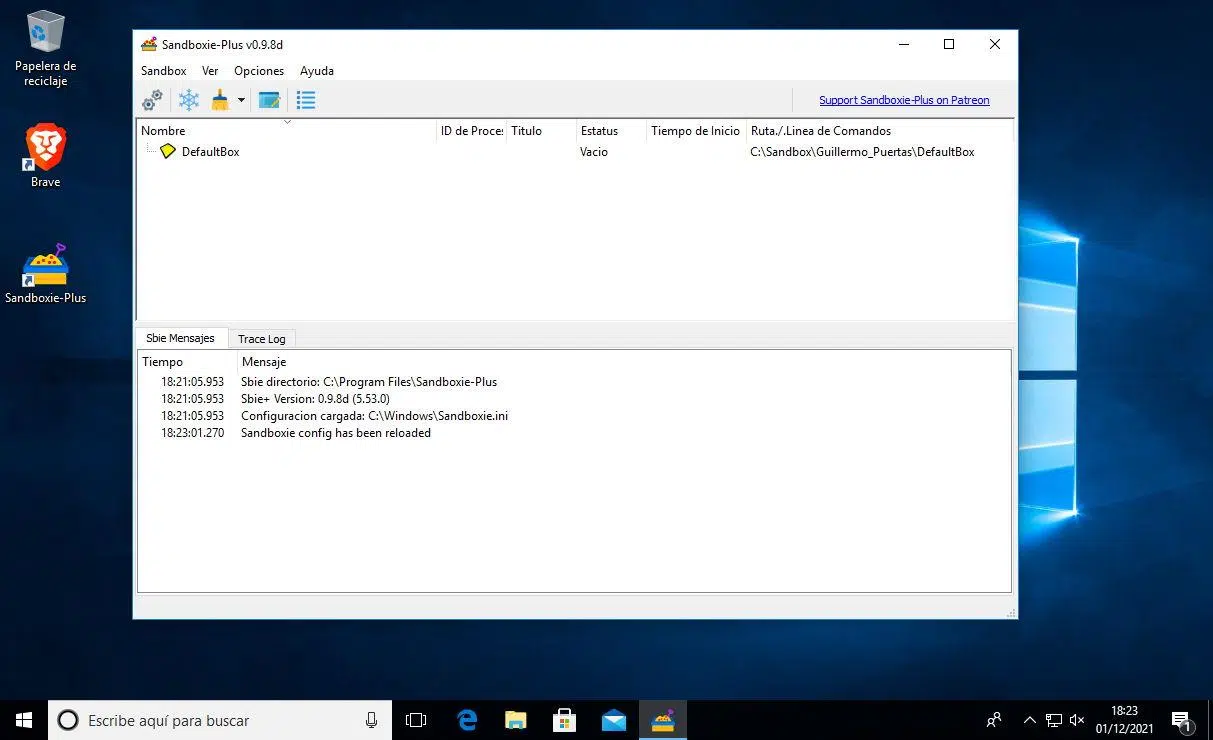
By default, Sandboxie Plus comes with a pre-configured sandbox called “DefaultBox ,” which uses a default restrictions template intended for general use. Right-clicking on “DefaultBox” and selecting “Sandbox Options” allows you to customize its behavior.
You also have a very interesting option to get off to a good start: viewing the official help from an isolated browser. From the Sandboxie Control help menu, you can launch the "Getting Started Tutorial (Web)" within a sandboxed browser , so that even while you read the documentation, you're already doing so in a protected environment.
First steps: Install Sandboxie Plus and create your first sandbox
The Sandboxie Plus installation process is fairly standard. First, you need to download the installer from the project's official website . The page has a simple design, without too many frills, but it gets straight to the point: the Downloads section, where you download the .exe file corresponding to your version of Windows, whether it's 32-bit or 64-bit.
Once the installer is downloaded, simply run it and follow the typical Windows wizard: "Next, Next, OK." It's very straightforward: accept the license, choose the installation path, and let the wizard finish . If you want to use portable mode, instead of a full installation, you can specify that it extract the files to a folder.
When you launch Sandboxie Plus for the first time, it will display its main window with the pre-set "DefaultBox". You'll notice that the interface isn't entirely in Spanish, but the sandbox tree and top menu are easy to understand . From that point on, you can start running applications in isolation.
For many users, the default sandbox is sufficient, but the most interesting feature of the program is creating your own custom isolation environments . This way you can have, for example, a more relaxed sandbox for testing relatively reliable software and another "shielded" one for clearly suspicious things.
To create a new sandbox, go to the "Sandbox" menu and choose "Create New Sandbox ." The program will ask you for a name for the new sandbox (for example, "Browser Sandbox" or "MC Testing") and will offer several initial configurations. One of the common options is to choose a "Hardened" profile for increased protection from the start.
After clicking OK, your new box will be configured with fairly strict security , ready to run applications in a more controlled manner. You can always adjust its options later, but as a starting point, it's a convenient way to begin "in safe mode."
How to run programs inside a sandbox
The most direct way to use Sandboxie Plus is by running an application inside a specific sandbox . This ensures that all temporary files, registry changes, and other modifications it generates remain within that sandbox.
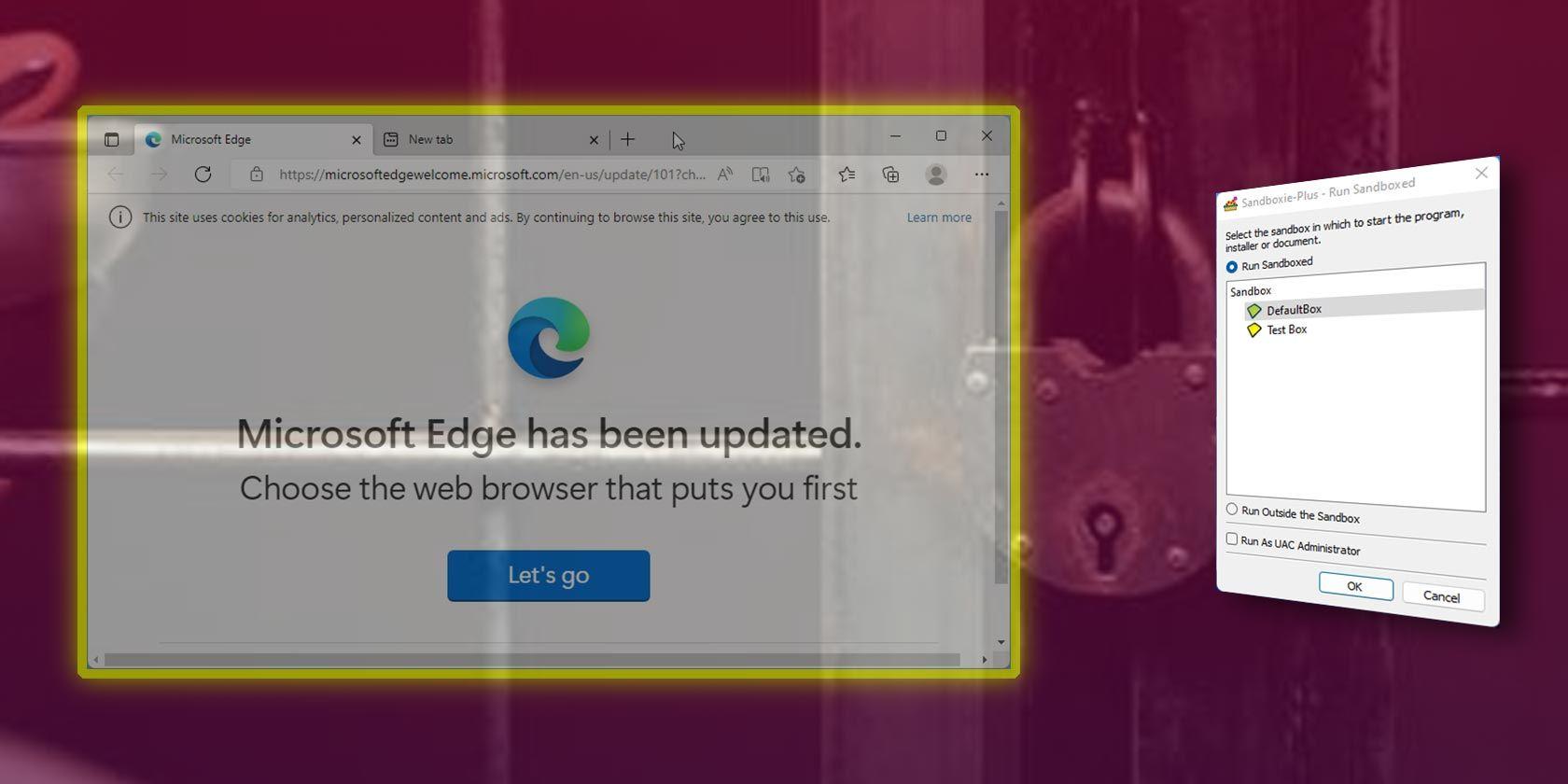
A classic method involves right-clicking on the name of the sandbox you want to use (for example, the one you just created) and hovering the cursor over the "Run" option. From there, you can select "Run Program ," which will open a window to specify which application you want to launch.
In that window, you can directly type the full path to the executable, but most users find it easier to click the "Browse..." button and navigate through the file system until they find the .exe file they want to run. Once selected, click "OK," and the program will launch within the chosen sandbox, without affecting the live system.
Another option is to use the "Run from Start Menu" function. Selecting this from the "Run" menu of the corresponding sandbox displays a Windows Start Menu accessible from Sandboxie Plus . There you can locate the application installed on your system and launch it directly within the sandbox.
For example, you can run browsers like Brave or even Internet Explorer from this menu. In the case of the veteran IE, which has always had a terrible reputation for security (it was even nicknamed "Internet Exploiter"), running it in a sandbox is almost mandatory if you still need to use it for administrative tasks or older websites.
If there's a program you always use within the same sandbox, you'll want to create a specific shortcut for it. From the context menu of the running application (within Sandboxie Control), you can select "Create Shortcut ." The wizard will let you choose where to place the shortcut and what to name it, so that when you open it, the application will launch automatically in the sandbox without you having to manually open Sandboxie Plus first.
Install full applications within Sandboxie Plus
In addition to running already installed programs, Sandboxie Plus lets you install applications directly within a sandbox . This is very useful for testing new software without leaving a trace on your system and seeing how it behaves before deciding whether to install it for real.
The procedure is very similar to running any program, but instead of choosing the application's main executable, you select the .exe installer . For example, you could download the Google Chrome installer and, from your sandbox's "Run" menu, launch that installer within the box.
During installation, you may encounter access denial messages or permission warnings . This is because the sandbox is restricting certain changes the installer is attempting to make to the system. In many cases, simply closing these informational windows and allowing the process to continue is sufficient.
Google Chrome, for example, offers an installation mode without administrator privileges . If you choose this option, the browser will be installed entirely within the sandbox, without needing to touch the registry or system folders outside of this isolated environment. Once the process is complete, Chrome will open normally, but everything it does will be confined to that sandbox.
Keep in mind that applications installed this way will not appear in the operating system's Start Menu like a normal installation. To run them, you'll need to use the sandbox menu where you installed them (for example, "Run > Run Program" or "Run > Run from Start Menu" within Sandboxie Plus), or create specific shortcuts from within the Sandboxie interface itself.
Configuration options and compatibility templates
One of Sandboxie Plus's greatest strengths is the number of configuration options available for each sandbox . From the properties of a specific sandbox, you can fine-tune with considerable precision which system resources each program running within it can access and which are prohibited from doing so.
Among other things, you can define which disk folders are accessible, whether or not network access is allowed, which external processes can be started, how files that the application attempts to write outside the sandbox are handled, and so on. Obviously, the default configuration already offers a reasonable level of protection , especially if you've used a hardened profile, but having this extra flexibility is invaluable for advanced users.
One particularly useful section is the "application templates ." These templates automatically adjust certain rules to improve the compatibility of specific programs with the sandbox environment. For example, some browsers, office suites, or messaging clients have peculiarities that, with the standard configuration, could cause problems. By activating the corresponding template, Sandboxie applies the necessary changes to make everything run more smoothly.
After restarting your system for the first time after installing Sandboxie Plus, you may see a window where the program asks if you want to grant it access to certain Windows components or applications . The purpose of these requests is precisely to improve compatibility and allow it to work with certain parts of the system that would otherwise be too restricted.
While it might seem overwhelming at first, it's worth taking some time to explore the different options sections of each sandbox. This way, you can define very restrictive sandboxes for dangerous testing and more permissive ones for everyday use, always maintaining a clear boundary between trusted software and software that isn't.
Why use Sandboxie Plus on a modern Windows system?
Today, Windows increasingly incorporates layers of built-in security: application control, memory protection, process isolation, Windows Defender, and even the Windows Sandbox feature available in the Pro and Enterprise editions . This might lead one to think that solutions like Sandboxie Plus are no longer necessary.
However, Sandboxie Plus still makes a lot of sense, especially for those using Windows editions that don't include Windows Sandbox or who need more granular application-level control. Having been around for years and being highly polished, it has earned a niche as a lightweight, flexible, and highly configurable tool.
Furthermore, not all the danger lies in the "weird software" you download. There are veteran applications, still essential, like Internet Explorer, that continue to cause headaches . Although Microsoft has practically declared it dead, some companies and public administrations still require its use for certain procedures. Running it within a sandbox is a good way to minimize risks.
For any user who deals daily with suspicious attachments, obscure programs, cracks, or experimental tools, having a sandboxed environment ready for testing is practically essential . Sandboxie Plus offers a very interesting balance between ease of use, power, and resource consumption, without the complexity of a full virtual machine.
Overall, Sandboxie Plus remains one of the most practical sandboxing solutions for home and advanced Windows users . Its open-source nature, the availability of two editions (Classic and Plus), and the active maintenance by the community and its current developer strengthen its position against integrated or commercial alternatives, especially when seeking fine-grained control over what each program can and cannot do.
Everything we've seen makes it clear that Sandboxie Plus is a very mature tool for protecting your Windows system from unreliable applications without the hassle of cumbersome virtual machines or sacrificing the convenience of using your usual programs; creating sandboxes, customizing them to your liking, and running or installing whatever you need within them is as simple as following a few well-chosen steps, knowing that whatever happens inside that sandbox, your real system will remain safe.


Passionate writer about the world of bytes and technology in general. I love sharing my knowledge through writing, and that's what I'll do on this blog, show you all the most interesting things about gadgets, software, hardware, tech trends, and more. My goal is to help you navigate the digital world in a simple and entertaining way.