- Bing's basic operators allow you to combine, exclude, and group terms to fine-tune your results.
- Advanced operators (site:, filetype:, near:, hasfeed:, norelax…) give very fine control over where and how Bing searches.
- Bing AI and Copilot add a conversational layer that understands natural language and complex queries.
- Optimizing content for Bing requires working on relevance, authority, user signals, and specific technical SEO.
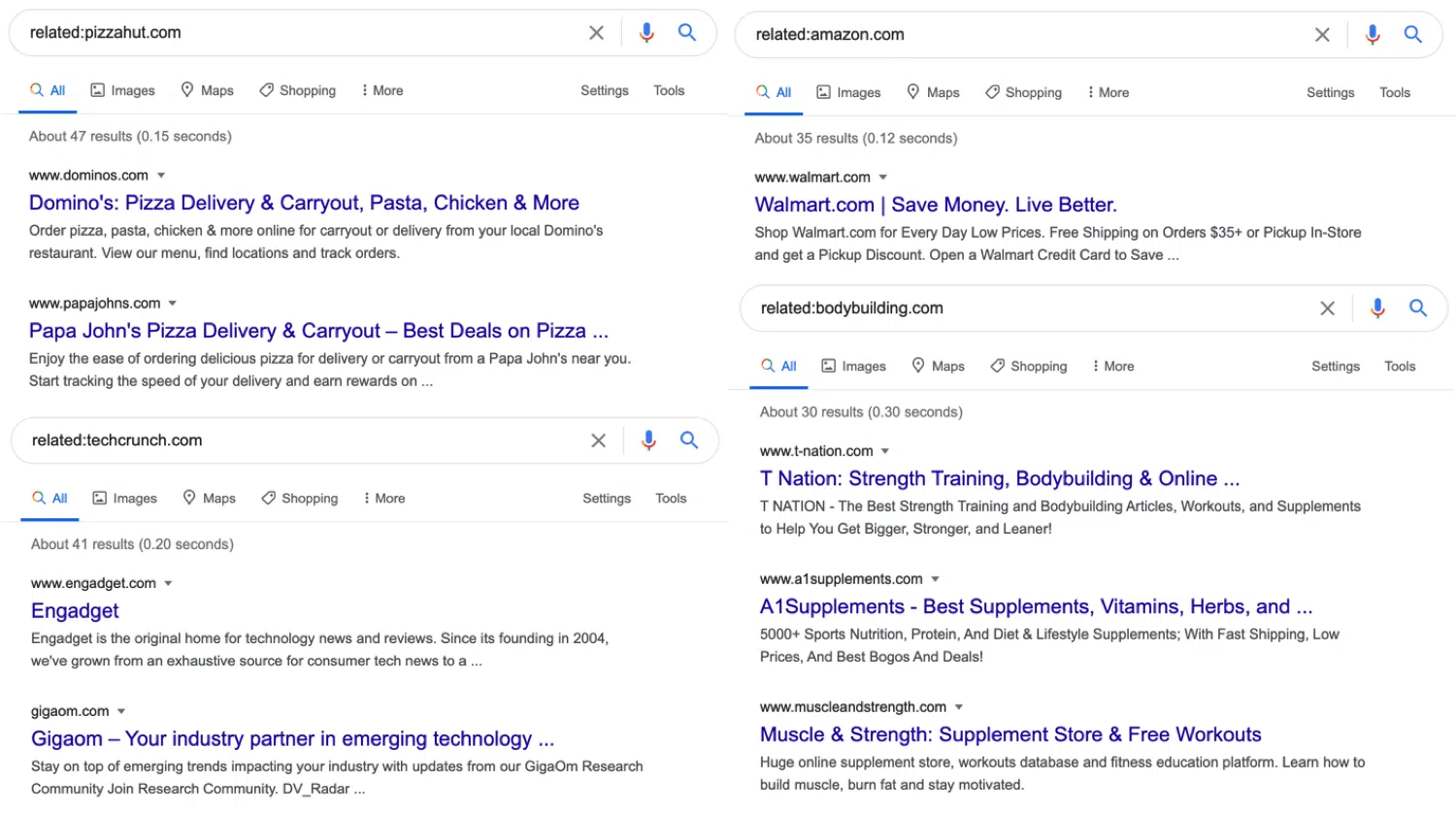
If you know how to use Bing's search operators effectively, you can find what you're looking for in a fraction of the time . It's not just about typing a few words and crossing your fingers; just like with Google's advanced search , it's about speaking to Bing in its own "language" using symbols and advanced commands that tell it exactly what you want to see and what you don't.
Furthermore, with the arrival of Bing AI and Copilot, these operators are combined with conversational search : you can launch very complex queries, filter by site, file type, word proximity, or language, and, based on that same search, request summaries, comparisons, or explanations in natural language. Let's look at it calmly, but without unnecessary detours.
What are Bing search operators and why should you care?
Search operators are special symbols and keywords that you add to your queries to help Bing refine its searches . Instead of just typing random words, you give it rules: include everything, exclude something, search for exact phrases, restrict to a specific site, and so on.
The beauty of these operators is that they reduce the noise : fewer irrelevant results and more pages that actually match what you need. If you're doing research (for example, with a basic OSINT tutorial ), working in marketing, SEO, studying, or simply don't want to waste time, mastering these commands is a huge advantage.
Bing combines classic operators (AND, OR, NOT, quotes, parentheses…) with more specific ones such as site: , filetype: , near: , hasfeed: or norelax: , in addition to a good handful of technical modifiers designed for more advanced analysis.
Many of these operators can be used in both classic search and Bing AI/Copilot . This means you can launch a highly refined search using operators and then continue in chat mode to ask for clarifications, summaries, or comparisons without having to redo the query from scratch.
Basic operators: symbols and logical connectives
We start with the symbols and connectors that are most used in everyday life , perfect for anyone who wants to stop doing generic searches and start refining them a bit.
Operator +
The + sign forces Bing to include all terms that have that symbol in front of them.This is useful when you want to make sure none of those words get "lost" in the search, even if Bing would normally tend to ignore them.
Example: +guide +"bing" +operators
Here you're telling Bing that all those terms must appear on the page, no excuses.
Double quotation marks «» for exact phrases
When you enclose your search in quotation marks, you're asking Bing to find it. that exact sequence of words, in that order.
Example: "Bing search operators"
You will only see results where that complete phrase appears, exactly as written, without changing the order or inserting terms in between.
Parentheses ( ) for grouping
Parentheses are used to group terms and operatorsjust like in a mathematical expression. They are often used in conjunction with AND, OR, and NOT to create complex searches, or to search for/exclude groups of words.
Example: (bing OR "search engine") AND operators
Here you require that the word “operators” appear and, in addition, either “bing” or the phrase “search engine”.
AND connectors
Bing understands several connectors to indicate that you want all the words or phrases at once. You can use:
- Y
- & or also &&
- AND
Example: bing AND advanced AND operators
In this case, the results must contain all three terms.
O and | connectors
If you want at least one of several possible terms to appear, you use:
- O
- OR
- | or also ||
Example: Bing or Google or "search engine"
You will see pages that include any of those terms, or several at once.
NO operator and hyphen – to exclude terms
When you need to remove results that mention something you're not interested in, you use:
- DO NOT o NOT
- before the word or phrase to be excluded
Example: bing operators - advertising
Or: bing operators NOT advertising
In both cases you are asking for information about Bing operators, but without pages focused on “advertising”.
These basic operators can be combined using parentheses to control priority, allowing you to design fairly elaborate searches without yet moving on to the list of advanced commands.
Bing Advanced Operators: Full List and Key Uses
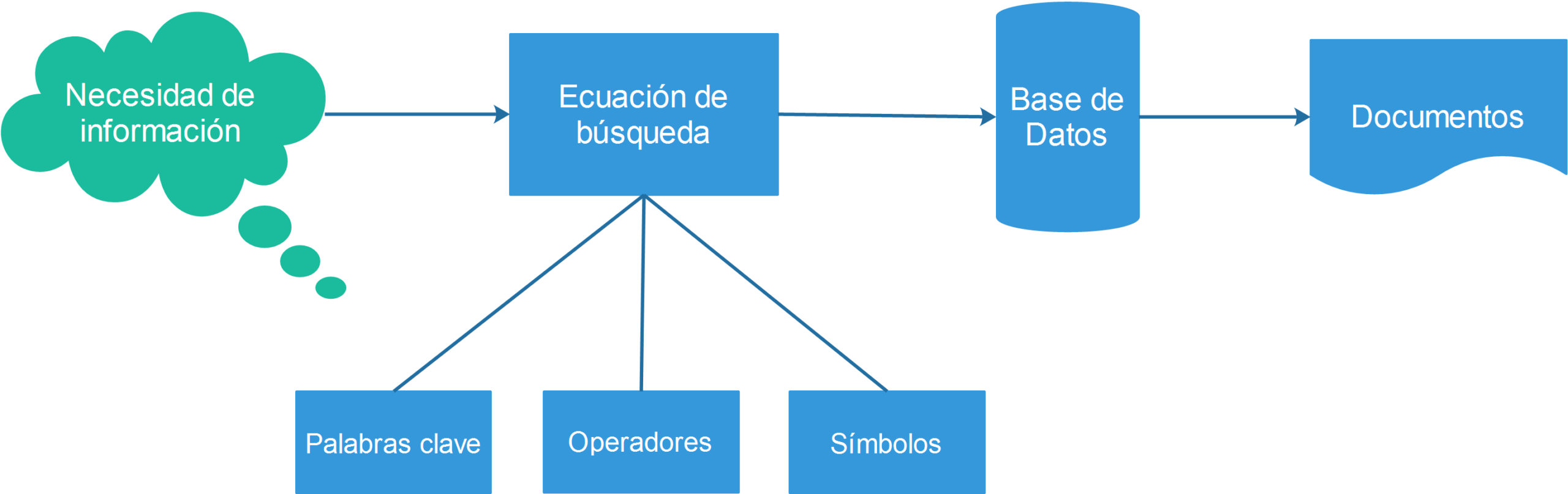
Bing also offers a suite of advanced operators that go far beyond logical connectives . Some are well-known (like site: or filetype:) , while others are more technical but incredibly useful when you want to thoroughly examine a site or find very specific information.
Among the most interesting for the average user and for SEO/marketing profiles are:
- website: limits the results to a specific domain or subdomain.
- domain: It restricts to a main domain and, in many cases, to everything that hangs from it.
- filetype: search only for a specific file type (PDF, DOCX, PPT, etc.).
- hasfeed: Find pages on a site that have an associated feed.
- feeds: directly explore syndicated feeds (RSS/Atom).
- near: proximity operator between words.
- norelax: It tightens the match so that all terms in the query appear in the results.
- imagesize: Filter images by size.
- language: language restrictions.
- loc: o location: They refine by geographic location.
- intitle:, inbody:, inanchor: o instreamset: They inspect specific areas of the page.
- ip: y url: They help to investigate specific resources.
Bing's official list includes even more technical operators , such as altloc: , contains: , keyword: , literal: , meta: , literalmeta: , msite: , noalter: , among others, in addition to the symbols themselves ( ) , : , or the logical connectors discussed earlier.
Below are the ones that offer the most practical applications, with clear examples so you can start using them right away.
Practical advanced operators: usage examples
site operator: to search within a specific site
This is one of the most commonly used operators. It tells Bing to only search within a specific domain or subdomain.
Examples:
site:microsoft.com bing operators
You will only see results from microsoft.com that deal with Bing and its operators.
site:es.wikipedia.org "search engine"
Here you filter exclusively for content from the Spanish Wikipedia that mentions that exact phrase.
Domain operator:
Very similar to website:, although focused on main domainIn certain queries, it's useful for encompassing everything that hangs from a root domain.
Example: domain:bbc.com climate change
It returns pages related to climate change across the entire BBC domain.
filetype operator: for specific file types
If you are looking for downloadable documents, reports or presentations, filetype: is your best friend.
Examples:
filetype:pdf “market report” bing
You will only see PDFs that contain that phrase related to Bing.
site:gov.es filetype:pdf «climate change»
In this case, You restrict PDFs within Spanish government domains that deal with climate change.
hasfeed and feed operators
These two are designed to work with RSS or Atom feeds.
hasfeed: used to find pages on a site that have an associated feed.
Example: hasfeed:blog site:microsoft.com
Are you looking for blog sections within Microsoft that offer a feed?
feed: focuses on the content of the feeds themselves, useful for locating syndicated sources on a topic.
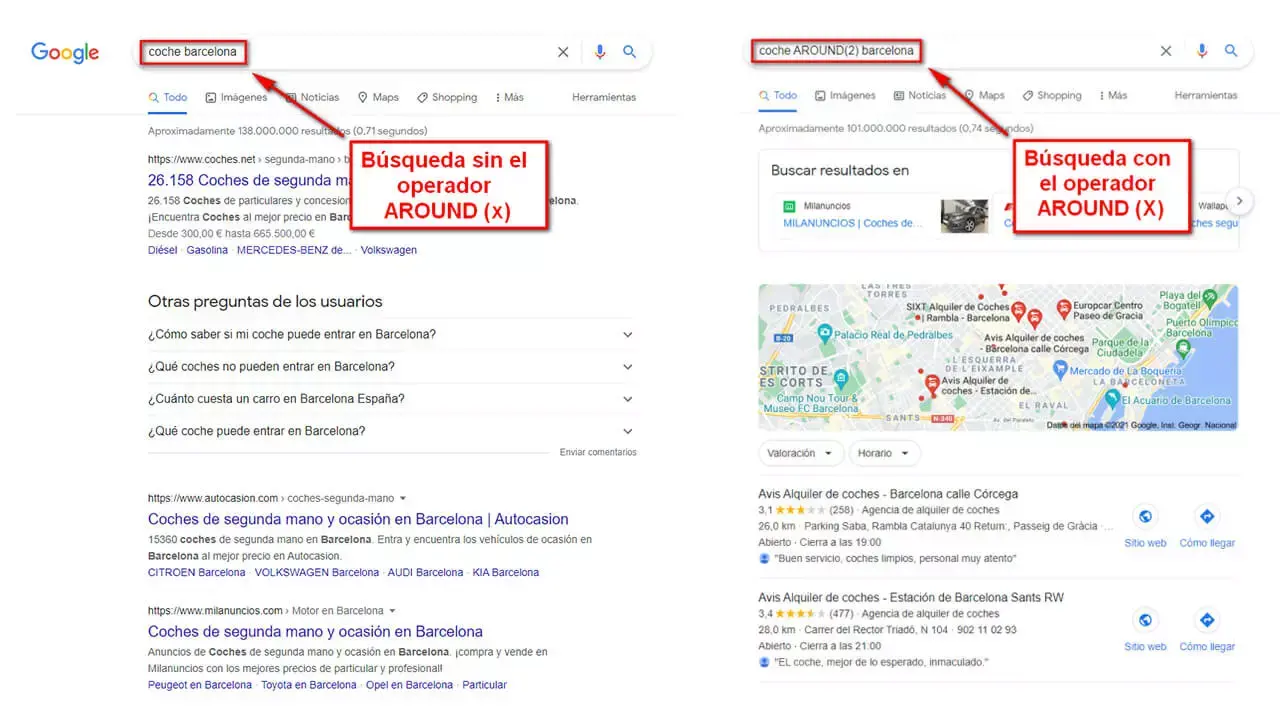
near operator: for word proximity
near: It allows Bing to search for two terms that appear close to each other, within a maximum distance of certain words.
Syntax: word1 near:n word2
Where n is the maximum number of words that can be between them.
Example: "ipad" near:5 "apple"
Bing will show you results where "ipad" and "apple" are separated by at most five words.
Norelax operator:
This operator requires that all the terms from your search appear in the resultsbut without needing to be consecutive or in the same order (it's not the same as using quotation marks).
Example: bing advanced operators norelax:
Here you ask for results where those three words appear, even if they don't form a literal phrase, but without Bing "relaxing" and deciding to ignore any of the terms.
imagesize operator: to filter images
In the search for images, imagesize: It helps you find only images of a certain size or range (large, medium, etc., depending on the syntax that Bing supports at any given time).
intitle:, inbody:, inanchor: and instreamset operators:
These commands allow further define where your terms need to appear within a document:
- intitle: search only in the page title.
- inbody: It focuses on the main content.
- inanchor: Look at the anchor text of the links.
- instreamset: It is used for specific content sets, such as news or documents.
Example: intitle:»bing operators»
You require that phrase to be in the page title, which usually indicates content that is very focused on the topic.
language:, loc: and location: operators
When you care about the language and geographic locationThese operators save you a lot of time.
Examples:
language:es «search operators»
Results only in Spanish.
loc:es Italian restaurants
Or: location:spain italian restaurants
You focus on Spain, which is ideal for local searches.
Other relevant operators
Bing also documents operators such as keyword:, finish line:, literal:, literalmeta:, msite:, contains:, altloc:, noalter:, ip:, url: and a few more, designed primarily for analyze sites, metadata and specific structuresTheir use is usually more technical, but it's good to know they're there when you need to do SEO audits or cleanup searches.
Bing Operators in combination with Bing AI and Copilot
The big news in recent years is that Bing is no longer just a classic search engine : it integrates Bing AI (Copilot), a conversational assistant based on advanced language models (customized GPT-4) capable of understanding complex questions and providing very elaborate answers; if you are interested in how the prompts vary between Copilot and other models, check the differences between prompts for Copilot.
You can access Bing AI from the "Chat" button on the homepage, the Bing icon next to the search box, or the "Ask Bing Chat" option that appears under many queries. From there, the experience changes considerably: you not only see a list of links, but also an AI-generated response with citations to the original sources.
Where do operators fit in here? You can:
- Launch a well-tuned “classic” search with operators (for example, using website:, filetype:, near:…) and then click on the chat tab to have Copilot work with that context.
- Write directly in the chat, mixing natural language with basic operators such as quotation marks or hyphen exclusions.
Examples of what you can do with Bing AI for your refined searches:
- Order summaries of long articles filtered with website: o filetype:.
- Request comparisons between data obtained from different sources.
- Generate content ideas based on the information located.
- Use the model to rewrite, clarify or translate the information you find.
All of this combines very well with Bing's date, location, and content type filters , which are still present in the traditional interface and allow you to keep only the most recent, closest, or most relevant results depending on the type of search (web, images, news, videos, shopping, etc.).
How to better structure your Bing queries
To get the most out of Bing's operators, simply knowing about them isn't enough: you have to use them wisely . Here are some practical tips:
1. Start clear and concise.
Before adding operators everywhere, State your question clearly.Instead of “books”, try something like: "Top-rated science fiction books of 2023"The more specific the intent, the better Bing (and Bing AI) will respond.
2. Add operators step by step
If the search is too broad, adjust it as needed:
- Use quotation marks to fix exact phrases.
- Add website: o domain: if you want a specific source.
- Exclude annoying terms with -word o NOT.
- Group variants with (word1 OR word2).
3. Take advantage of near: and norelax: in complex queries
When you need two concepts to be closely related in the text, near: It prevents Bing from retrieving documents where words are widely spaced. And if you want to all your search terms will be reflected, norelax: tightens the criteria.
4. Think about the search intent
Bing (and its AI layer) are increasingly being prioritized the user's intention over the mere matching of keywordsIf you're looking for specific data, write your query as a direct question; if you want documentation, specify the file type; if you're looking for current information, add date filters.
5. Refine and ask follow-up questions in the chat
After an initial search, Use Bing AI to ask follow-up questions: asks you to compare sources, clarify discrepancies, extract key tables, or explain complex concepts with simple examples.
SEO and content specifically designed for Bing
If you create content and want it to stand out on Bing when someone uses these operators, you need to understand how it decides which pages to show first . While the exact algorithm is secret, Microsoft does provide some clear clues.
Key ranking factors in Bing :
- Relevance: Make sure your content truly answers the query and matches the search intent. Bing looks for matched terms, synonyms, and semantic equivalents.
- Quality and credibility: original content, well structured, with cited sources and a clear separation between facts and opinions.
- User Commitment: What people do after clicking: whether they quickly return to the search engine or stay to read, interact, browse through more pages, etc.
- News: In time-sensitive matters, it rewards up-to-date content.
- Location and language: Adapts results to the country, language, and location of other users who visit your website.
- Technical performance: loading speed, stability, and reasonable user experience.
There are some important differences compared to Google . For example, Bing maintains a more desktop-first approach, while Google prioritizes the mobile version. Furthermore, Bing has historically been known to pay more attention to social signals and tends to value exact keyword matches more highly , although it also understands context.
Best practices for better ranking on Bing :
- Use relevant keywords (and its variations) in titles, headings, meta descriptions and body, always naturally.
- Create quality content, well organized, with clear sections and real value for the reader.
- Work the social signalsencouraging sharing and commenting, especially in niches where Bing is strong (desktop, certain US segments, etc.).
- Achieve backlinks from trusted sitesthrough guest posting, broken link recovery and highly linkable content (guides, studies, downloadable resources…).
- Claim your business in Bing Places for Business to gain local visibility.
- Take care of Technical SEO: speed, clean structure, clear navigation, schema markup where appropriate, and good desktop and mobile support.
- Use Bing Webmaster Tools to monitor performance, keywords, crawl errors, and indexing issues.
Verification of sources and limitations of Bing AI
Bing's AI layer is incredibly powerful, but not infallible . It can make mistakes, misinterpret sources, or oversimplify context, especially on sensitive topics (health, finance, law, etc.).
To minimize risks, it is advisable to practice what is called "lateral reading" : instead of blindly trusting a single answer, open several independent sources (official bodies, universities, reference media) and check if they agree on the key data.
There are also external verification tools , such as AI editors specializing in fact-checking, capable of flagging dubious claims and searching for supporting or refuting evidence in reliable repositories. While they aren't directly integrated into Bing, they are a valuable complement when working with sensitive content.
Among the problems that have been pointed out regarding Bing AI are :
- Answers that appear correct, but with errors in detail or loss of context.
- Discrepancies between what the linked sources and the summary generated by AI.
- Potential risks of misuse (for example, unintentional assistance in social engineering attacks if the user forces the conversation).
- Inappropriate behaviors in early versions of the chatbot have led to the strengthening of filters and policies.
For the average user, the sensible strategy is to combine the intelligent use of operators and Bing AI with a healthy dose of skepticism : when the answer truly matters, it gets checked. And if you detect errors or inappropriate answers, using the feedback mechanisms helps improve the system over time.
Mastering Bing's search operators and understanding how they integrate with Bing AI and Copilot gives you a significant advantage when searching for information, conducting research, or creating content . You can refine your searches by specifying the format, keyword proximity, language, and location, and then leverage AI to summarize, compare, organize, and save your findings. Combine this with Bing-focused SEO best practices and careful source verification, and your searches will be faster, your results more reliable, and your content will have a much greater chance of standing out when other users make similarly precise queries.


Passionate writer about the world of bytes and technology in general. I love sharing my knowledge through writing, and that's what I'll do on this blog, show you all the most interesting things about gadgets, software, hardware, tech trends, and more. My goal is to help you navigate the digital world in a simple and entertaining way.