- Understanding the types of relationships between tables in Access and its importance to avoid data duplication.
- Create and manage relationships between tables using the Relationships window or the Field List pane.
- Apply referential integrity and cascading operations to protect data consistency.
Are you taking your first steps with Microsoft Access And does this thing about relating tables sound like Chinese to you? Don't worry, you're not the only one. When we work with databases relational, there comes a time when Connecting information from different tables becomes essential. Access makes this process easier than you think., but it's essential to understand why and how to do it if you want to keep your database well organized and error-free.
In this article I will explain to you in a detailed and practical way how relate tables in Access, what types of relationships exist, what referential integrity is for, and how you can avoid the classic headaches with the famous "orphan records." Perfect whether you're designing a database from scratch or want to improve the management of your current data.. Let's go there!
What are table relationships in Access?
In the world of relational databases, Relationships between tables are connections that allow you to associate information from one table with that of another.Imagine you have a table called 'Books' and another called 'Publishers'. If you stored all the publisher information in 'Books' along with each title, you'd end up repeating the publisher's phone number, address, and name for every book they publish. This would multiply the data unnecessarily. and would complicate maintenance.
To avoid such chaos, The smart thing to do is to separate the information into two tables.: one for books and another with the unique data for each publisher. How are they linked? Well, 'Books' has a field (let's say 'editorial_id') that points to the corresponding row in 'Publishers'. This way, there are no duplicates and you can manage everything more efficiently..
Furthermore, Relationships allow you to consult and cross-reference information from multiple tables with ease, generate much more complete reports and, above all, maintain data integrity.
Types of table relationships in Access
Not all relationships are the same. Access distinguishes three main types of relationships between tables, and each one responds to a specific need in data management:
One-to-many relationship
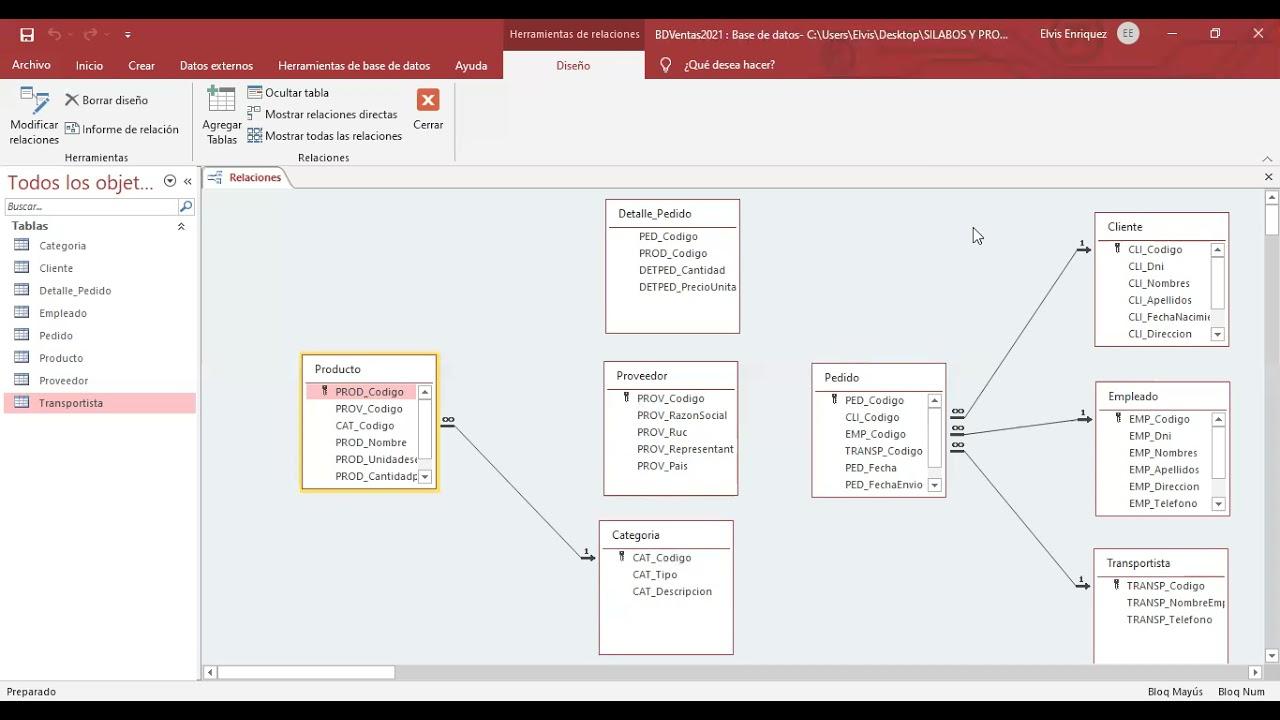
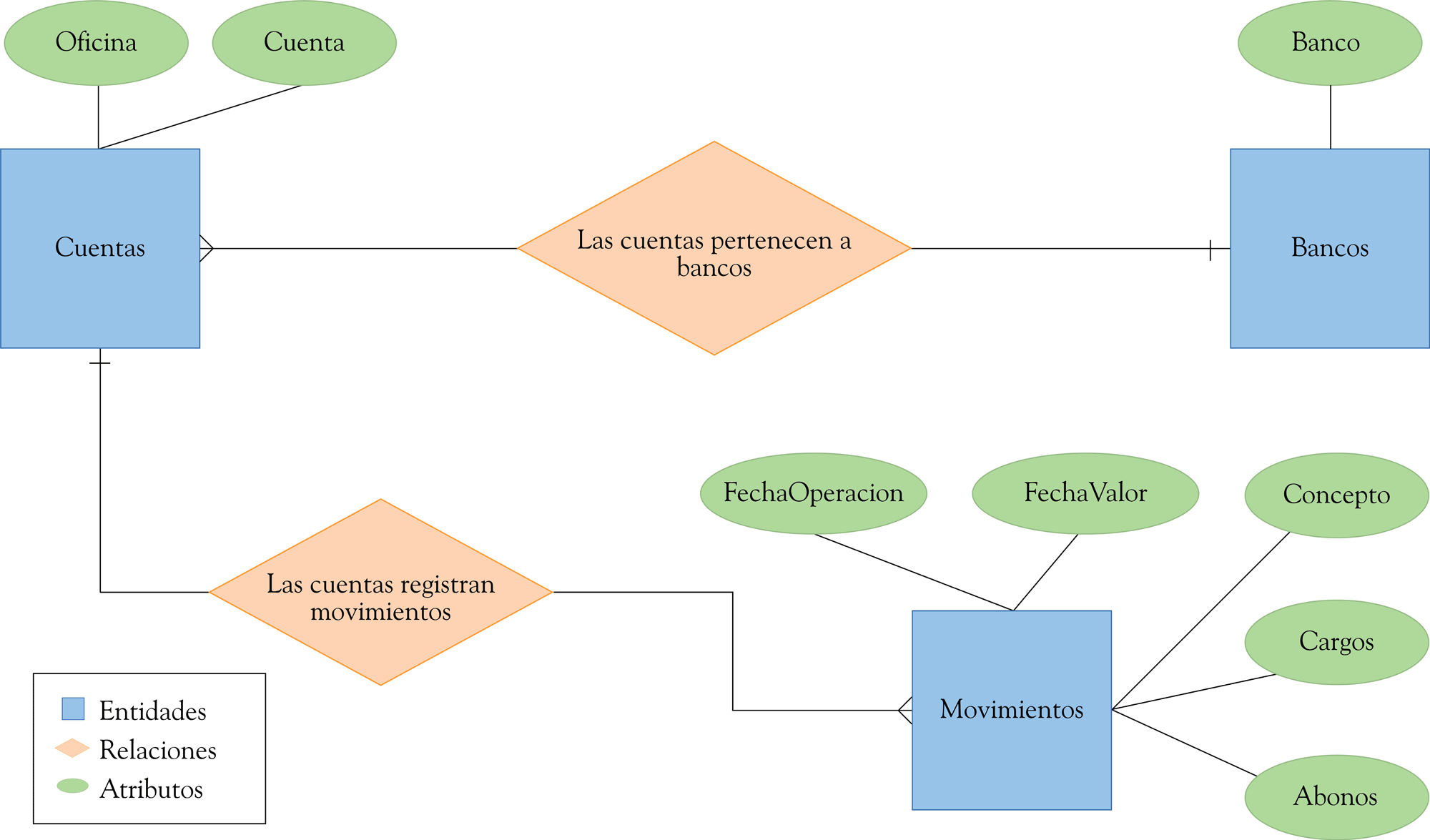
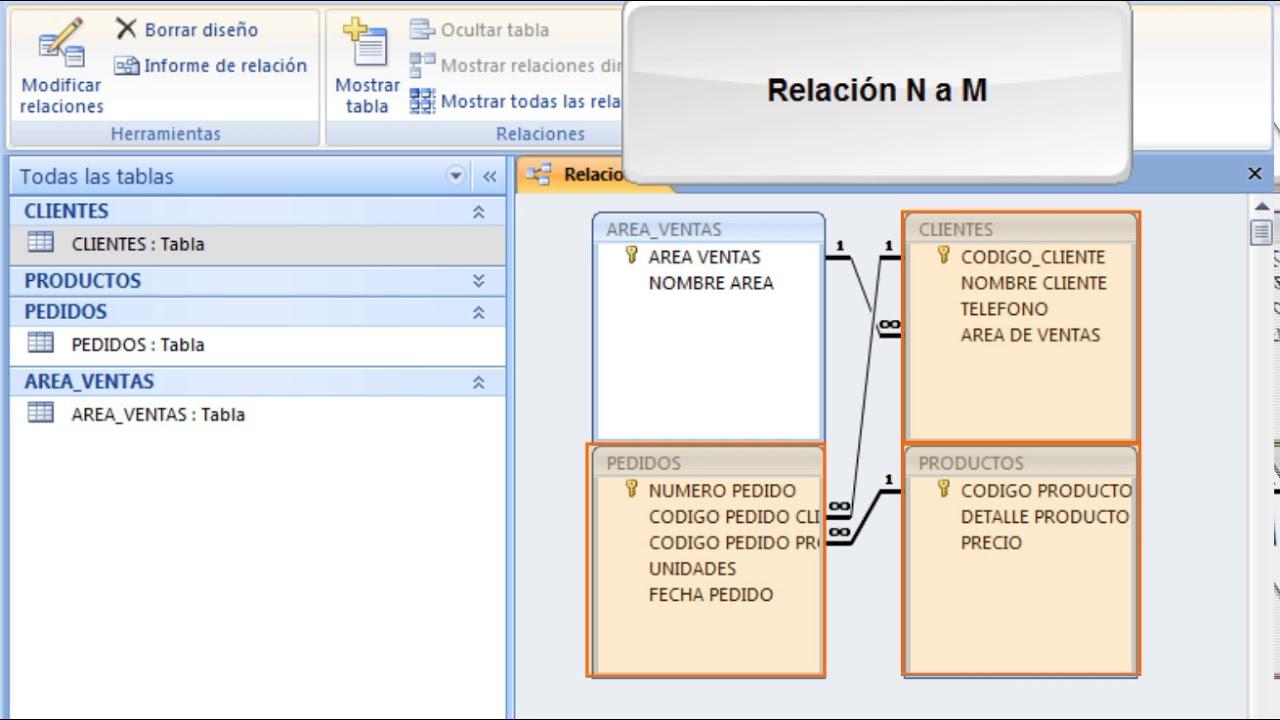
The most common in any database. A row in table A can be associated with many rows in table B, but each row in table B can only be related to one row in table A. For example, a publisher has many books, but each book only belongs to one publisher.
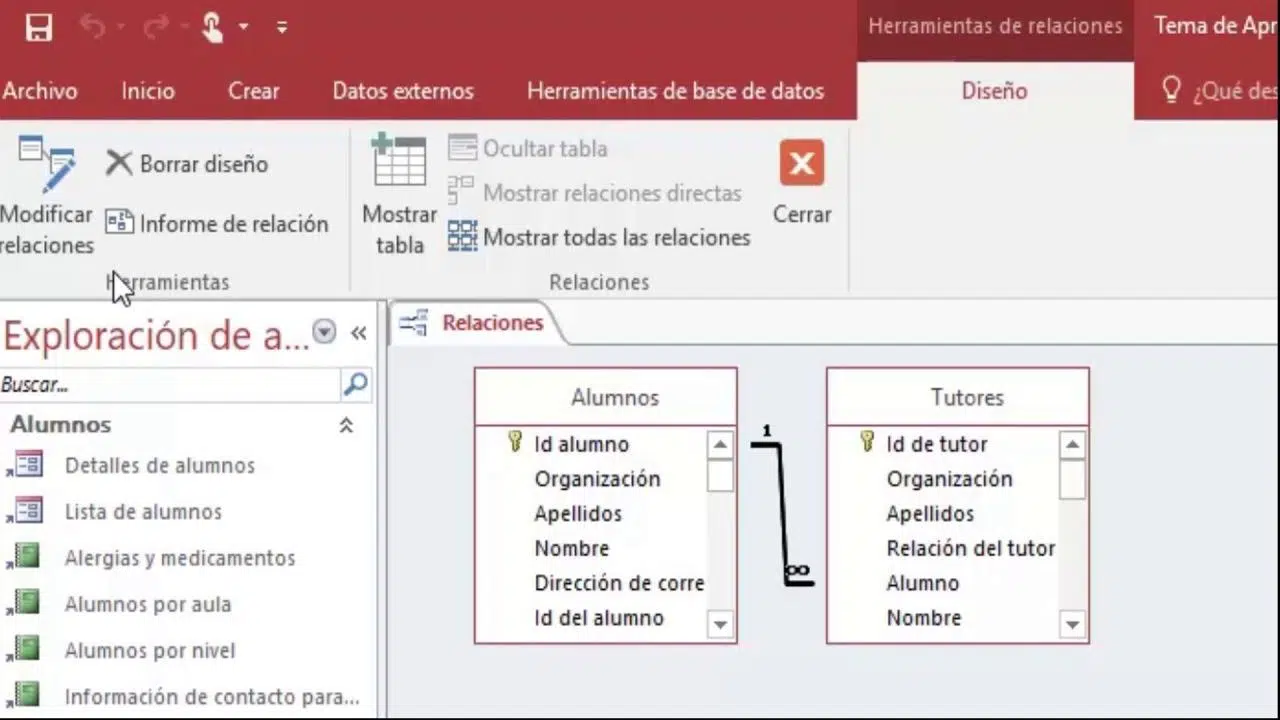
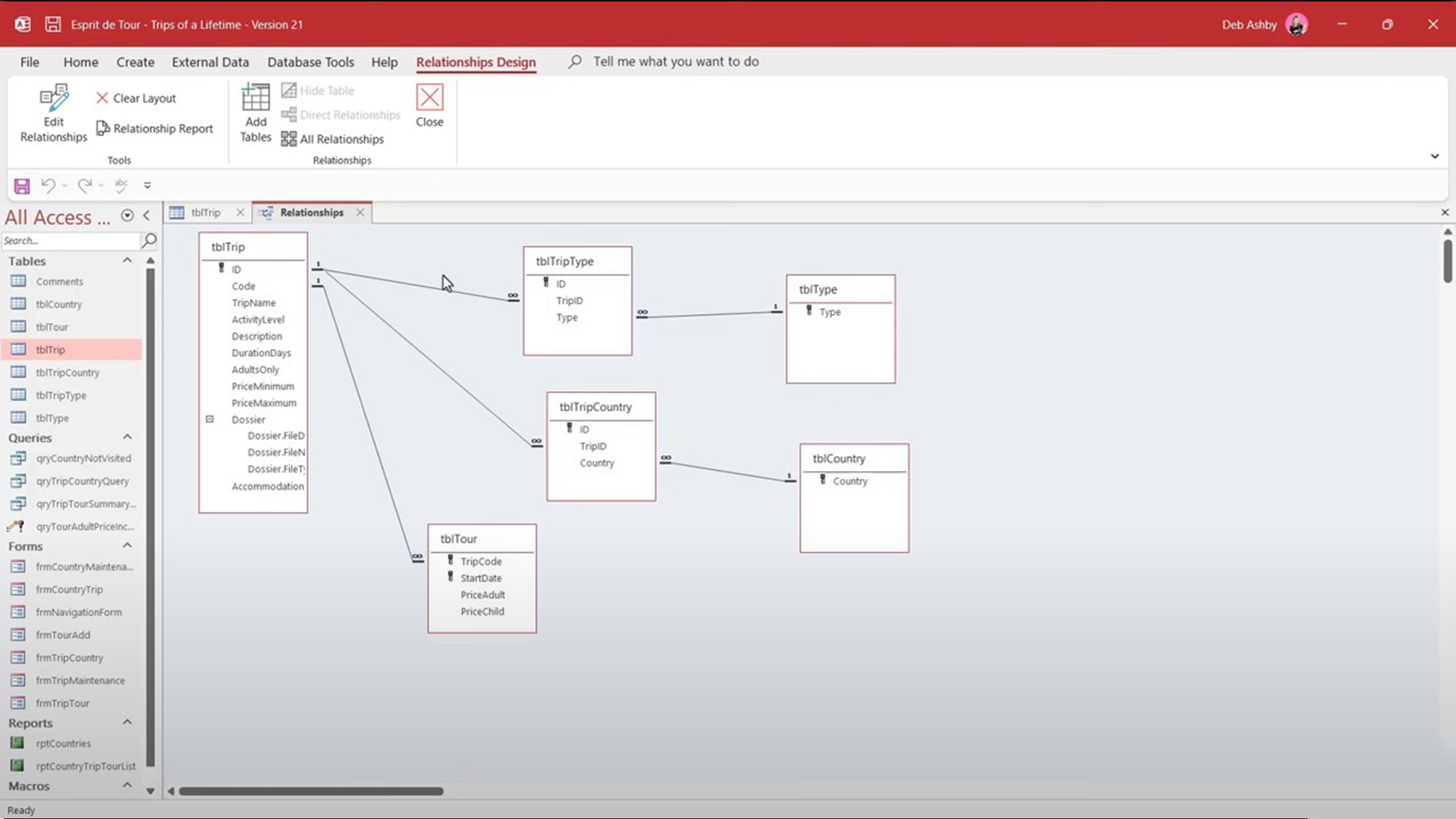
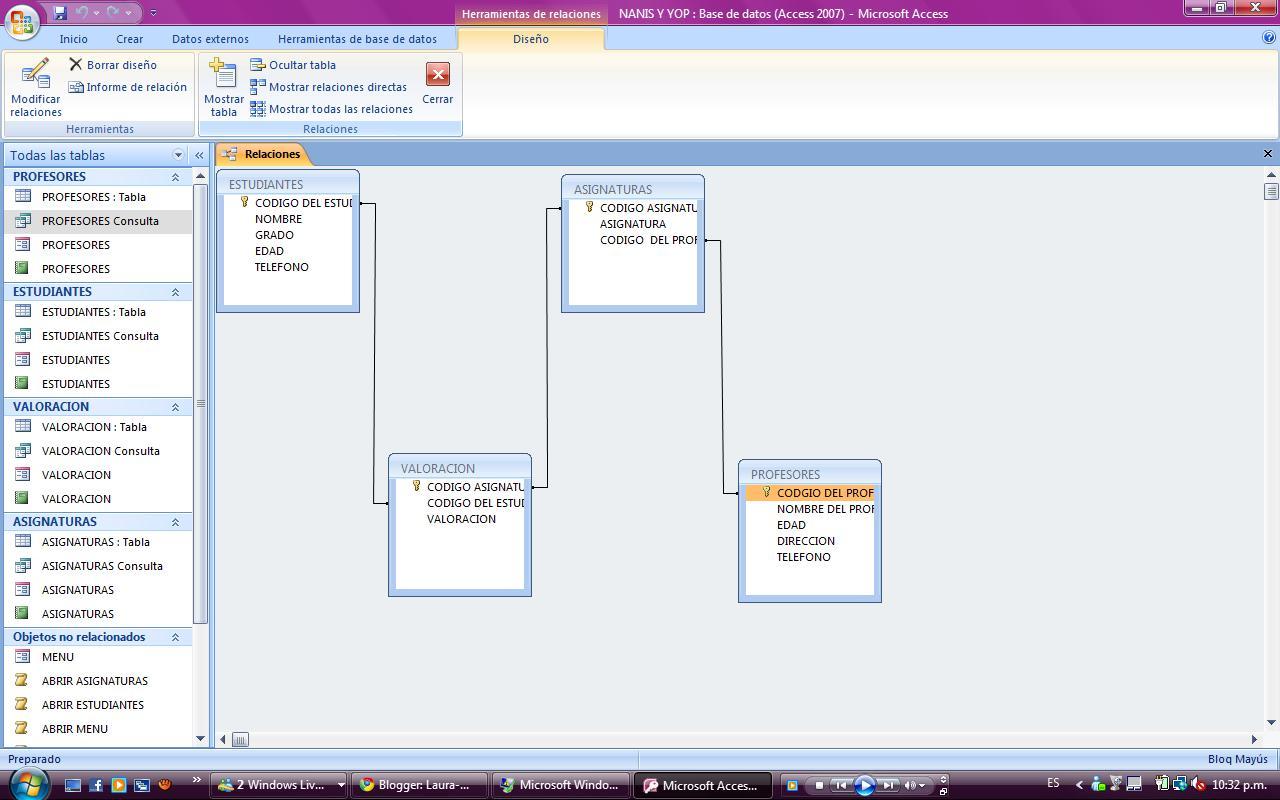
This relationship is represented in Access by a line with the number 1 at one end (primary key) and the infinity symbol (∞) at the other (foreign key). The primary key is usually a unique field (such as an ID), while the foreign key replicates its value to create the link.
Many-to-many relationship
In this situation, A row in table A may be related to many in table B and vice versaA typical example: authors and books. An author may have written several books, and a book may have several authors.
Access does not allow you to create this relationship directly. To do so, you need to create a third table called "join table" that contains the keys from both main tables. For example, the 'AuthorsBooks' table stores pairs of 'author_id' and 'book_id'. This way, each combination is unique, and you can store more related data, such as the date they collaborated.
One-to-one relationship
This is the least common type. Only allow one row from table A to be associated with at most one row from table B and vice versa. It's often used when you want to split a very large table or when you need to isolate sensitive data. For example, you might have a table of employees and another table with sensitive information (salary, bank details) that only has one row per employee.
In Access, both related columns must have uniqueness constraints to maintain this uniqueness. Visually, both parties to the relationship show the key symbol.
How to create relationships between tables in Access
Now that you are clear about the types of relationships, Let's see how they are created and managed in AccessThere are several ways, depending on the version and whether you're using the relationship view or the datasheet view:
Creating from the Relationships Window
- Close any tables you have open (you cannot modify relationships with active tables).
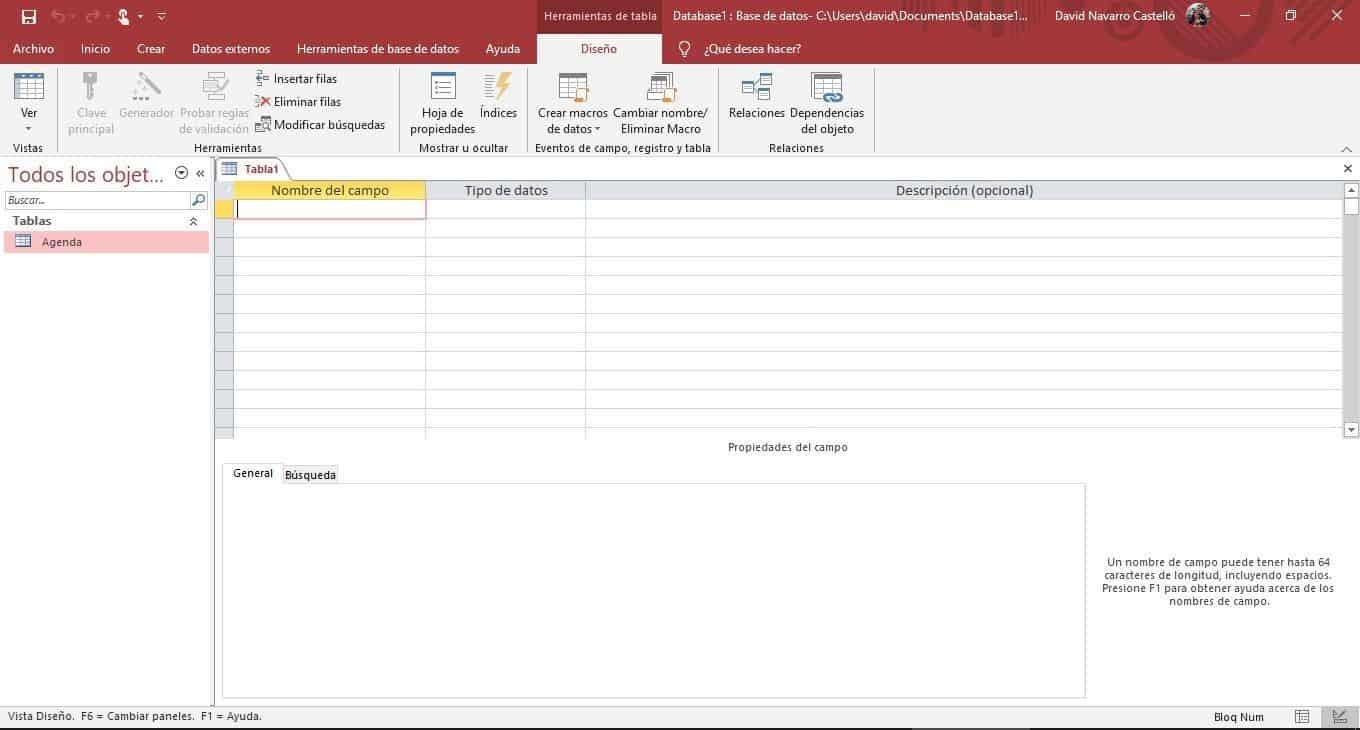
- In the Database Tools menu, look for the button Relationships and click.
- If this is the first time you open the relationships window, the box will appear Show tableIf not, you can call it manually from the corresponding tab.
- Select the tables you want to link and add them to the window. You can add several at once, and if necessary, you can even add the same table twice (useful for recursive relationships).
- Drag the primary key field from one table to the related field in the other table (they usually have the same name, for example 'customer_id' to 'customer_id'). You can select multiple fields by long-pressing Ctrl.
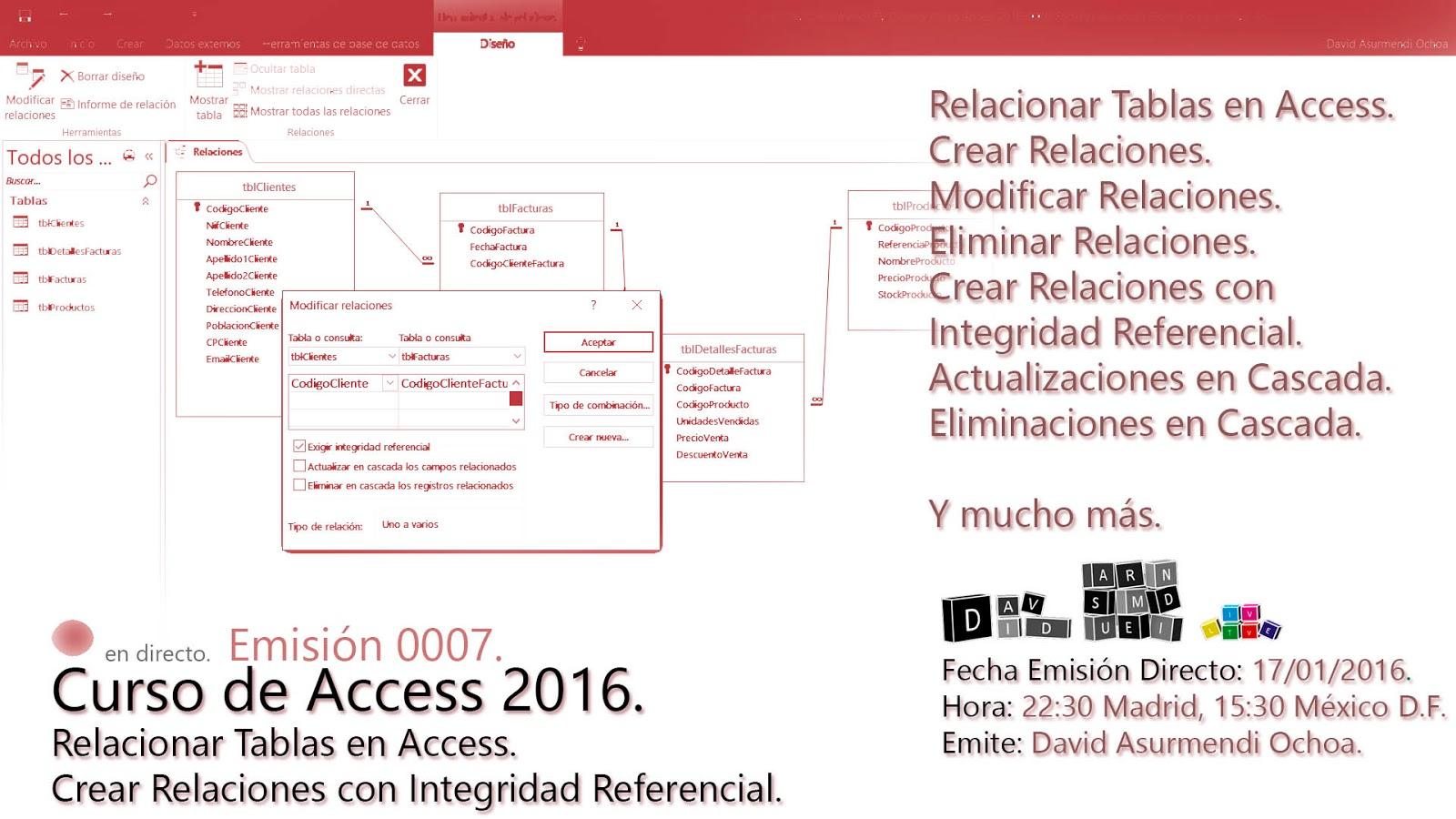
- The box will open Edit relationships where you can check the connected fields, change names if necessary, and enable referential integrity (important, as we'll see later).
- To finish, click Create.
Council: Related fields must have the same data type, unless one is AutoNumber and the other is Number with the same field size (for example, both are Long Integer). For more details, see How to create a database in Access that stores paths or attachments.
Creating from the Field List panel
Another option is to drag fields from the panel List of fields while in the Datasheet view of the destination table. If you drag a field from another table and launch the lookup wizard, Access automatically creates a one-to-many relationship between both tables (although referential integrity is not required by default; you will have to modify the relationship to add it).
What is referential integrity and why is it important?
La Referential integrity It is a set of rules that prevent related records in different tables from becoming out of date or inconsistentThat is, it prevents you from entering orphaned data, such as an order assigned to a nonexistent customer.
When you enable this option when defining the relationship, Access applies several restrictions:
- You cannot write a value to the foreign key that does not exist in the related primary key.
- You cannot delete records from the parent table if related items exist in the child table.
- It doesn't allow you to change the primary key value if there are existing connections to the other table (except if you use cascading updates, which we'll see below).
To enable referential integrity, open the Edit Relationships dialog box and select the corresponding check box. If you also select the options Cascade update related fields y Cascade delete related records, Access will propagate changes or deletions automatically, avoiding inconsistencies.
Cascading data updates and deletes
The cascading operations allow changes made to the main table are automatically reflected in the dependent tablesThis is key to maintaining consistency if you have many related records.
When activating Cascade Update, any modification to the primary key is replicated to the related fields of the secondary table.
With Cascade Delete, if you delete a parent record (for example, a customer), Access will also delete all linked records., such as their orders and associated details. This is a powerful but delicate option: before using it, make sure you really want to delete all of that related information. Access usually displays a warning, but it may not do so when performing a bulk delete query.

How to modify or delete relationships between tables
If you need change or delete a relationship already existing, it is very simple:
- In the relationships window, select the line that joins the tables (it will become thicker).
- Double-click the line to open the edit dialog box and change the fields, integrity options, or join type as needed.
- To delete the relationship, with the line selected, simply press the key DeleteIf Access asks if you want to permanently delete the relationship, confirm the action.
- Remember that deleting a table doesn't automatically delete the relationship. You must explicitly delete the relationship row first.
Different types of joins when querying related data
When you query information from multiple related tables, You can decide how to combine that data in the results. Access distinguishes between three main types of joins:
- Inner join: Only show records where there is a match on both sides of the relationship. This is the default option.
- Left outer join: Shows all records from the left table and only matching records from the right table.
- Right outer join: Shows all records on the right and only matching records on the left.
These combinations are configured from the relationship modification dialog box, choosing the option Combination type.
Practical applications and recommendations
Relationships between tables in Access They not only serve to avoid duplications. They are also key to:
- Perform complex queries cross-referencing information from multiple tables, such as listing customer orders or authors of a book.
- Create forms and subforms where related information is automatically displayed.
- Design professional reports that collect data from different synchronized sources.
- Protect data integrity and avoid common mistakes (such as assigning an order to an unregistered user).
Remember that you can modify the relationships whenever you need and that properly configure referential integrity It is essential to avoid unpleasant surprises.
master the art of relate tables in Access It's one of those steps that makes the difference between a basic database and a professionally managed one. Understanding the different types of relationships, knowing how to create and manage them correctly, and knowing the referential integrity options will make your databases more robust, much easier to maintain, and, above all, free of errors that could affect the operation of your applications or reports. With a little practice, you'll see that the process is simpler and more visual than it initially seems, and the flexibility it gives you is, honestly, priceless.

Passionate writer about the world of bytes and technology in general. I love sharing my knowledge through writing, and that's what I'll do on this blog, show you all the most interesting things about gadgets, software, hardware, tech trends, and more. My goal is to help you navigate the digital world in a simple and entertaining way.