- Using nohup and background execution allows processes to remain active even after you close the terminal or the session SSH.
- Job control with &, Ctrl+Z, bg, fg and the internal command disown unlinks processes already launched from the console.
- Tools like screen or tmux create persistent terminal sessions ideal for long tasks on remote servers.
- Understanding the behavior of pagers like Less prevents confusing paged exits with "blocked" terminals.
If you work a lot with the terminal in LinuxSooner or later you'll have encountered the typical situation: you launch a command that takes a long time (an rsync, a huge find, a script (a heavy file copy, a download with youtube-dl…) and, when you go to close the window or the SSH session ends, the process mercilessly dies. Sometimes you'd even opened a graphical application (like gedit or Firefox) from the console and when you closed the terminal, it was taken down with it.
The good news is that the system offers several ways to avoid this problem.You can make your commands They continue running even if you close the terminal, if the SSH connection drops, and even if you log out of your user account. Let's take a look, calmly and in detail, at how tools like these work. nohup, disown, the use of &, the control of work with Ctrl + Zand more advanced alternatives such as screen o tmux, plus Tricks practical for everyday use.
Why do processes stop when the terminal is closed?
To understand how to prevent a command from stopping When closing the console, it's helpful to first understand why it happens. When you open a terminal (bash, zsh, etc.) and execute a command, that process becomes associated with your terminal session and is considered a "job" or shell task. As long as the terminal is active, the shell can display its output and control its execution.
When you close the terminal window or the SSH session is interruptedThe system sends a signal called to the associated processes. FOLLOW UP (hangup). This signal indicates that the control session has been closed. Many programs, upon receiving SIGHUP, terminate their execution immediately, which explains why your long commands or graphical applications stop.
The key is to prevent that signal from killing the process or to "unlink" the command from the terminal that launched it, so that closing the console no longer affects it. That's precisely what utilities like nohup or the internal command disown of bash, along with background execution.
This behavior doesn't only affect text commands: if you throw, for example, gedit o firefox From the terminal, they will remain linked to it. When you close the console, the graphical application will also close, unless you have properly detached it from the terminal.
Use nohup to make a command survive the closing of the terminal

The most direct and simple tool for these cases is nohupIts name comes from "no hang up" and its function is very specific: to make the process ignore the SIGHUP signal. Simply put, if you issue a command with nohupThis process will continue even if you close the terminal, close the graphical session, or the SSH connection is interrupted.
The basic syntax is very simple: it is placed nohup before the command you want to execute, and usually, a & Finally, to send it to the background:
nohup ./programa.sh &
What exactly does this command do? On one hand, nohup This tells the system to ignore the SIGHUP process. On the other hand, when placing & Finally, you tell the shell to run the command in the background, returning the prompt immediately so you can continue using the terminal.
Furthermore, nohup automatically redirects the program output to a file called nohup.out Unless you tell it otherwise, that file is created in the directory from which you run the command and will save everything the program would have displayed on the screen. If you want to review what happened later, simply do something like:
cat nohup.out
In lengthy system administration tasks This is especially useful: you can leave a search, a backupIf a maintenance script or a heavy download is in progress, quietly close your SSH session and check the result later.
Practical example: bulk search with nohup
Suppose you want to locate all the files in your /home directory that are larger than 100 MBThat might take some time, and you probably don't want to have the terminal hijacked until it's finished. You can launch the command with nohup and redirect its output to a results file:
nohup find /home -type f -size +100M > ~/resultados &
Several important pieces are involved in this command.:
nohup: causes the process to ignore the session hanging up.find /home -type f -size +100M: searches for normal files in /home with a size greater than 100 MB.> ~/resultados: sends all standard output to the file~/resultados, which will contain the list of files found.&: Run the command in the background so you can get your terminal prompt back.
Once launched, you can safely close the terminal or session.The search will continue running in the background. Later, when you log back in, you can review the contents of the results file with:
cat ~/resultados
If you prefer that no output file is generated Or if you want to throw away standard output and errors, you can redirect it to /dev/null:
nohup find /home -type f -size +100M > /dev/null 2>&1 &
With that combination of redirectsBoth the normal output and the error messages disappear, and the process runs in the background ignoring the hang-up signal.
Complete processes after logging out or SSHing out with nohup
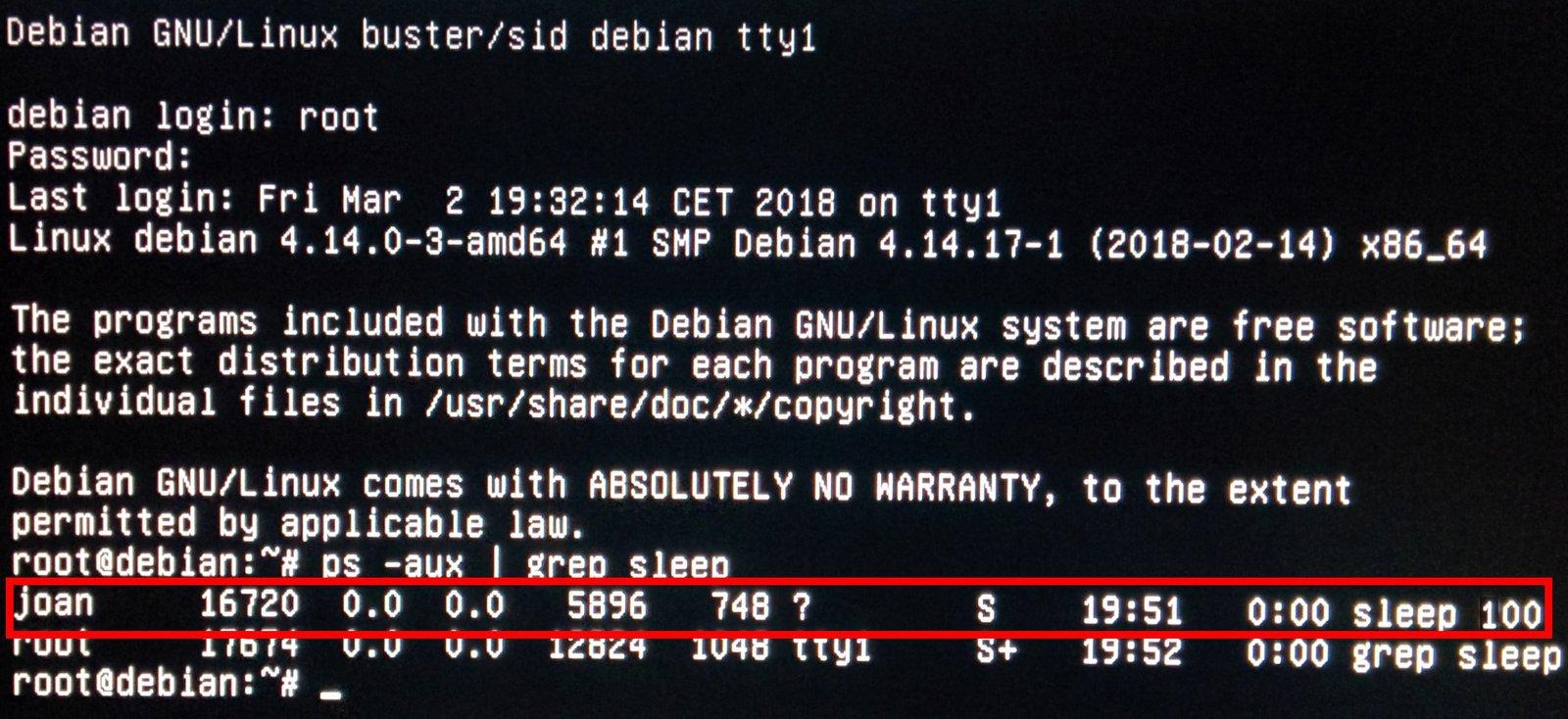
The default behavior in most shells The reason is that background processes terminate when you close the terminal is that they are terminated, even if you launched them with &This is easily seen with a simple example using sleep:
sleep 100 &
This starts a process that simply waits 100 seconds.If you run a ps aux | grep sleep You'll see the active process. But as soon as you close the terminal and open another one, when you list the processes again you'll see that sleep He's gone now.
So that the same command survives the closing of the terminal. simply relaunch it with nohup in front of:
nohup sleep 100 &
The tool itself will notify you that it is discarding the standard input and will dump the output into nohup.outIf you now do a ps aux | grep sleepYou'll see the process in progress. Close the terminal, open another one, and list the commands again: sleep It will remain active, even if you log in with another user on a different TTY.
This same pattern is key when working via SSH with a remote server, a Raspberry Pi, or a VPS. If, for example, you connect with:
ssh pi@192.168.1.220
And you want to launch a long download with youtube-dl Without having to keep the SSH session open, you can do something like:
nohup youtube-dl https://www.youtube.com/playlist?list=LO_QUE_SEA >/dev/null 2>&1 &
After viewing the process identifier and retrieve the prompt, you can now run exit To close SSH, the download will continue without problems and you can disconnect safely; then you will access the server to check the downloaded files.
Keep in mind that some programs like wget They are already designed to handle session breaks relatively well depending on how you use them, but with nohup You ensure that the process does not receive the dreaded SIGHUP.
Send processes to the background: &, jobs, fg and bg
Beyond nohupThe Linux shell has its own job control system which allows you to suspend, resume, and move processes between the foreground and background. This alone doesn't prevent them from terminating when you close the terminal, but it's the necessary foundation for combining them with disown.
When you add a & at the end of a commandYou're telling the shell to run it in the background. For example:
rsync home/music/* usr/otro/home/music/ &
The shell will show you something like [1] 1234Where [1] is the job number and 1234 The PID (process identifier). That job is still active, but the terminal is now free for you to type other commands.
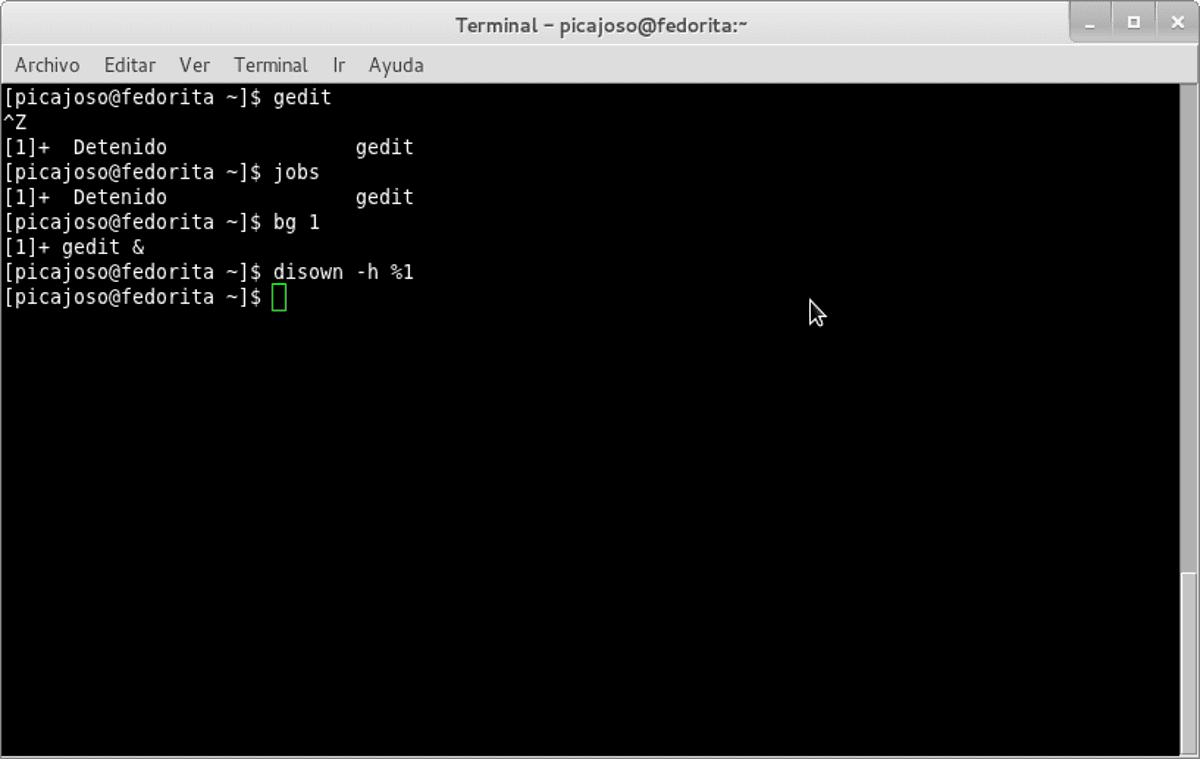
If instead of using & You launch the command normally and then you press Ctrl + ZYou will be pausing (suspending) the process. A message like this will appear:
[1]+ Stopped gedit
At that moment the command is stopped, not being executedYou can view active jobs with:
jobs
To resume it in the background, you use bg followed by the job number:
bg 1
If you want to bring it back to the foreground (to regain control of the terminal), you would use fg 1This handling of Ctrl+Z, jobs, bg y fg It is very useful when you work with several tasks at once on a single terminal.
fg 1
Unlink a process from the terminal with disown
The internal command disown from bash It's the missing piece when you already have a process running and you decide you don't want it to die when you close the terminal, but you didn't initially launch it with nohupWhat it does disown It involves removing that job from the shell's job table and preventing it from receiving the hang-up signal when you log off.
Imagine you open gedit from the terminal because you're editing a quick file:
gedit archivo.txt
The gedit window appears on your desktopHowever, if you close the terminal now, the editor will also close. If you want to keep gedit open and be able to close the console safely, you can follow these steps:
1. Temporarily suspend the process by clicking Ctrl + ZYou'll see something like this:
[1]+ Stopped gedit archivo.txt
2. Run disown -h %1 To unlink the application from the shell:
disown -h %1
The option -h indicates that the job should not receive SIGHUP, and %1 This refers to job number 1 (the one you saw when you pressed Ctrl+Z). You can check the jobs with jobs If you have any doubts about the number.
3. Send the process to the background so that it continues running:
bg 1
From this point on, gedit will be completely independent of the terminal.You can safely close the console; the editor window will remain open and running. This trick is ideal for those who frequently launch graphical applications from the command line.
If you have already started a program with &, for example gedit &, you save yourself the step of bg Because the job is already running in the background, you'll only need the disown -h %n .
Another way: disown for commands already running in the background
In heavy-duty tasks such as copying with rsyncSometimes you remember you want to close the terminal when the command is already running. If you started it with a & From the beginning, separating it from the console is even easier using disown to dry.
For example, if you write:
sudo rsync home/music/* usr/otro/home/music/ &
The shell will return the prompt And you can continue working. If later you decide to close the terminal but without stopping that rsync, just run:
disown
Without additional parameters, disown act on the last job that you have in the job table. From that moment on, the process will no longer be controlled by the shell and will not receive the termination command when you close the terminal.
If you want to be more explicit Or if you have several jobs in progress, you can list them with:
jobs
And then apply disown to one in particular:
disown %2
In many cases you can choose between nohup y disown depending on when you remember the task needs to be completed. If you think about it before launching it, use nohupIf you remember later, resort to disown.
Terminal multiplexers: screen, tmux, and others
In addition to nohup y disownThere are more advanced tools , the screen, tmux o byobu They offer a different solution to the problem: instead of unlinking individual processes, they create persistent terminal sessions that you can connect to and disconnect from whenever you want.
With a terminal multiplexer like tmux o screen You can open a session, run all your commands within it (even multiple "panels" or "windows" in the same session), and then detach. The session will continue running in the background on the server, with all processes active, even if you close the terminal window or the SSH connection drops.
You can reconnect later Access that same session from another terminal or computer via SSH and you'll see the programs exactly as you left them, with their exit history still available. It's as if you had a persistent terminal residing on the server.
This approach is somewhat more complex to learn. that simply write nohupBut if you often work with remote servers, keeping long processes, interactive sessions (like text editors in text mode) or monitoring tools running is infinitely more convenient.
Between screen y tmuxMany modern administrators are inclined to tmux because it is more flexible and active in development, whereas byobu It offers an additional layer of "friendliness" on top of them with more descriptive shortcuts and an integrated status bar.
Control paginators like Less when querying services
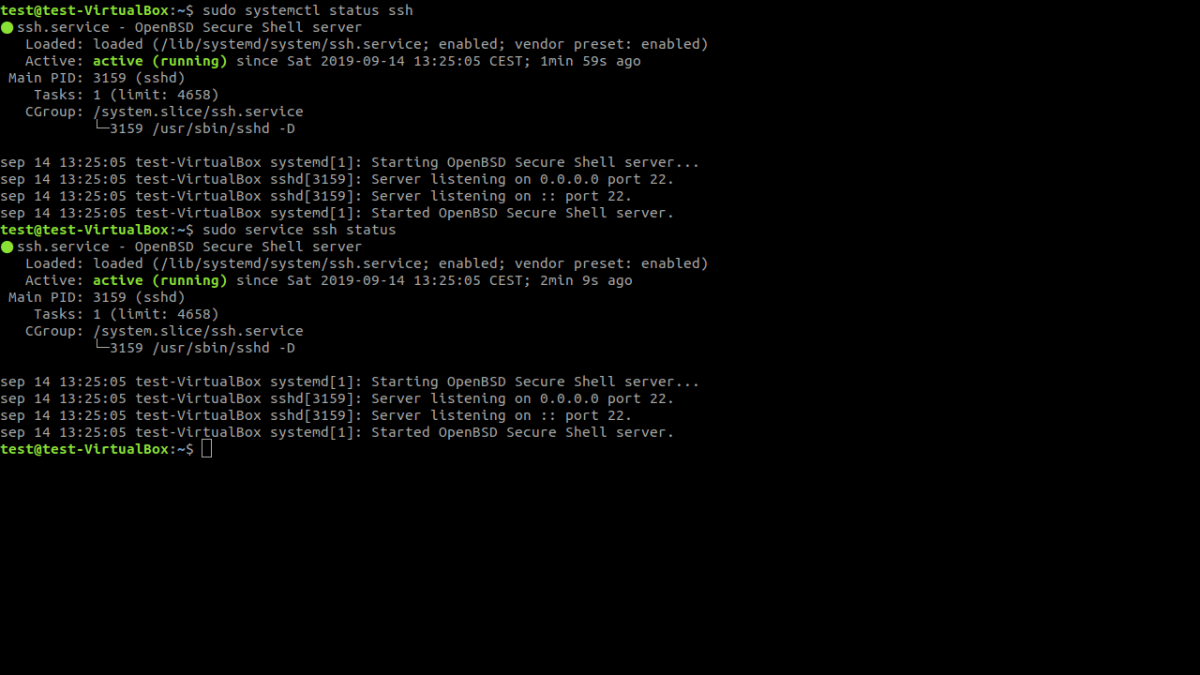
Another behavior that is very confusing to relatively new users It is the one for certain commands that use a pager like less to show the output. A typical case is that of systemctl status sshd In modern distributions like Fedora, it opens the output in a sort of "viewer" that indicates something like "Lines 1-22/22 [END]".
In this scenario, the command is not hanging.You're simply inside less (or another pager) viewing the content. To exit and return to the prompt without closing the terminal, simply press:
Q
The letter "q" (for quit) closes the pager and it returns you to the familiar shell. There's no need to kill the terminal or open a new one; this behavior is designed precisely so you can navigate the output with the arrow keys, repage, search for text, etc.
In many system commands (logs(service statuses, system logs…) you'll see similar patterns. When you see a message indicating number of lines, percentage, or [END], think about less and in pressing q before doing something more drastic.
Typical everyday use cases
In practice, these tools are combined to solve very specific situations. that are repeated time and time again when working in Linux. Some typical examples:
1. Long copies or synchronizations (rsync, cp, mv)
You want to copy gigabytes of data between directories or disks and need to close your graphical session. You can launch:
nohup rsync -avh /origen/ /destino/ > ~/rsync.log 2>&1 &
This is how you get a log of what rsync has done and you can disconnect without killing the copy.
2. Heavyweight searches (find, du, analysis scripts)
To inspect disk usage or locate huge files across the entire partition, use nohup Redirecting to a results file is almost mandatory if you know it's going to take a long time.
3. Downloads massive or remote scripts via SSH
Tear youtube-dl, wget or writing long scripts on a remote server and then disconnecting is one of the best advantages of nohup in combination with SSH.
4. Graphical applications opened from the terminal
If you're one of those people who opens editors, browsers, or graphics tools from the console, disown It's your best friend for not leaving the terminal taking up space on the desktop for no reason.
5. Long work sessions on servers
When chaining together several interactive commands or monitoring sessions, it is often more convenient to use screen o tmux so you don't have to worry about what will happen if your connection is cut off.
Mastering these resources allows you to work more calmly.without fear of losing hours of processing time by closing the wrong window or because your WiFi connection has decided to take a break.
Ultimately, the general idea is very simple.In Linux, processes are bound by default to the terminal that launches them and die when that terminal is closed, but you have several mechanisms to break that link. nohup y disown They cover most everyday use cases, and multiplexers like tmux o screen They go a step further by offering persistent sessions. Adding to that job control (Ctrl+Z, bg, fg) and pagination management, such as lessYou can keep your commands and applications running smoothly even if you close the terminal, log off, or lose your SSH connection.

Passionate writer about the world of bytes and technology in general. I love sharing my knowledge through writing, and that's what I'll do on this blog, show you all the most interesting things about gadgets, software, hardware, tech trends, and more. My goal is to help you navigate the digital world in a simple and entertaining way.