- Gatekeeper, signatures, and notarization protect macOS by validating apps and block malware known.
- Allowing third-party apps requires managing exceptions and carefully adjusting Privacy and Security settings.
- Download only from official sites, avoid pirated software, and use reliable security tools.

On macOS, the most direct and secure way to install software is through the App Store, but there are situations where you need apps that aren't available there. Whether it's for advanced features, specific versions, or professional tools , downloading and installing apps from the web is possible and, if done correctly, can be secure.
The goal of this guide is to help you understand how macOS security works (Gatekeeper, notarization, and signatures), what warnings you'll see, how to allow or block apps, when to use Terminal , and what the real risks are. We've integrated best practices, clear steps, and well-founded warnings so you can make informed decisions and keep your Mac safe.
App Store: The Safest Channel, and Why
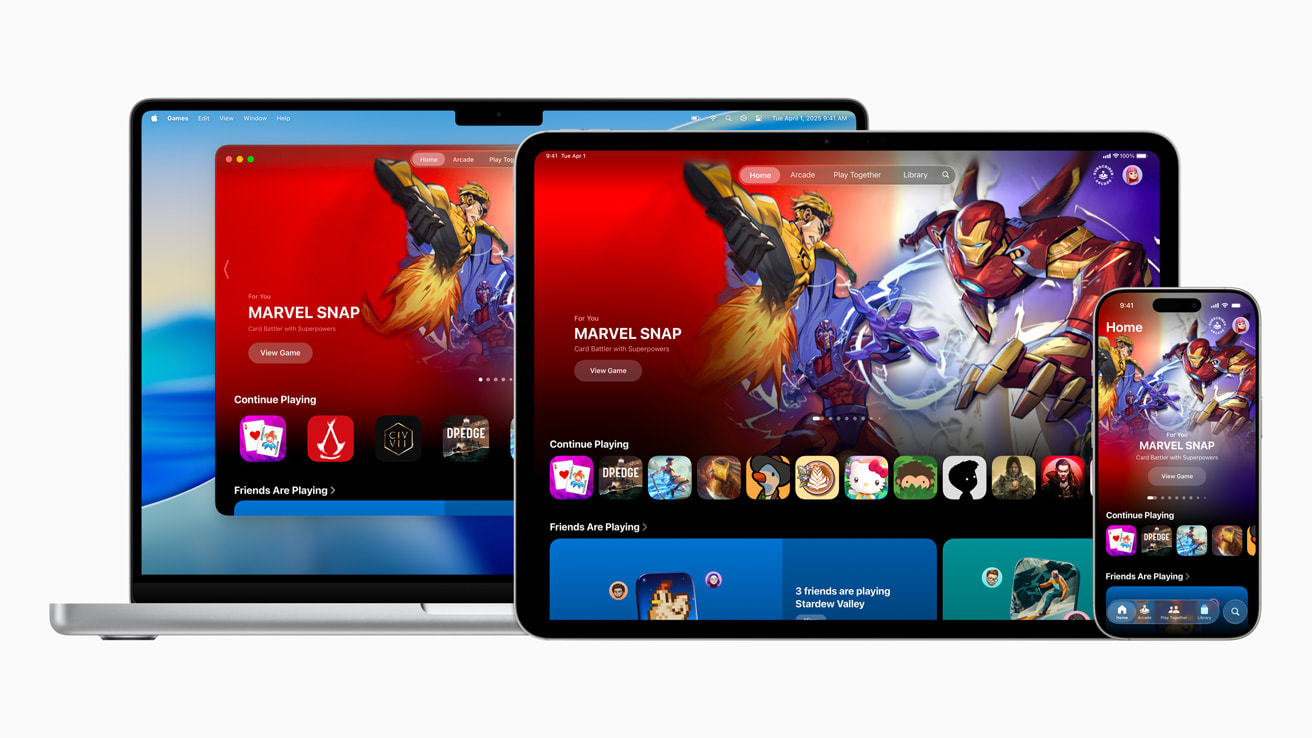
Apple subjects App Store apps to pre-screening, digitally signs them, and can remove them if it detects problems. This drastically reduces the risk of malware or tampering . In return, developers take a 30% commission on transactions, which explains why some apps also choose to be distributed through Apple's website.
Even when you download from outside the App Store, macOS is still watching. Gatekeeper checks the developer ID signature and, in macOS Catalina and later, requires notarization —an automated, human-reviewed process that checks for known malware before allowing execution.
Apple explains that Gatekeeper performs online checks to detect malware and certificate revocations. These checks do not associate data with your account or device , and the company assures that it does not log IP addresses during these processes and deletes any IP addresses that are temporarily collected.
If something goes wrong, you'll see warnings: that the app could harm your computer, that it's corrupted or tampered with, or that the developer can't be verified. In the case of known malware, macOS may block the app from running and move it to the Trash , and even request that you anonymously share a sample to improve system security.
Downloads from official sites and other sources: key guidelines
Many professional apps are downloaded from the developer's website even if they're available in the App Store. It's common practice to search Google for the app's name followed by "macOS" or "Mac." Always prioritize the developer's official website or recognized platforms , and be wary of links in unsolicited emails or downloads promising "cracks."
Not every app from outside the App Store is dangerous. Examples like Blender, Substance Painter, or obtaining a digital certificate are installed from the internet and are legitimate. When macOS doesn't recognize the source, it will display more warnings, but this doesn't necessarily mean there's malware.
Sometimes, an app downloaded from the web may not appear in Launchpad immediately. Save it to your Downloads folder, locate it, and verify its integrity before moving it to Applications. An app recommended by your company or university may be safe even if it's not in the store.
Avoid pirated or unlicensed software. Modified versions are a classic infection vector and, besides being illegal, can open the door to Trojans, adware, and data theft.
Gatekeeper, Developer ID, and Notarization: How They Protect You
When you open an app from outside the App Store for the first time, Gatekeeper intervenes. If the developer's signature is valid and the app is notarized, you can open it with your confirmation . If the developer cannot be verified or the app is not notarized (Catalina or later), you will see a block.
Common messages: the system may warn that "the developer cannot be verified," that "the app is damaged or has been modified," or that "it could harm your computer." If known malware is detected, the app is blocked and sent to the trash ; in cases of revoked certificates, execution is prohibited.
It's crucial to understand that manually bypassing Gatekeeper is the source of many infections. Don't ignore warnings if you're not absolutely certain of the origin and integrity of what you're running. Whenever possible, look for notarized or alternative versions in the App Store.
Allow third-party apps: settings in macOS
In System Settings > Privacy & Security > Security, you'll see "Allow apps downloaded from." The options are "App Store" and "App Store and identified developers ." The second option allows software signed by developers recognized by Apple.
If you try to open a blocked app, after the first attempt a button will appear in Privacy and Security: “Open anyway” or “Open anyway”. By confirming this, the app will be added as an exception and from then on it will open with a double-click , like any other authorized app.
Another option is to right-click on the app in Finder and choose "Open." macOS will display a security warning, and you can authorize its execution if you trust its source. This exception is saved for future openings.
Remember: if your settings only allow apps from the App Store, the system won't open any others. Only disable restrictions when absolutely necessary , and raise the security level again after installation is complete.
“Anywhere” with Terminal: enable and disable
In older versions of macOS, there was a "Anywhere" toggle in Security & Privacy. It's hidden in recent systems, but you can reactivate it using Terminal. This is an advanced security measure and carries risks if you're not entirely sure what you're doing.
Summary steps: close System Settings, open Terminal (Applications > Utilities) and run sudo spctl --master-disable. Enter your administrator password and when you return to Privacy and Security, “Any Site” will appear. as a selectable option.
If you want to revert it and return to the default behavior, use sudo spctl --master-enable. With this, “Any Site” disappears and you will only be able to allow App Store or App Store and identified developers.. Consider leaving the most restrictive mode enabled after completing a specific installation.
In macOS Ventura and later, Apple is stricter with third-party software, so this adjustment may require additional steps. Exercising caution is key to minimizing exposure to threats.
Install downloaded apps: DMG, PKG, and ZIP
The process is usually simple. If it's a ZIP file, extract it with a double-click. If it's a DMG file, it will mount as a volume, and you'll see the app and sometimes a shortcut to Applications. Drag the app to the Applications folder and eject the volume when you're finished.
If the download includes a PKG installer, open it and follow the wizard's instructions. Review the requested permissions and the installation location . Once completed, the app will be in your Applications folder and will appear in Launchpad.
The first time you open an app from a recognized developer downloaded outside the App Store, macOS will ask for confirmation. After you authorize it, it will be registered as an exception , and you can open it normally from then on.
If you receive a blocking notification, go to System Settings > Privacy and Security and tap "Open anyway" to authorize it. Only do this if you are sure of its origin and that it hasn't been tampered with.
Where apps are stored and how to uninstall them
Apps are located in Finder > Applications, regardless of whether they came from the App Store or the web. Launchpad is just a showcase, not their actual location . From Finder, you can see the size, installation date, and developer.
To uninstall, drag the app to the Trash and empty it. Some apps will require a password or Touch ID. Essential system apps cannot be deleted . If an app was installed using a PKG file, it may include its own uninstaller: run it to remove components.
Sometimes residual files (caches, preferences) remain. You can delete them manually, although it takes time and requires knowing the file paths. Third-party utilities (uninstallers or maintenance suites) can help with leftover files and background services , but if you decide to use them, always use official sources and reputable software.
If you find corrupted or blocked installers, they will also appear in Applications or Downloads. Delete them if you're not going to use them to free up space and avoid confusion.
Real risks and how to reduce them
No device is 100% secure, no matter how careful we are. Macs have less malware and Apple's security layers , but installing only essential apps from official sources is the best practice.
The most common way to get infected is by ignoring warnings. Don't ignore system alerts unless you're absolutely certain of their origin . Be wary of email attachments, installers that ask you to open Terminal without context, or "free" versions of commercial software.
If you decide to download from outside the App Store, it's a good idea to scan the files. There are antivirus solutions for macOS with on-demand and real-time scanning , as well as maintenance suites that include uninstallation modules and detection of background elements (launch agents or daemons). Choose legitimate and up-to-date tools.
If malware is detected, macOS may block the app and request that you anonymously share a sample. Participating helps improve security for everyone , as Apple only uploads the malicious executable or its package, without any personal data.
Common installation problems and solutions
If, after allowing the app, the installer continues to show errors, close and reopen it. Sometimes, restarting your Mac clears temporary blocks and returns the process to normal.
Starting with macOS Catalina, only 64-bit apps are supported. 32-bit apps will not work ; the only technical alternative would be to use an older version of the system (not recommended) or find a modern version of the app.
Version incompatibility is another common problem: the app might be too new for your macOS, or too old for a recent version. Always check the developer's requirements and look for specific versions compatible with your system.
If errors persist after several attempts and you suspect a deeper problem, document the issue on video and contact support. An Authorized Service Provider (ASP) can diagnose the problem without voiding your warranty . If it's a hardware issue , they'll refer you to an Apple Store; do not attempt internal repairs yourself.
Setapp and other app libraries
In addition to the App Store, there are third-party libraries like Setapp, which offers subscription-based access to a catalog of over 200 applications. Its offering centralizes productivity tools, utilities, content, and programming applications , with frequent updates and no ads or in-app purchases.
Setapp often offers free trials and claims to meet security standards (including data encryption in transit). Even so, the same applies: download from their official website and review the privacy policy . These types of platforms can save you money if you use several apps from their catalog.


Passionate writer about the world of bytes and technology in general. I love sharing my knowledge through writing, and that's what I'll do on this blog, show you all the most interesting things about gadgets, software, hardware, tech trends, and more. My goal is to help you navigate the digital world in a simple and entertaining way.