- Comprehensive diagnosis of hardware failures and wireless or USB connectivity.
- Advanced print queue management and system driver updates.
- Preventive maintenance techniques to avoid blockages and improve color quality.
- Software reset and printhead cleaning procedures.

Having a printer at home or in the office is a blessing until it suddenly decides to let you down at the worst possible moment. It's frustrating when, just as you have to submit an important piece of work, the device starts throwing up indecipherable errors or simply stops working, leaving you feeling utterly helpless.
The truth is, most of these problems don't require you to be a computer expert, as they're usually due to configuration issues, outdated drivers , or simple paper mishandling. In this article, we'll break down how to fix common printer problems so you can regain control of your printer without having to throw it out the window.
Quick solutions and initial diagnostics
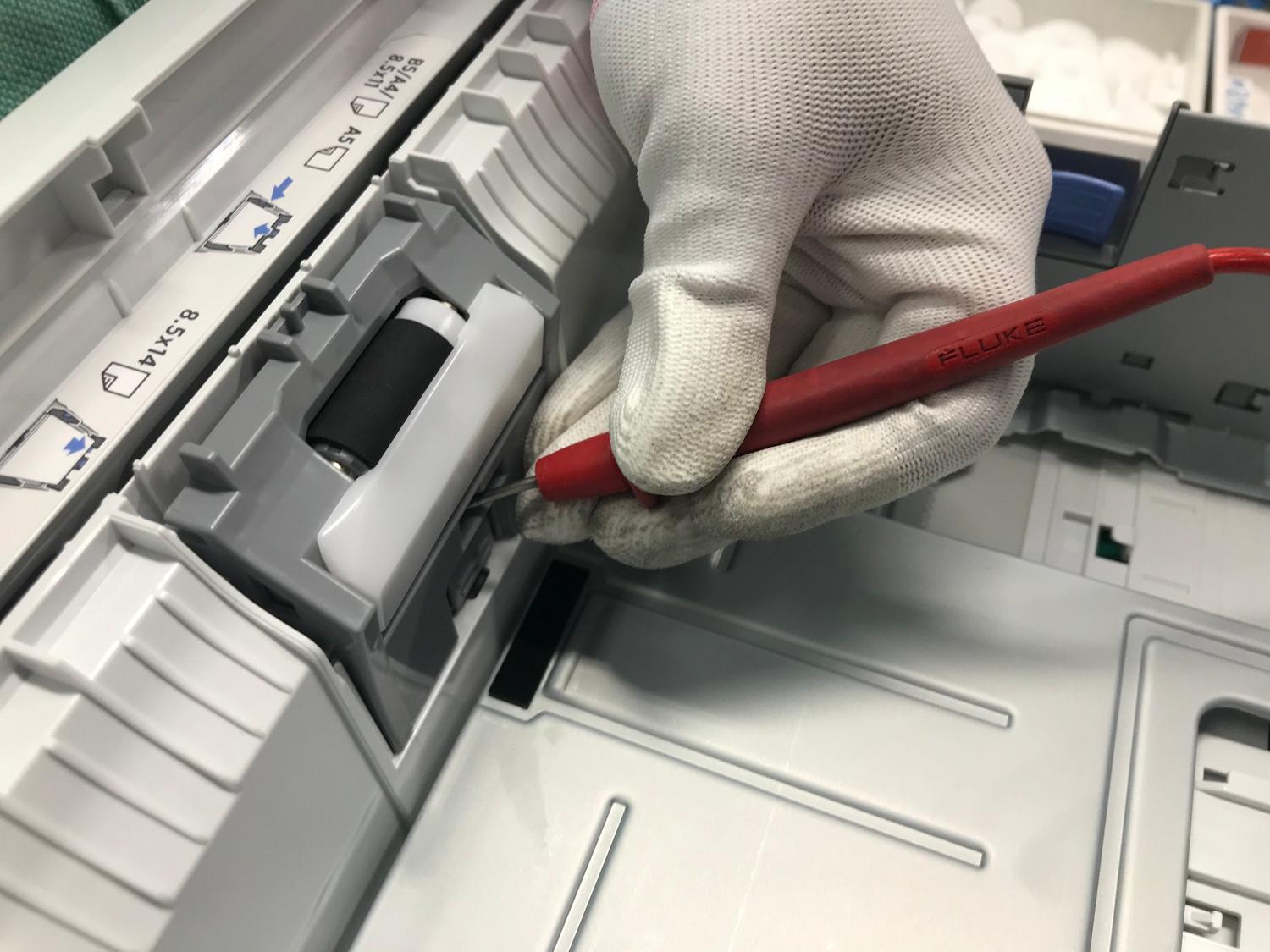
Before getting into technical issues, it's wise to start with the basics. Sometimes electronics malfunction, and a complete power reset is the miracle cure; turn off the device, unplug it for about 30 seconds, and then turn it back on to clear any temporary memory errors.
If you're using Windows 10 or 11, don't ignore the automated troubleshooter tool included in the Get Help app. This utility performs a quick scan of your device and can fix registry errors or stopped services without you having to lift a finger.
Connectivity and recognition problems
If your computer says it can't find the printer, the first thing to suspect is the cable. If you're using a USB connection, check that it's not frayed or improperly inserted. For wireless or Bluetooth printers , make sure the Wi-Fi icon is active and that your computer is connected to the same network as the printer.

A very effective trick when the device isn't responding is to uninstall and reinstall the peripheral. Go to Bluetooth & devices settings, remove the printer, and add it again. If the automatic process fails, you can opt for manual installation by selecting the specific port (such as LPT or USB) and loading the driver from the manufacturer's disc or via Windows Update.
Driver management and the print queue
Many of the most annoying errors, such as print jobs that get stuck and won't delete, are due to the print job manager. To fix this, you need to access the Windows Services menu. Stop the Print Spool Manager and manually delete all temporary files located in the path %WINDIR%\system32\spool\printers.

Once the folder is emptied, restart the service in automatic mode. It is also essential to keep the driver updated to the latest version , as manufacturers release frequent patches to fix compatibility issues with new operating system versions.
How to deal with paper jams
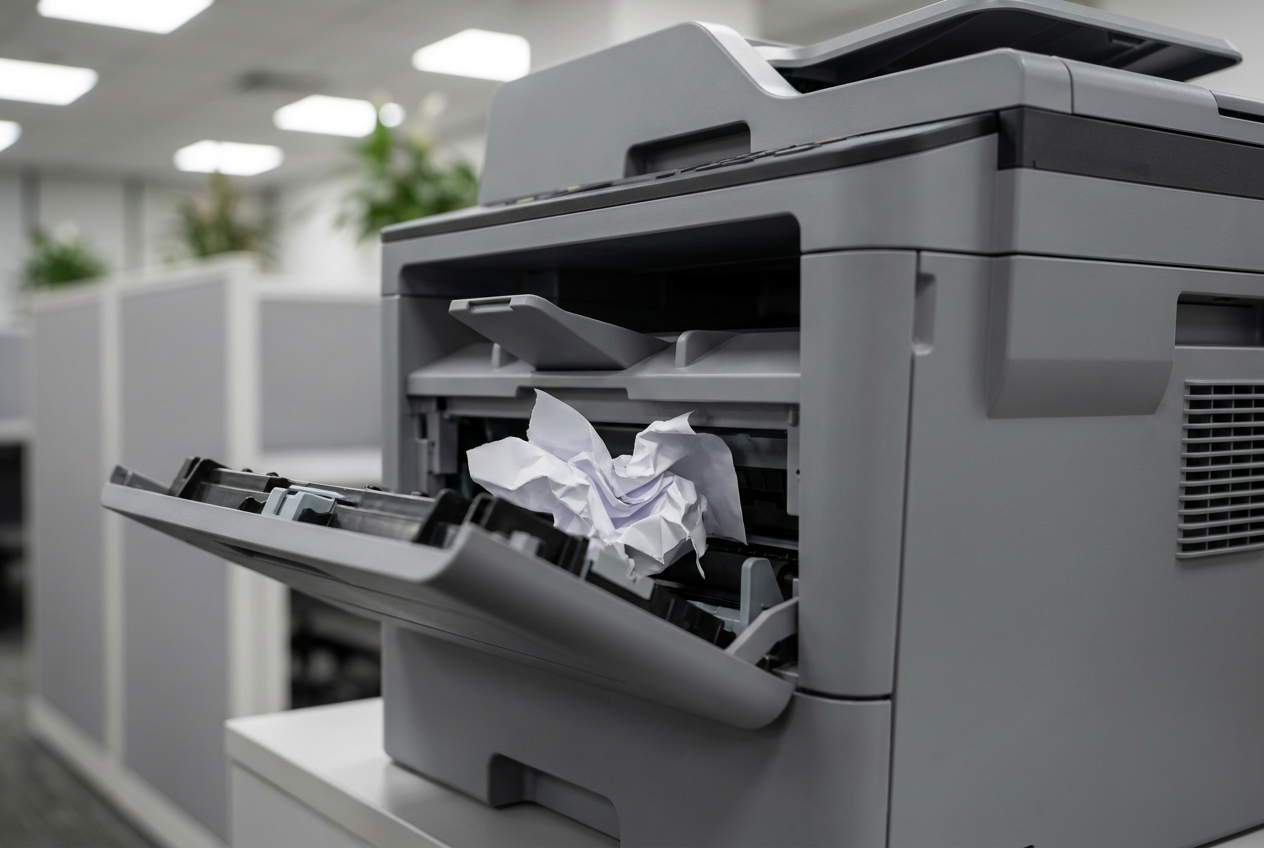
Paper jams are a recurring nightmare for any user. When one occurs, the most important thing is not to pull the paper out abruptly , as this could tear the sheet and leave behind messy bits that are impossible to remove, or worse, damage the internal rollers.
Open the doors indicated in the manual and remove the paper gently in a straight line. To prevent this from happening, always use good quality, dry paper , as moisture causes the sheets to stick together. Also, avoid filling the tray to the top; always respect the maximum limit indicated by the manufacturer.
Improving print quality and colors
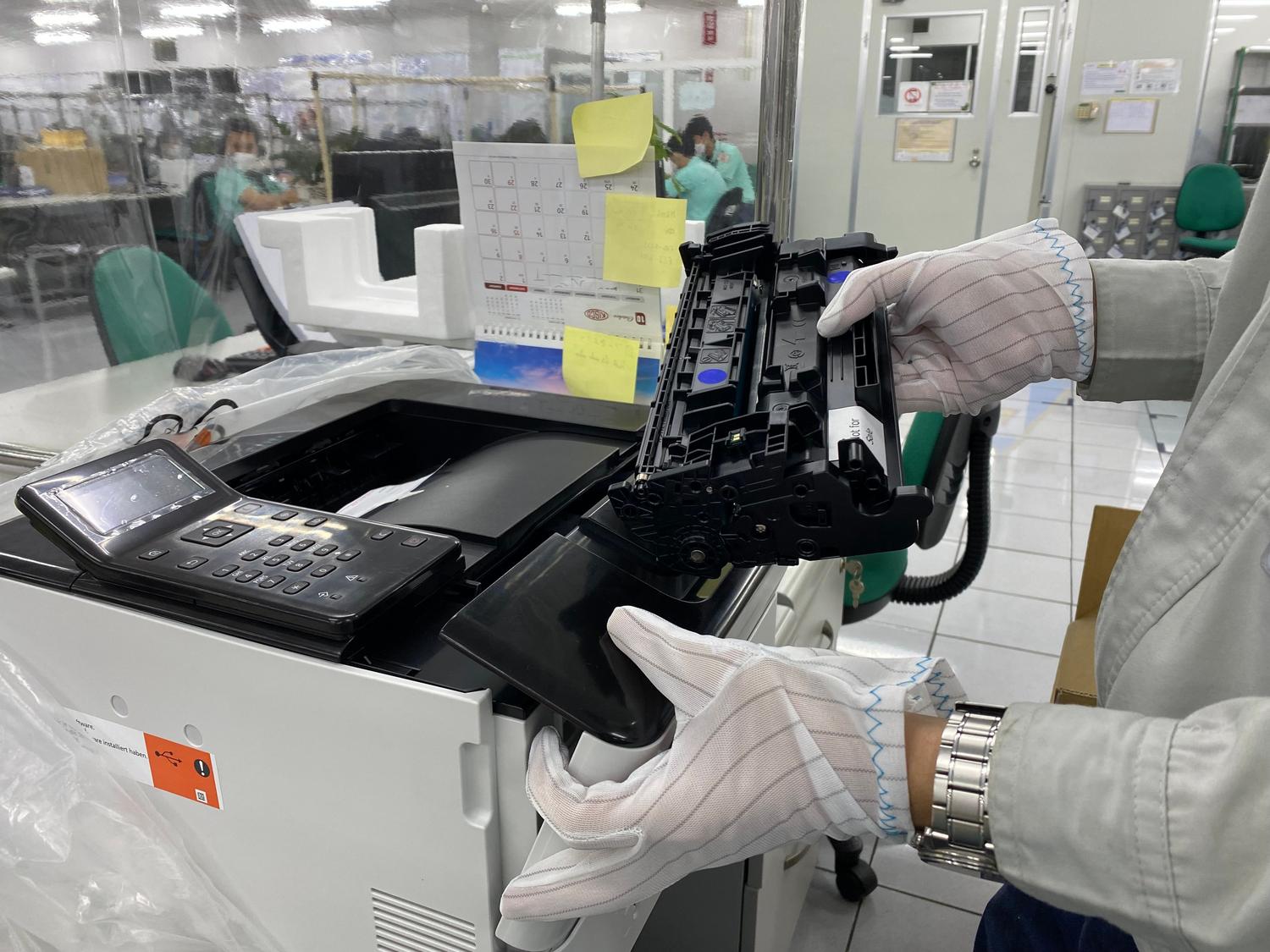
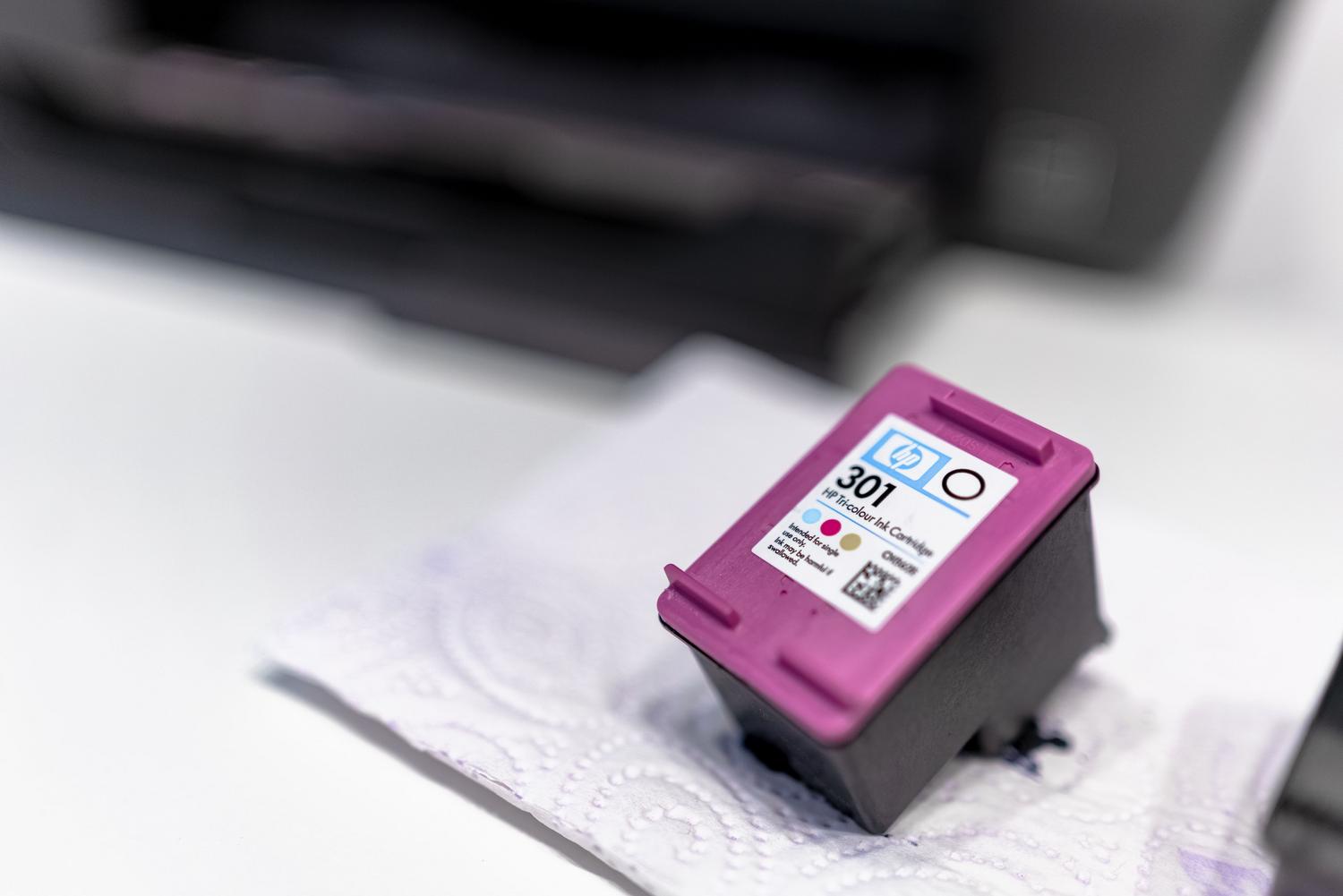
If you notice that your prints are blurry, streaky, or that the colors aren't accurate, the problem is usually with the printheads. It's recommended to run the printhead alignment and cleaning function from the printer's control panel to remove any dried ink blockages.
When pages come out completely blank, check that the cartridges aren't empty or that you haven't forgotten to remove the protective plastic strip when installing them. If the print quality remains poor on laser printers, check the condition of the imaging drum or the fuser, as wear on these parts can cause smudges or faded prints.
Software speed optimization and error correction
If your printer takes forever to print, you might have set the resolution too high . For internal documents, use draft or standard mode. The type of driver also matters: PCL drivers are usually faster for office tasks, while PostScript drivers are ideal for graphic design.
If the printer management software fails spectacularly, the best course of action is to perform a complete cleanup: uninstall the entire package from the control panel, restart your PC, and download the latest version from the manufacturer's official website to ensure a clean and conflict-free installation.
Maintaining a routine of cleaning rollers with a microfiber cloth, updating drivers regularly, and using appropriate consumables will prevent most of these failures from occurring. The combination of good physical maintenance and proper software management in Windows ensures that workflow isn't interrupted by avoidable technical issues.


Passionate writer about the world of bytes and technology in general. I love sharing my knowledge through writing, and that's what I'll do on this blog, show you all the most interesting things about gadgets, software, hardware, tech trends, and more. My goal is to help you navigate the digital world in a simple and entertaining way.