- Google Takeout allows you to export full or partial copies of your data from almost all Google services.
- You can choose which products to include, the delivery method, the file type and size, and the frequency of exports.
- The data is downloaded in standard formats (ZIP, MBOX, JSON, CSV, HTML, etc.) that are easy to open or migrate to other services.
- It is key to protect downloaded files, periodically review your information, and understand what data is not included or has already been deleted.
We are increasingly leaving a digital footprint on Google servicesEmails, photos, documents, videos, maps, search activity... and having a copy of all that safely stored is almost mandatory if you don't want any surprises.
Google Takeout is the official tool for downloading your Google data. And take them wherever you want: to your computer, another cloud service, or an external hard drive. In this guide, you'll see in detail how it works, exactly what you can download, in what formats, and what limitations or "traps" you should be aware of to avoid losing anything along the way.
What is Google Takeout and what is it used for?
Google Takeout is the service for exporting data from your Google account.It allows you to create a file with the information stored by products such as Gmail, Google Drive, Google Photos, Calendar, YouTube, Maps, Blogger, Fit, Hangouts, and many more.
The idea is to give you control and portability over your data.You can download them to create backups, migrate them to other services, analyze them with your own tools, or simply review what information Google stores about you.
Important: Downloading your data does not delete it from Google's serversThe copy is generated separately. If you want to delete your account or activity, you'll need to do so later using Google's account or activity deletion options.
Takeout is part of Google's "data portability" strategywhich also includes a Data Portability API designed for developers and third-party applications that want to work directly with these exported files.
What data can you download with Google Takeout?
Takeout brings together data from almost all Google products in one place associated with your account: personal, activity, and content.
Some examples of information you can export Using this tool are:
- gmail: all your email messages, along with the labels in a special header called "X-Gmail-Labels" (they are saved in MBOX format).
- Google Drive: files, documents, spreadsheets, presentations, and folders on your drive.
- Google Photos: photos, videos and albums, along with additional metadata in JSON files (comments, extra information, etc.).
- Google Calendar: events and calendars, exported in standard formats that can be imported into other calendar applications.
- YouTube: uploaded videos, playlists, comments, and other data associated with your channel.
- Chrome: bookmarks, possibly settings or other compatible navigation data at any given time.
- My Activity and Record: activity history on Google services, searches, interaction with appsetc., depending on what is enabled in your account.
Each product can export different types of data and formats.For example, contacts are usually exported in vCard format, tabular data listings in CSV format, more complex structures in JSON format, and navigable content in HTML format.
Please note that data that has already been deleted will not appear in the export.If you have deleted certain information, Google follows a process to completely remove it from its systems, and while it is in that deletion phase it will not be included in the Takeout file.
Step 1: Go to Google Takeout and choose which data to download
The first step is to access your account and go to the Google Takeout page.You can go directly to the URL https://takeout.google.com from any browser on your computer or mobile device.
Make sure you're logged in with the correct Google account (personal, work, study, etc.). If you have multiple sessions open in your browser, check at the top of the Takeout page which account is being used.
On the main screen you will see a list of Google products that store your data.By default, they are all usually selected, ready to be included in the export.
If you do not want to download the information for a product, uncheck the box. that's next to their name. This selection is key if you're only looking to export specific data, such as email or photos.
Many services display a link such as "All data included" or similarIf you click, options will appear to further refine what will be exported: choosing specific labels in Gmail, specific albums in Photos, specific calendars, etc.
Download only the email using Google Takeout
If you only want to export your Gmail, simply leave the "Email" product selected. and uncheck all other services in the Takeout list.
In the email section, the "Include all email messages" option is enabled by default.If you want to download the entire contents of your inbox and the rest of your folders, simply don't touch it.
If you prefer to export only certain categories or tags (for example, emails from a specific subject, a project or certain tags), uncheck that global option and select the specific tags that interest you.
Emails will be saved in MBOX formatThis is a standard widely supported by desktop email clients and specialized tools. You can import this file into other services or analyze it with compatible utilities.
When you have finished selecting the email or other products you want to exportScroll to the bottom of the list and click "Next step" to configure the file details.
Step 2: Configure the export file
After choosing which data to include, Google Takeout takes you to the export customization screen.Here you will adjust how that file will be generated.
The main options you should review are the delivery method, export frequency, file type, and maximum file size.All of this affects how you will receive and handle your data.
File delivery method
Takeout lets you receive your data copy in different waysso you can download it or store it in your favorite cloud.
Send download link by email
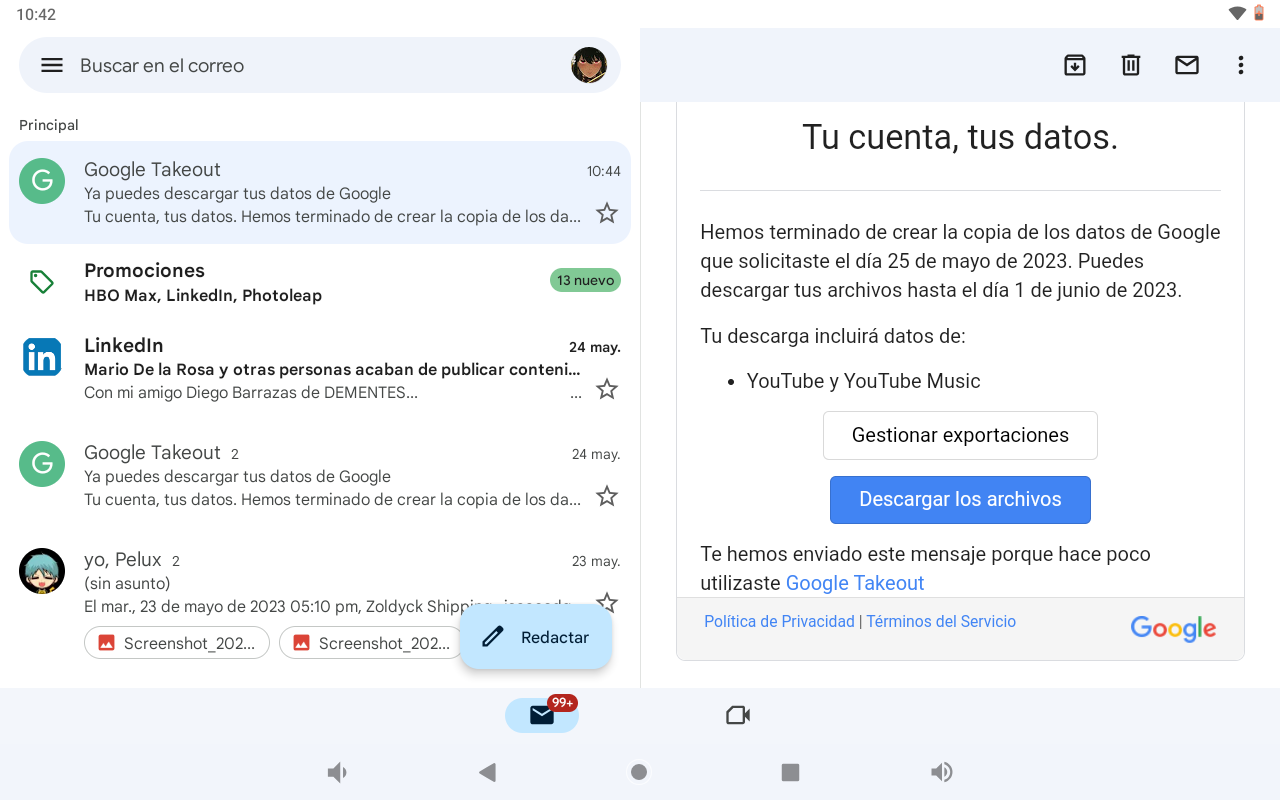
The most direct option is to receive a download link in your email.By selecting it, Google will generate the file and, when it's ready, will send you an email with a button to download it.
- In "Delivery method", choose "Send download link by email".
- Click on "Create export" so that Google can start preparing the file.
- When the email arrives, click on "Download file" and follow the steps shown on the screen (including password verification).
This method is ideal if you want to save the copy directly to your computer or an external drive., without going into other clouds.
Add to Google Drive
If you prefer to have your backup in the Google cloud, you can upload the generated file directly to Google Drive.This is convenient for accessing from different devices.
- In "Delivery method", select "Add to Drive".
- Click on "Create export" to start the process.
- When the file is ready, you will receive an email with the "View in Drive" link.which will take you to a folder with the data organized by product.
- From that folder you can download the files to your computer whenever you want.using the Drive download option.
Keep in mind that the exported file will count towards your quota. storage DriveSo make sure you have enough space or clear some room beforehand.
Add to Dropbox
Google Takeout can also upload your file to Dropbox. if you find it more convenient to work with this storage platform.
- Choose "Add to Dropbox" as your delivery method in the Takeout settings.
- Click "Link accounts and create export" to connect your Google account with Dropbox.
- Sign in to Dropbox if prompted. And, in the permissions window, accept that the "Download your Google data" function can access the "Applications" folder in your Dropbox.
- Once the file has been created and uploaded, you will receive an email with the "View in Dropbox" link. which will take you to the folder containing your copy.
To maintain privacy, do not share the Dropbox folder where the file is saved. with other people, unless you want to give them explicit access to your data.
Once the file is in Dropbox, its own terms of service apply.Google ceases to be responsible for what happens to it from that moment on.
Add to Microsoft OneDrive
If you use the Microsoft ecosystem, you can have the export end up in OneDrive. automatically.
- In the delivery method section, choose "Add to OneDrive".
- Click on "Link accounts and create export" to link Google with your Microsoft account.
- Sign in with your Microsoft account if necessary and agrees that "Download your data from Google" can access your information.
- When you receive the notification email, click on "View in OneDrive" to open the folder with your file.
As with Dropbox, make sure that folder is not shared. if you want the file to remain private.
Once the file arrives at OneDrive, it falls under the Microsoft Services Agreement.both in use and in protection and privacy policies.
Add to Box
Another compatible storage option is Box, for both personal and business accounts.It's useful if your organization works with this provider.
- Select "Add to Box" in the delivery method field.
- Click "Link accounts and create export" to start the connection with your Box account.
- Log in to Box if prompted. and grants access to Google's data download tool.
- When you receive the email, use the "View in Box" link. to access the folder containing the exported file.
If you're using a business Box account, the administrator can view the files even if you don't generate a sharing link, so keep that in mind if your data is sensitive.
The maximum size of the exported files may be limited by Box's upload quota.If the file exceeds that size, certain parts may not be uploaded and will not be included in Box.
As with other cloud services, once the file is in Box, its own policies apply. privacy and Google is no longer responsible for it.
Export type: one-time or periodic
Google Takeout allows you to perform a one-time export or schedule recurring exports.which is very practical if you like having fresh backups without having to remember each time.
In the "Export type" option you can choose between:
- Single file: a single export is generated with the current state of your data.
- Scheduled exportsA new file is automatically created every two months for a year (up to six exports in total), starting with an immediate copy.
If you are part of Google's Advanced Protection Program, there are restrictions.In this case, you will only be able to download the file after 48 hours and the [other features] will not be available. programming periodic.
File format and maximum size
Takeout packages your data into compressed ZIP or TGZ fileswhich you can then download or move like any other large file.
The two main file type options are:
- .zipCompatible with almost any operating system without the need for additional programs, ideal for Windows and macOS.
- .tgz: very common in environments Linux y UNIXOn Windows, it may require specific software to decompress it.
You also choose the maximum size of each generated file (for example, 1 GB, 2 GB, 4 GB, 10 GB, or 50 GB). If your data exceeds that limit, Google will split the export into multiple files.
If you don't want too many parts, select a limit of 50 GBas long as you can then manage them without problems on your system or in the cloud you use.
Keep in mind that some third-party services like Box impose their own upload size limits.In that case, if your file is larger, certain parts will not be exported to that platform.
Step 3: Creating the file and downloading your data
Once you've finished adjusting all the options, click on "Create export" to start the processFrom here, Google starts preparing the file with your data.
Weather Creation time depends a lot on the amount of information in your accountIt can range from a few minutes if you have only chosen a few products to several hours or days for accounts very full of emails, photos or videos.
In most cases, you will receive the download link on the same day You request the export, but it's not instantaneous, so be patient.
You will receive an email notification when the file is ready.whether you have chosen a download link or have sent it to a cloud storage service.
For security reasons, you will need to re-enter your password when downloading the file.especially if you haven't logged in for a while. If you have two-step verification enabled, you may also need to complete that extra step.
Where exactly is my exported data?
A very common question is how to locate the data once the export has been completedThe answer depends on the delivery method you selected.
If you chose "Send download link by email", the link will take you to the folder where your file is located. within the Takeout interface itself. From there you can download it to any device you want.
If you chose Drive, Dropbox, Box, or OneDrive, the notification email will include a direct link to the destination folder. in the cloud service you have selected.
Inside the downloaded file you will find a folder structure for each product And among them, a file called "archive_browser.html" that serves as an index and guides you on what's on each site and how to open it.
What data is not included and how deletion works
When you delete something from your Google account, it doesn't immediately disappear from all internal systems.Google follows a process described in its Privacy Policy to securely and permanently delete that data.
The deleted activity is no longer used to personalize your experience from the moment you delete it.However, until the technical removal process is complete, it may continue to exist in certain internal backup systems.
Data that is in the process of being deleted is not included in the Takeout fileThis affects, for example, items in My Activity, photos, or documents that you recently deleted shortly before requesting the export.
If the information you are looking for does not appear in the export tools or in TakeoutYou can go to Google's Privacy Help Center to understand what types of data are collected, why, and how to manage, export, or delete that information.
In cases where the information has already been completely deleted from Google's storage systemsIt is unlikely that it can be recovered by any means.
Formats of exported data and how to open them
Google tries to use standard formats and portable in exportingthinking about how you can take your data to other services or analyze it without depending on proprietary tools.
Some common formats you'll find in your file are::
- HTMLPages that you can open in any modern browser to view information visually.
- CSV: text files with data in tables that can be opened with spreadsheets, text editors, or BI software.
- JSON: a very common structured format for complex data, usable in applications, scripts and technical tools.
- MBOX: standard container for emails, importable into many email clients.
- vCard: .vcf format, used for contact data, easy to import into address books and email services.
If any of the formats are giving you trouble (for example, TGZ or certain JSON)You may need to install additional software or use specialized online services to view or convert that data.
To thoroughly review your export files, Google recommends doing so from a computer. instead of a mobile phone, for convenience and program compatibility.
Using Takeout and customization for developers
In addition to manual use, Takeout supports certain parameters in its application interface. who want to personalize the export experience.
It is possible to build specific URLs that preselect products, the cloud export destination, or the frequencyAn example of a format would be something like: https://takeout.google.com/settings/takeout/custom/google_account,my_activity,fit,youtube?dest=drive&frequency=2_months.
Possible values that can be used as parameters (for example, "box", "dropbox", "drive", "onedrive" in dest, or "2_months" in frequency) They can be located in the HTML source code of the Takeout page, by looking for CSS attributes called "data-id".
To view these values, in Chrome you can use the "View page source" option at takeout.google.com Then search for "data-id" using your browser's search function. What appears after those attributes will give you clues as to which identifiers to use.
Google also offers the Data Portability API for developers., with documentation at https://developers.google.com/data-portability, designed to automate the management and use of data exported with Takeout.
Using Google Takeout with ease allows you to retrieve, move, and protect all the information you've generated within the Google ecosystem.From your emails and documents to your photos, videos, and activity, if you use it regularly, combine formats effectively, and choose a secure location to store your files, you'll always have a copy of your "digital life" ready to use, migrate, or audit whenever you need it.

Passionate writer about the world of bytes and technology in general. I love sharing my knowledge through writing, and that's what I'll do on this blog, show you all the most interesting things about gadgets, software, hardware, tech trends, and more. My goal is to help you navigate the digital world in a simple and entertaining way.