- Amazon centralizes your digital purchases in My Games & Software Library, from where you download installers and get activation codes.
- Many titles are redeemed via codes on external platforms (Steam, GOG, Epic, etc.), while others are managed directly with the Amazon Games for PC client.
- The Amazon Games client allows you to customize the installation path, control updates, and take advantage of the free games included with Prime.
- Amazon also offers an app and game store for Android, expanding its digital ecosystem beyond the PC with secure content linked to your account.
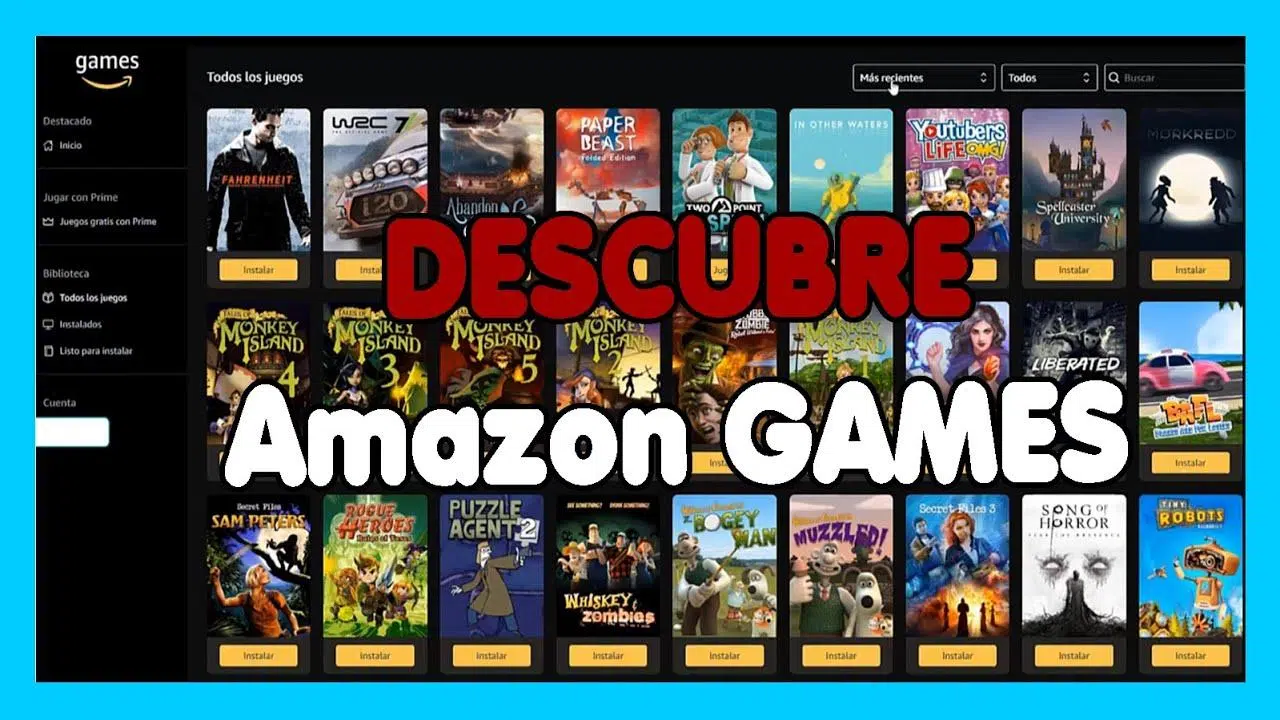
Buying, downloading, and installing digital software or video games from Amazon might seem complicated at first, especially if you're used to installing games from DVDs, consoles, or stores like Steam, Origin, or Epic Games. However, Amazon has its own ecosystem of digital purchases, libraries, codes, and apps that, when properly understood, is quite convenient and allows you to manage everything from your account and protect your devices.
In this guide you will see step by step how to download and install digital software or video games from Amazon , how to redeem codes, which browsers are compatible, how the Amazon Games app works on PC, what happens with games redeemed in other stores like GOG or Epic, and some tips to avoid typical problems with codes, activations or downloads.
How to buy digital software and video games on Amazon
The first step is purchasing the game or program . Amazon sells digital licenses for software and video games on its desktop website, mobile app, and mobile browser. It's not much different from buying a physical product: you choose, add it to your cart, pay… and that's it.
When you buy digital content, you don't receive a disc or a physical product , but rather a right to use it: this could be a direct download from Amazon, a code to redeem on another platform (for example, a Steam, GOG, or Epic Games code), or a software subscription. Everything is linked to your Amazon account.
Keep in mind that, in most cases, these digital purchases are non-refundable and cannot be returned . This means that once you purchase the software or game and it's marked as shipped, you generally won't be able to request a refund. It's always advisable to carefully review the product details, requirements, and license type before making a purchase.
On the product details page, Amazon usually clearly indicates whether the purchase is non-refundable or has any special conditions. It's important to read these notes, because with digital items, you have significantly less flexibility than with a physical item that you can return.
Where to download Amazon games and digital programs
Once you've made your purchase, Amazon offers two main access points to download and install your digital content . The first is the order confirmation screen itself, and the second is the Your Games and Software Library section.
Right after you pay, the confirmation page usually displays a download button or a link to your library . This is a quick way to start downloading the game or program without having to navigate through menus. If you close that window or want to download it later, that's fine: the content will still be available in your library associated with your account.
To access it manually, go to Your Games and Software Library in your Amazon account. There you'll find a list of all the digital games and programs you've purchased, along with download options, associated codes, and, if applicable, third-party redemption links.
The library lets you manage several things: see which products you own, download installers, copy activation keys, check if something has already been redeemed, and in some cases, access direct redemption links on other platforms. It's, so to speak, your "digital bookshelf" within Amazon.
Regarding access compatibility, Amazon indicates that downloading and managing these products works correctly in all major modern browsers . Compatible browsers include Firefox, Google Chrome, Internet Explorer, and Safari, so virtually any Windows or macOS user can easily access and learn how to manage certificates in their browsers.
Basic steps to download digital software or video games from Amazon
Once inside My Games & Software Library, the download process is fairly straightforward . Although the visual appearance may vary slightly over time, the general logic remains the same.
Typically, for a product downloadable from Amazon, you'll see a "Download" button or link next to the game or software title . Clicking it will either start a direct download of the installer file or open a small download manager that will handle downloading the necessary data.
From that point on, you just need to follow the instructions that appear on the screen . Sometimes, Amazon links to a specific guide through the "How to redeem this product" or "How to redeem the key" option, which shows you the specific steps for that title, especially if it's activated on an external platform.
Once the installer download is complete, the next step is to run the file and complete the game or software installation process on your computer. At this point, you'll rely on the typical Windows installation wizard, or the one for your operating system, accepting licenses, choosing directories, and so on.
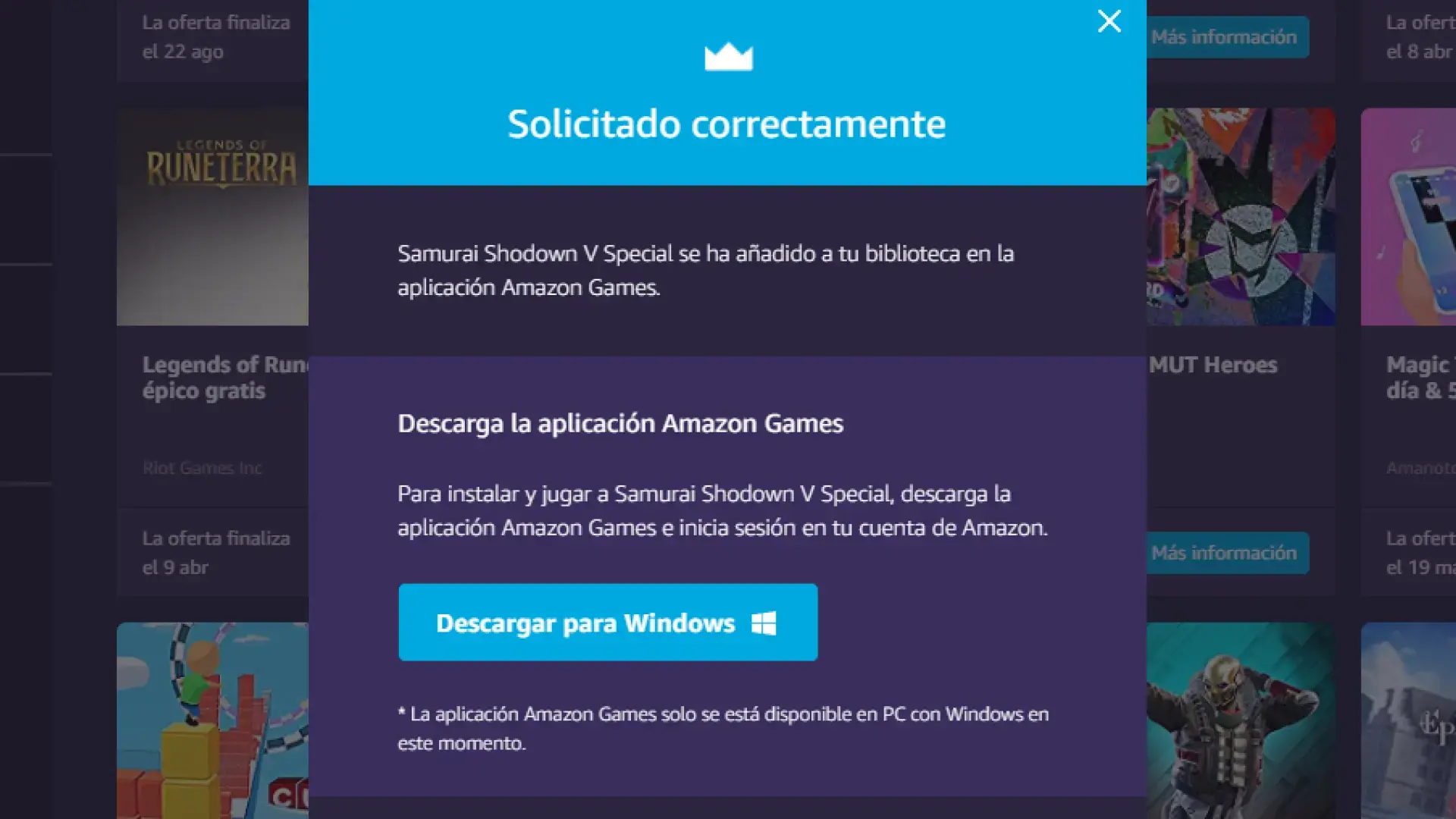
For certain products, the download isn't a direct installer, but rather a launcher or client from which the main content is downloaded later . This happens, for example, with the Amazon Games app for PC or with some game installers that are managed through specific applications.
How to redeem game and digital software codes purchased on Amazon
Many Amazon digital products aren't downloaded directly from their servers; instead, they include a code that you'll need to redeem on another platform or through the manufacturer's activation system . In those cases, My Games & Software Library is also the starting point.
When you enter your library and select the product in question, you will see a code or key associated with your purchase . This code may correspond to a specific platform (for example, a Steam, GOG, Epic, or Origin code, a game publisher activation key, or a software serial number).
The general procedure involves entering the code exactly as it appears during the redemption process, using the appropriate device: this could be a PC, a console, or a mobile device, depending on the content. It is important to respect hyphens, capitalization, and the entire format, because even a small error can prevent the code from being recognized.
Amazon usually displays a link or section called “ How to redeem the key at… ” (for example, on a third-party store) that explains the specific page where you need to enter the key and at what step in the process. Some products also include a “Redeem from…” button , which redirects you directly to the third-party platform, already set up to apply the code.
When this direct redemption button is available, clicking it opens the website or client of the external store, and you'll usually be asked to log in with your account (for example, your Epic, GOG, or the corresponding developer's account). Once logged in, the code is usually filled in automatically, saving you from having to copy and paste it manually.
If you receive a message saying the code has already been redeemed when you enter the key , the first step is to check if the content is already activated on your account. It's relatively common to forget that a code was previously redeemed or to not remember adding the game to another library. Checking the list of active games or licenses on the receiving platform can clear things up.
Install and activate digital subscription software from Amazon
In addition to games, Amazon sells software subscriptions and limited-time digital licenses . With these products, the process has an additional nuance: you must ensure that the software is activated correctly before or during installation.
Before you begin installing anything, it's essential that your device has a stable internet connection for activation and installation . If the connection drops or is very unstable, you could experience validation problems, incomplete downloads, or errors when verifying the license.
In some cases, it's recommended to activate your subscription before starting the actual installation . This activation is usually done from the purchase confirmation email (which contains a link to activate the subscription) or from the "Memberships and Subscriptions" section of your Amazon account.
Once the subscription is activated, the process is similar to that of games: go to My Games & Software Library, locate the code or download link, and follow the redemption and installation instructions . As with entertainment titles, it's advisable to verify that you are using the correct device and the correct software provider account.
If something doesn't add up (for example, an invalid license message or a message that the product is already registered), it's worth checking the forum or the specific help section for digital software purchases , where Amazon compiles solutions to the most frequent problems with subscriptions, activations, and renewals.
Managing common problems with downloads and digital codes on Amazon
Although most online purchases go smoothly, sometimes you might encounter common problems with receiving codes, processing times, download errors, or installation difficulties . Amazon has a dedicated help section for these issues.
One of the most common questions is about not receiving digital codes . For certain orders, Amazon needs a little more time to process the transaction, mainly for security or payment method validation. This additional processing is usually less than 4 hours, but during that time the code may not yet appear in the library.
If some time passes and you still don't see the code or the download option, the first thing to do is check the email linked to your account, your spam folder, and your games and software library . If the content still hasn't appeared after a few hours, then it makes sense to go to the help section or Amazon support to check the order status.
In the digital shopping help section, Amazon often highlights popular articles with solutions to installation errors, redemption problems on third-party stores, license management, and questions about where to find product keys . There may also be a forum widget where other users share experiences and practical solutions to specific issues, as well as resources on digital citizenship and cybersecurity.
Regarding downloads, if you notice that the download is interrupted or not progressing, it's advisable to try using a different compatible browser (for example, switching from Internet Explorer to Chrome, or from Safari to Firefox), temporarily disable overly aggressive blockers or antivirus software, and ensure that your connection doesn't have any restrictions that affect this type of file.
The Amazon Games app for PC: what it is and what it's for
In addition to the classic direct download from the website, Amazon offers its own PC game client, called Amazon Games . This application is downloaded, installed, and functions similarly to other platforms like Steam, but with its own unique features.
The Amazon Games client lets you redeem downloadable PC games and play linked titles, including some related to the Luna service . Once installed, it's the central hub for managing your Amazon downloadable game library and accessing the titles included with your Prime subscription.
Amazon Games has been gaining popularity because it gives away free games every month to Prime subscribers . Once claimed, these titles are added to your library and are available to download and install whenever you want. It's a way to accumulate games "forever" simply by maintaining an active subscription.
The client-side approach is relatively simple: it offers a user-friendly environment to see which games you own, which ones are installed, which ones are pending, and to manage their downloads . It doesn't have the same complexity or number of social features as platforms like Steam, but precisely for that reason, it's more straightforward for those who just want to download and play.
One of the client's main sections is " Free Games with Prime ," which lists the titles you can claim at any given time. By clicking "Claim," these games are added to your personal library, from where you can install them whenever you want.
How to download the Amazon Games client and manage your library
To use the client, the first step is to download the Amazon Games installer from the official Amazon website . There you'll find the specific link for Windows (it's the main supported platform) and you'll follow the standard installation wizard.
Once the client is installed, you'll be prompted to log in with your Amazon credentials when you open it . It's essential to use the same account you use to purchase or claim games, as your library is linked to that specific account.
Within the client, you'll see your library section, where you can filter through all games, those already installed, and those ready to install . From there, you can start the installation of each title, uninstall it, check for updates, or simply see what's available.
The interface is designed so that, from a single window, you can manage your game list, start downloads, launch games, and in some cases, communicate with friends or view additional information about the title. It doesn't reach the level of complexity of other established platforms, but it adequately covers basic needs.
As you claim Prime rewards or purchase compatible games, you'll build a substantial catalog within Amazon Games . This makes it especially useful to be able to customize where these games are installed and how they're updated, preventing your PC's main drive from becoming overloaded.
Customize game installation from Amazon Games
One interesting advantage of the client is that it allows you to choose the installation path for each game . This is crucial if you have multiple drives in your PC (for example, an SSD for the system and an HDD for storage) and want to optimize space and performance.
When you select a game from your library and click the "Install" button , a window appears showing the approximate size of the game and the available space on the selected drive. By default, the client creates a folder called "Amazon Games" on the main drive, but you are not required to use this option.
In that same window, you'll see a button with two arrows or a drop-down menu that lets you change the installation folder or drive . From there, you can select any of the drives connected to your PC (another partition, a secondary drive, etc.) and distribute the games' size as you see fit.
Additionally, right below the installation path, there's usually a checkbox to create a shortcut on the Windows desktop . Checking this option will add a shortcut icon to the game, making it much easier to launch without having to open the client first.
This type of customization is especially useful if you play very demanding games and don't want to fill up your main SSD , or if you prefer to have your games grouped in a specific folder for better organization, copying, or backups.
Amazon Games Update Settings and Customer Behavior
Another aspect to consider is game updates and the customer's own behavior . While Amazon Games doesn't offer a vast array of settings, it does include the basics to control how and when your library is updated.
The user account name usually appears in the bottom left corner of the interface . Clicking on this name will take you to the client's "Settings" menu. From there, you can modify various preferences related to both updates and program startup.
Among the usual options, you'll find the ability to enable or disable automatic game updates . If you leave them enabled, the client will download and install updates when they become available; if you disable them, you'll have to do it manually, but you'll have more control over storage space and bandwidth usage.
It's also usually possible to define a time range during which the client can download or apply updates . This is very useful if you have a limited connection or if you don't want downloads to slow down your network at certain times of the day, for example, while you're working or playing other games online.
Another common setting is to start the client with Windows . Enabling this option makes Amazon Games load automatically when you boot your system, which can be convenient if you use it daily, but it can also slightly lengthen your PC's startup time. If you prefer a cleaner boot, you can disable it and open the client only when you need it.
Although the settings panel isn't huge, for most users it's enough to customize the client to their playing style : controlling where games are installed, when they are updated, and whether the program opens with the system.
Amazon games that can be redeemed in other stores (GOG, Epic, etc.)
An important detail about the Amazon ecosystem is that not all the games it offers, especially those given away with Prime, are added directly to your Amazon Games library . It's becoming increasingly common for gifts to come in the form of keys for other stores.
Amazon often offers free games for platforms like GOG, Epic Games, and other digital stores during promotions . To take advantage of these offers, you'll obviously need an active account on each of those platforms, although registration is usually free and quite quick.
When you claim one of these games "for another store", what happens is that the title is associated with your Amazon account as a registered purchase or gift , but the game itself is added to your library on the destination platform, not in the Amazon Games client.
This system has the advantage that you can enjoy titles on those other platforms as if you had purchased them directly there , with their own community features, achievements, cloud saves, etc. In some cases, you can even link accounts between Amazon and those stores to simplify future claims.
Therefore, if you see that a game you received as a gift with Prime isn't appearing in your Amazon Games library, it's very likely a title for another store and you'll need to redeem it using the corresponding code . It's always a good idea to carefully read the gift description and redemption instructions to find out which platform it will be activated on.
Download games from the Amazon Store for Android
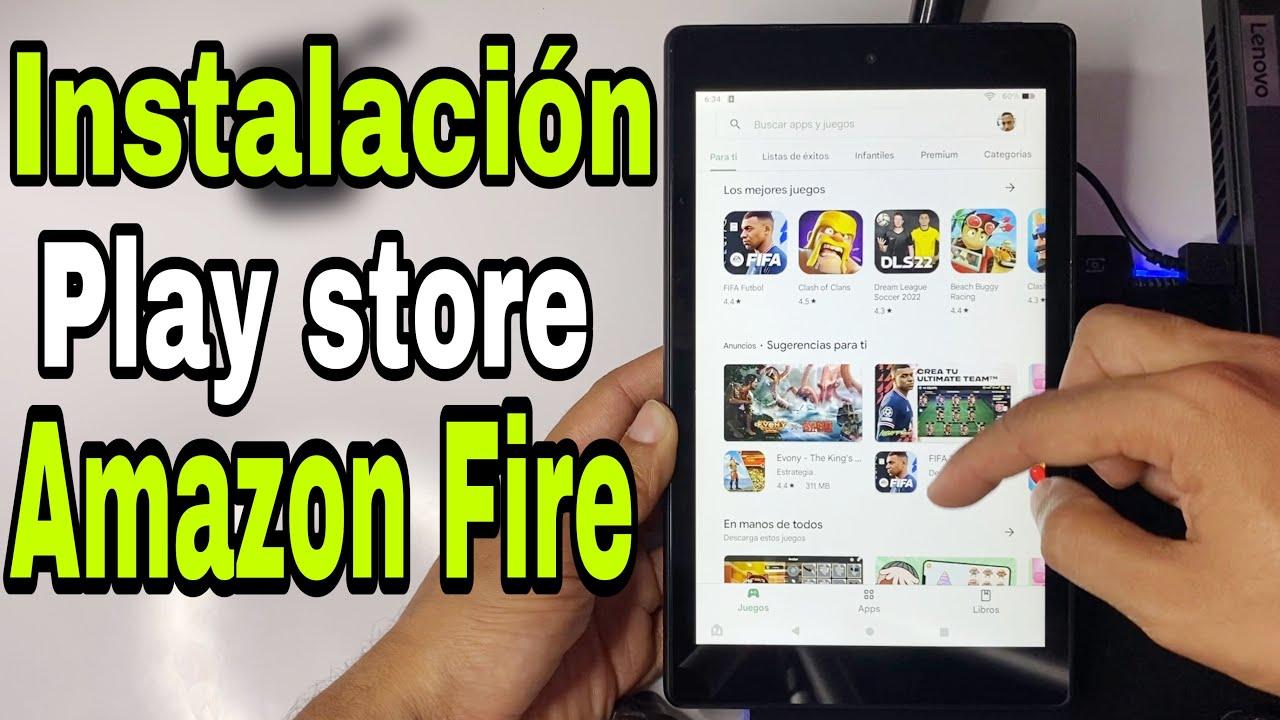
In addition to its PC ecosystem, Amazon has its own official app and game store for Android devices, known as the Amazon Appstore or Amazon Store . It's an alternative to the Google Play Store for downloading mobile games and apps.
From this store you can download a large number of games for Android phones and tablets , many of them quite well-known, with categories of all kinds: action, puzzles, sports, strategy, and much more. Organizing by genre helps you quickly find the content you're looking for.
Accessing the Amazon Appstore from a compatible device, you'll see a dedicated games category, which is the one you'll be most interested in if you're looking for digital entertainment . From there, the process is similar to any other app store: choose the game, review the information, install it, and you're done. If you have any problems, consult our guide on download issues on Android.
This allows you to not be limited exclusively to the Google Play Store , giving you another safe and reliable source of content. Furthermore, Amazon sometimes offers coins, discounts, or free paid apps for a limited time during promotions, which can be quite beneficial if you download games regularly.
In any case, even though it's a different store, they still apply similar concepts to those of digital PC purchases : your Amazon account is the basis of everything, your purchases are associated with that account, and you need an internet connection to download and install the content.
Ultimately, Amazon's digital ecosystem for software and video games combines direct purchases from the website, code redemption, a PC game client, Prime-linked gifts, and its own Android app store . Understanding how each piece fits together—library, codes, Amazon Games, third-party stores—is what allows you to navigate smoothly and avoid issues with downloads, activations, and disk space.


Passionate writer about the world of bytes and technology in general. I love sharing my knowledge through writing, and that's what I'll do on this blog, show you all the most interesting things about gadgets, software, hardware, tech trends, and more. My goal is to help you navigate the digital world in a simple and entertaining way.