- Clear difference between prediction and correction: you can turn one off and keep the other on.
- Windows y Microsoft 365 They have separate switches for suggestions.
- Universal shortcuts: Tab or right arrow accept; Esc discards.
Predictive text might help you type faster, but when it appears after every word, it can be a nuisance. In Windows and Microsoft apps , it's a feature designed to complete difficult words and keep you on track , displaying suggestions right above the cursor so you can choose without taking your hands off the keyboard. If you've gotten this far, it's because you want to disable it without losing the spell checker, and luckily, that's possible.
In this guide, you'll find out exactly how the system works, which shortcuts control it, and all the ways to turn it off in Windows 11 , Windows 10, and in applications like OneNote, Word , and Outlook. I'll also explain how to keep spell checking active so you don't miss any mistakes even if you disable predictions. We'll go step by step, using clear language and practical advice so you can solve it in just a couple of minutes.
What is predictive text in Windows and how does it actually work?
Predictive text tries to guess the next word or finish the one you're typing based on your language and spelling. As you type, the suggestions change and become more accurate , usually appearing just above the cursor so you don't have to look away from the line. It's not magic: it's a simple model that uses what you've already typed and writing patterns.
To accept a suggestion, you don't need to touch the mouse. Press the Tab key or the right arrow to insert it instantly and continue typing. This is the smoothest way to confirm a prediction when you're interested.
And if the suggestion bothers you or doesn't fit, you can ignore it in two ways. The first is to keep typing as is ; as you enter more letters, the suggestion will recalculate or disappear. The second is to press the Esc key to hide it immediately without changing any of the text you already have.
It's helpful to distinguish between two layers: the system layer and the application layer. Windows can display suggestions for any program (you'll notice this especially if you use a physical keyboard with the suggestions option enabled), and some apps, like Word and Outlook, have their own built-in prediction. Additionally, Microsoft Editor—the spell checker and style tool—also suggests words or complete phrases as you type.
Disable predictive text from Windows settings
If suggestions appear in all your applications, they most likely originate from the operating system itself. Disabling them in Windows eliminates this behavior in any program , without affecting the spell check in Office or other tools.
In Windows 11, the path is very straightforward: open Settings and go to Time & Language, then to Typing. There you'll see several switches related to the physical keyboard and the touch keyboard . The key for the physical keyboard is the switch that shows text suggestions as you type; turn it off if you don't want to see floating suggestions while typing.
On that same screen, you'll find autocorrect options. Turning off predictions doesn't mean you have to disable spell checking ; you can keep misspelling detection enabled if you want it to underline errors, but without word completion or sentence anticipation. Feel free to adjust these switches to your liking, as they're independent.
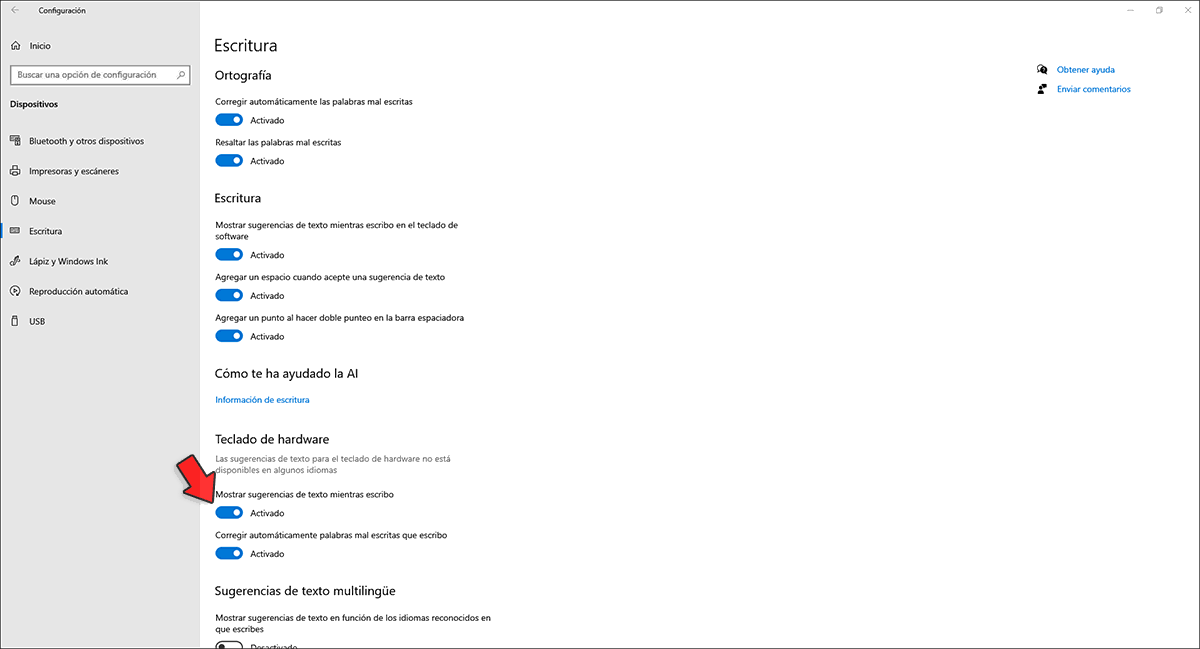
If you're still using Windows 10, the process is slightly different. Go to Settings, then Devices, and finally Typing. There you'll also find the setting to show text suggestions with the physical and touch keyboard; turn it off to stop the system from suggesting words over the cursor. While you're at it, you can decide whether you want common spelling mistakes automatically corrected or if you prefer them to be underlined only.
One last detail that often goes unnoticed: these settings are sensitive to the keyboard language. If you have multiple languages installed, check the typing options in each layout (for example, Spanish, English) so you're not surprised when suggestions disappear in one language but continue to appear in another.
Remove predictions in Microsoft 365 apps: Word, Outlook, and OneNote
Word and Outlook, within Microsoft 365 , have their own text prediction option separate from the system settings. This means that even if you disable Windows suggestions, the apps can still suggest words if their internal switch remains enabled. It's worth checking because it often makes a difference when writing long documents or emails.
In Word and Outlook, the setting is located in the Options menu, within the Advanced section. Look for the box that enables text predictions as you type and uncheck it if you're not interested. This way, you won't lose the error highlighting or grammar check in the Editor; you'll just stop seeing suggestions that you can accept with Tab or the right arrow key.
Regarding OneNote, it's common to get confused because the behavior can originate from the system and not the program itself. If OneNote is showing you word-by-word predictions, it's usually Windows that's injecting those suggestions . In that case, disable the feature in Windows Settings (Typing) as described above.
Now, you may have tried going to File, Options, Spelling and unchecking 'Check spelling as I type,' which removed the predictions but at the cost of losing the spell checker. There's no need to give up on spell checking in OneNote : simply re-enable 'Check spelling as I type' and, instead, turn off system or Microsoft 365 suggestions, depending on your system. You'll keep the spell highlighting without the automatic suggestions appearing.
If you actively use Microsoft Editor, remember that it can also suggest words or phrases. In applications that include it, open the Editor settings and disable predictive suggestions , while keeping spelling and grammar checks enabled if you wish. The goal is to clearly separate 'proofreading' from 'prediction' so you only get what you need.
Keep spell checking active without suggestions
The key is understanding that prediction and correction are not the same thing, nor do they depend on the same switch. Spell checking underlines and corrects mistakes; prediction tries to complete what you're going to write . You can turn one off and leave the other on without any problem.
In Windows, disabling 'Show text suggestions' removes system-level word completion, but it doesn't disable spell checking in Office or other apps . Then, within each program (OneNote, Word, Outlook), make sure 'Check spelling as you type' is enabled to continue seeing underlines and corrections when you really need them.
This is especially useful if you're writing long documents or notes. The spell checker alerts you to mistakes without forcing you to finish a word or dictate what sentence comes next . In other words: you get the safety net, but not the copilot.
In corporate environments, your organization may enforce certain policies. If you notice predictions reappearing or you can't change the setting, review your company's policies or speak with IT to have them enable spelling and disable predictive completion at the team or user level.
If you switch between multiple languages while typing, also check the Office spell checker's testing language. Using a dictionary different from your keyboard's can cause unexpected underlines or suggestions . Align your keyboard language, proofing language, and prediction preferences for a consistent experience.
Shortcuts and quick control of suggestions when they are active
Even if you plan to disable them, it's helpful to know how to handle them when they appear. To accept a prediction, press Tab or the right arrow key , and it will be inserted automatically. This is the method recommended by Microsoft in its editors and in the system itself.
If a suggestion distracts you, there are two immediate actions. Press Esc to hide it instantly , or simply continue typing; as you add more letters, the suggestion will adjust or disappear. There's no need to touch the mouse or open menus—everything is handled from the keyboard.
This fine-tuning is useful if you want to take advantage of suggestions in very specific contexts—for example, long terms—but avoid accidentally accepting suggestions in other cases . Knowing the shortcuts gives you that level of precision while you decide whether to keep or turn off the feature.
Remember that the prediction relies on spelling and basic patterns. The more letters you type, the more accurate the suggestion will be , and if you change your mind, the Esc key acts as a universal 'get rid of' in compatible apps.
Troubleshooting common problems
Sometimes you disable everything, and the suggestions keep coming back. Before you lose your mind, review these key points that often explain the unruly behavior.
- Check the active keyboard languageIf you switch between Spanish and English, each distribution may have its own prediction preference.
- Update Windows and Microsoft 365Some switches have changed location with ThereHaving the latest version avoids confusion.
- Organizational Policies: In work teams, a policy may require suggestions to be displayed; check with IT if you cannot turn them off.
- Touch keyboard vs physical keyboardThere are different switches; turn off the one that corresponds to your writing style to avoid leaving any loose ends.
- AccessoriesIf you use extensions or services like Microsoft Editor, disable its suggestions within the app, while maintaining spelling and grammar.
If you're using OneNote with Microsoft 365 and predictive text suddenly appears, don't touch the spell checker as your first reaction. Re-enable 'Check spelling as I type' in OneNote if you've disabled it , and go to Windows Settings to disable physical keyboard suggestions. In many installations, this is the actual source of the intrusive behavior.
When suggestions only appear in Word and Outlook but not in other applications, the problem is usually with the applications' internal settings. Go to their Advanced Options and uncheck the Text Predictions box . This will allow you to keep the spelling and grammar underlines in the Editor without suggestions appearing as you type.
If none of the above works, consider resetting your typing options. In Windows, turn spelling and autocorrect off and then back on to clear any stuck settings, and restart your computer for the changes to take effect.
Practical tips for comfortable writing
If you share a computer or switch between different environments, you might want a hybrid approach. Leave predictions enabled only on the touch keyboard when typing in tablet mode, and turn them off on the physical keyboard for intensive text work.
In formal documents, such as reports or academic papers, autocomplete can sometimes lead to unfortunate entries. Disabling prediction reduces distractions and prevents accidental Tab clicks.
Conversely, if you're writing code or commands , Windows' general predictive text often gets in the way. Leave your code editor's wizard off and disable system suggestions so they don't interfere with the IDE's specific autocomplete.
And remember: the function relies on spelling and immediate context, not your documents or deep history. The more letters you add, the more accurate it becomes; the less context, the more generic the suggestion . Adjust your expectations and decide whether it helps or distracts you, depending on your task.
If you find visual pop-ups annoying but don't want to completely lose the help, you can keep only the error underlines active. This way, you can see when there's a mistake and correct it manually , preventing the system from guessing what you were going to type.
The Windows and Microsoft 365 ecosystem lets you choose with considerable precision. Turn off predictions where they're not helpful, keep spell checker on where they are, and use shortcuts to work around them if you decide to leave them on in specific cases. With just two or three well-adjusted settings, the feeling that the system is 'writing for you' disappears.


Passionate writer about the world of bytes and technology in general. I love sharing my knowledge through writing, and that's what I'll do on this blog, show you all the most interesting things about gadgets, software, hardware, tech trends, and more. My goal is to help you navigate the digital world in a simple and entertaining way.