
Want to know how to clear your Smart TV 's browsing history ? This guide will show you how to configure the automatic deletion settings for your Smart TV's browsing history. We'll cover the most popular brands. Stay tuned!
Configuration/management ways to delete the history of a Smart TV in brands such as LG, Samsung and Hisense
Now, let's look at the configuration/management methods for clearing the history on an LG Smart TV and other brands. You can configure your Smart TV's web browser to better suit your needs.
Here you can learn about: What to do if your Hisense Smart TV won't connect to Wi-Fi
Method 1: Delete the History of an LG Smart TV
The menu allows you to search or delete your browsing history. To delete the history of an LG Smart TV, you must perform the following steps:
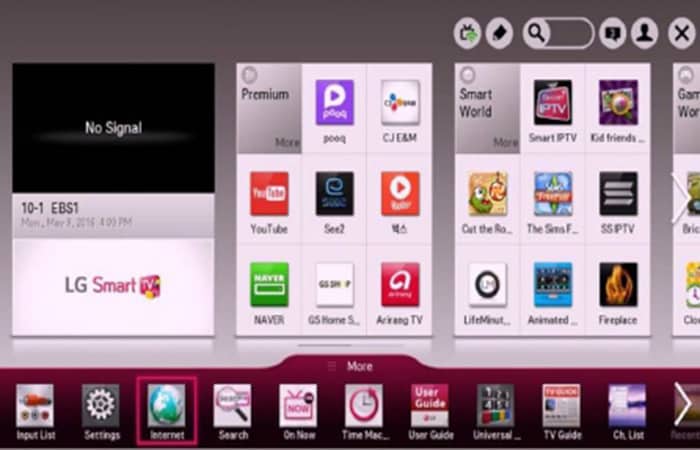
- Step 1:: Choose Smart Home >Internet
- Step 2: Select the internet icon at the top of your web browser.
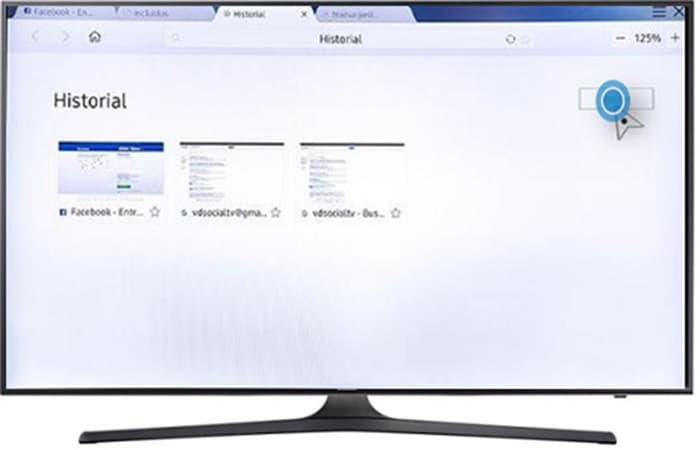
- Step 3: Choose History to see a list of the web pages you have visited.
- Step 4: Select the website you want to delete from your browsing history.
- Step 5: To delete all browsing history, select the Delete all history button.
- Step 6: Select the icon Delete stories.
- Step 7: Select the OK button to remove the selected web page from your browsing history.
Bookmark manager
The bookmarks manager allows you to remove a website from your bookmarks list or change which websites appear in your bookmarks bar.
Deleting bookmarks to clear the history of an LG brand smart TV
To remove a website from the bookmarks bar, follow these steps:
- Step 1:: Choose Smart Home >Internet.
- Step 2:: Select the navigation icon at the top of the web browser.
- Step 3:: Choose bookmark manager to open the manager in the bookmarks tab.
- Step 4:: Select the website you want to remove from the bookmarks list.
- Step 5:: To remove all flagged websites, select the button Delete all bookmarks.
- Step 6:: Select the button Delete bookmarks.
- Step 7:: Select the OK to remove the selected website from the bookmarks list.
Change websites in the bookmarks bar
You can change the order of websites in the bookmarks list to change which websites appear in the bookmarks bar. To change which websites appear in the bookmarks bar, follow these steps:
- Step 1:: Choose Smart Home >Internet.
- Step 2:: Select the navigation icon at the top of the web browser.
- Step 3:: Choose bookmark manager.
- Step 4:: points out the Magic remote control and locate the pointer on a website, then hold down the wheel button.
- Step 5:: Hold the wheel button on the Magic remote control and move the pointer to where you want to place the website.
- Step 6:: The bookmarks bar shows the top 5 websites in the list.
- Step 7:: Release the wheel button on the Magic remote control to change the order of websites.
- Step 8:: Check if the selected website appears in the bookmarks bar.
Settings
The Settings menu allows you to change the following options related to your browsing experience:
- At the beginning: Specifies the screen to be displayed when you open a new tab.
- Search engines: Select the default search engine used for searches in the address bar.
- Privacy: Specifies whether you want to keep a record of your browsing history.
- Always activate the Bookmarks bar: Specifies whether to always show the bookmarks bar.
- Flash: Specifies whether to run Flash.
- Delete navigation data: Delete your browsing history and any downloaded cookies.
- Coding: Select the text encoding method used by the web browser.
Method 2: Delete the History of an LG Smart TV
Do you own an LG Smart TV? And have you always wondered if it is possible to clear app cache and browsing data on LG Smart TV? Well, if your answer to both questions was yes, then you are at the right place, in this part we will guide you properly on how to clear app cache and browsing data on LG Smart TV.
In simple terms, a cache is a hardware or software component that stores data so that future requests for that data can be retrieved more quickly. The data stored in the cache could simply be the result of a previous calculation or a copy of data stored elsewhere.
Cache can be found in all apps and as such, your browsing apps are not excluded. For browsing data, what your browser does is cache your browsing data, which in turn means that it stores data on your device (in our case, we have to be your LG Smart TV) because it thinks that it can access the data faster locally rather than from the internet.
Just like your mobile devices and laptops , smart TVs also store app caches and browsing data, which can eventually become a problem—namely, filling up their internal memory. Unlike laptops, the built-in memory of smart TVs isn't very large, so to continue using your smart TV efficiently, it's important to learn how to clear app caches and browsing data on LG smart TVs.
How to clear app cache and history data on an LG Smart TV
Now, let's see how to clear app cache and browsing data on LG Smart TV
Clear browsing data on LG Smart TV
One of the main benefits of clearing app data and browsing cache is that it improves the speed and performance of your Smart TV. Additionally, doing this regularly helps protect your Smart TV from harmful malware you may have encountered while browsing, and finally, it reduces lag.
Additionally, if you've been receiving the " out of memory " error message recently, besides removing apps to free up space, this is also a great way to resolve the issue.
Follow the set of instructions below to be able to clear the application cache on LG Smart TV.
- Step 1:: Turn off your LG Smart TV using your remote control or by using the power button located under the LG logo on the TV.
- Step 2:: Turn your LG TV back on.
This simple yet effective method will automatically clear the system memory, close all your recent apps, and also delete stored session data. Alternatively, if you don't want to turn your Smart TV off and on every time you want to clear the app cache, you can close the apps you no longer use one after the other.
To perform this action on your LG Smart TV, follow the instructions below:
- Step 1:: Open the application you want to close.
- Step 2:: Click the button Close (X) located in the upper right corner of the screen to end the application.
Performing the above actions will clear the app cache for that particular app. If you have a number of apps that you want to close at once, a quicker method would be to hover over one of the recent tiles in the recent preview area.
There you will find a close button (X) that appears at the top of the tile; simply click on it to close the application and continue in that way until all applications are closed.
Delete history on LG Smart TV by deleting the data
With the steps above, you should be able to clear the app cache on LG Smart TV for any app. The next thing we will show you is how to clear browsing data on LG Smart TV. In order to do this, follow the set of instructions provided below:
- Step 1:: Press the button Home(it's the home icon on your remote control).
- Step 2:: Choose the web browser that is located at the bottom.
- Step 3:: Choose Menu (the three horizontal lines). It is located in the upper right corner of your screen.
- Step 4:: In the drop-down menu, Select Configuration.
- Step 5:: Active Private browsing to activate it. This is done to prevent the accumulation of too much data in the future.
- Step 6:: Choose CLEAR BROWSING DATA.
- Step 7:: Finally, in the confirmation window, Select Accept.
On a final note, if you perform the above steps regularly, you should be able to clear the app cache and browsing data on LG Smart TV, which will, in turn, prevent the issues that arise from not clearing them.
Method 3: How to delete the history of an LG Smart TV
Just like any other smart device these days, you need to perform maintenance activities like clearing app cache and cookies on your LG Smart TV to keep it running at its best.
This simple yet effective method can significantly boost your device's performance. Not only that, but it can also resolve some common issues you might encounter with your LG Smart TV, including the " Insufficient Memory " error message.
Clearing the cache and cookies on your LG Smart TV should be done regularly to get the most out of your device and avoid interruptions when enjoying your movies or TV shows.
How to delete the history of an LG Smart TV by deleting the application cache data with webOS
LG's webOS platform doesn't offer a direct way to clear app cache and data like Android TV or Roku TV do . However, there are two ways to achieve the same effect, especially if you're experiencing memory or storage issues on your LG TV.
Turn off your LG Smart TV to clear the app cache and store session data
- Step 1:: Simply turn off your LG Smart TV and then turn it back on.
- Step 2:: Doing so will clear your system memory. It will also close all your recent apps and delete your stored session data.
Close apps running in the background to clear cache and memory data
If you don't want to close all the apps you've recently opened, you can easily close an individual app to clear the cache. Identify the app that's running in the background and you want to end. To close an app on your LG Smart TV, do the following:
- Step 1:: Click the button «X (close)» in the top right corner of the screen to close the app.
- Step 2:: You can also hover over one of the Recent mosaics In the area preview reciente.
- Step 3:: The button «X (close)» appears at the top of the tile. Click on it to close the app.
How to delete browsing data, cache and cookies on your LG Smart TV
LG Smart TV allows you to browse the Internet using its built-in browser. However, as with most browsers, your device saves your browsing data.
This includes browser cookies, temporary internet files or cache, history, and other information. Learn how to completely remove them from your smart TV regularly by following the steps below:
- Step 1:: From your Home screen, open the Web Browser app.
- Step 2:: Then click Menu> Settings.
- Step 3:: In the settings, you can activate the button Private browsing if you want to avoid accumulating so much browsing data in the future.
- Step 5:: Then click on the Clear browsing data button to clear cache and cookies.
- Step 6:: Click Accept to confirm.
Your LG Smart TV is now spick and span. Ready to accompany you on your next binge-watching sessions with the baggage of old app cache and browsing cookies completely gone.
Method 4: How to clear data and clear cache on LG Smart TV
It is always recommended to clear cache and clear data on your Smart TV twice a month or once a week to avoid issues with apps stopping responding or apps crashing and other problems. You can do this as follows:
- To clear the cache in LG Smart TV -> System Settings -> Application Manager -> Choose applications and clear cache and delete the data.
If the apps are not responding on your Smart tv then you need to clear the app cache and if your Smart tv is not responding then you need to clear the Smart tv system cache to get rid of the problem on your Smart tv.
The term cache is defined in terms of a software or hardware component that stores your request and can be easily retrieved for future browsing. Cache data can simply be the result of a previous browsing or a copy of data stored elsewhere.
Well, the cache is in all apps and also in your browser apps. With this, you can access the day's browsing locally faster than the Internet.
Just like your laptops, mobile devices, and smart TVs, they also contain such problems like filling up the internal memory. Therefore, it is more efficient to use Smart TV because the memory space in Smart TV is not enough compared to the capacity.
Here are some ways to clear cache on LG smart TV.
How delete the history of an Smart tv LG (remove data and cache)
To clear cache and wipe data on a Smart TV, follow the methods below to clear individual apps and cache of pre-loaded apps on your LG TV.
Clear cache of individual apps on LG Smart TV. Whenever you are facing the storage problem, therefore, it occurred due to only certain apps, therefore, you need to clear the cache of that exact app by following the steps below.
- Step 1: First, from the home page, head to system settings.
- Step 2: Then move to the application manager
- Step 3: Below is a list of preloaded and installed applications
- Step 4: After that, choose the app you want to clear the cache on
- Step 5: Then click on the button Clear cache
With these steps, you can easily clear the cache of a particular app.
Clear all cache data on LG Smart TV
If you are searching for something on your LG Smart TV, it means that it is saving the browsed data and it is being saved. You can overcome this problem by following the steps below.
- Step 1: First, turn on your LG Smart TV
- Step 2: then open the search engine and tap on the menu followed by settings
- Step 3: Now it's time to delete browsing data
- Step 4: Finally, choose ok to continue with the removal process
With these steps, you can make your device cache-free and more efficient.
How to delete the history of an Insignia brand Smart TV and force
If your flagship brand smart TV is having problems opening apps, such as the YouTube app not opening or Amazon Prime Video app not loading , or any other issue, you can fix it by clearing the cache or data, force-stopping the app, and restarting it. Let's look in detail at how to clear the cache, clear data, and force-stop apps below.
Clear Cache & Wipe Data & Force Stop Apps on Insignia Smart TV:
- Step 1: Grab your remote and press the start button.
- Step 2: Press ok en Configuration
- Step 3: Scroll right -> Select Applications
- Step 4: press ok in the managed installed application.
NOTE: All installed applications will be listed here.
- Step 5: Select the application you want and select clear cache
Erase data on Insignia Smart TV:
- Step 6:: Click on Application and select Delete data to clear data from the application memory.
Force close on el Smart tv Badge:
- Step 7: Settings->Managed Applications ->Select Application
- Step 8: Select force stop and press ok to force stop the application.
That's it, this is how to clear data and clear cache and force stop an Insignia Smart tv app.
Why clear cache and data and force stop apps on un Smart tv Insignia?
On your flagship Smart TV, if you are facing issues in opening the app or playing a video, or the app keeps crashing or the app keeps loading and an app loads and closes on the Smart TV, then clearing the cache or clearing user data and force stopping the app will help to resolve issues.
How to delete the Force stop application on a flagship Smart TV?
Simply follow these steps to delete the Force Stop app on a flagship Smart TV :
- Step 1:: Go to Settings->Applications->Managed applications
- Step 2:: Then, select the application and press ok on Force Stop.
How to clear cache on un Smart tv Insignia?
Simply follow these steps to clear the cache on an Insignia Smart TV :
- Step 1:: Go to Settings->Applications->Managed applications
- Step 2:: Then, select the application and press ok on Clear cache.
How to delete data on un Smart tv Insignia?
Simply follow these steps to delete data on an Insignia Smart TV :
- Step 1:: Go to Settings->Applications->Managed applications
- Step 2:: Then select the application and press ok on Delete data.
How to delete history on Samsung brand Smart TV
When you open any website for the first time then you get some unwanted data or other relevant data which might get stuck in the cache and it is very important to clear the cache on your device because it would reduce the efficiency of that device and sometimes your apps on Samsung Smart TV become unresponsive or keep crashing due to data overload of cache files on Samsung Smart TV.
Regularly clearing the cache and browsing data increases the speed and performance of your TV and will protect your device from harmful data while browsing or using apps, or installing any app on your Samsung Smart TV and streaming data such as Netflix , Amazon Prime, Disney +, or the YouTube app, or any of your favorite streaming apps on your Samsung Smart TV.
It is very safe to clear your app cache on a regular basis because it is a good practice for all electronic devices.
How delete the history of a Smart TV Samsung brand (clear cache):
By following the steps below, you can clear the cache on your Samsung Smart TV.
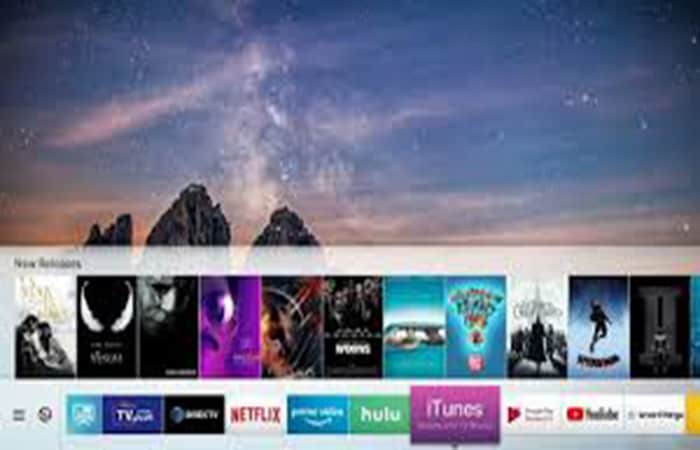
- Step 1: Take the remote control of your Samsung Smart TV, Click on the start button.
- Step 2: Then head to the setting and click Accept on your Samsung Smart TV remote control.
- Step 3: Choose APPLICATIONS and Click OK on the remote control.
- Step 4: then go to «system applications».
- Step 5: Click on the app you want to clear the cache and Click on “clear cache”.
- Step 6: Tap “ok” to confirm and clear all cache.
You must repeat this process for all applications installed on your device.
How to delete or clear cache and data on Hisense brand Smart TV
The technical world is becoming more expert day by day with advanced technology that improves the performance of digital and electronic devices. Starting with this smart TV it became part of our life.
If you want high-quality pictures and adorable features or in a smart TV, then you can select the Hisense smart TV. In the world of smart TVs, it is considered one of the best alternative smart TVs when compared to various smart TV brands.
Furthermore, its price is significantly lower than that of Samsung, LG, and Sony. Hisense smart TVs run on Android TV , which is similar to other smart televisions.
While cache and store data will affect the functionality of the picture viewing experience, in this article, we look at how to clear cache and data stored on your Hisense TV.
How to delete the history of a Smart tv brand hisense
Now, let's see how to delete the history of a Hisense brand Smart TV:
Method: 1 to delete The history of a Hisense brand Smart TV
Let's see how to clear cache and data stored on Hisense Tv with a few simple steps
- Step 1: Go to the option ' Start' on your TV using the remote control.
- Step 2: From there, select the option 'Network' and click on it.
- Step 3: Next, tap on the option ' clear internet memory ' to clear the cache
That’s it, this is how you clear internet data and cache on Hisense Smart TV.
Method: 2 Clear cache along with stored data of Hisense Roku tv
If you are very interested to know what is cache. Cache is specially dedicated to store temporary files to save the device storage and run your device much faster. Let us see some steps to clear cache on Roku tv.
- Step 1: Choose the option 'Start' on your Hisense TV using the remote control
- Step 2: Now scroll down to the main menu using the arrow buttons on your remote and then open 'setting'
- Step 3: After opening the settings, select the 'System' option.
- Step 4: Now, from the option 'System ', choose the option 'Advanced system settings''
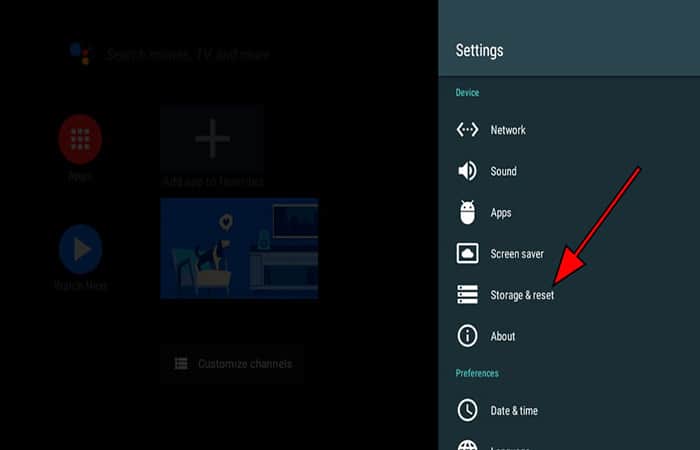
- Step 5: After that, tap on the option ' Factory reset'
- Step 6: Next, choose the option ' reset everything to factory settings '
- Step 7: After that, a code will appear on the screen. Just enter that code.
- Step 8: A confirmation pop-up will then appear. Tap on it and wait until your TV reboots.
The Hisense smart TV offered many features and a very good video streaming experience. You can download a multitude of apps on this smart TV . Along with its lovely features, it also has some bugs and glitches. Here we detail some methods to fix those bugs and glitches.
When to delete cache and wipe data on hisense Smart tv?
If your hisense smart tv apps are not working or not opening or the apps are showing blank screen or Netflix not working or stuck on logo or any other issue with the apps then you need to clear the cache of the particular app which is not working and your problem will be solved.
You might also be interested in reading about: Playing Spotify on Hisense Smart TV: 5 Ways
What happens if I delete cache and wipe data on hisense Smart tv?
When you run an app on your Hisense Smart TV, the TV will cache the data and all files to give you better results when browsing and serve app-related files quickly for faster and quicker response.
If your cache and data files are outdated, apps may not respond correctly, resulting in a blank screen or app crashes on your Hisense Smart TV. To fix this, you should clear the cache and delete the app data to resolve app-related issues on your Hisense Smart TV, or even uninstall/delete and reinstall the app to troubleshoot the problem.
Conclusion
As you can see, these are some methods and tips you can use to delete the history on a Smart TV from brands like LG, Samsung , Hisense, and Insignia. Each of these methods is supported by the respective manufacturers. We hope you find this information helpful.

My name is Javier Chirinos and I am passionate about technology. Ever since I can remember, I have been interested in computers and video games, and that passion has turned into a job.
I have been publishing about technology and gadgets on the Internet for over 15 years, especially in mundobytes.com
I am also an expert in online marketing and communication and have knowledge in WordPress development.