- The virtual desktop feature allows you to compartmentalize work, personal, and leisure tasks into separate spaces.
- It is possible to customize each environment using descriptive names and distinct wallpapers for quick visual identification.
- The system offers flexible application management, allowing you to move windows between desktops or display them on all of them simultaneously.
- The combination of keyboard shortcuts and the use of Task View optimizes navigation and multitasking productivity.
If you've ever felt like your computer is a complete mess, with dozens of tabs open and windows overlapping each other, you're not alone. In today's fast-paced world, multitasking can easily become a headache, making it incredibly easy to lose track of what you're doing.
Fortunately, Microsoft has integrated a super useful tool into its operating system that allows us to create independent workspaces. Basically, these are virtual shelves where you can group everything you need for a specific task, preventing the visual clutter of other tasks from distracting you while you try to concentrate.

What exactly are virtual desktops and what are they used for?
Imagine you have several work tables in the same room; on one you have your office papers, on another your study notes, and on a third your games or creative projects. That's exactly what virtual desktops do: segment the digital environment so that each activity has its own space without mixing with the others.
This feature is a real lifesaver for those who need to separate their professional and personal lives . For example, you can leave your work email and management software open on the first desktop, and leave social media or vacation planning on the second. That way, when you switch environments, your mindset also switches gears.
Furthermore, it's a fantastic tool for managing complex projects. If you're managing three different clients simultaneously, you can dedicate a separate desktop to each project , keeping only the relevant documents and applications open for that specific client, which drastically reduces visual strain.

Step-by-step guide to creating your first virtual desktop
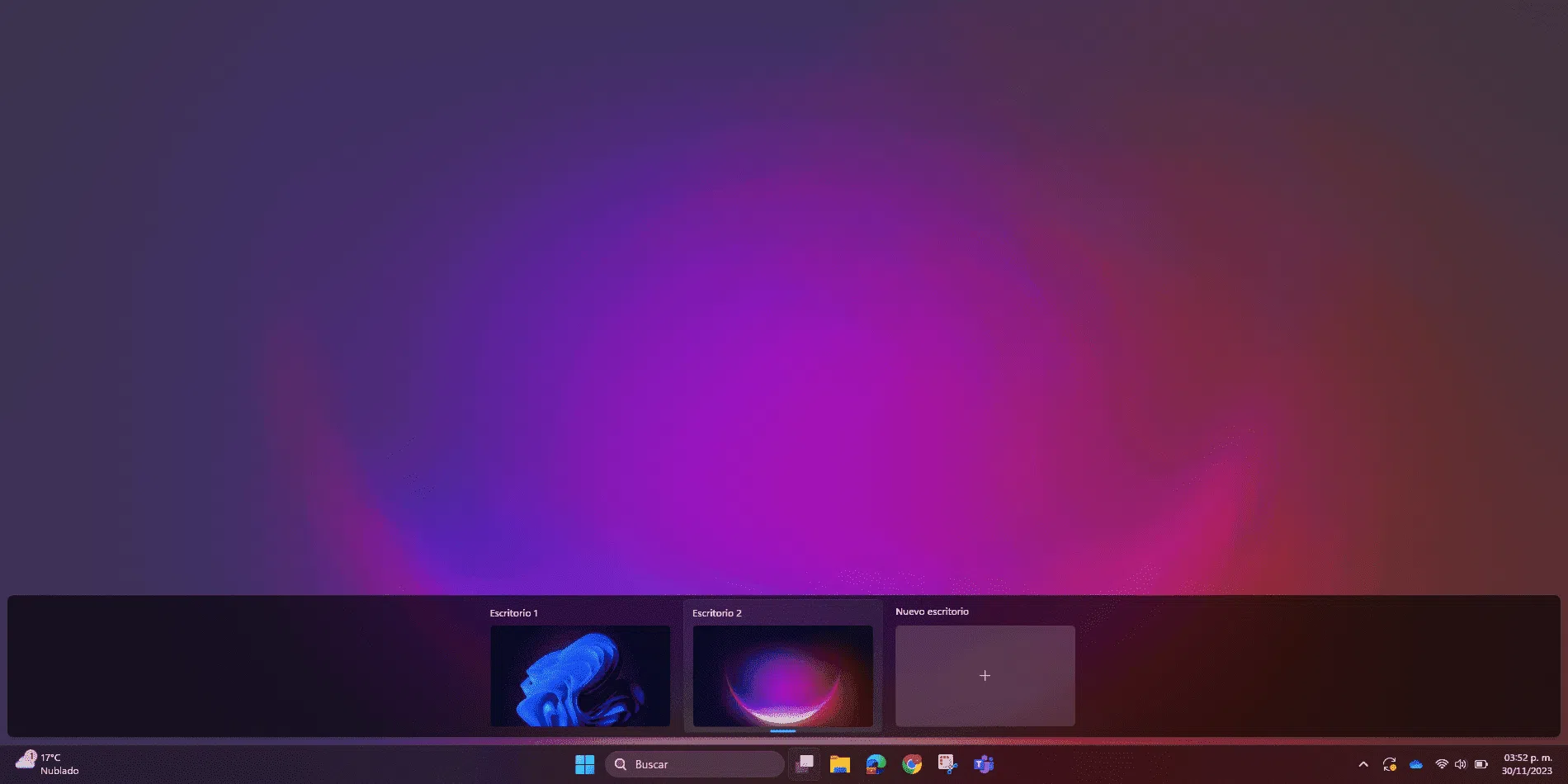
Getting started is very simple and doesn't require installing anything unusual. To begin, you have two options: you can click on the Task View icon that appears in the taskbar, or, if you prefer a faster method, press the Windows + Tab key combination.
Once the interface opens, you'll see a "+" button at the top or bottom (depending on your version) labeled "New desktop" . Clicking it will instantly create a new, clean workspace where you can start launching your applications.
To switch between them, simply return to Task View and select the one you want to use. If you find you no longer need one of those workspaces, no problem; just click the X in the upper-right corner of the desktop thumbnail you want to close.
Advanced customization so you don't get lost
When you start accumulating a lot of desktops, it's easy to forget what was on each one. To avoid this, Windows 11 lets you assign custom names . Just go to Task View, right-click on the desktop thumbnail, and choose the Rename option. Adding labels like "Work," "Studies," or "Gaming" makes navigation much smoother.

Another great trick is to change the background image on each desktop. It's not just for aesthetics; it also serves as an immediate visual cue to let you know where you are. To do this, right-click on the desktop in Task View and select "Choose background ," allowing you to select a different image for each workspace.
If you like to have everything under control, remember that you can also rearrange the order of your desktops. If you want the "Projects" desktop to be at the top of the list, simply drag and drop its thumbnail to the position you prefer within the task manager.
Mastering multitasking and application flow
One of the most common questions is what happens to windows that are already open. If you need a specific application to be present in all your environments, such as a team chat or a music player, right-click on the window in Task View and select "Show this window on all desktops . "
If you prefer an application to be in one place but decide it now fits better in another, you can drag the window directly from Task View to the target desktop. It's a very intuitive process that allows you to reorganize your workflow on the fly.
For those seeking maximum speed, there are essential keyboard shortcuts that will make you look like an expert:
- Ctrl + Windows + D: creates a new desktop instantly.
- Ctrl + Windows + Left/Right Arrow: jumps between desktops without opening menus.
- Ctrl + Windows + F4: Closes the current desktop quickly.
System settings and display alternatives
If you feel your taskbar is getting too cluttered, you can go to Settings > System > Multitasking and expand the Desktops section. Here you can choose whether you want the taskbar to show only the windows on the active desktop or all open windows on your system, regardless of where you are.
This setting is vital for avoiding distractions. By configuring it to only show apps on the current desktop, you eliminate the temptation to jump to social media while you're in the middle of an important report. The same applies to the Alt+Tab command , which you can configure to only show windows in the current workspace.
For those with very demanding graphic needs, such as designers or programmers, there's always the option of multi-monitor mode . Unlike virtual desktops, which are digital spaces, connecting a second physical monitor expands the actual workspace, allowing you to have documentation on one screen and code or design on the other.
The intelligent use of these tools allows any Windows 11 user to transform their computer into a highly efficient workstation , eliminating visual clutter and optimizing concentration through task segmentation, background customization, and mastery of quick navigation shortcuts.


Passionate writer about the world of bytes and technology in general. I love sharing my knowledge through writing, and that's what I'll do on this blog, show you all the most interesting things about gadgets, software, hardware, tech trends, and more. My goal is to help you navigate the digital world in a simple and entertaining way.