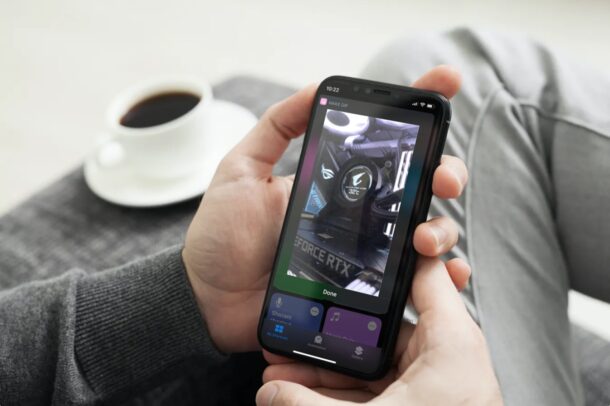
We've all wanted to turn a portion of a video into a GIF at some point, whether to make a meme, create an animated image, or for some other reason. If this is something you still enjoy doing, you'll be happy to know that you can now create GIFs from videos on your iPhone and iPad without relying on a third-party app.
There are several third-party apps available on the App Store that let you create GIFs from videos. You may have already tried one or more of them on your device. What's different about this particular technique is that we're going to use the Shortcuts app built into your iPhone or iPad. If you're not aware, Shortcuts gives you access to certain tools that aren't natively available on iOS and iPadOS.
How to Convert a Video to GIF on iPhone and iPad with Shortcuts
The Shortcuts app comes pre-installed on iPhones and iPads with iOS 13/iPadOS 13 or later. However, if you've deleted Shortcuts or if your device is running iOS 12, you'll need to download it from the App Store . Now, let's look at the necessary steps:
- Launch the Shortcuts app from the Home screen of your iPhone or iPad.


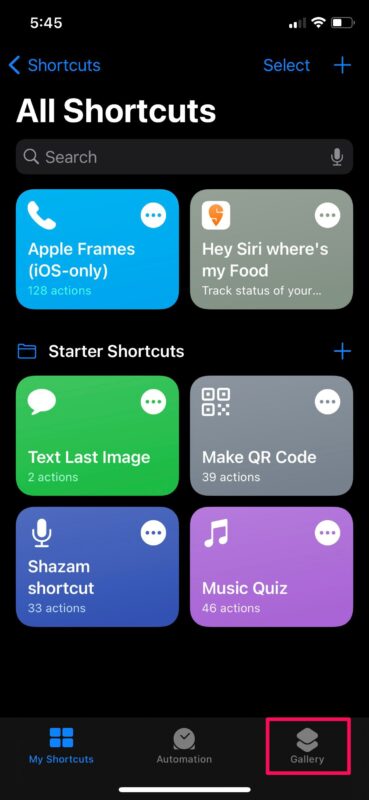
- When you launch it, you will usually be taken to the “My Shortcuts” section of the app. Head to the “Gallery” section from the bottom menu to continue.

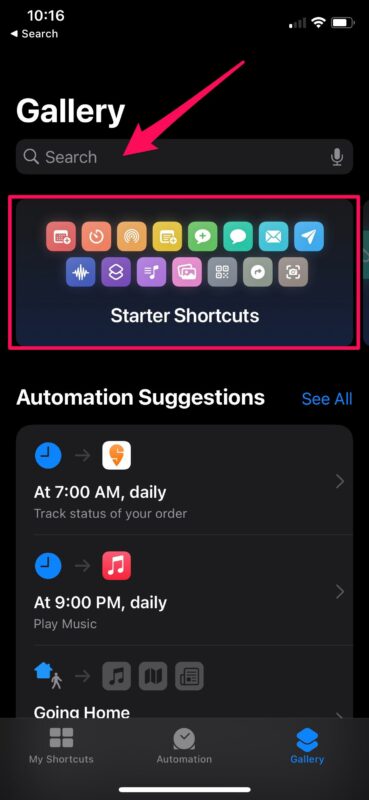
- Here, you will find a “Startup Shortcuts” banner just below the search bar. Tap on this banner to find the necessary shortcut you need to install.
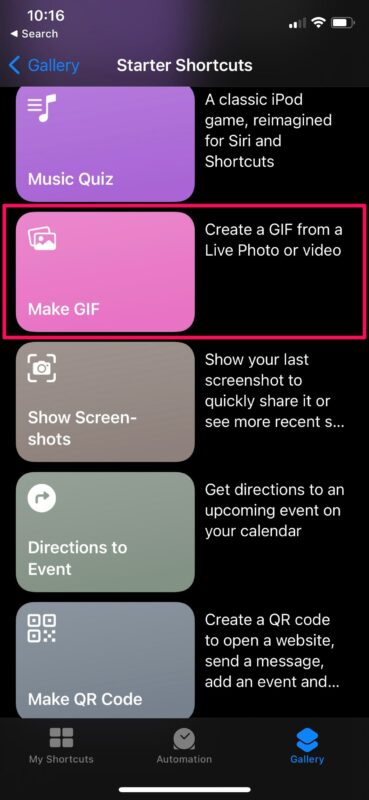
- Now, scroll down and tap on the “Make GIF” shortcut, as shown in the screenshot below.
- Next, tap “Add Shortcut” to install this shortcut and add it to the My Shortcuts section.
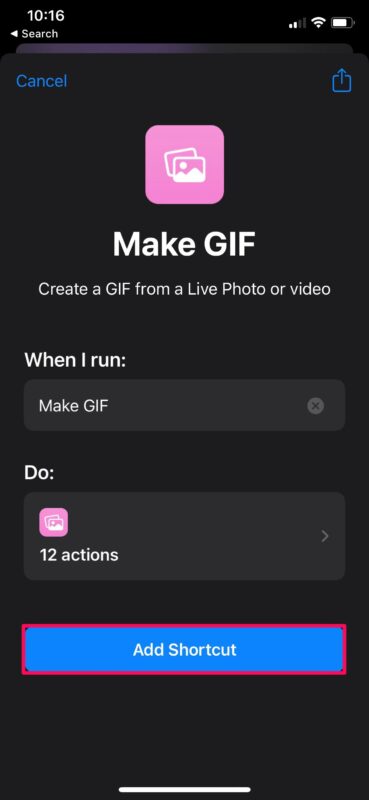
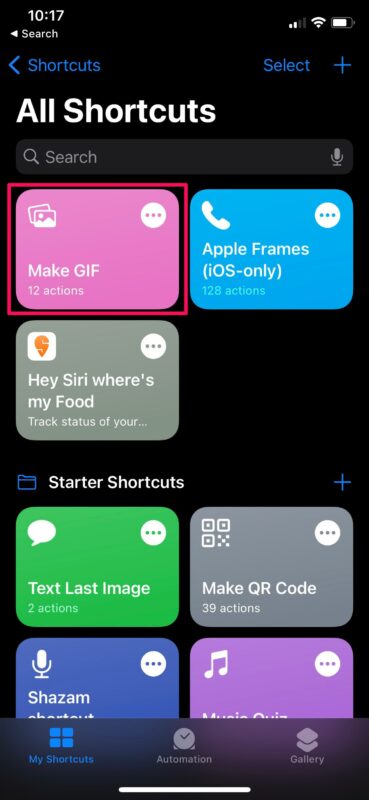
- Once installed, head to the My Shortcuts section and tap on the “Make GIF” shortcut to start using it.
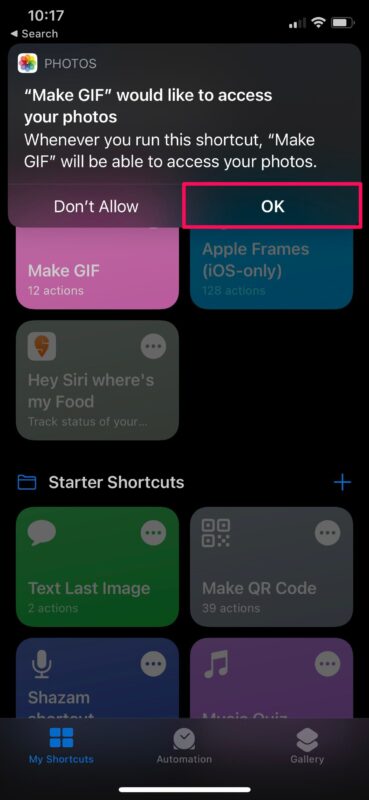
- The shortcut will now ask for permission from the Photos app. Tap “OK” to continue.
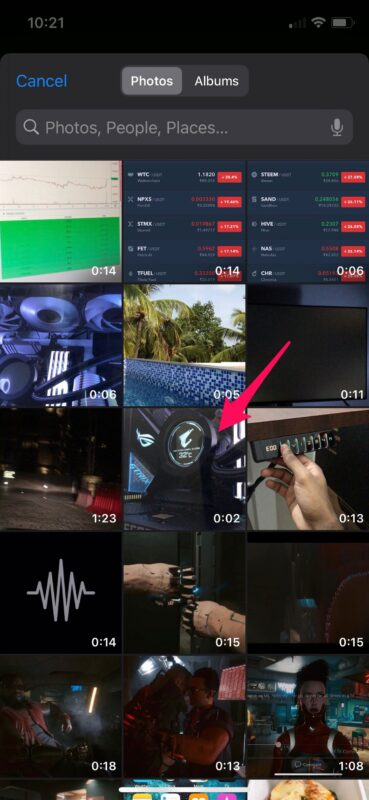
- Once you've done this, you'll be shown all the videos in your Photos library. Select the video you want to make a GIF from.
- Now, you can use the sliders to crop the part of the video you want to create the GIF from. Once you've made your selection, tap "Save."
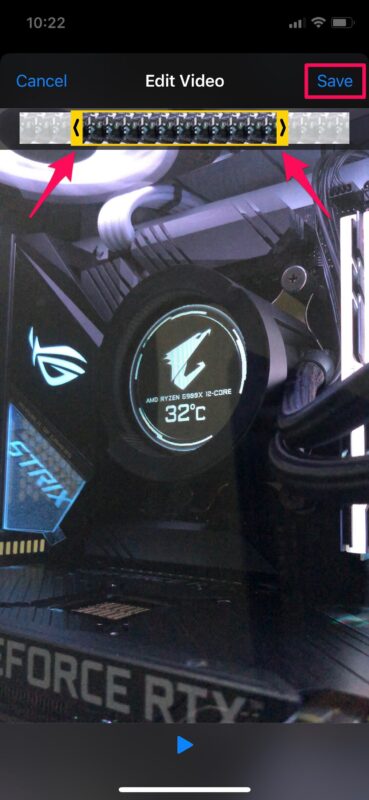
- The GIF will now be saved to the Photos app on your iPhone. You can see the preview of the GIF within the Shortcuts app itself. Tap “Done” to exit.
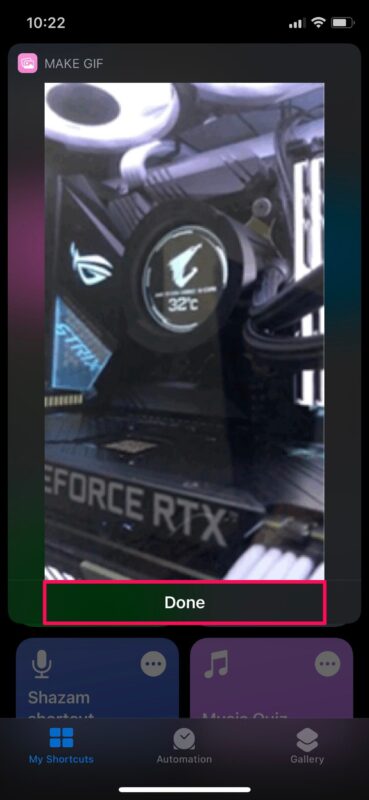
That's it! You've successfully made a GIF from a video stored on your iPhone and iPad.
We would like to inform you that this particular shortcut can not only be used to convert videos into GIFs, but also to make GIFs from Live Photos that you have captured with your iPhone or iPad camera. That's right, unlike Live Photos that require you to tap on them to play, you can turn them into a GIF that plays automatically even on non-Apple devices.
One particular thing to note here is that this shortcut is available in Apple’s Shortcut Gallery, which means that this is a trusted shortcut. You are not forced to install untrusted third-party shortcuts on your device just because you want a feature that is not natively available in the operating system.
This is just one of the many cool tools that the Shortcuts app gives you access to. There is also another shortcut available in the gallery called “Burst to GIF” which, as the name suggests, turns burst photos into GIFs. If you are interested in using it, you can learn more about it here.
We hope you have been able to make plenty of GIFs from the videos stored on your iPhone and iPad without facing any issues. How often do you find this particular shortcut useful? Would you prefer to use a third-party app instead? Feel free to share your personal thoughts and opinions in the comments section below.

My name is Javier Chirinos and I am passionate about technology. Ever since I can remember, I have been interested in computers and video games, and that passion has turned into a job.
I have been publishing about technology and gadgets on the Internet for over 15 years, especially in mundobytes.com
I am also an expert in online marketing and communication and have knowledge in WordPress development.